AI-Powered Recruitment with greytHR NAVOS
Updated in April - 2026 | Subscribe to watch greytHR how-to video
Recruiters using greytHR Recruit today build Job Descriptions and recruitment emails manually. This results in inconsistent tone and quality across communications, significant time spent on low-value drafting, and limited personalization in candidate outreach. As hiring volumes grow, manually drafting these assets becomes time-consuming and difficult to standardize.
To address this, greytHR Recruit introduces AI-powered content generation through greytHR NAVOS. This feature enables recruiters to instantly create job descriptions, email templates, and personalized candidate communication directly within the recruitment workflow. It saves time, brings consistency to candidate communication, and keeps greytHR Recruit on par with other leading ATS platforms.
Fill job details with greytHR NAVOS
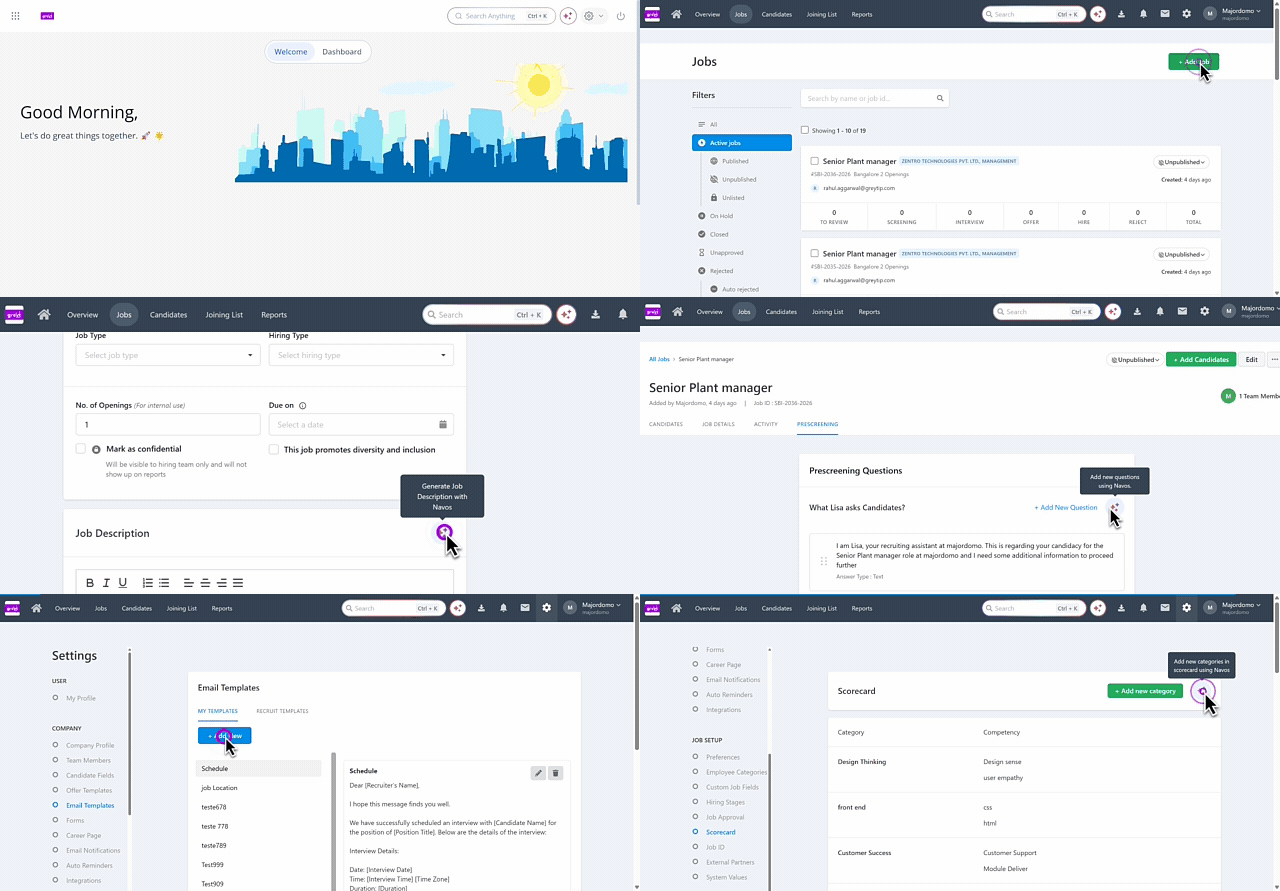
To fill the job details with greytHR NAVOS, from the greytHR Admin portal, hover over the 9 dots and select Recruitment > Jobs > + Add Job.
Click on the greytHR NAVOS ✨icon. A pop-up appears.
Mention the required information, such as the Job Title, Department, Location, CTC details and other details as needed.
The AI will auto-fill all the fields based on the information provided.
Create job description with greytHR NAVOS
To create an AI driven job description with greytHR NAVOS, from the greytHR Admin portal, hover over the 9 dots and select Recruitment > Jobs > + Add Jobs.
Under the Basic Information tab, scroll down to the Job Description section.
Click on the greytHR NAVOS ✨icon. If the job details are already filled, the AI will take the available information and create the job description.
If you want to change the content, click Regenerate.
Add new categories in the scorecard at global level
To add new categories in the scorecard at a global level, from the greytHR Admin portal, hover over the 9 dots and select Recruitment > Settings.
Under the JOB SETUP section, click Scorecard.
Click on the greytHR NAVOS ✨icon. Mention the required category. The AI will create the new category with the necessary competencies.
Click + Add new category.
Copy and paste the categories and competencies accordingly and click Save.
Create Prescreening questions
To create Prescreening questions for a job, from the greytHR Admin portal, hover over the 9 dots and select Recruitment > Jobs.


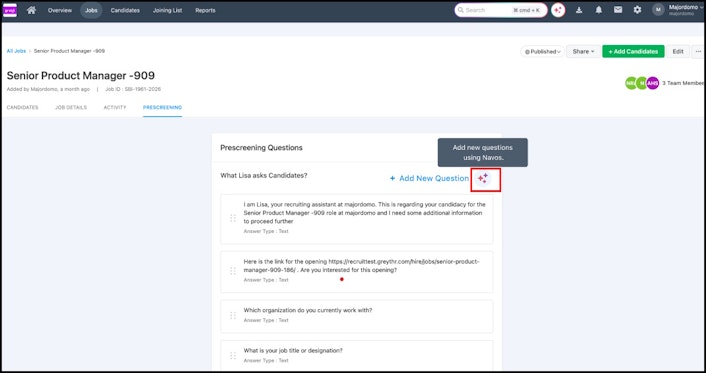
Open a job and click on the Prescreening tab.
Click on the greytHR NAVOS ✨icon and a list of questions will be created by the AI.
Click + Add New Question.
Copy and paste the question from the chatbot screen under the Question text box.
Select the Answer Type and Question Type and click Add.
Create emails for candidates
To create emails for a candidate, from the greytHR Admin portal, hover over the 9 dots and select Recruitment > Candidates.


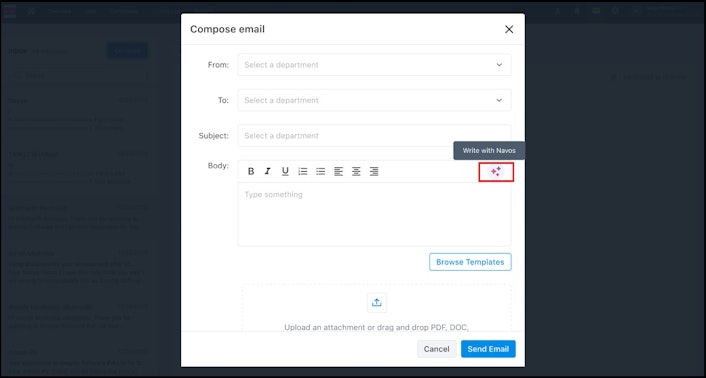
Choose a candidate and click on the mail icon.
Fill in the required information such as From, To and Subject.
For the email body, click on the greytHR NAVOS ✨icon and the AI will generate the email template.
Copy and paste the email template in the Body and make the required changes.
Upload an attachment if needed and click Send email.
Create new email templates
To create new email templates, from the greytHR Admin portal, hover over the 9 dots and select Recruitment > Settings.


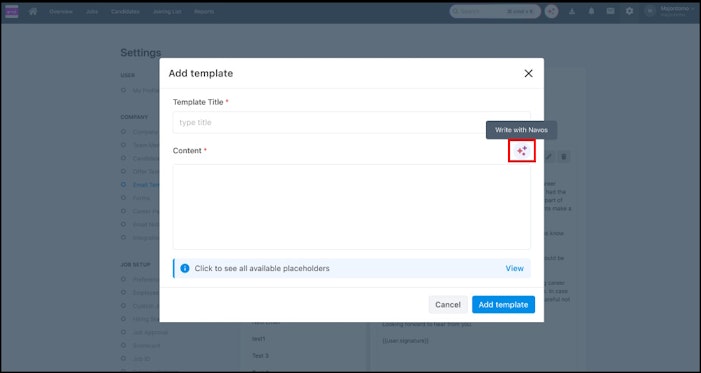
Under the COMPANY section, click Email Templates.
Click + Add New and enter the Template Title.
Click on the greytHR NAVOS ✨icon and the email template will be generated.
Copy and paste the template in the Content section.
Click Add Template.
Related articles: