Deliver JV Files to Your Finance Software Through SFTP with greytHR
Updated in September - 2026 | Subscribe to watch greytHR how-to video
After payroll is processed, the finance team needs the Journal Voucher (JV) entries in their accounting system. Instead of sharing the JV file manually, a payroll admin can upload it from greytHR, and greytHR delivers it to your organization's SFTP (Secure File Transfer Protocol) location. Your finance software, such as NetSuite, SAP, Workday Finance, can then pick up the file from there.
Note: greytHR generates the Journal Voucher (JV) file and delivers it to your designated Secure File Transfer Protocol (SFTP) location. Importing the file into your finance software is the customer's responsibility.
Prerequisites:
The SFTP location must be owned and managed by your organization. greytHR does not provide the SFTP server.
Payroll must be processed and locked for the month. The JV file can't be generated until payroll is locked.
The SFTP location and notification setup must be configured by the greytHR implementation team. Contact them to get started.
Admin users must enable the JV upload permission (Step 1). After that, users can upload the JV file to the designated SFTP server (Step 2).
Step 1: Enable the JV upload permission (Super Admin)
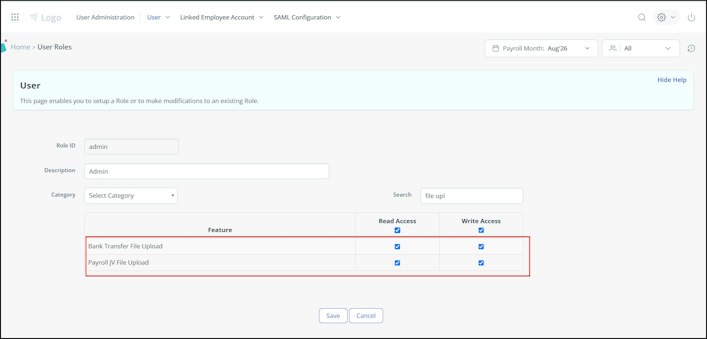
From the greytHR Admin portal, go to the Settings icon > User Administration > User > User Roles. The User Roles page opens with a list of roles.
Select the Majordomo (Super Admin) user card and click the Edit icon available on the card. A form appears.
In the Search tab add File upload. The features such as Bank Transfer File Upload and Payroll JV File Upload appear.
Select the Read Access and Write Access checkboxes for both the features.
Click Save to update the changes.


Step 2: Generate and upload the JV file
From the greytHR Admin portal, hover over the 9 dots and go to Payroll > Payout > Accounts JV.
Generate the JV file and click Export to check it.
Click Upload JV.
Once the Journal Voucher (JV) file is uploaded to the Secure File Transfer Protocol (SFTP) location, a notification is generated automatically. No manual action is required to initiate it.
Step 3: Load the file in your finance software
Your finance software (for example, NetSuite, SAP, or Workday Financial Management) retrieves the Journal Voucher (JV) file from the Secure File Transfer Protocol (SFTP) location. The retrieval and import steps depend on your configuration and fall outside the scope of greytHR.
If the transfer fails
Generate the file again and re-upload it from the payroll screen. If it keeps failing, please contact greytHR support.
Related Article:
Generate Journal Voucher with greytHR for Accurate Payroll