Efficiently Create Employee Shifts with greytHR Tools
Updated in May - 2026 | Subscribe to watch greytHR how-to video
Creating a shift means setting up a fixed work schedule with start and end times, breaks, and specific rules for employees to follow.
On the Shift page of the greytHR Admin portal, you can create and manage regular as well as split shifts for your employees. It shows all the existing shifts with their codes, names, colors, and timings.
You can also edit or delete shifts as needed. If your organization has multiple shifts, you can easily rearrange their order by dragging and dropping them, and this order reflects throughout the application.
To view the Shift page, navigate to the Settings icon > System Settings > Attendance > Shift.
You can perform the following actions on the Shift page:
Create a regular shift.
Create a split shift.
Create a regular shift
To create a regular shift, from the greytHR Admin portal, go to Settings > System Settings > Attendance > Shift.
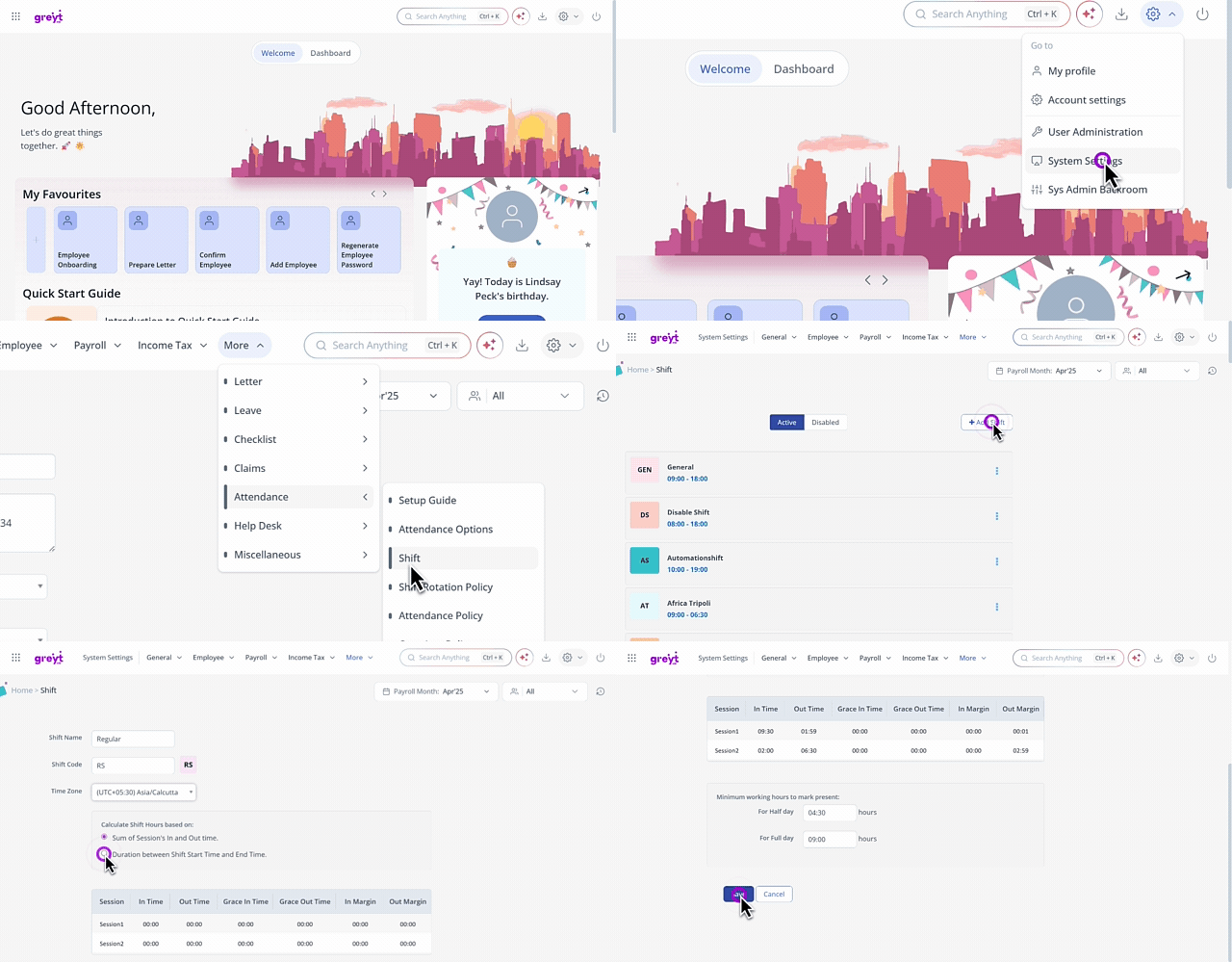
On the Shift page, click + Add Shift. The page displays details to create a new shift.
In the Shift Name text box, enter the name of the shift.
In the Shift Code text box, enter the required shift code.
From the Time Zone dropdown list, select the required time zone.
Note: If your employees are located in a different time zone then you must enable the Consider Time Zone From Shift For Time Processing option from the Advanced Options page to process attendance as per the employees’ shift time zone to avoid miscalculations of timings.Deselect the Split Shift checkbox if you do not want to create a split shift.
Note: This option will be available only if the split shift functionality is enabled.
From the Calculate Shift Hours based on: card, select the required option.
In the Session card, enter the Session 1 and Session 2 details such as In Time, Out Time, Grace In Time, Grace Out Time, In Margin, and Out Margin.
In the Minimum hours worked to be considered as present: card, enter the minimum hours in the For Half Day and For Full Day.
Click Save. A success message appears.
Create a split shift
To create a split shift, from the greytHR Admin portal, go to Settings > System Settings > Attendance > Shift.
On the Shift page, click + Add Shift. The page displays details to create a new shift.
In the Shift Name text box, enter the name of the shift.
In the Shift Code text box, enter the required shift code.
Note: Shift code is used in all the attendance and shift pages as a legend for the shifts you create.
From the Time Zone dropdown list, select the required time zone.
Select the Split Shift checkbox to enable split shift.
Note: This option will be available only if the split shift functionality is enabled.
In the Sessions table, double-click each cell to enter the In Time, Out Time, Grace In Time, Grace Out Time, In Margin, Out Margin, and Min Hrs to mark present for Session 1 and Session 2.
You can only configure two sessions with different durations for each session. However, the min gap between two sessions must be 2 hours.
Note:
In Margin & Out Margin: In Margin is the extra time before a shift starts when swipes are considered. If a shift starts at 9 am with a 4-hour in-margin, the system will include swipes recorded from 5 am onwards. Out Margin is the extra time after a shift ends when swipes are still considered. For instance, if a shift ends at 5 pm with a 2-hour out-margin, the system will include swipes recorded until 7 pm for attendance calculation.
Grace In Time & Grace Out Time: Grace In Time refers to the allowed duration of time for employees to arrive late or leave early. Grace Out Time is the duration during which employees are allowed to leave work after their scheduled shift has ended without facing any penalties for being late.
In Time & Out Time: In Time refers to the allowed time for employees to arrive for both the sessions. Out Time refers to the allowed time for employees to leave after both the sessions.
Min Hrs to mark present: It is the minimum number of hours that an employee needs to work to be considered as present. If the employee works for less than the minimum number of hours, they might be marked as absent for that shift.
Click Save to create the split shift.
After enabling and creating a split shift, the next step towards configuring a split shift is updating the shift rotation policy with split shift details.
Note:
You can also edit/delete the existing shifts by clicking the Edit/Delete icon available on each shift card.
You can only delete a shift that is not linked to an attendance scheme.
Related articles: