Configure Employee Leave Rules with greytHR for HR Admins
Updated in March- 2026 | Subscribe to watch greytHR how-to video
Configuring leave rules for your employees refers to the process of setting up and defining the specific rules and policies that govern employee leave within a system or software. It involves establishing parameters and guidelines for various aspects of leave, such as entitlements, accruals, eligibility criteria, approval workflows, and other rules that dictate how employees can request and use their leave.
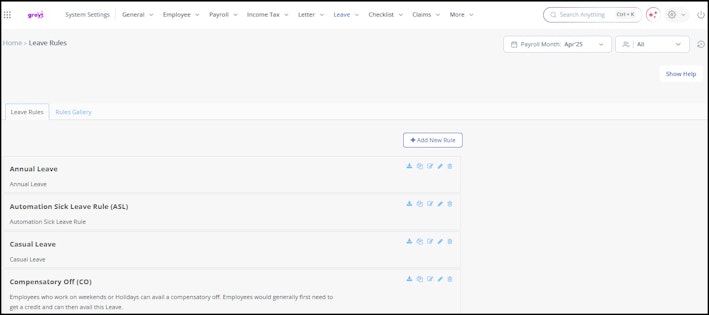
The Leave Rules page in the greytHR Admin portal allows you to configure various leave rules as per your requirements. The page explains the rules applicable to all the leave workflow types. These types can be leave apply, encashment, and/or grant. You can configure individual rules for each Leave Type. Whenever an employee/user performs a leave transaction, the system automatically applies the rules defined by you.


Configure custom field option
The custom field option enables employees to opt for a salary advance while applying for leave. To configure the custom field option, from the greytHR Admin portal, go to the Settings icon > System Settings > Leave > Leave Rules.
On the Leave Rules page, under the Leave Rules tab, select a required leave type card, for example - Sick Leave.
Click the Edit icon on the selected leave type card. A form appears.
Click the ▼ arrow. A dropdown list appears.
Select the Workflow Settings option. A form appears.
From the Add custom field in the Apply Leave section (Yes/No) option, select Yes.
In the Title of the field text box, enter a relevant title.
In the Description of the field text box, enter a relevant description.
Note: From the Allow reviewers to change the employee selection option, select Yes if you wish to allow the managers to override the employee’s selection.Click Finish to update the changes.
Configure stand-in user option
The stand-in user option enables the employees to appoint a backup for work in their absence.
On the Leave Rules page, under the Leave Rules tab, select a required leave type card, for example - Sick Leave.
Click the Edit icon on the selected leave type card. A form appears.
Click the ▼ arrow. A dropdown list appears.
Select the Workflow Settings option. A form appears.
From the Allow Employees to select a Stand-in Employee when applying for leave option, select Yes.
Note: From the Allow Managers to change Stand-in Employees option, select Yes if you wish to allow the managers to override the employee’s selection.
Click Finish to update the changes. A success message appears.
Configure comp off eligibility hours
On the Leave Rules page, under the Leave Rules tab, select a Compensatory Off (CO) leave card and click the Edit icon. A form appears.
Select Consider Attendance Excess hours from the OT policy option using the check box.
Click Finish to update the changes. A success message appears.
Once you enable the Consider Attendance Excess hours from OT policy option, you can define the comp off eligibility hours from the Overtime Policy page.
Note: Once you select the Consider Attendance Excess hours from OT policy option, the Allow employees to apply for grant if their attendance status is and Attendance excess hours required for full day grant option gets disabled.
Configure OT and Comp Off Grant Rules
The OT and Comp Off Grant Rules enable you to define how employees can apply for overtime pay or compensatory off for their excess hours. You can also configure a restriction to ensure employees submit only one request — either OT or Comp Off — for a given attendance date.
On the Leave Rules page, under the Leave Rules tab, select a Compensatory Off (CO) leave card and click the Edit icon. The Grant Settings page opens.
Select the Allow employees to apply for additional leave grant (for compensatory off) option using the checkbox.
Select the Check Grant Rules While Applying checkbox. Selecting this option initiates an automated check to verify if employees have previously submitted applications for overtime.
Select the Allow employees to apply for grant if their attendance status is: checkbox, and mention the days.
Select the Consider Attendance Excess Hours from OT Policy checkbox.
Select the Restrict applying for OT and Comp Off Grant on the same attendance date checkbox to ensure employees can apply only one request (either OT or Comp Off) for a given attendance date. Enabling this option automatically disables the Consider Attendance Excess Hours from OT Policy checkbox.
Click Finish to update the changes.
Note: When the Restrict applying for OT and Comp Off Grant on the same attendance date option is enabled, the Consider Attendance Excess Hours from OT Policy setting is automatically disabled by the system. If an attempt is made to apply for both, the system displays the message:You can apply either OT or Comp Off grant for the same day, not both.
Set eligibility criteria for Leave Types
You can now configure age-based eligibility rules for any leave type to ensure that only eligible employees can apply for the leave.
To configure the eligibility criteria, from the greytHR Admin portal, go to the Settings icon > System Settings > Leave > Leave Rules.
On the Leave Rules page, select any leave type card.
Click the Edit icon on the selected leave type card. A form appears.
Click the ▼ arrow to expand the configuration options.
Select Eligibility Criteria.
Select Applicable for age between: [ ___min ] and [ ___max ] years, and mention the age.
Click Finish to update and save the settings.
Note: If an employee does not meet the age eligibility criteria while applying for Leave, the error message Employee does not meet the age eligibility criteria for this leave type (Allowed: 18–52 years) will display.
Configure auto end-date for Maternity Leave
This option allows admins to configure automatic end-date calculation for Maternity Leave, based on the statutory duration of 182 calendar days.
To configure this option, from the greytHR Admin portal, go to Settings icon > System Settings > Leave > Leave Rules.
On the Leave Rules page, under the Leave Rules tab, select the Maternity Leave card.
Click the Edit icon on the selected leave type card.
Click the ▼ arrow to expand the configuration options.
Select the Limits for Availing Leaves option.
Enable the No radio button for the option allow leave to be taken in excess of eligibility to auto-calculate leave end date based on leave duration of 182 days.
Click the ▼ arrow and select Workflow Settings option.
From the Application to be submitted in advance at least before option, add the relevant days.
Configure cross–leave year application rules, if applicable: Allow leave application for next year's leave before: ……………days ahead of new year.
Click Finish to save the changes.
Once enabled, the system automatically calculates the To date for maternity leave on the ESS Apply Leave page, applies remaining eligible balance where applicable, and enforces leave-year rules during submission.
Configure leave grant based on the attendance cycle
This option allows admins to align leave grants with each employee's assigned attendance cycle, rather than the default calendar month. This is useful when your organisation follows multiple attendance cycles — for example, some employees on a 26th–25th cycle and others on the standard 1st–31st calendar month cycle.
This option is visible only when:
"Grant based on Previous Year Work Days" is selected for the leave type, and
The Attendance module is enabled for your organisation.
Note: The labels within this feature adjust dynamically based on the Leave Granting Frequency configured for the leave type. For example, if the frequency is set to monthly, the option displays as "Grant based on previous month work days"; if set to annually, it displays as "Grant based on previous year work days".
From the greytHR Admin portal, go to Settings > System Settings > Leave > Leave Rules.
On the Leave Rules page, under the Leave Rules tab, select the relevant leave type card (for example, Privilege Leave).
Click the Edit icon on the selected leave type card. A form appears.
Click the ▼ arrow to expand the configuration options.
Select Grant Settings.
Select the checkbox Grant based on previous year work days. The Show Grant Period Days and Grant Leave based on dropdowns appear.
From the Show Grant Period Days dropdown, select one of the following:
Current Month – Displays the grant period days for the current month.
Previous Month – Displays the grant period days for the previous month.
From the Grant Leave based on dropdown, select one of the following:
Calendar Month – Grant is calculated based on the 1st to 31st of the previous month. This is the default.
Attendance Cycle – Grant is calculated based on each employee's assigned attendance cycle (for example, 26-Nov to 25-Dec for employees on the 26th–25th cycle).
Under the Define the days to be granted specify the date range (From and To) and the number of days to be granted.
Click Finish to save the changes.
Once enabled, the system automatically identifies each employee's attendance cycle during the auto leave grant run and applies the correct calculation window accordingly.
Note: This setting applies to future grant runs only. Grants already processed under the previous configuration will not be recalculated retroactively.
Related Articles: