Discover Payroll Insights Effortlessly with greytHR PRO
Updated in April - 2025 | Subscribe to watch greytHR how-to video
Payroll processing involves managing employee salary calculations, tax deductions, and statutory compliance on behalf of client companies. It ensures that employees are paid accurately and on time while meeting all legal and regulatory requirements.
greytHR PRO introduces the Payroll overview dashboard, providing you, as a payroll processor, a single platform to view the payroll activities across multiple clients, eliminating the need to log in to each account and gather data manually.
What is the Payroll overview dashboard in greytHR PRO?
greytHR PRO simplifies Payroll processing with its centralized Payroll Dashboard Overview page that:
Consolidates payroll data from all client accounts into a single interface.
Allows access to data across multiple clients by eliminating repeated logins.
Enables payroll processors to:
Track input status, payroll lock, payslip, and IT release at a glance.
Monitor total employee count per client.
Stay on top of pending actions easily and quickly.
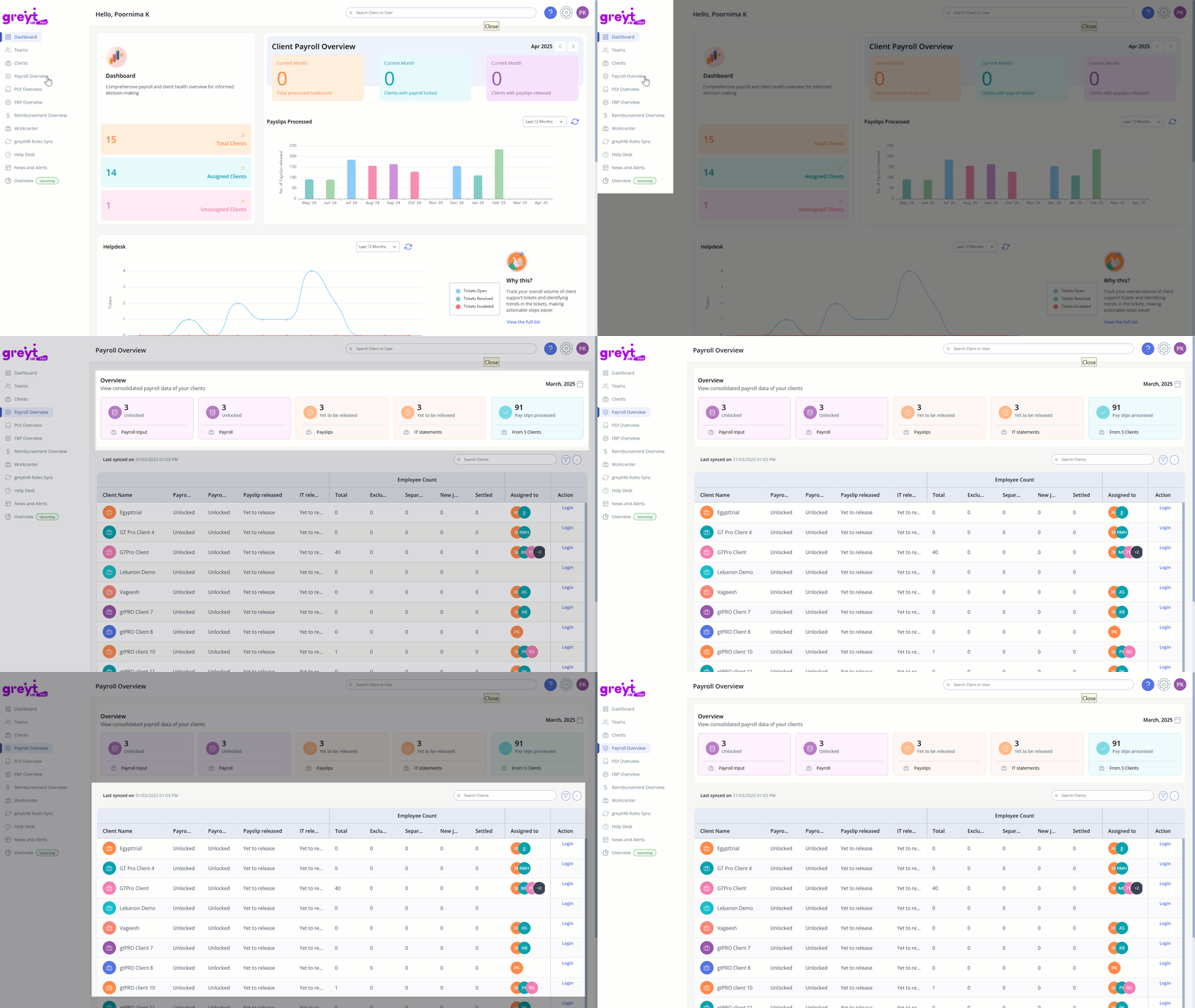
How to manage payroll activities in greytHR PRO?
Log in to your greytHR PRO account and click on the Payroll Overview page. You can avail the following functionalities and features on this page:
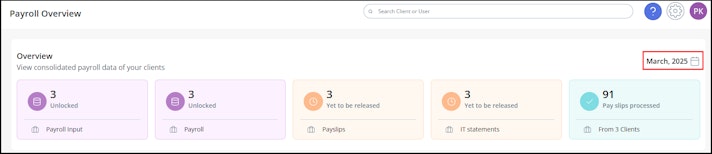
Payroll month selection: You can select the required payroll month to view the client's Payroll details.


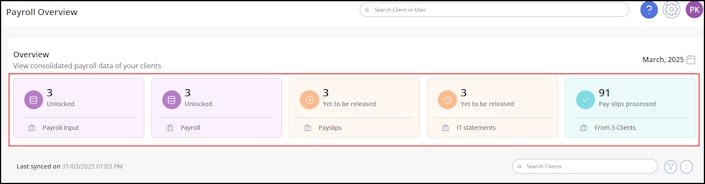
Consolidated Payroll dashboard: View payroll details across all client accounts using the overview cards or the detailed table.


Client Payroll status: The Payroll status of multiple clients is classified into the following categories:
Payroll Input
Payroll Locked
Pay slip released
IT Statement released


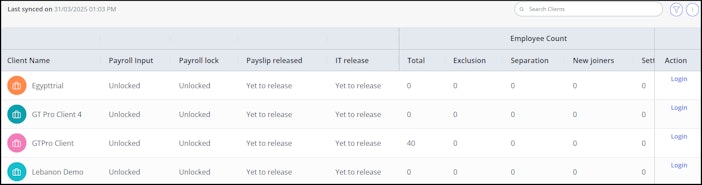
Employee Count tab: Tracks the overall employee count for each payroll category status, including:
Total headcount
New joiners
Separations
Exclusions
Settled employees
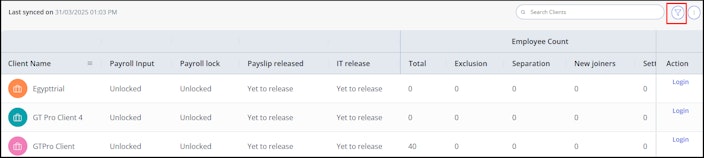
Filter by Assigned Users: Use the Filter by option to filter client accounts based on assigned users.


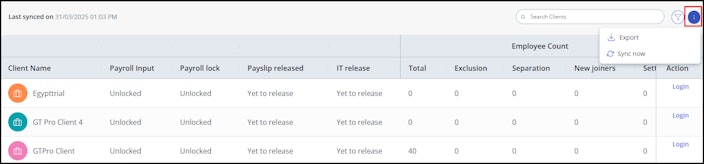
Export Payroll Details: Click the Kebab icon (three dots) to export payroll details for the selected clients. The data is exported in .csv format, making it easy to view, share, or analyze.
Sync Payroll Details: Click the same icon to manually sync payroll details and ensure you’re viewing the most updated information.
Note: Data is synced automatically, but you can trigger a manual sync anytime. The last sync timestamp is displayed above the table.


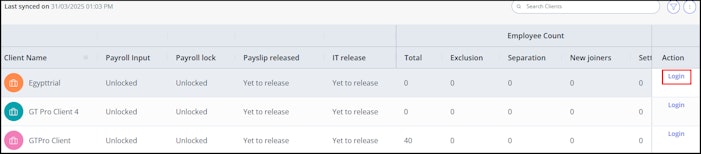
Direct client account login: Log in directly to specific client accounts by clicking the Login option.


Other related links: