Easily Track Employee Reimbursements Using greytHR PRO
Updated in April - 2025 | Subscribe to watch greytHR how-to video
Reimbursement refers to repaying employees for business-related expenses like travel or meals. Payroll processors need to validate the claims, ensure they follow company policy, and process the payout without applying taxes.
greytHR PRO now includes the Reimbursements overview dashboard, giving you, as a payroll processor, a single view of all reimbursement activities across multiple accounts. It saves time by removing the need to log in to each account and gather data manually.
What is the Reimbursements overview dashboard in greytHR PRO?
The Reimbursements Overview Dashboard in greytHR PRO is a centralized view that helps payroll processors to:
Instantly access each client’s reimbursement details.
View consolidated reimbursement data from all client accounts in one place.
Avoid repeated logins by managing multiple clients from a single interface.
Track both active and completed reimbursement claims efficiently.


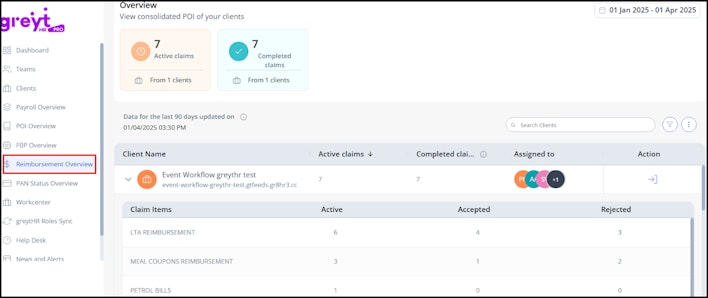
How to track employee reimbursement activities in greytHR PRO?
Log in to your greytHR PRO account and click on the Reimbursement Overview page. You can avail the following functionalities and features on this page:
Date range selection: You can select the required date range to view the client's reimbursement details.


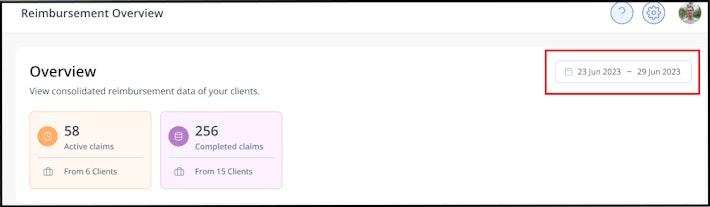
Consolidated Reimbursement dashboard: View reimbursement details across all client accounts using the summary cards or the detailed table.


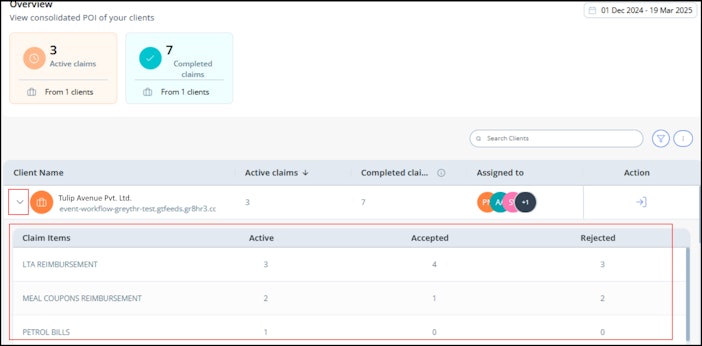
Client Reimbursement Status: The Reimbursement status of multiple clients is classified into the following categories:
Active Claims
Completed Claims
Click on the client name to view the acceptance and rejection count for reimbursement components such as:
LTA Reimbursement
Meal Coupons Reimbursement
Petrol Bills
Filter by Assigned Users: Use the Filter by option to filter client accounts based on assigned users.


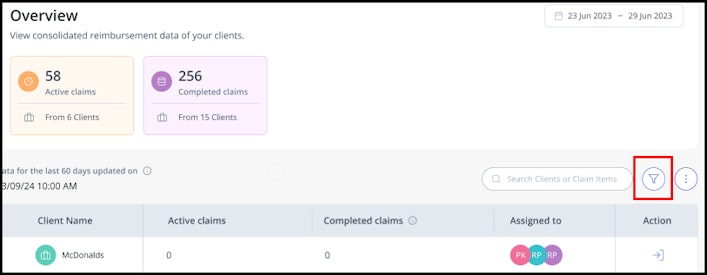
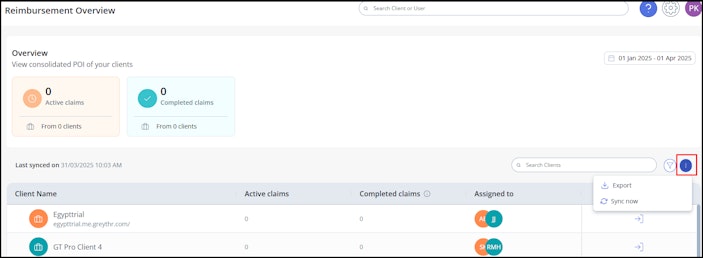
Export Reimbursement Details: Click the Kebab icon (three dots) to export reimbursement details for the selected clients. The data is exported in .csv format.
Sync Reimbursement Details: Click the same icon to manually sync reimbursement details and ensure you are viewing the most updated information.
Note: Data is synced automatically, but you can trigger a manual sync anytime. The last sync timestamp is displayed above the table.


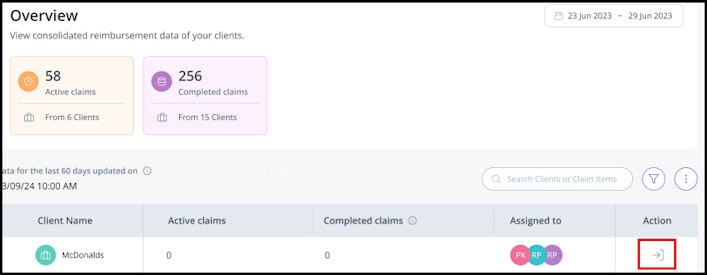
Direct client account login: Log in directly to specific client accounts by clicking the Login option.

Other related links: