Create and Manage Shift Rotation Policies in greytHR
Updated in May - 2026 | Subscribe to watch greytHR how-to video
A shift rotation policy is when employees are assigned to different work shifts in a regular cycle. Instead of always working the same shift, they switch between day, evening, and night shifts based on a set pattern. This is done to make sure resources are used well and employees are not overwhelmed.
The Shift Rotation Policy page in the greytHR Admin portal allows you to create a rotation policy for a regular as well as split shifts. You can also view and edit/delete the existing shift rotation policies on this page. When you create a shift on the Shift page, a shift rotation policy automatically appears on the Shift Rotation Policy page.
To view the Shift Rotation Policy page, navigate to the Settings icon > System Settings > Attendance > Shift Rotation Policy.
You can perform the following actions on the Shift Rotation Policy page:
Create a shift rotation policy for regular shift.
Update shift rotation policy with split shift details.
Create a shift rotation policy for regular shift
To create a shift rotation policy for regular shift, from the greytHR Admin portal, goto the Settings icon > System Settings > Attendance > Shift Rotation Policy.
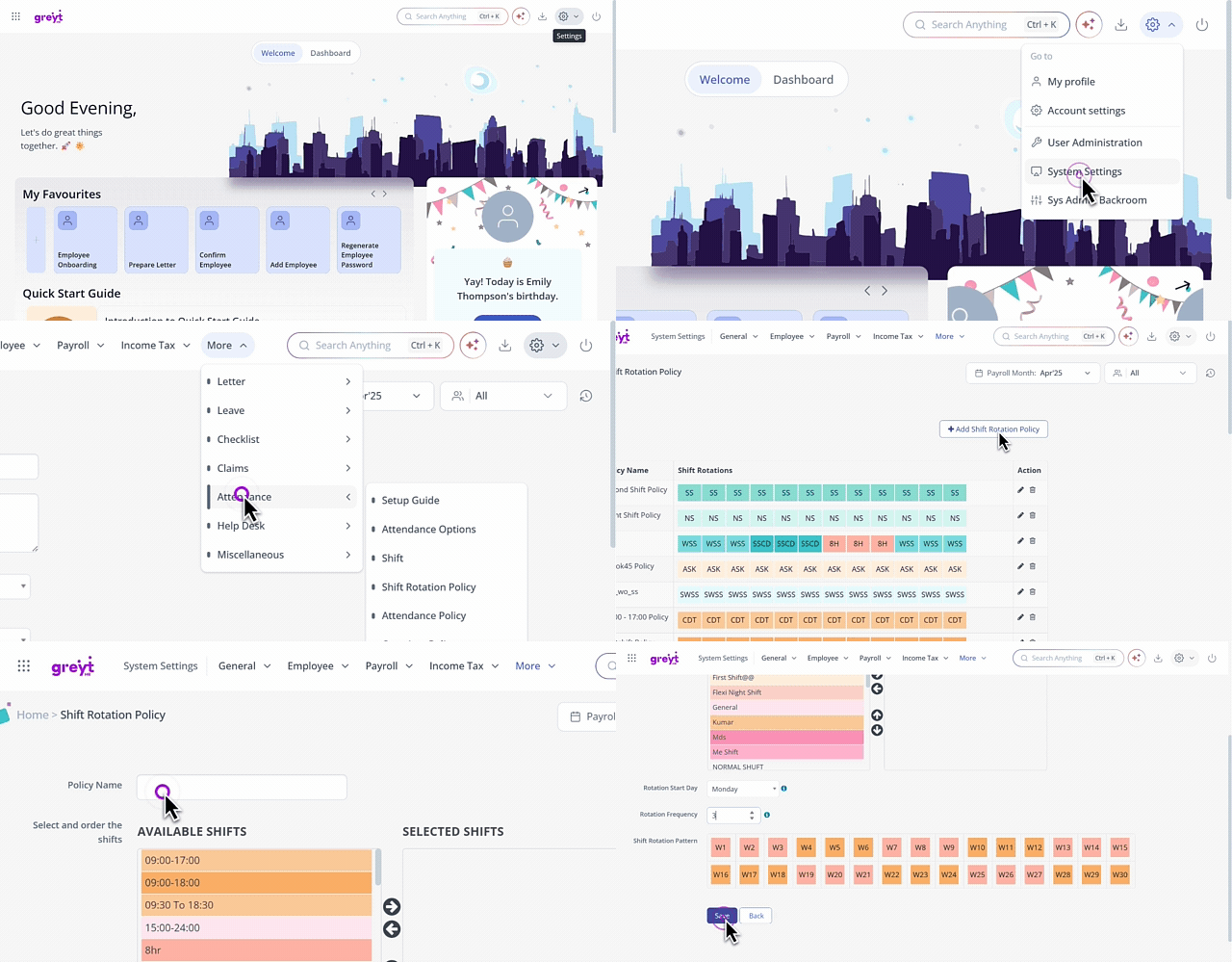
On the Shift Rotation Policy page, click + Add Shift Rotation Policy. The page displays the details to add the shift rotation policy.
In the Plan Name text box, enter the shift rotation policy name.
From the Select and order the shifts section enables you to shuffle the Available Shifts and Selected Shifts using the → and ← arrows.
Note: You can also double-click on a particular shift to move it and the ↑ and ↓ arrows help to sort the order of the Selected Shifts.From the Rotation Start Day dropdown list, select a day to start the next selected shift updated in the shift rotation policy.
From the Rotation Frequency spin box, select the number of weeks to repeat your shift rotation policy.
Note: You can choose a maximum of 4 weeks.The Shift Rotation Pattern section displays the pattern of your shifts based on the number of weeks chosen in the Rotation Frequency spin box.
Click Save. The new shift rotation policy appears on the Shift Rotation Policy page.
Update shift rotation policy with split shift details
To update the shift rotation policy with split shift details, perform the following actions:
From the greytHR Admin portal, navigate to the Settings icon > System Settings > Attendance > Shift Rotation Policy.
On the Shift Rotation Policy page, click + Add Shift Rotation Policy. A page opens.
In the Plan Name text box, enter Split Shift.
From the Select and order the shifts section, you can shuffle the Available Shifts and Selected Shifts using the → and ← arrows.
Note: You can also double-click on a particular shift to move it and the ↑ ↓ arrows help you to sort the order of the Selected Shifts.
From the Rotation Start Day dropdown list, select a day to start the next selected shift updated in the shift rotation policy.
From the Rotation Frequency spin box, select the number of weeks to repeat your shift rotation policy.
The Shift Rotation Pattern section displays the pattern of your shifts based on the number of weeks chosen in the Rotation Frequency spin box.
Click Save to create a new shift rotation policy.
After creating a split shift and updating the shift rotation policy with split shift details, the next step is to create attendance policy for split shift.
Related articles: