Enable or disable Split Shift in greytHR for Better Shift Management
Updated in May - 2026 | Subscribe to watch greytHR how-to video
Once attendance shifts are created in greytHR, as an admin, you may need to manage which shifts are available for day-to-day operations. This is especially useful when your organization uses seasonal or temporary shifts, that are required only for specific periods and not throughout the year.
Using the Enable/Disable Attendance Shifts feature, you can control the visibility of shifts without deleting them, ensuring cleaner shift lists and avoiding confusion during shift assignment.
From the Shift page, as an admin, you can:
View active and disabled attendance shifts
Disable an attendance shift
Activate disabled shifts when required
View active and disabled attendance shifts
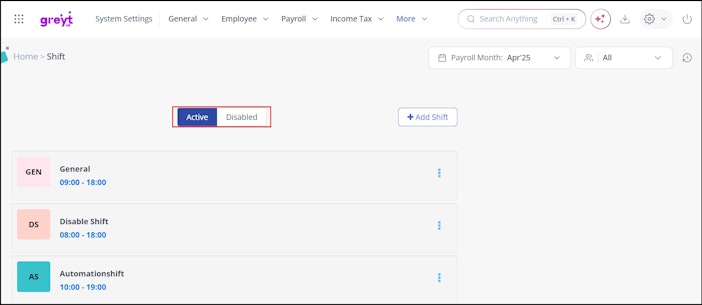
To view attendance shifts, from the greytHR Admin portal, go to Settings icon > System Settings > Attendance > Shift. The Shift page appears.
On the Shift page, you can view two tabs:
Active – Displays all enabled shifts (selected by default)
Disabled – Displays all disabled shifts
This tab-based view helps you clearly differentiate between shifts that are currently in use and those that are inactive.


Disable an attendance shift
You can disable shifts that are temporarily not required, such as seasonal or special-purpose shifts.
On the Shift page, click the Active tab.
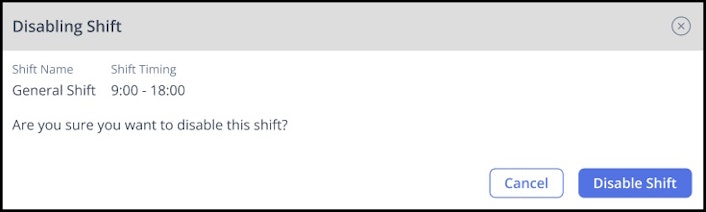
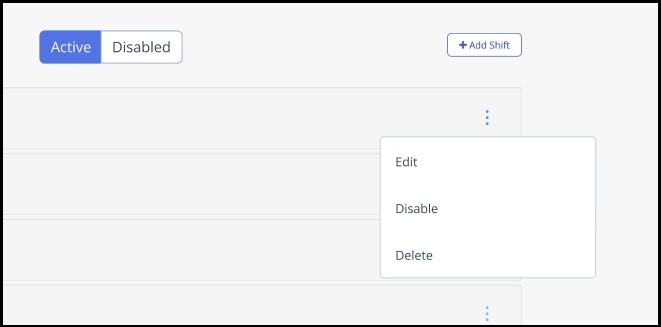
Select a shift you want to disable and click Disable. A pop-up appears displaying Shift Name and Shift Timing.
Select Disable Shift to confirm.


Note: You can Edit, Disable, and Delete any active shift.


Note:
When a shift has no dependencies—such as Shift Rotation Policy, Attendance Scheme, Employee Filter, or future-dated Shift Roster—the system allows the shift to be disabled successfully, and the shift is moved to the Disabled tab.
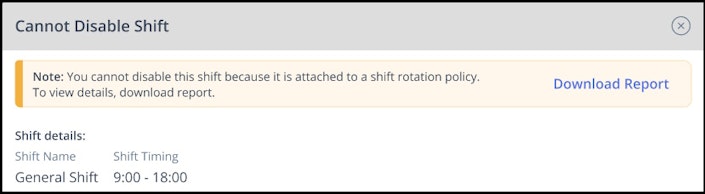
When the Shift has dependencies, then a shift linked to any policy or configuration, a Cannot Disable Shift message appears, clearly indicating that the shift is already attached to a policy. The system displays the shift details, including the shift name and timing, along with a structured list of dependencies grouped under Shift Rotation Policy, Attendance Scheme, and Employee Filter. In such cases, the shift cannot be disabled until all related dependencies are removed.
Restrictions on disabling a shift
You cannot disable an attendance shift in the following situations and an error message will be displayed.
The shift is assigned to one or more Shift Rotation Policies.


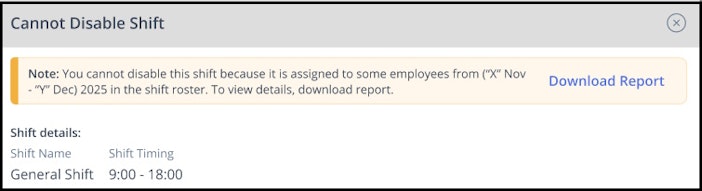
The shift is assigned to one or more employees in the Shift Roster for future dates.


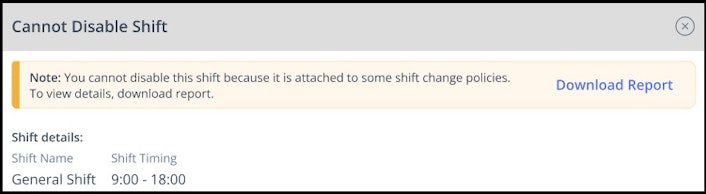
The shift is part of one or more Shift Change Policies.

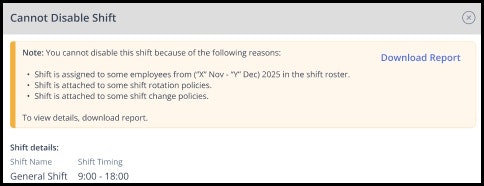
Any combination of the above situations applies.


Activate a disabled attendance shift
You can re-enable a previously disabled shift at any time.
On the Shift page, click the Disabled tab.
Select a shift you want to activate.
Select Activate.

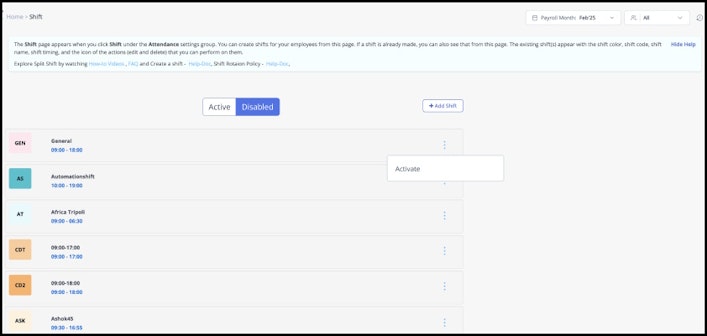
The shift is immediately moved back to the Active tab and becomes available for assignment.
Shift visibility in Attendance Info page
If an employee is assigned a shift that has been disabled:
An info icon appears next to the shift name in the Attendance Info page
Clicking the icon displays a Shift Details pop-up showing Shift Name, Shift Timing, and a note-This shift is currently disabled is displayed.
Shift selection while editing attendance
While editing attendance or changing shifts:
The Shift Type dropdown displays only active shifts
Disabled shifts are hidden and cannot be selected
This ensures that only valid and usable shifts are assigned to employees.
Additional Information
Disabled shifts are hidden from all assignment lists (Shift Roster, Override pages, Rotation Calendar, etc.)
Disabled shifts retain past records and do not impact past data.
A disabled shift can be reactivated anytime.
Only users with Admin role or appropriate permissions can enable or disable attendance shifts.
Related Article: