Easily Manage and Pay Invoices with greytHR
Updated in September- 2025 | Subscribe to watch greytHR how-to video
Managing account invoices across different regions often requires admins to use multiple, disconnected payment systems. This adds manual work, causes delays in reconciliation, and generates frequent support queries related to payment mismatches. As a result, tracking invoices, generating receipts, and maintaining accurate financial records becomes time-consuming and error-prone.
The payment gateway integration in greytHR with Stripe (for the Middle East) and Razorpay (for India) simplifies payment processing by bringing everything into one place.
Watch this video to know more about how to make payments for your account.
As an admin, you can manage all outstanding invoices directly from greytHR, process payments securely, and get automatic receipts with real-time updates on the Payments page — so you don’t have to track anything manually.
Make payments in greytHR
To make the payment for your account, from your greytHR Admin portal, go to Settings > Account Settings > Payments.
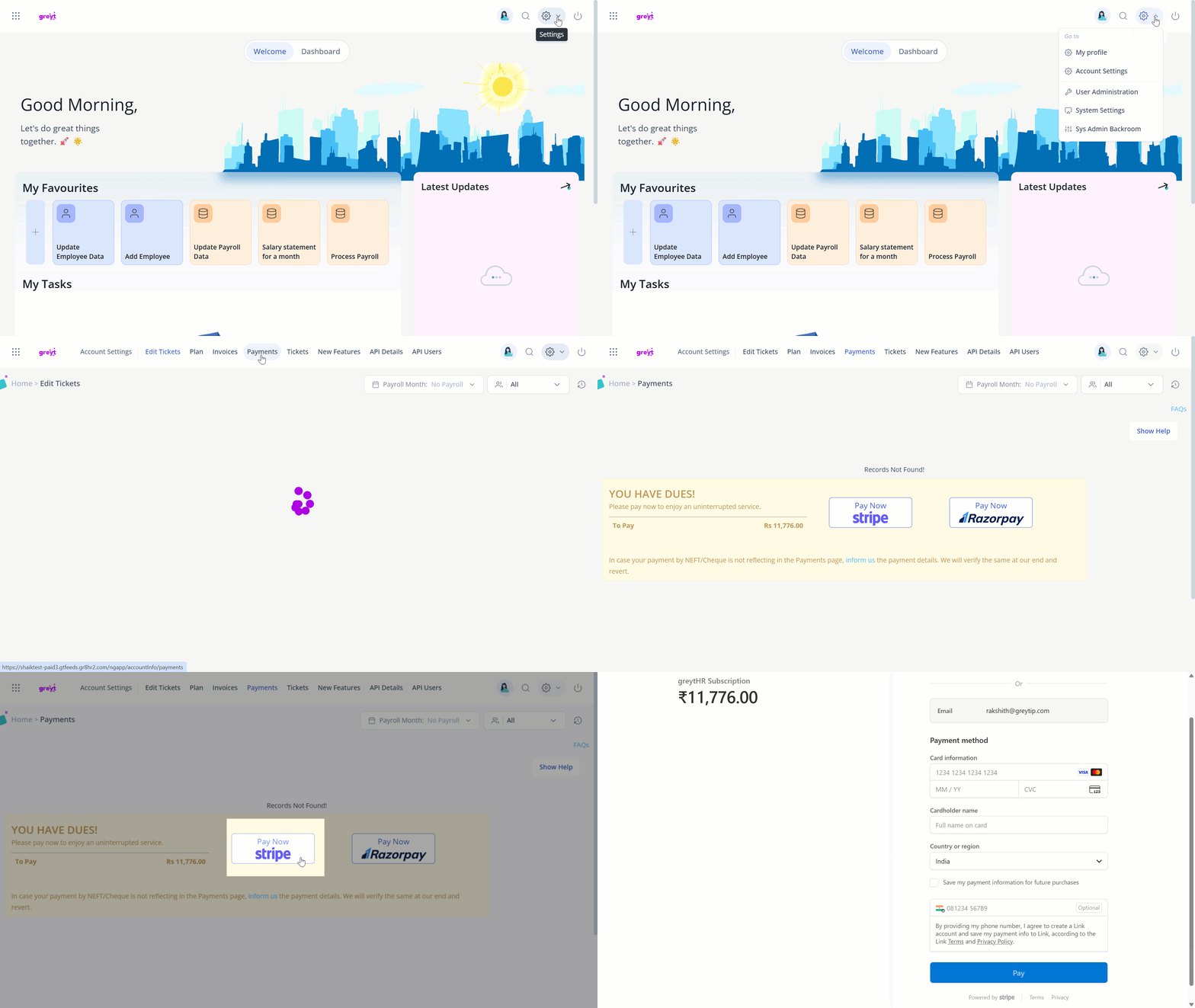
Click on Pay Now Stripe (for Middle East accounts) or Pay Now Razorpay (for Indian accounts) to proceed with the payment.
On the payment gateway page, the following details are pre-filled and non-editable:
Name
Email
Total amount due (sum of all outstanding invoices).
Note: If there are pending amounts for multiple months, the system will show the total amount, combining all pending months into one payment.
Under Payment Method, fill in the card details as required, select the country or region, and click on the Pay button. A confirmation message is displayed for the successful payment.
You can choose to save the payment method for future payments or purchases.
You can enter your phone number to create a Link account and securely save your payment details for faster checkouts in the future. This is optional.
Info:
Upon successful payment, the due amount is automatically updated on the Invoices page, and the invoices are marked as Paid.
Payment receipts (for one or multiple months) are generated and listed under the Payments page in the Account Settings section.
In case of a payment failure, Stripe manages the error handling, and an appropriate error message is displayed to the user.