Manage Employee Information with greytHR's Directory
Updated in May - 2026 | Subscribe to watch greytHR how-to video
Adding employee details to an employee or team directory involves capturing and maintaining employee information in a centralized system. This directory acts as a single repository, making it easy to access, search, and manage employee details whenever needed.
The redesigned Employee Directory page in the greytHR Admin portal allows you to view and maintain your employees' information details, such as your employees' contact details, designation, location, joining date, and date of birth.
Watch the video to learn more about Employee Directory page in greytHR.
View employee details
To view employee details in greytHR, follow the steps below:
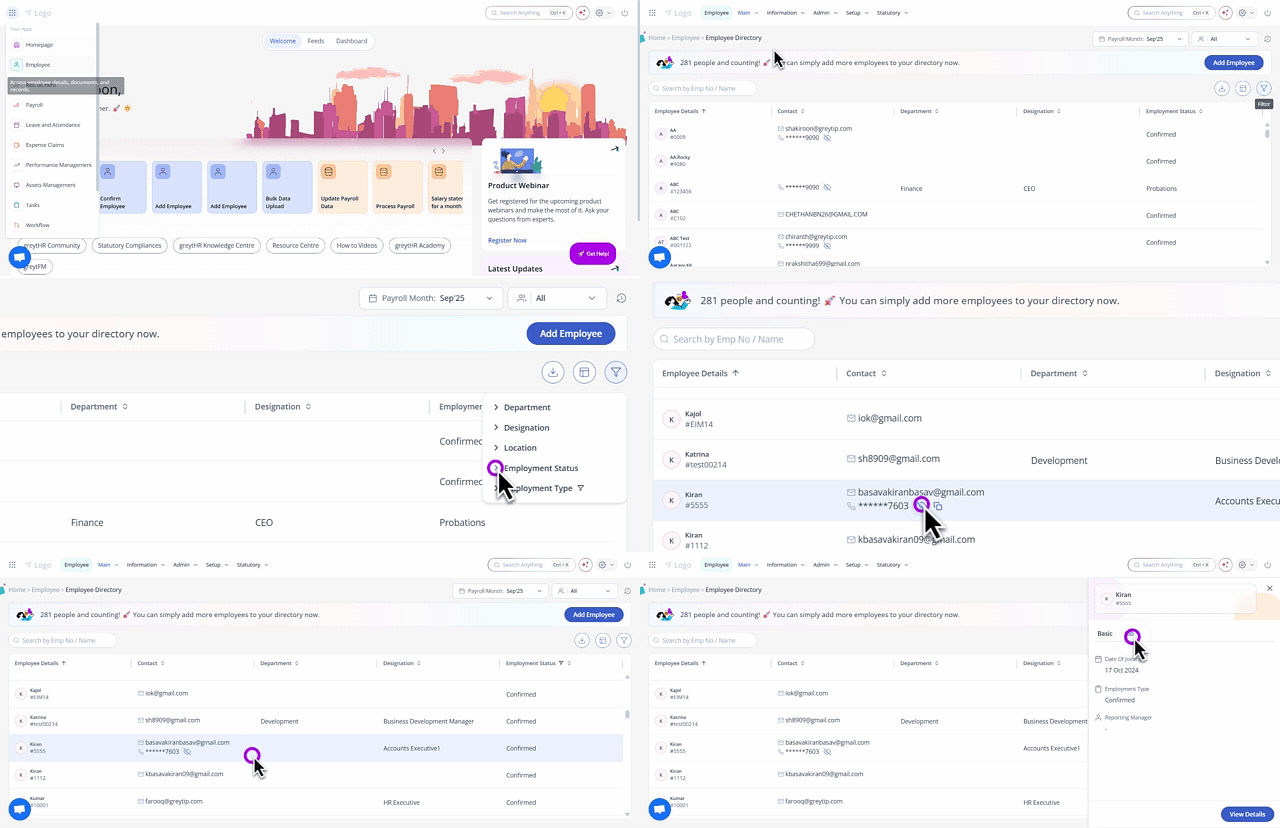
From the greytHR Admin portal, hover over the 9 dots and select
Employee > Main > Employee Directory.On the Employee Directory page, you can view key employee information at a glance.
Employee information and privacy
The contact number of an employee is hidden by default to comply with the Digital Personal Data Protection (DPDP) Act, 2023.
To view the contact number, click the eye icon.
You can copy an employee’s contact number or email ID and paste it into the search box to quickly locate their profile.
You can search for employees using name, employee number, or email ID to quickly locate their profile.
Viewing employee details
At the top of the page, you can see the total number of employees in your database.
To add a new employee, click Add Employee.
Click on an employee card to open a side panel with a consolidated view of their basic and job details.
Click View Details to see the employee’s complete profile.
Customizing the Employee Directory
You can rearrange columns by dragging and dropping them to customize the layout.
Use the Filter option to display specific employee data (for example, employees from a particular location). The filter icon displays the number of filters applied, helping you track active filters easily.
Use the Columns option to add more columns from the predefined available data fields.
You can resize columns (increase or decrease column width) and sort columns in ascending or descending order.
To download employee details, use the Export option to download the table in .xlsx format.
Related articles: