Configure Employee Number Series in greytHR for Efficient HR Management
Updated in October- 2025 | Subscribe to watch greytHR how-to video
Adding or editing employee number series in a software application typically involves configuring the format and sequence of employee identification numbers assigned to new employees. The organizations allot a unique ID or employee number to each of their employees when they add an employee to the database.
The Employee No Series page in the greytHR Admin portal allows you to set up and manage employee number series that are used to generate employee numbers. The numbers can be numeric and alpha-numeric.
You can allot different series for different employee categories, such as permanent employees, trainees, and contract employees. The application automatically increments the serial number each time a new employee joins the organization.
Note: Before adding/editing the employee number series, you need to first enable this feature from the User Roles page.
From your greytHR Admin portal, go to Settings > User Administration > User > User Roles.
Select the edit option for the admin role.
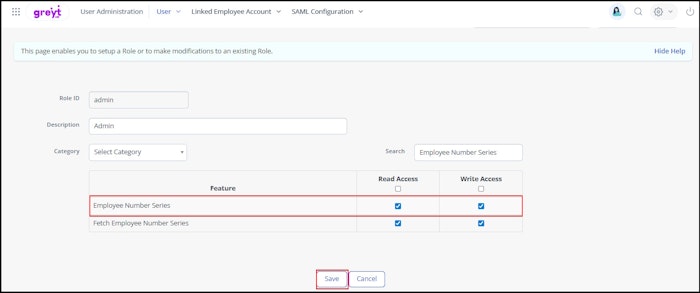
Enter Employee Number Series in the search box, enable the Read and Write access, and click Save.


Add employee number series
To add a new employee number series, from the greytHR Admin portal, go to Settings > System Settings > Employee > Employee No Series.
On the Employee No Series page, click Add New. The Add Employee Series form appears.
In the Description text box, enter a short description of the employee number series.
From the Serial No spin box, select the required serial number.
Select the Active Status check box as Enabled if you want to enable the employee number series.
From the Linked Employee dropdown list, select the required option.
In Employee Series Format: section, in the Prefix, Format, and Suffix text boxes, enter the required values. You can view the outcome of the values in the Result text box.
Click Save. The new employee series reflects on the Employee No Series page.
Note:
You can edit/delete the employee series by clicking the Edit/Delete icon available on each row of the employee series.
You can also enter the employee number series manually if you select the Manual Entry option.
Disable employee number series
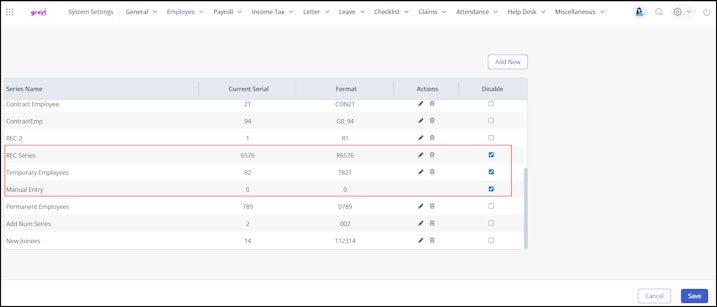
To disable specific employee number series, including Manual Entry, go to Settings > System Settings > Employee > Employee No Series.
On the Employee No Series page, for the required series name, select the checkbox under the Disable option and click Save.


Other related links: