Master greytHR Employee Creation Workflow for HR Efficiency
Updated in Aug-2025 | Subscribe to watch greytHR how-to video
Adding a new employee to the HRMS with a clear, structured process ensures consistency, efficiency, and necessary approvals. Without an automated, role-based workflow, HR teams struggle with accountability, compliance risks, and poor visibility into onboarding progress.
With greytHR's Employee Creation Workflow, you can add employees through a clear, multi-level approval process that ensures accuracy and compliance. You no longer need to chase manual approvals as designated reviewers validate employee data at each step in an auditable, structured flow.
Once you enable the Employee Creation Workflow, you, as an admin, need to define the workflow policy as per your company’s requirements. You can easily customize the approval levels and assign the reviewers to ensure every new employee is added accurately.
The Employee Creation Workflow includes:
Setting up the employee creation workflow
Initiate a request to add a new employee
Review employee creation workflow request
Track employee creation workflow request
Set up employee creation workflow
To set up the Employee Creation Workflow, from your greytHR Admin portal, hover over the 9 dots and select Workflow > Setup > Workflow Levels.
On the Workflow Levels page, click Add Workflow Levels to begin setting up the workflow policy.


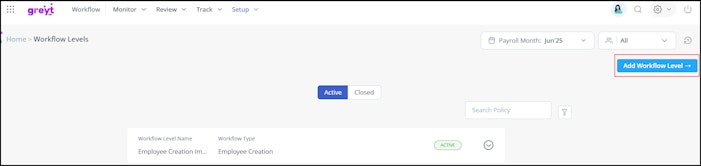
General Settings
From the Select workflow type dropdown list, select Employee Creation.
In the Policy Name and Policy Description text boxes, enter the name and description of the policy.
Note: The workflow type, Policy Name, and Employee Filter are mandatory fieldsSelect the required option from the Select Employee Filter dropdown list.
Click Save Policy to save the General Settings.
Click Next to move to the Workflow Levels settings.


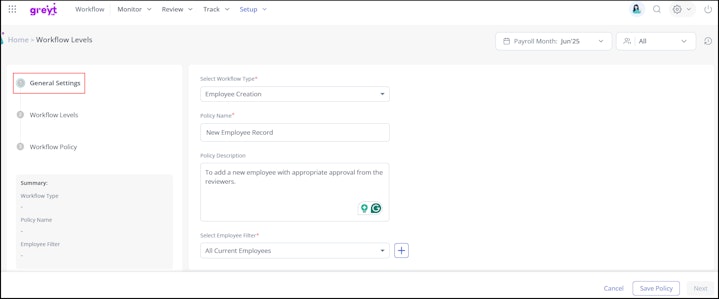
Workflow Levels
Under the Workflow Levels settings, choose the number of reviewers as required. You can configure 3 levels of reviewers.
Note: Only admin personas can be set as reviewers as of now.From the Reviewer Level 1 dropdown list, select a job role as the first reviewer. When a new employee is added, the application goes to the selected job role for approval first.
Note: You can add up to 3 levels of reviewers for approval.Select the Application Actions option as Approve & Forward/Reject/Approve as per your requirements.
Click Save Policy to save the workflow levels settings.
Click Next to move to Workflow Policy settings.

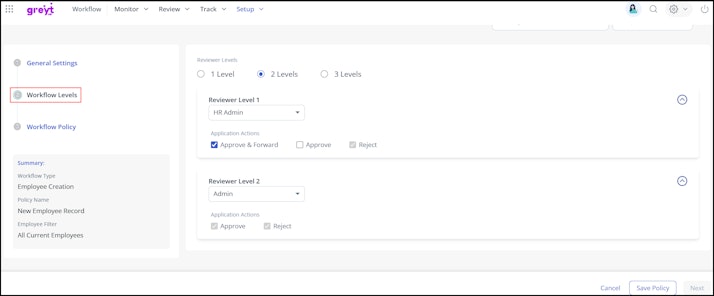
Workflow Policy
Under the Workflow Policy settings, select the Allow initiator to withdraw workflow checkbox if you want the initiator to be able to withdraw the request after submitting a new employee creation record or before the reviewer approves the request.
Note: Allowing the initiator to withdraw the request is optionalClick the Review and Submit button to create the Employee Creation workflow.

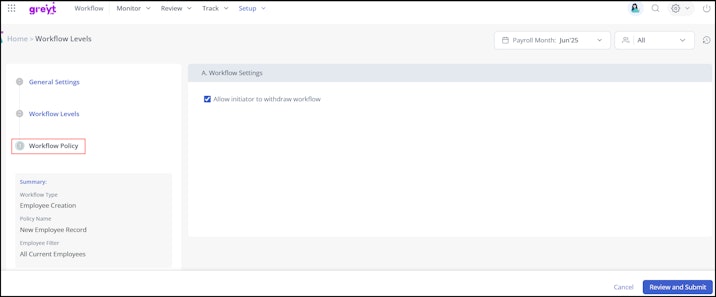
Activate the policy
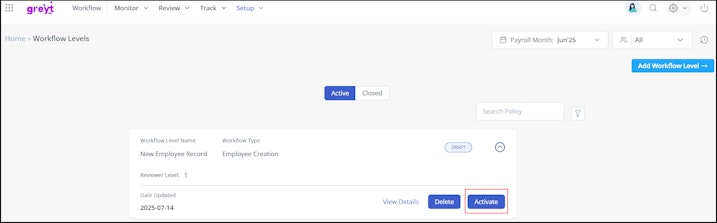
After creating the Employee Creation Workflow, you need to activate it. Go to the Workflow Levels page and click the Activate button on the policy card, and choose the required date.


Note:
If the policy is active and not linked to any ongoing request, you can delete it directly.
If the policy is active and currently in use, you must first disable it and then delete it.
You can view the disabled policies under the Closed tab.
Initiate a request to add a new employee
Once the Employee Creation Workflow policy is activated, whenever you add any new employee, it will trigger an approval request to the assigned reviewer.
Note:
The workflow will be triggered based on the Employee Filter you have selected while setting up the policy. For Instance, if the filter is set to All Employees, the workflow will be triggered for every new employee added.
However, if a specific filter is applied, the workflow will only be triggered when the Add Employee request matches the selected filter criteria.
While adding a new employee, after you fill in all the details and submit it, if the Employee Creation Workflow is activated, then the request is automatically sent to the reviewers for approval, and the summary page displays the message: Employee details submitted successfully for review.


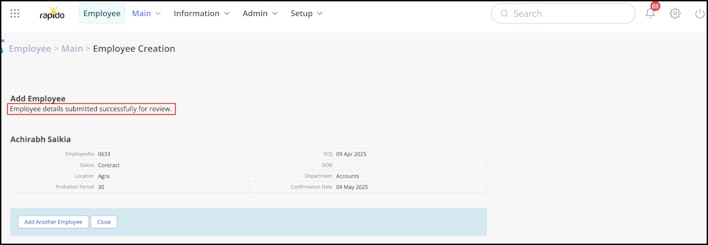
If the workflow policy is not activated, the new employee is added to the system without requiring the reviewer’s approval.
Review employee creation workflow request
Once the initiator submits an employee creation request, it appears in the Review/Monitor tab for the designated approvers. Reviewers can view the complete details in read-only mode and take quick actions like Approve, Reject, Approve and Forward, and Add Remarks.
Reviewing the employee creation workflow request involves validating the employee details submitted by the initiator and taking appropriate action.
To review the new employee addition request, from your greytHR Admin portal, hover over the 9 dots and select Workflow > Review > Employee Creation.
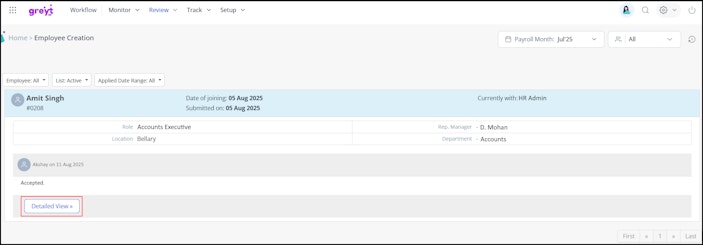
On the Employee Creation page, the list of new employee cards appears.
Use the Employee, List, and Applied Date Range dropdown filters, select the required options to customize the list of applications.
Click a card to view detailed employee request information, including reviewer remarks and the current status of the request.
Click Detailed View to see the employee’s information across different stages.
Click Next to move to the final step: Payment Mode.
Note: As a reviewer, you can view the employee’s details in read-only mode.Select Approve/Reject/Approve & Forward to complete the review process.

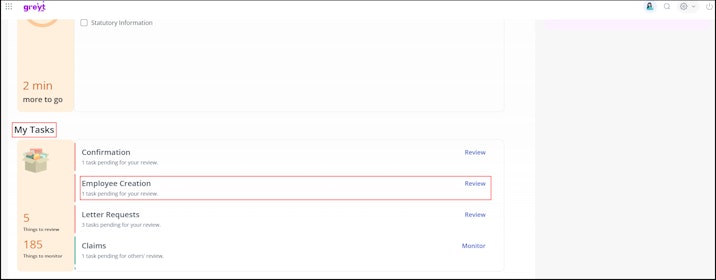
Alternatively, you can review the employee creation request if you are assigned as a reviewer from the Home page under My Tasks. Click Review to proceed with reviewing the workflow request.


To view the approved or rejected requests, select the Completed option from the List dropdown.
Track employee creation workflow request
As an admin, if you have initiated the request to add a new employee, you can track the employee creation request status.
To track the new employee addition request, from your greytHR Admin portal, hover over the 9 dots and select Workflow > Track > Employee Creation.
On the Employee Creation page, the list of new employee cards appears.
Use the List dropdown filter and select Active to view employee application cards.
Click a card to view detailed employee request information, including reviewer remarks and who the request is currently with.
Click Detailed View to see the employee’s information across different stages in a read-only mode.
If you wish to withdraw the request, click Withdraw.
Note: The Withdraw button appears only if the withdrawal option was enabled during workflow setup.

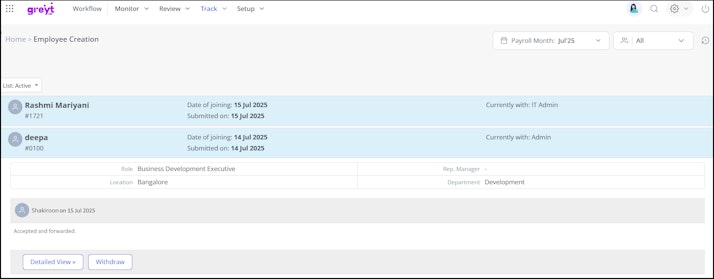
You can also monitor and view pending employee addition requests by navigating to Workflow > Monitor > Employee Creation.