Simplify Role Management with greytHR for HR Admins
Updated in September - 2024 | Subscribe to watch greytHR how-to video
In greytHR PRO, the admin manages two roles, the greytHR PRO role and the greytHR role for each assigned client. When a user is assigned to a client, they must be mapped to a greytHR role-specific to that client's account. Each user can be mapped to a single greytHR role, which may vary from client to client.
The following actions are performed to manage greytHR PRO roles:
Map greytHR PRO roles to greytHR roles.
Synchronize greytHR roles with client accounts.
Map greytHR PRO roles to greytHR roles
You can map default greytHR roles to various greytHR PRO roles, which apply to all clients. This default mapping is effective until you assign clients to users. After you assign clients, the specific greytHR roles you assign to users overrides the default mapping.
To map the greytHR PRO roles to greytHR roles, perform the following actions:
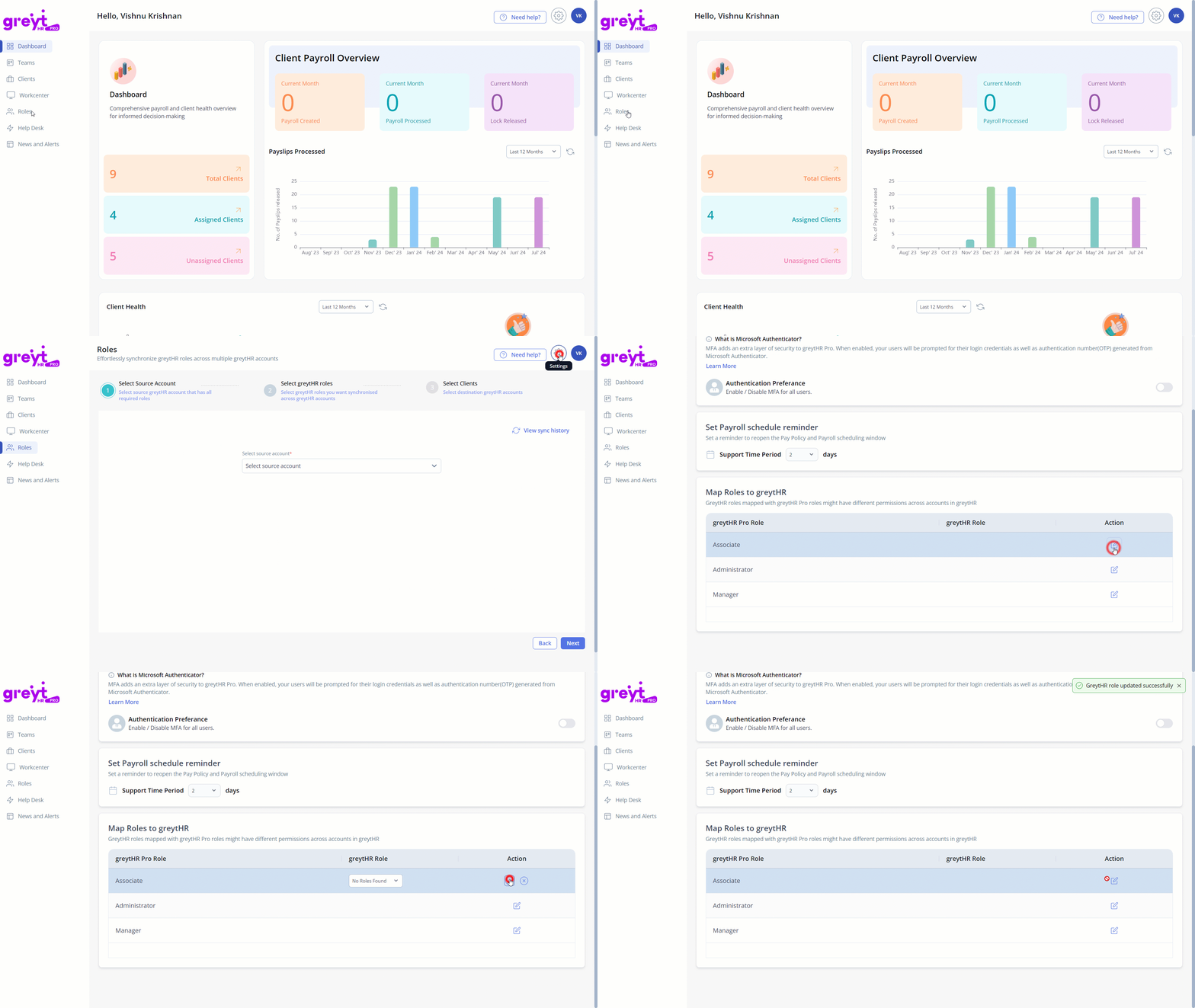
From the greytHR PRO account, navigate to the Settings icon. The Settings page opens.
Under Map Roles to greytHR, select the required greytHR PRO Role and click the Edit icon available on the selected role row.
In the greytHR Role column, from the selected greytHR Role dropdown list, select the required role.
Click ✔ to map the greytHR PRO role to the greytHR role. A success message appears.
Synchronize greytHR roles with client accounts
The greytHR PRO's Role sync feature enables PSP admins to seamlessly synchronize required roles and permissions across selected or all client accounts with greytHR roles. This eliminates errors and saves time.
To synchronize greytHR roles with client accounts, perform the following actions:
From the greytHR PRO account, navigate to Roles. The Roles page opens.
From the Select source account dropdown list, select the required role that you want to sync.
Click Next.
Under Roles, using the checkbox select the required role.
Click Next.
Select the destination accounts to which you want to sync the role.
Click Synchronize.
Note: You can click View sync history to view the completed and failed history of all the synchronized roles.
Other related links: