Configure User Roles and Permissions in greytHR Recruit
Updated in May - 2026 | Subscribe to watch greytHR how-to video
To get started with the recruitment activities, every greytHR Recruit user (such as a recruiter, hiring manager, or admin) must have the right permissions assigned to perform tasks like creating job postings, managing candidates, or generating reports.
User Roles and Permissions in greytHR Recruit define what each user can view, access, or perform within the platform. These permissions act as the foundation for all recruitment activities. Without proper configuration, users will not be able to access or perform actions in the Recruit module.
Key benefits of user roles and permissions
Ensures secure, role-based access across the Recruit module.
Prevents unauthorized actions or data exposure.
Provides flexibility to assign access according to job roles.
Reduces administrative effort by centralizing permission control.
Permission categories in greytHR Recruit
To view them, from the greytHR Admin portal, go to Settings > User Administration > User > User Roles. Under Category, you will find the following Recruit-related options:
Recruit - General
Recruit - Job
Recruit - Candidate
Recruit - Onboarding
Recruit - Reports
Recruit - Settings
Each category contains a list of Recruit features. As a greytHR admin, you must enable access for the respective users to allow them to use those features. Let us understand the roles and default permissions in detail.
Roles and default permissions
Recruit-Admin - Manages jobs, candidates, and offers; coordinates interviews; creates, updates, deletes, and views templates, forms, hiring stages, scorecards, and job approvals; manages agencies, integrations, company settings, profiles, reports, notifications, and career page; performs candidate actions including hiring, blacklisting, prescreening, scheduling interviews, creating offers, updating statuses, sharing information, sending emails, and initiating background verification.
Recruit-Recruiter – Manages jobs, candidates, and offers; coordinates interviews; configures stages, scorecards, and approvals; handles agencies, integrations, reports, and profiles; with permissions to add, update, delete, view, and act on candidates, jobs, interviews, offers, and templates.
Recruit-HiringManager – Views jobs, candidate applications, interviews, approvals, and offers; creates new jobs; adds, edits, or deletes comments/notes on candidates; bookmarks candidates; exports candidate data; and views or downloads candidate resumes.
Recruit-Interviewer – Reviews job and candidate details and provides feedback after interviews.
Recruit-Sourcer – Adds candidates, links them to jobs, accesses candidate resumes, and maintains a strong talent pipeline.
RecruitProfileReviewer – Views job details, candidate lists, resumes, and updates application status to support hiring decisions
Recruit-Coordinator – Views job details, manages interviews, views candidate lists, updates candidate statuses, and communicates with candidates via email.
Note: These are default role definitions. However, certain permissions can be customized by the greytHR Admin user based on organizational requirements.
Steps to configure role-based permissions for greytHR Recruit
From the greytHR Admin portal, go to Settings > User Administration > User > User Roles.
Select the required user role (Recruiter, Hiring Manager, or Recruit Admin).
Under the Category dropdown, choose the relevant Recruit category.
Review the list of features available under each category.
Select the checkboxes to assign Read Access and/or Write Access as required.
Click Save.
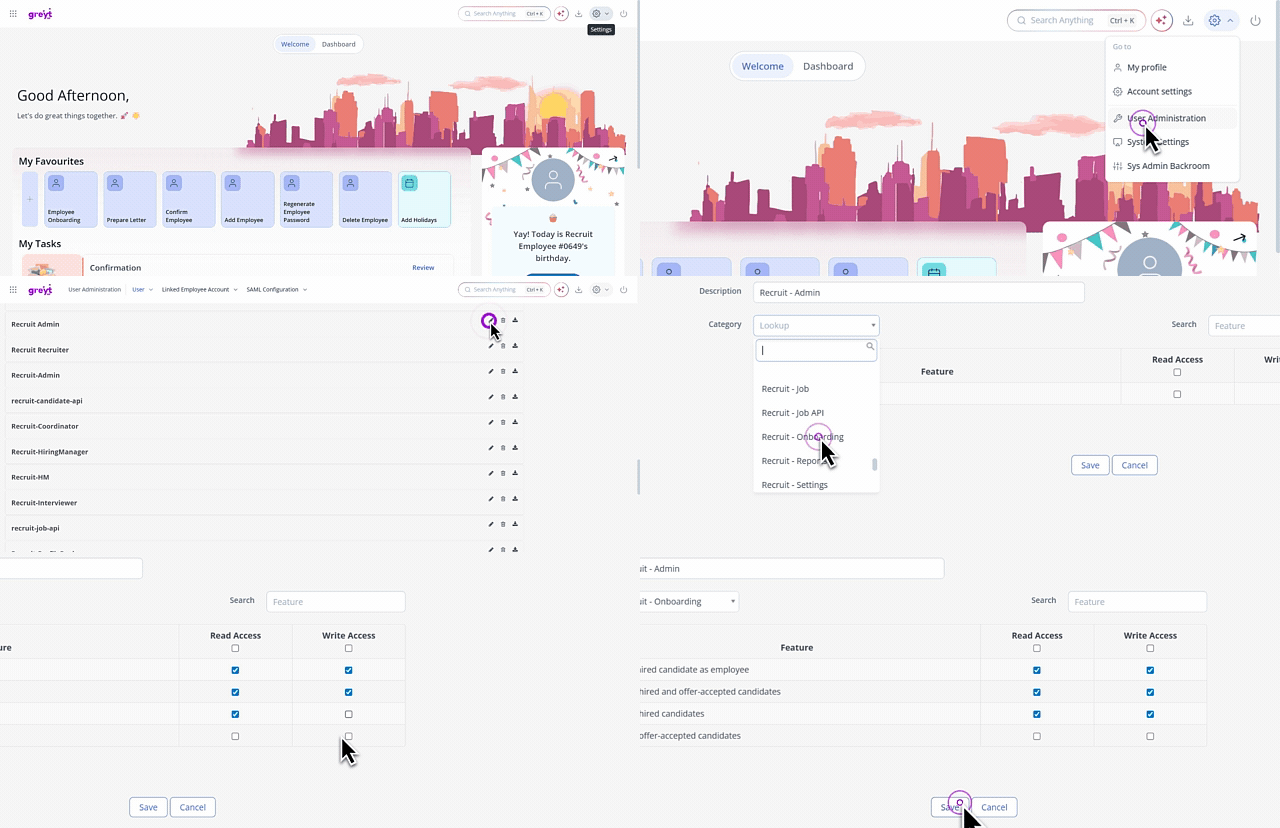
Note: Without enabling Recruit permissions here, users assigned to that role will not be able to access or perform actions in the Recruit module.
Here is the detailed info about the permission for each category:
Recruit - General category
| Permissions | Recruit Admin | Recruit-Recruiter | Recruit-Hiring Manager | Recruit-Interviewer | Recruit-Sourcer | Recruit-Profile viewer | Recruit Coordinator |
|---|---|---|---|---|---|---|---|
| Access download center | ✅ | ✅ | 🚫 | 🚫 | 🚫 | 🚫 | 🚫 |
| Employee IJP & Referral | 🚫 | 🚫 | 🚫 | 🚫 | 🚫 | 🚫 | 🚫 |
Note: Employee role by default has access to IJP & Referral.
2. Recruit - Jobs category
| Permissions | Recruit-Admin | Recruit-Recruiter | Recruit-Hiring Manager | Recruit-Interviewer | Recruit-Sourcer | Recruit-ProfileReviewer | Recruit-Coordinator |
|---|---|---|---|---|---|---|---|
| Add comments/notes on candidate application | ✅ | ✅ | ✅ | 🚫 | 🚫 | 🚫 | 🚫 |
| Bookmark candidate | ✅ | ✅ | ✅ | 🚫 | 🚫 | 🚫 | 🚫 |
| Delete comments/notes on candidate application | ✅ | ✅ | ✅ | 🚫 | 🚫 | 🚫 | 🚫 |
| Edit candidate custom fields | ✅ | ✅ | 🚫 | 🚫 | 🚫 | 🚫 | 🚫 |
| Edit comments/notes on candidate application | ✅ | ✅ | ✅ | 🚫 | 🚫 | 🚫 | 🚫 |
| Share forms with candidate | ✅ | ✅ | 🚫 | 🚫 | 🚫 | 🚫 | 🚫 |
| View all Jobs | ✅ | ✅ | ✅ | ✅ | ✅ | ✅ | ✅ |
| View candidate application status | ✅ | ✅ | ✅ | 🚫 | 🚫 | ✅ | ✅ |
| View candidate custom fields | ✅ | ✅ | 🚫 | 🚫 | 🚫 | 🚫 | ✅ |
| View candidate details in job | ✅ | ✅ | ✅ | 🚫 | 🚫 | ✅ | ✅ |
| View candidate interview | ✅ | ✅ | ✅ | 🚫 | 🚫 | 🚫 | ✅ |
| View candidate list for job | ✅ | ✅ | ✅ | 🚫 | ✅ | ✅ | ✅ |
| View candidate offer | ✅ | ✅ | 🚫 | 🚫 | 🚫 | 🚫 | 🚫 |
| View candidate prescreening | ✅ | ✅ | 🚫 | 🚫 | 🚫 | 🚫 | 🚫 |
| View comments/notes on candidate application | ✅ | ✅ | ✅ | 🚫 | 🚫 | 🚫 | 🚫 |
| View forms collected from candidate | ✅ | ✅ | 🚫 | ✅ | 🚫 | 🚫 | 🚫 |
| View hiring stages | ✅ | ✅ | 🚫 | 🚫 | 🚫 | 🚫 | 🚫 |
| View hiring team setup | ✅ | ✅ | 🚫 | 🚫 | 🚫 | 🚫 | 🚫 |
| View job activity logs | ✅ | ✅ | 🚫 | 🚫 | 🚫 | 🚫 | 🚫 |
| View job application form | ✅ | ✅ | 🚫 | 🚫 | 🚫 | 🚫 | 🚫 |
| View job approval details | ✅ | ✅ | ✅ | 🚫 | 🚫 | 🚫 | 🚫 |
| View job details | ✅ | ✅ | ✅ | ✅ | ✅ | ✅ | ✅ |
| View job sourcing | ✅ | ✅ | 🚫 | 🚫 | 🚫 | 🚫 | 🚫 |
| View job status | ✅ | ✅ | ✅ | 🚫 | 🚫 | 🚫 | 🚫 |
| View prescreening questions | ✅ | ✅ | 🚫 | 🚫 | 🚫 | 🚫 | 🚫 |
3. Recruit - Reports category
| Permissions | Recruit-Admin | Recruit-Recruiter | Recruit-Hiring Manager | Recruit-Interviewer | Recruit-Sourcer | Recruit-Profile Reviewer | Recruit-Coordinator |
|---|---|---|---|---|---|---|---|
| Download reports | ✅ | ✅ | 🚫 | 🚫 | 🚫 | 🚫 | 🚫 |
| View reports | ✅ | ✅ | 🚫 | 🚫 | 🚫 | 🚫 | 🚫 |
4. Recruit - Candidate category
| Permissions | Recruit-Admin | Recruit-Recruiter | Recruit-Hiring Manager | Recruit-Interviewer | Recruit-Sourcer | Recruit-Profile Reviewer | Recruit-Coordinator |
|---|---|---|---|---|---|---|---|
| Blacklist candidate | ✅ | ✅ | 🚫 | 🚫 | 🚫 | 🚫 | 🚫 |
| Download candidate resume | ✅ | ✅ | ✅ | ✅ | 🚫 | ✅ | ✅ |
| Send emails to candidate | ✅ | ✅ | 🚫 | 🚫 | 🚫 | 🚫 | ✅ |
| Share candidate information | ✅ | ✅ | 🚫 | 🚫 | 🚫 | 🚫 | 🚫 |
| View all candidates in Candidate Pool | ✅ | ✅ | 🚫 | 🚫 | ✅ | 🚫 | 🚫 |
| View candidate emails | ✅ | ✅ | 🚫 | 🚫 | 🚫 | 🚫 | ✅ |
| View candidate details | ✅ | ✅ | 🚫 | 🚫 | ✅ | 🚫 | 🚫 |
| View candidate job applications | ✅ | ✅ | 🚫 | 🚫 | 🚫 | ✅ | ✅ |
| View candidate resume | ✅ | ✅ | ✅ | ✅ | ✅ | ✅ | ✅ |
Note: If you need to modify a permission that is not visible or accessible to you, please contact the greytHR support team for assistance.
Role-user mapping in greytHR Recruit
After permissions are configured in the greytHR Admin portal, the roles are mapped to users from the Hiring Team section within greytHR Recruit. This mapping defines each user’s level of access within the recruitment process.
For example:
A Recruiter may have access to candidate and job management but not to Recruit Settings.
A Recruit Admin will have full access, including reports and configuration.
Note:
Only greytHR Admin portal users assigned to the Admin role can view and modify Recruit-related permissions in the Admin portal. Recruit App Admins can manage settings only within the Recruit module.
Roles from other greytHR modules will not be visible to the Recruit App Admin.
Permissions must be defined before mapping users to the Hiring Team.
Changes to permissions take effect immediately after saving.
Related articles: