Add and Manage Agencies in greytHR for Efficient Hiring
Updated in May- 2026 | Subscribe to watch greytHR how-to video
Companies often collaborate with multiple staffing agencies to find the best candidates for their job openings.
greytHR Recruit includes a feature that allows admins to onboard staffing company vendors easily. Once onboarded, these vendors can submit their candidates directly through the platform. This eliminates the need for back-and-forth emails, reducing administrative overhead and ensuring all submissions are organized in one place. With the greytHR recruit platform, companies can now manage all their staffing needs more efficiently.
Benefits:
Direct Submissions: Vendors can directly submit candidates to the portal, saving recruiters time and effort.
Source Credit: The first vendor to submit a resume receives source credit, with automatic duplication checks.
Real-Time Status Updates: Vendors can track the status of their candidates in real-time, eliminating the need for recruiters to provide updates.
To view the Agency page, from your greytHR Admin portal, hover over the 9 dots and select Recruitment > Settings.
Under the JOB SETUP section, select External Partners > Agencies.
You can perform the following actions in the Agencies section:
Add a new agency.
Add multiple SPOCs under an agency.
Add a new agency
To add a new agency, from your greytHR Admin portal, hover over the 9 dots and select Recruitment > Settings.
Under the JOB SETUP section, select External Partners > Agencies.
Under the Agencies tab, click Add Agency.
In the Name textbox, enter the name of the agency.
In the Spoc’s email field, enter the email ID of the contact person.
Click Save.

Add multiple SPOCs under an agency
To add multiple SPOCs under an agency, under the Agencies tab, click the Edit icon available on the saved agency card.
Click +Add New. Spocs email textbox appears.
Add another email ID as the point of contact and click Save.
Note: You can add multiple Spocs by clicking +Add New.
Managing vendor portal
Once the recruiter adds the agency to any job, the SPOC receives an email with a link. Clicking on the link will take the SPOC directly to the vendor portal.
On the vendor’s portal, the vendor can:
Add a candidate to a job.
Add comments to a candidate’s profile.
Add a candidate to a job
After the vendor logs in to the vendor portal, on the Jobs page, the Active tab displays the list of job(s) where the agency has been added.
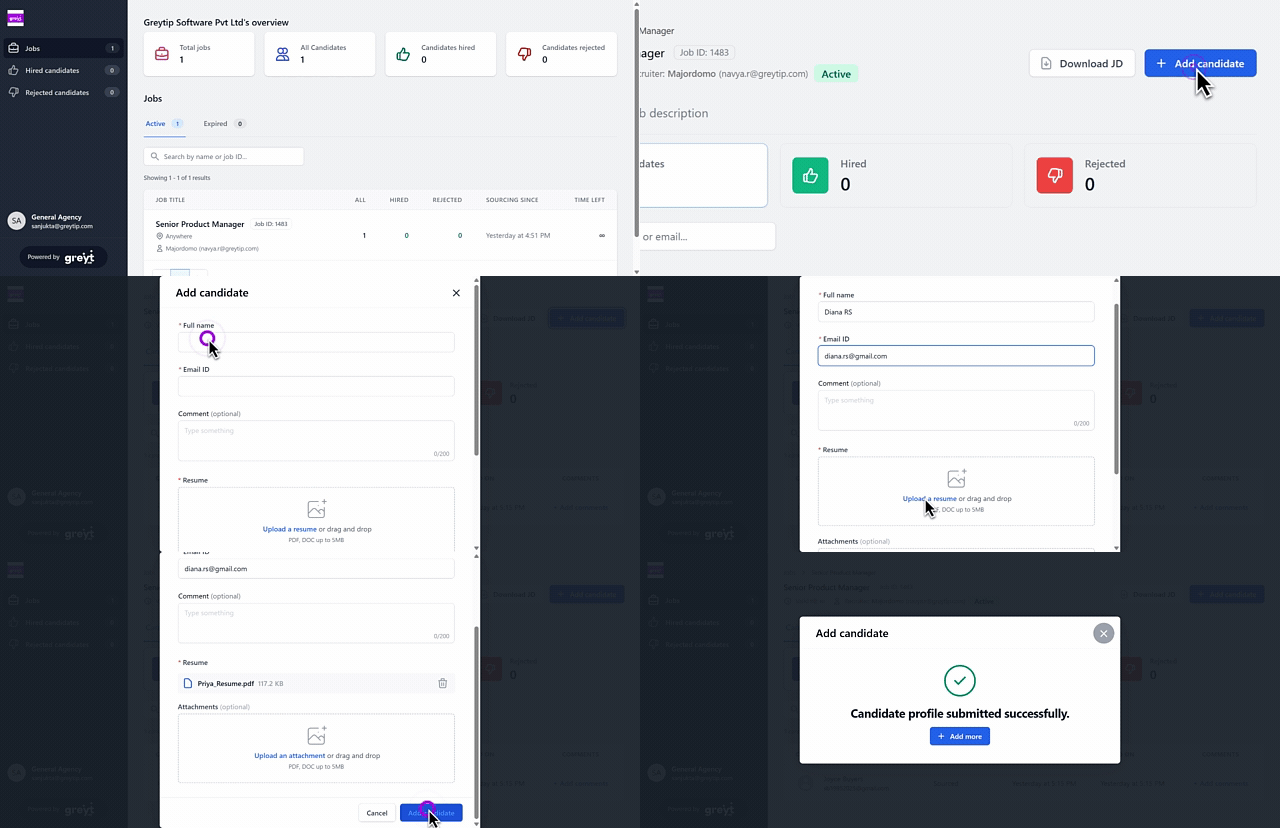
To add a candidate to a job, click on the job card and select + Add Candidates.
Enter the full name, email ID, and upload the candidate’s resume, and click Add Candidate. You can also add Comments if needed.
Add comments to a candidate’s profile
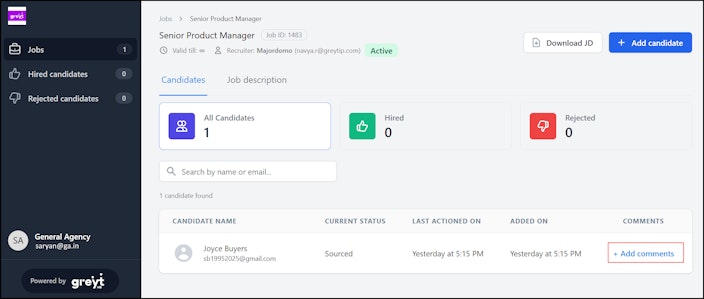
To add a comment to a candidate’s profile, on the candidate’s card, click + Add Comments, enter the comment, and click Submit.


Note:
If the vendor has already added any comment while adding the candidate to a job, then click on the View Comments option and add the comment.
The vendors will not be able to view the comments from the recruiter. However, the recruiters can view the comments added by the vendor.
Related articles: