Automate Salary Structures in Offer Letters with greytHR
Updated in January- 2026 | Subscribe to watch greytHR how-to video
A key component of the offer letter is the salary structure, which provides a detailed breakdown of the candidate's compensation structure. A salary structure or annexure usually includes:
Fixed Pay: Basic salary and allowances like house rent and travel.
Variable Pay: Bonuses, incentives, or profit-sharing.
Benefits: Company contributions to PF, insurance, and gratuity.
Deductions: Taxes, PF, ESI, and other required deductions.
As a recruiter, before you send out an offer letter to a candidate, you need to manually enter and calculate every salary component—basic, HRA, allowances, and more. This takes a lot of time, can be confusing, and may lead to mistakes or compliance issues.
With the greytHR Payroll module integrated into greytHR Recruit, this entire step becomes easier. You can generate a precise and detailed salary breakup using the salary structure configured in your payroll. This reduces errors and provides accurate calculations, creating a faster, smoother hiring process.
Note: The salary structure can vary based on the organisation and also on different categories such as department or designation. To configure the salary structure, it is necessary to include the salary table placeholder in the offer template.
Add the salary structure in the offer template
greytHR Recruit automatically fetches and displays your organisation’s salary structure configured in greytHR Payroll.
The same salary structure can also be used to generate a salary breakdown table in the offer letter automatically.
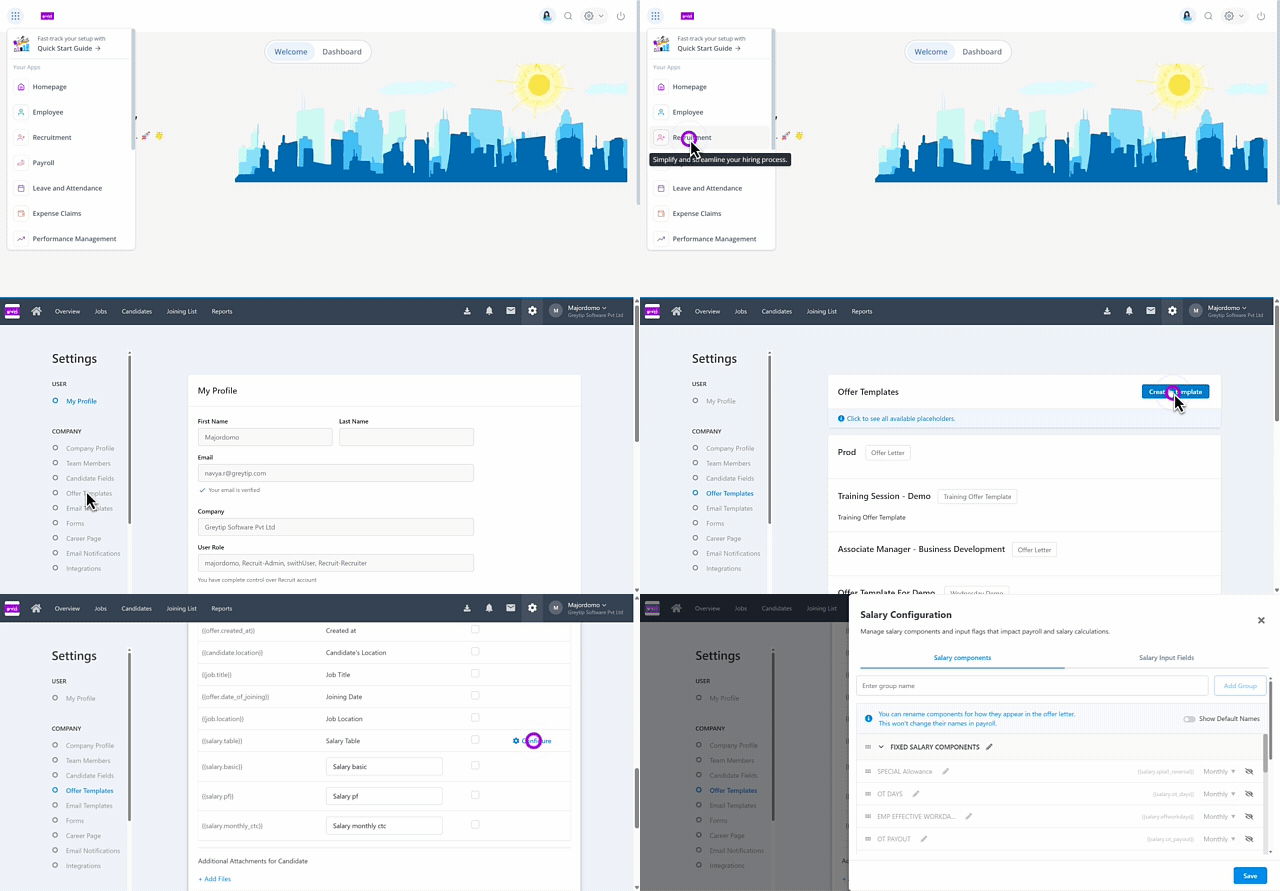
To add the salary structure in the offer letter, from your greytHR Admin portal, hover over the 9 dots and select Recruitment.
Click Settings > Offer Template > Create a Template.
In the New Template section, fill in all the required details such as Template Name, Title Description, and upload a sample template file.
Note: You must mention {{salary.table}} placeholder in the offer template while uploading it.Once added, click on the Configure option next to the {{salary.table}} placeholder to use the salary structure based on the requirements.
Configure the salary components
greytHR Recruit salary automation gives you the flexibility to use your organisation's salary structure and customize how salary components appear in offer letters, while keeping payroll configuration unchanged.
After adding the {{salary.table}} placeholder in the offer letter, you can configure and adjust the salary breakup for a specific offer template using the salary structure. This includes:
Customize salary component display names in offer letters
Defining a salary component as a monthly/annual salary
Manage salary input fields
Grouping salary components into different categories, such as Fixed or Variable, as per the organisational requirements.
Deleting a salary group.
Hiding a specific salary component.
Option to define a total salary component.
Customize salary component display names in offer letters


From the greytHR Admin portal, hover over the 9 dots and go to Recruit > Settings > Offer Templates.
Create a new offer template or edit an existing template that includes the {{salary.table}} placeholder.
Click Configure next to the {{salary.table}} placeholder.
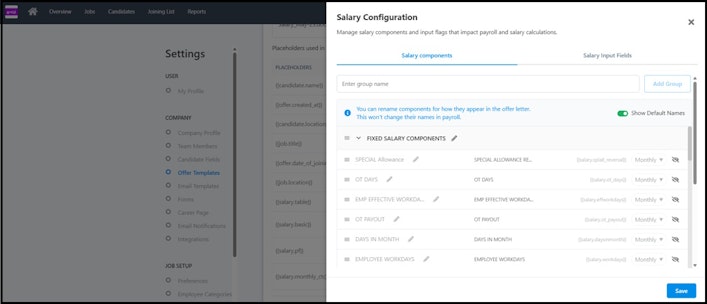
In the Salary Configuration pop-up, stay on the Salary Components tab.
By default, only Display Names are shown for all salary components. If the default names remain unchanged, the display names will be derived from the default names.
Click Show Default Names to view payroll (system-defined) names along with display names.
Payroll names appear in a lighter colour for easy identification.
The button changes to Hide Default Names.
Click the Edit icon next to a salary component and update the Display Name.
Press Enter or click outside the field to save the change.
Click Save to apply the configuration.
The updated Display Names will be reflected automatically in the offer letter.
Define a salary component as a monthly/annual salary
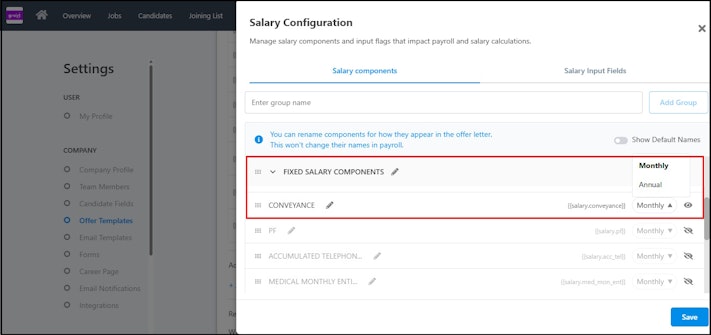
To define a salary component as a monthly/annual salary, on the Salary Configuration pop-up, select the drop-down arrow against the required salary component, select Monthly/Annual, and save it.


Manage salary input fields
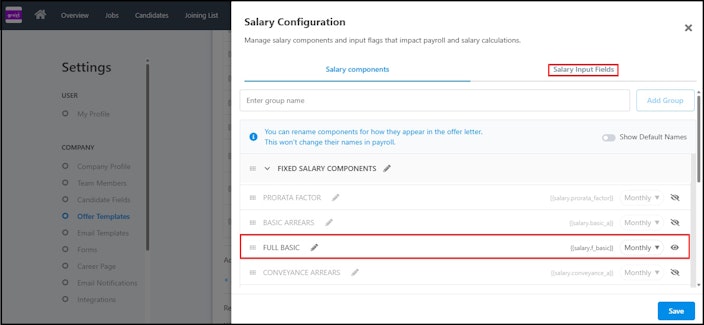
The Salary Input Fields tab shows fields like PF eligibility and ESI status, which the Payroll system uses to calculate salary accurately. You can fill in these inputs based on your company’s policies to ensure correct salary calculation.
Note: You can also choose to disable the input field by clicking on the eye button next to it.

Group the salary components
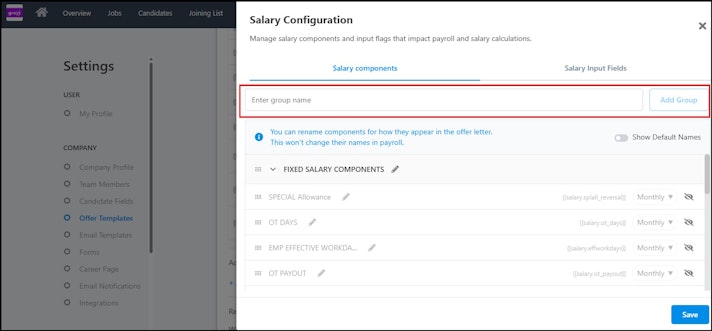
To begin salary component grouping, you need to first add a new salary group. On the Configure Salary Components pop-up, enter the group name and click Add Group.


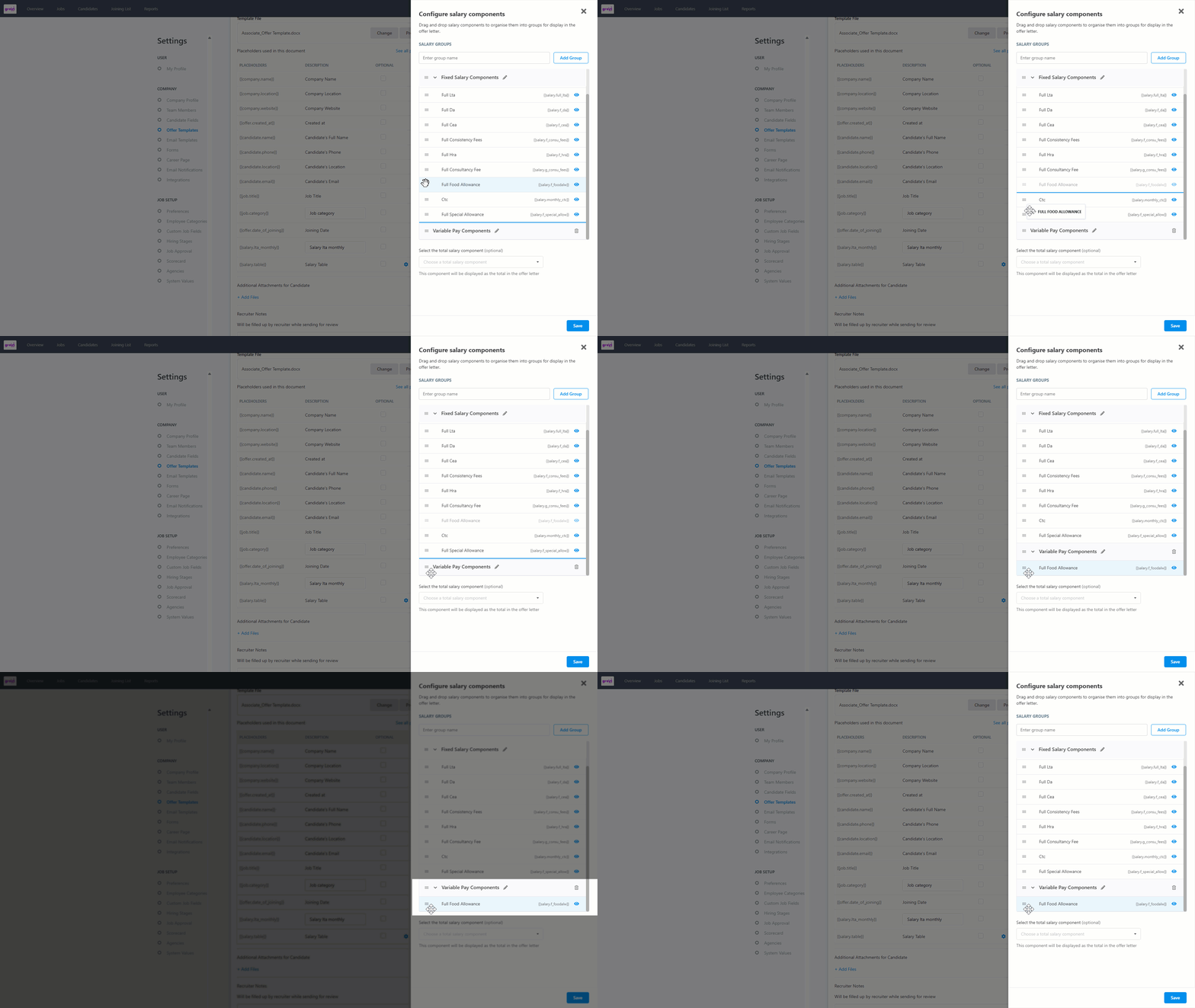
Once you have created a new salary group, you can drag and place the required salary component(s) under the group.
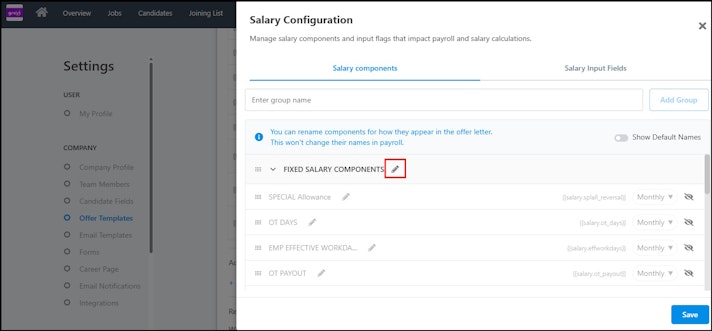
Note: You can rename a group by clicking on the edit icon, entering the new name, and saving the changes.

Delete a salary group
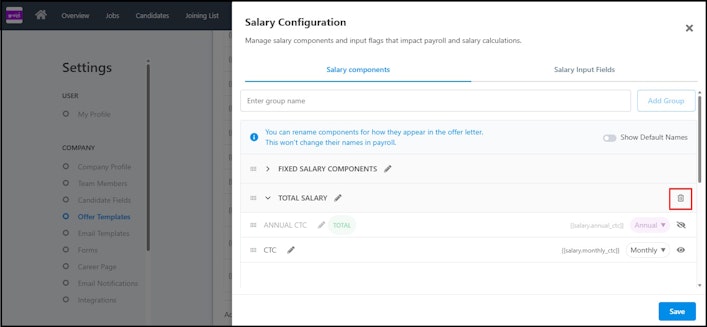
To delete a salary group, click on the delete icon next to the salary group. Once the salary group is deleted, its components will automatically move to the first group.
Hide a salary component
If you need to hide any of the salary components, then click on the eye button next to the salary component, and it won’t be reflected in the offer letter.
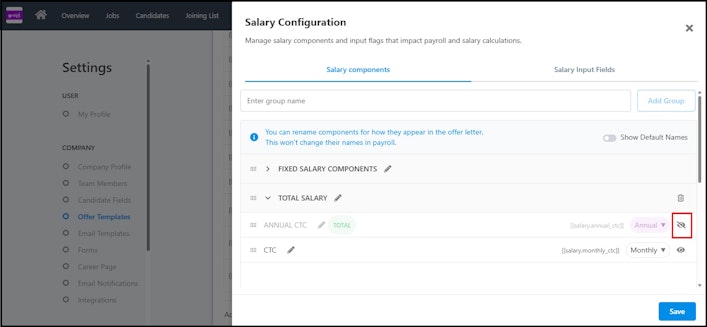
You can also choose to select the Total Salary Component from the dropdown, and accordingly, the same will be highlighted in the offer letter.
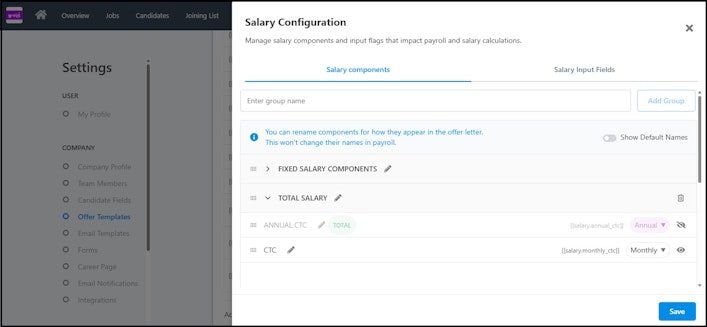
Info: It is not mandatory to provide input for every salary component. If any salary component value is zero, then it won’t be reflected in the offer letter.
Once the salary component configuration is completed, you can select an offer template and view the salary structure before releasing the offer letter to the candidate.
Automate the salary calculation in the offer letter
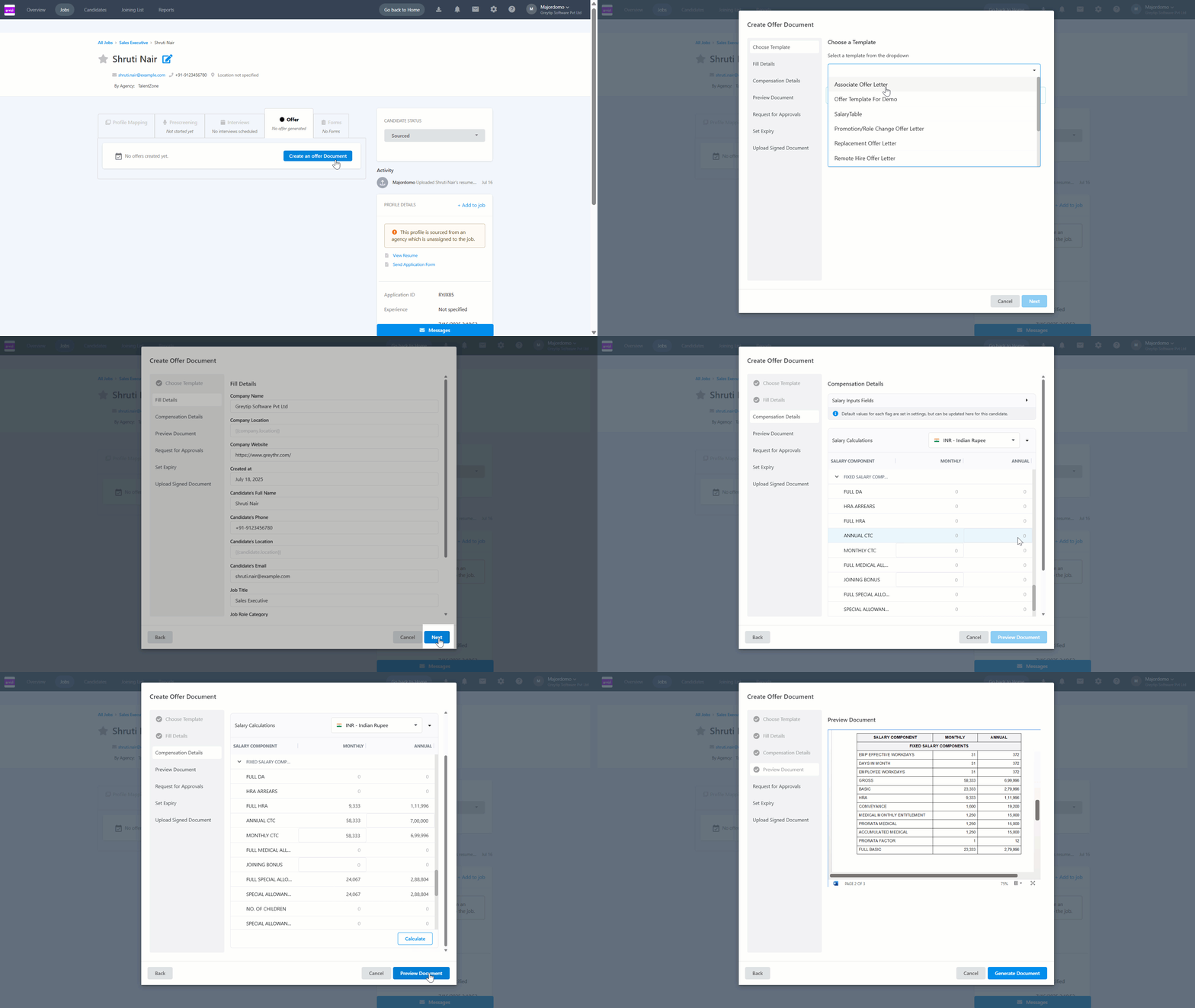
To automate the salary calculation while creating the offer letter, go to a candidate’s profile and click Create an Offer Document, select the offer template, and fill in the candidate details.
Under the Compensation Details section, if the {{salary.table}} placeholder is configured, the salary structure will be generated automatically. You need to enter the inputs for the required salary components, and the values will be calculated automatically.
For example, once you enter the Monthly or Annual CTC details and click Calculate, the salary breakup will be calculated automatically.
You can preview the offer letter and generate it for the candidate.
Note: If the {{salary.table}} placeholder is not added in the offer template, then the recruiter needs to manually add the salary structure while generating the offer letter.
Other related links: