Custom Fields in greytHR Recruit: Setup & Reporting
Updated in October - 2026| Subscribe to watch greytHR how-to video
When managing recruitment, every organisation has unique data requirements that go beyond standard candidate, application, and job information. Capturing this additional data in a structured way and being able to report on it is essential for making informed hiring decisions and maintaining accurate records.
greytHR Recruit's Custom Fields feature allows admins to define and manage additional fields tailored to their organisation's needs. These fields are organised into three types — Candidate Fields, Application Fields, and Job Fields each scoped to a specific entity, and all configured from a single settings page. Once set up, custom fields appear across the relevant pages in the product and are available as columns, filters, and exports in key Recruit reports. Custom Candidate Fields are also available as filters in the Candidate Pool.
Configure Custom Fields
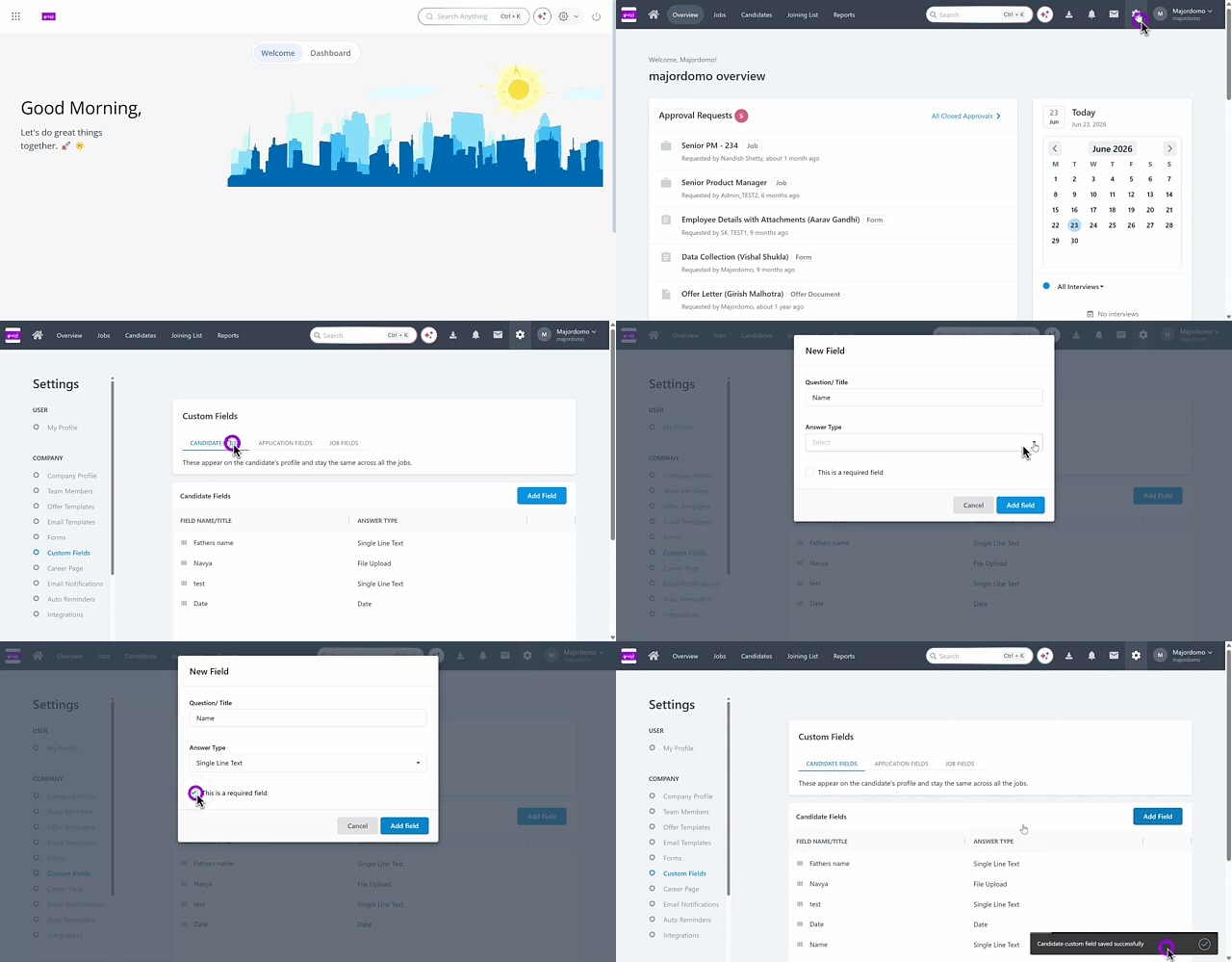
To configure Custom Fields from the greytHR Admin portal hover over the 9 dots and go to Recruitment > Settings > Company > Custom Fields.
The Custom Fields page contains three tabs: Candidate Fields, Application Fields, and Job Fields.
Add a custom field
Go to Settings > Company > Custom Fields.
Select the tab for the field type you want to create.
Click + Add Field. The New Field pop-up appears.
Enter the following:
Question/Title – Enter a descriptive label.
Answer Type – Select the required option from the dropdown.
Toggle on This is a required field, if the field must be filled before saving.
Click Add.
Edit or delete a custom field
From the Custom Fields page, select the relevant tab.
Locate the field, click the Edit icon, update and click Save.
To delete a field, select the required field and click the Delete icon. A pop up appears. Click Delete.
Note: Field types cannot be changed after a custom field is saved. To use a different type, delete the existing field and create a new one.
Where custom fields appear
Candidate and Application Custom fields
Fields configured in the Custom Fields section in Settings for Candidate and Application custom fields will appear on the Candidate Details page.
When a recruiter opens a candidate's application, two sections appear:
Candidate Fields — Displays fields configured under the Candidate Fields tab. These fields appear under Additional details on the candidate’s details page.
Application Fields — Displays fields configured under the Application Fields tab. Data is stored per application, specific to that candidate–job combination.
Job Custom Fields
Fields configured under the Custom Fields section in Settings for the Job Custom Fields will appear in the Add job page.
Filter candidates by custom fields in Candidate Pool
Custom Candidate Fields, such as notice period or highest qualification, are stored once for each candidate, so you can view them without opening a specific job. The Candidate Pool also lists these fields as filters, so you can narrow the pool to candidates who match a value you need, without exporting a report.
Apply custom filters
From the greytHR Admin portal, hover over the 9 dots and go to Recruitment > Candidates.
In the left filter panel, scroll to the CUSTOM FILTERS section below General, Job, and Others.
Click + next to the field you want to filter by.
Enter or select the value. The filter input matches the field’s answer type: text box, dropdown, date picker, number range, or multi-select.
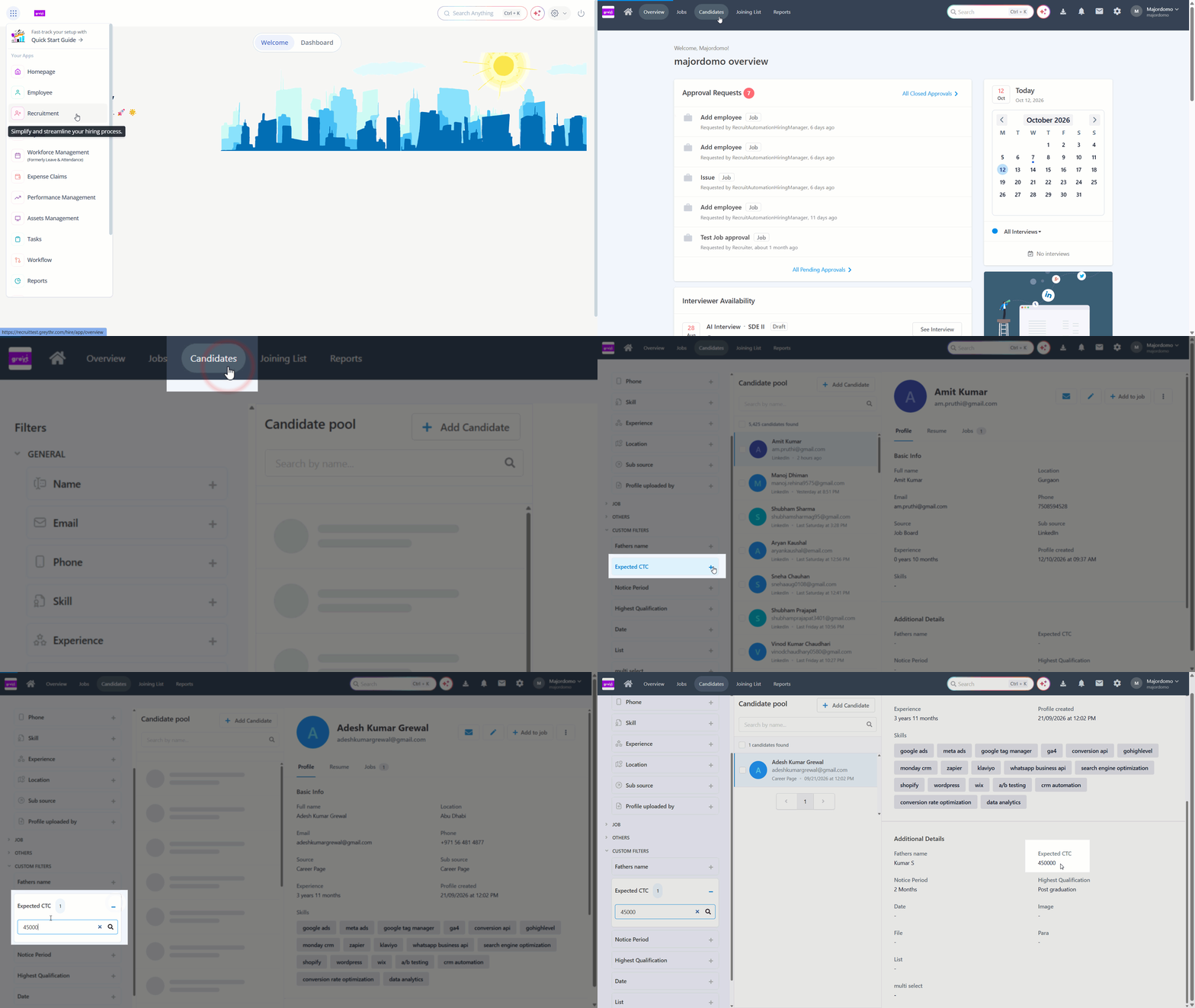
The candidate count updates as you apply filters, and the list shows only matching candidates.
Note: Custom filters work together with the General, Job, and Others filters. Candidates must match all the filters you apply.
Note: The CUSTOM FILTERS section lists only active Candidate Fields. Fields of type File upload, Image upload, and Paragraph are not available as filters. If you add or delete a Candidate Field, refresh the page to see the change.
Use custom fields in reports
Custom fields are available in the following reports:
Jobs report
Pipeline report
Candidates report
Add custom fields as columns
Open the relevant report.
Click Columns to open the column selector.
Select the custom fields you want to display. In the Candidates report, Candidate Fields and Application Fields are listed as separate groups. In the Job report, Job Custom Fields are listed.
Filter by custom fields
In the relevant report, scroll to the Filters section.
Under Custom Fields, select the field you want to filter by. In the Candidates report, Candidate Fields and Application Fields appear as separate filter groups.
Export custom fields
When you export a report as a CSV, all custom field columns visible in the current report view are included in the export.
Related Article: