Manage Interviews Efficiently with greytHR's Tools
Updated in October - 2026 | Subscribe to watch greytHR how-to video
Scheduling interviews can be time-consuming, but with greytHR, you can manage the process smoothly. As an HR admin, you can easily schedule, track, and coordinate interviews, ensuring seamless communication between recruiters and candidates.
You can schedule an interview for a candidate by changing the candidate’s status to Interview.
Following are the actions related to scheduling an interview:
Schedule an interview for a candidate.
Schedule interviews in bulk.
Edit or reschedule an interview.
Cancel an interview.
Schedule an interview for a candidate
You can schedule an interview only after setting up the scorecard. From your greytHR Admin portal, hover over the 9 dots and go to Recruitment > Candidates.
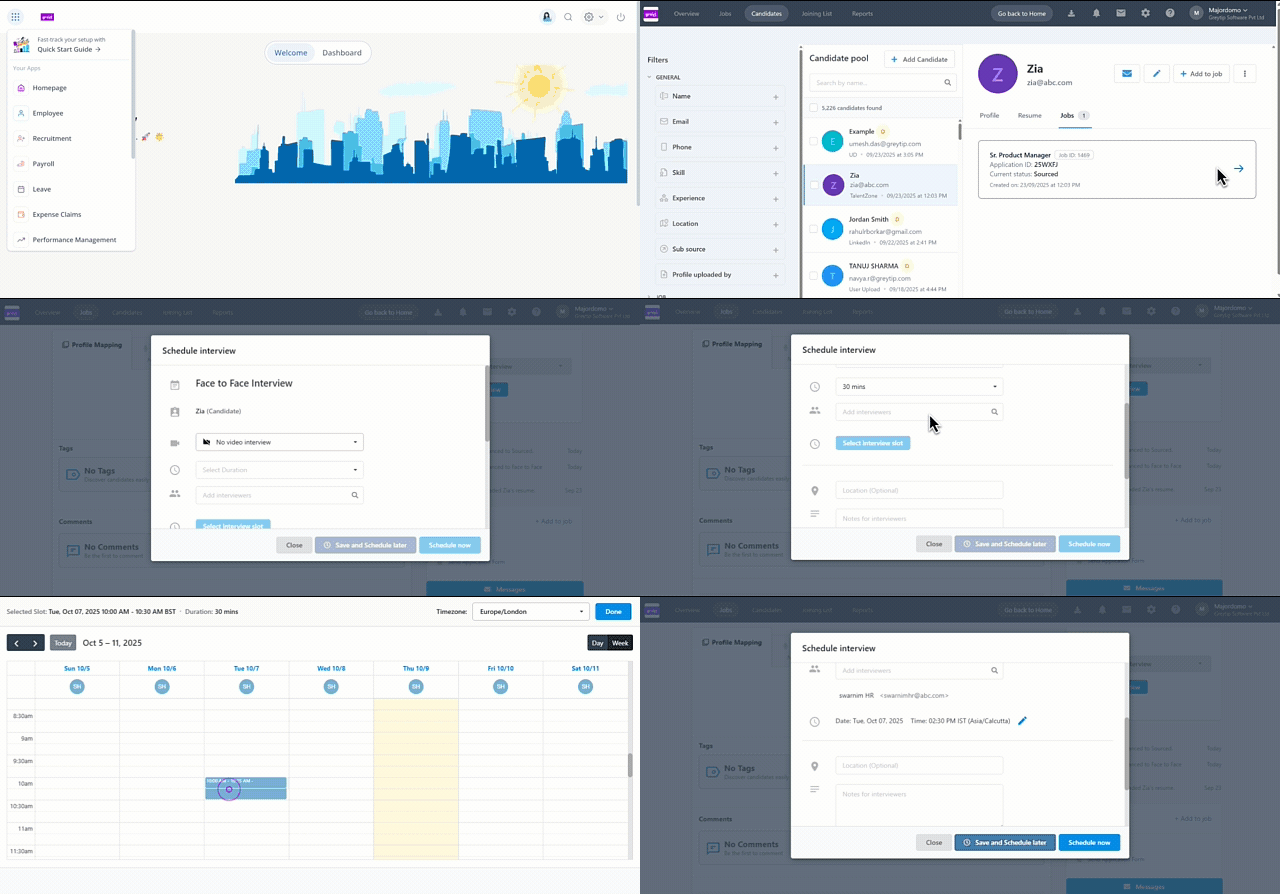
Select a candidate and click the Jobs tab.
Click the → icon available on the job card.
Note: You can also navigate to the Jobs tab > Candidates > click the required job card.From the Candidate Status drop-down list under the Interview section, select the required option. The Schedule Interview button appears.
Note: The Schedule Interview button does not appear if you schedule the interview using a different navigation.Click Schedule Interview and select the respective video conference platform as per the integration done by your admin.
You can choose the schedule the interview with Google Meet/Microsoft Teams/Zoom.
If you select as No Video Interview the system will automatically sync and block the selected interviewers’ calendars for that time slot.
To prevent scheduling gaps, if a recruiter's calendar isn't connected or synced, the system will now display a real-time on-screen message prompting them to enable the sync via their profile.
If you select it as Other, then you need to manually enter the meeting link.
Choose the interview duration from the dropdown or select a custom duration and add the interviewer(s).
Click Select interview slot. The calendar opens, allowing you to check the interviewers’ availability. Select a slot and click Done.
Update the interview date and timezone as required.
Fill in additional details such as Location, Notes for interviewers, or add an attachment if required.
Note: The Competencies list fetches the qualities to judge a candidate from the scorecard.Click Schedule now or Save and schedule later to schedule the interview later.
Once you schedule the interview, you can choose to send an invite to the candidate.
You can view the interview details under the Interviews tab.
Note:You can reschedule the interview by clicking on the Edit icon.
You can also cancel interview by clicking the ellipsis icon (...) > Cancel Interview.
Schedule interviews in bulk
greytHR also allows you to schedule interviews in bulk from the Jobs page.
Click the required job card.
Set the default view for the job as Card View and Pipeline as the filter.
Select the required candidates using the checkboxes or Select all. Click the Schedule Interview option at the bottom of the page to schedule the interviews in bulk.
Points to remember:
You cannot cancel an interview after the interviewer has submitted feedback for it.
You can export the interview details as a PDF by clicking Export as PDF on the Interviews tab.
After an interview is completed, the recruiter can request feedback from the candidate on their interview experience. The candidate feedback form is not configurable, so you cannot add or change fields in it.
Related articles:
How to integrate Google Meet, Microsoft Teams and Zoom in greytHR Recruit
How to schedule an interview with Google Meet in greytHR Recruit