Schedule Interviews Easily with Microsoft Teams in greytHR
Updated in December - 2025 | Subscribe to watch greytHR how-to video
The integration of Microsoft Teams into greytHR Recruit simplifies and enhances the interview scheduling and management process. This allows recruiters to effortlessly schedule interviews with integrated Microsoft Teams meeting links, automate email notifications for candidates and interviewers, and ensure timely reminders to minimize no-shows.
Additionally, recruiters can check the interviewers' availability during scheduling, provided their Microsoft account is connected, making the process more efficient, organized, and convenient for all stakeholders.
After your admin enables the integration, your next actions as a recruiter are to:
Sync the profile with Microsoft Teams.
Schedule interviews.
Sync the profile with Microsoft Teams
Syncing your profile is essential as it enables seamless integration with Outlook Calendar, ensuring all events are synchronized. This allows real-time availability, automated scheduling, and efficient interview coordination.
To start syncing the profile, from the greytHR Admin portal, hover over the 9 dots and select Recruitment > Settings > User > My Profile.


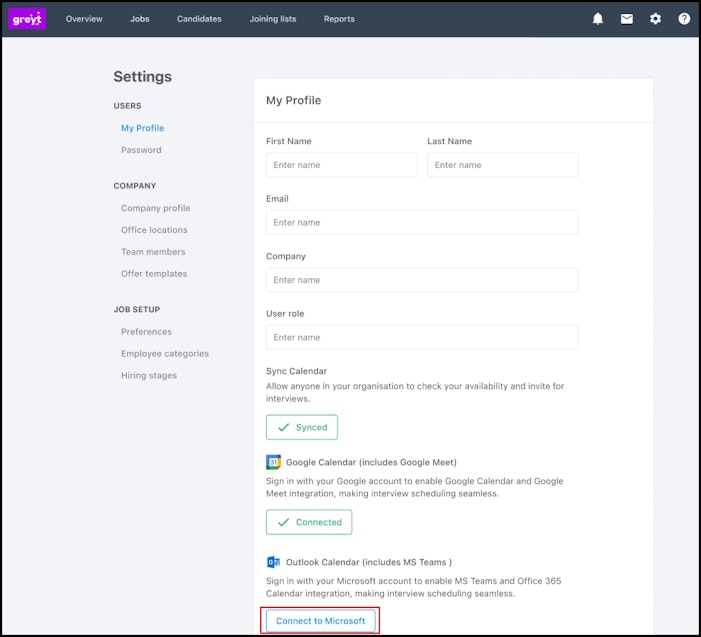
Under the Sync Calendar section, you can see the video conference integration, which includes the linked calendar. In this case, it reflects as Outlook Calendar (includes MS Teams).
Click Connect to Microsoft and sign in using your Microsoft account.
Note:If the profile is already synced, it reflects as Connected.
If your profile is not synced, you are prompted to sign in using your Microsoft credentials. Once you sign in successfully, your profile is synced.
If you have synced your profile and click Disconnect, your account is no longer synced. As a result, you cannot schedule interviews. You can sync it again during interview scheduling using the Connect option or follow the same process mentioned above.


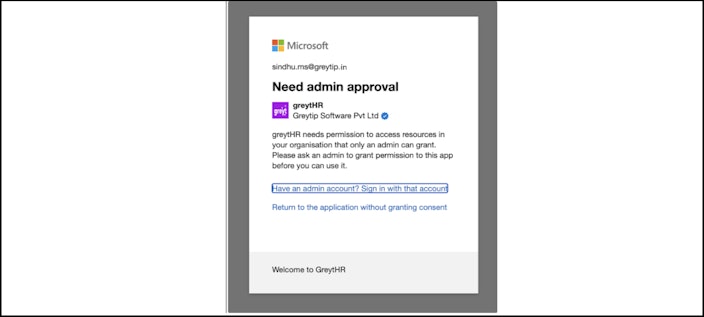
There are 2 ways for Microsoft Admins to provide access to Recruiters.
Option 1 - Admin Consent Flow for Individual recruiter request review and Approval
This option allows your Microsoft Admin to approve access on individual user requests.
Recruiters need to request access, and the admin reviews and approves it. Once approved, the connection starts working automatically.
Step 1: Admin Configures Admin Consent Settings in Azure Portal
Go to Azure Portal → Azure Active Directory / Entra ID
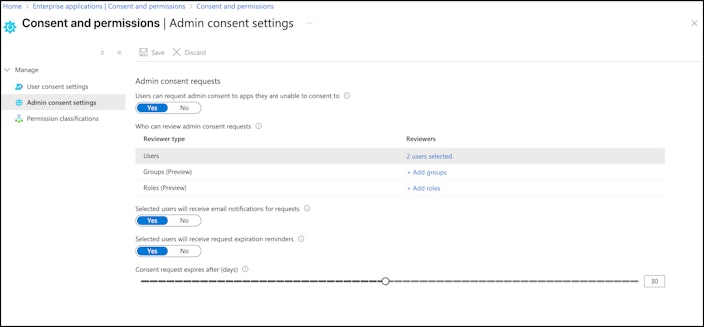
Navigate to: Enterprise Applications → Consent and Permissions → Admin consent settings
Enable: “Users can request admin consent to apps they are unable to consent to.”
Under “Who can review admin consent requests”, select:
Users
Groups
or Roles
Enable:
Notify selected users on new requests
Notify selected users on request expiration


Step 2: Recruiter Attempts to Connect Microsoft Teams/Calendar in greytHR
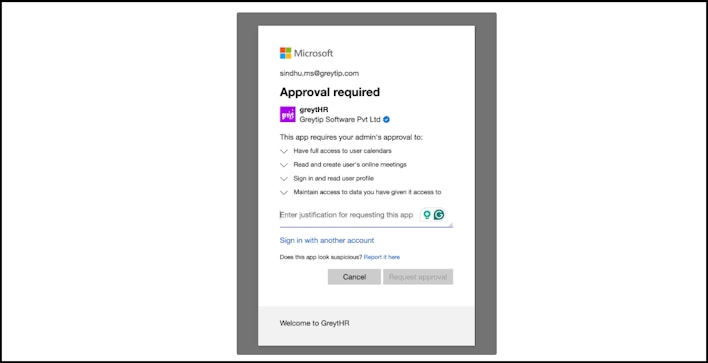
When the recruiter clicks Connect to Microsoft Teams/Calendar, Microsoft will show an Approval Required screen.
Recruiter enters justification → clicks Request Approval.


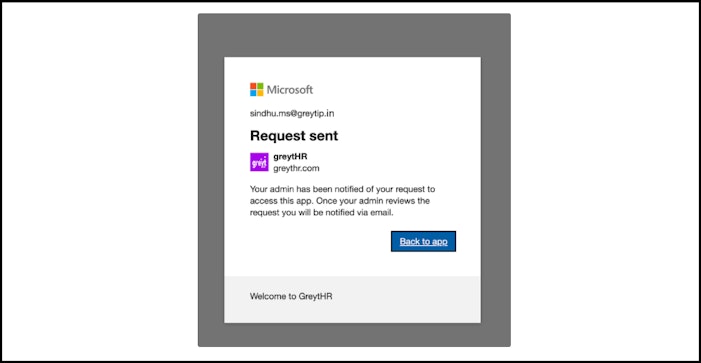
Step 3: Recruiter Sees Request Sent Confirmation
A confirmation message appears stating that the request has been sent to the organisation’s Admin.


Step 4: Microsoft Admin Reviews & Approves the Request
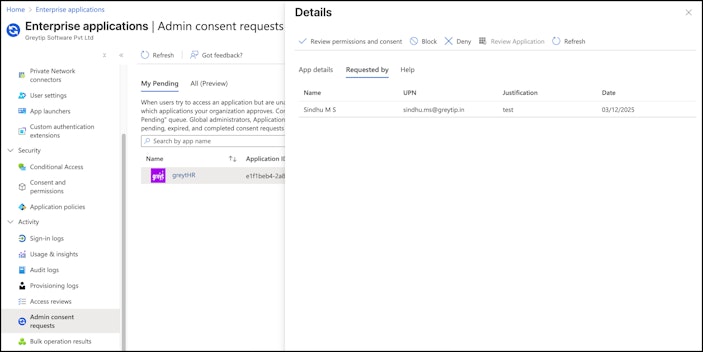
Admin goes to: Azure Portal → Enterprise Applications → Admin Consent Requests.
The pending request appears under the My Pending tab. Admin can Review, Approve, or Deny.
Once approved, the recruiter gets an email and can immediately complete the Teams/Calendar connection.


Option 2 - Global consent Setup (No need for individual Recruiter request and approval)
The Microsoft admin needs to update the consent and permissions settings in Azure Active Directory. Follow these steps to configure user consent settings through the Microsoft Entra admin center:
Sign in to the Microsoft Entra admin center as a Privileged Role Administrator.
Browse to Identity > Applications > Enterprise applications > Consent and permissions > User consent settings.
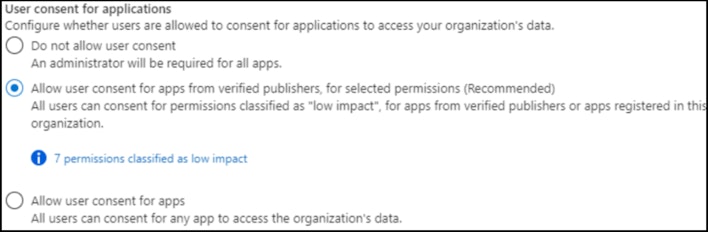
Under User consent for applications, select the recommended second option.


Select Save to save your settings and navigate to the Permission classifications tab
Choose Low tab > Add permissions to classify another permission.
Select the API and then select the following delegated permissions.
email
profile
openid
User.Read
OnlineMeetings.ReadWrite
Calendars.ReadWrite
offline_access
Reference links
Once this configuration is completed, recruiters can securely sign in to their Microsoft accounts within greytHR Recruit.
Info:
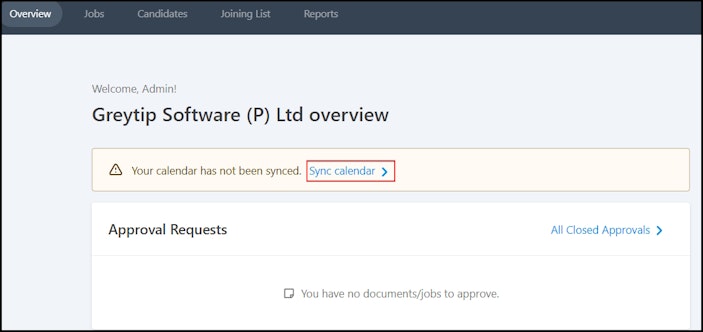
When you log in to greytHR Recruit for the first time, you can sync your profile from the Overview page by clicking Sync Calendar. This redirects you to the My Profile page, where you can select Connect to Microsoft.
Clicking this option prompts you to sign in with your Microsoft credentials. Once signed in successfully, your profile syncs automatically.


Schedule an interview with Microsoft Teams
After the profile is synced, you can check the interviewer's availability and schedule interviews in Recruit.
To schedule the interview, from the greytHR Admin portal, hover over the 9 dots and select Recruitment > Jobs.


Select the required job.
Under the Candidates tab, click on the candidate’s name.
From the CANDIDATE STATUS dropdown list, select the status as Telephonic Interview/Face to Face Interview.
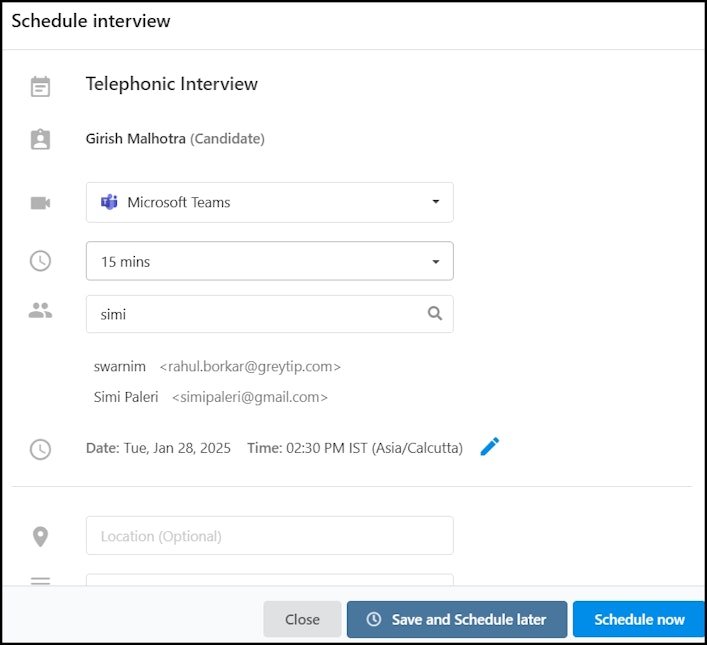
Click Schedule Interview.
Select Microsoft Teams as the interview platform.
Choose the interview duration from the dropdown or select a custom duration.
Add interviewers.
Click Select interview slot. The calendar opens, allowing you to check the interviewers’ availability. Select a slot and click Done.
The interview date and timezone appear. You can update them as required.
Fill in additional details such as Location, Notes for interviewers, or add an attachment if required.
Note: The Competencies list fetches the qualities to judge a candidate from the scorecard.Click Schedule now.
Note: You can also click Save and schedule later to schedule the interview later.Once you schedule the interview, you can choose to send an invite to the candidate.
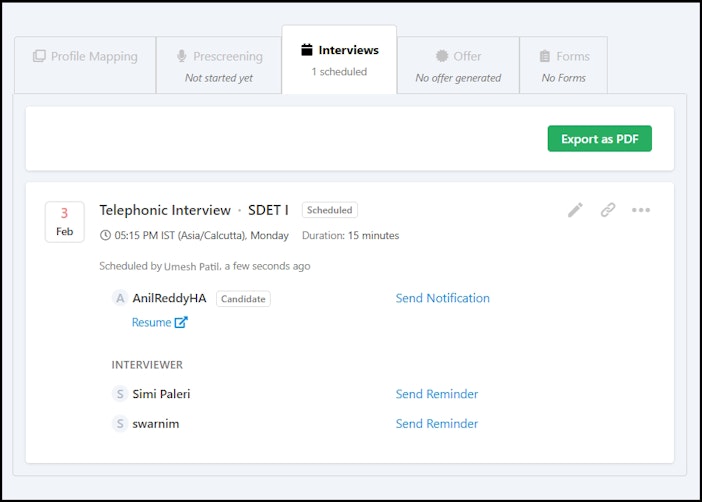
You can view the interview details under the Interviews tab.
Note:You can reschedule the interview by clicking on the Edit icon.
You can also Cancel interview by clicking the ellipsis icon (...) > Cancel Interview.
Info:
Once the interview is scheduled, both the interviewers and the candidate will receive two emails:
A Microsoft Teams event notification.
An individual interview email based on the template configured in greytHR Recruit.
You can also send reminder notifications to the candidate and the interviewers. To do so, from the greytHR Admin portal, hover over the 9 dots and select Recruitment > Jobs.
Select the required job.
Under the Candidates tab, click the candidate’s name.
Go to Interviews > Send Notification/Send Reminder.


Other related links:
How to integrate Google Meet and Microsoft Teams in greytHR Recruit
How to schedule an interview with Google Meet in greytHR Recruit