Set Up the Hackerrank Integration in greytHR Recruit
Updated in October - 2026 | Subscribe to watch greytHR how-to video
When tests are managed outside greytHR Recruit, you send test links manually, check progress in a separate tool, and update candidate statuses by hand. The Hackerrank integration in greytHR Recruit lets you assign tests, track progress, and view results directly from the candidate profile. Recruiters use Hackerrank assessments to evaluate candidates' skills before interviews.
Managing assessments within the hiring pipeline reduces manual coordination and keeps candidate statuses accurate. You can make screening decisions without switching between tools.
Enable the Hackerrank integration
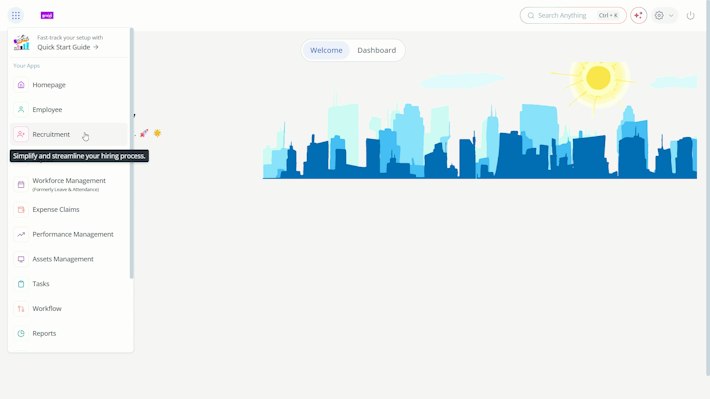
From the greytHR Admin portal, hover over the 9 dots and go to Recruitment.
Click the Settings icon on the top right of the menu bar.
On the Settings page, under COMPANY, click Integrations.
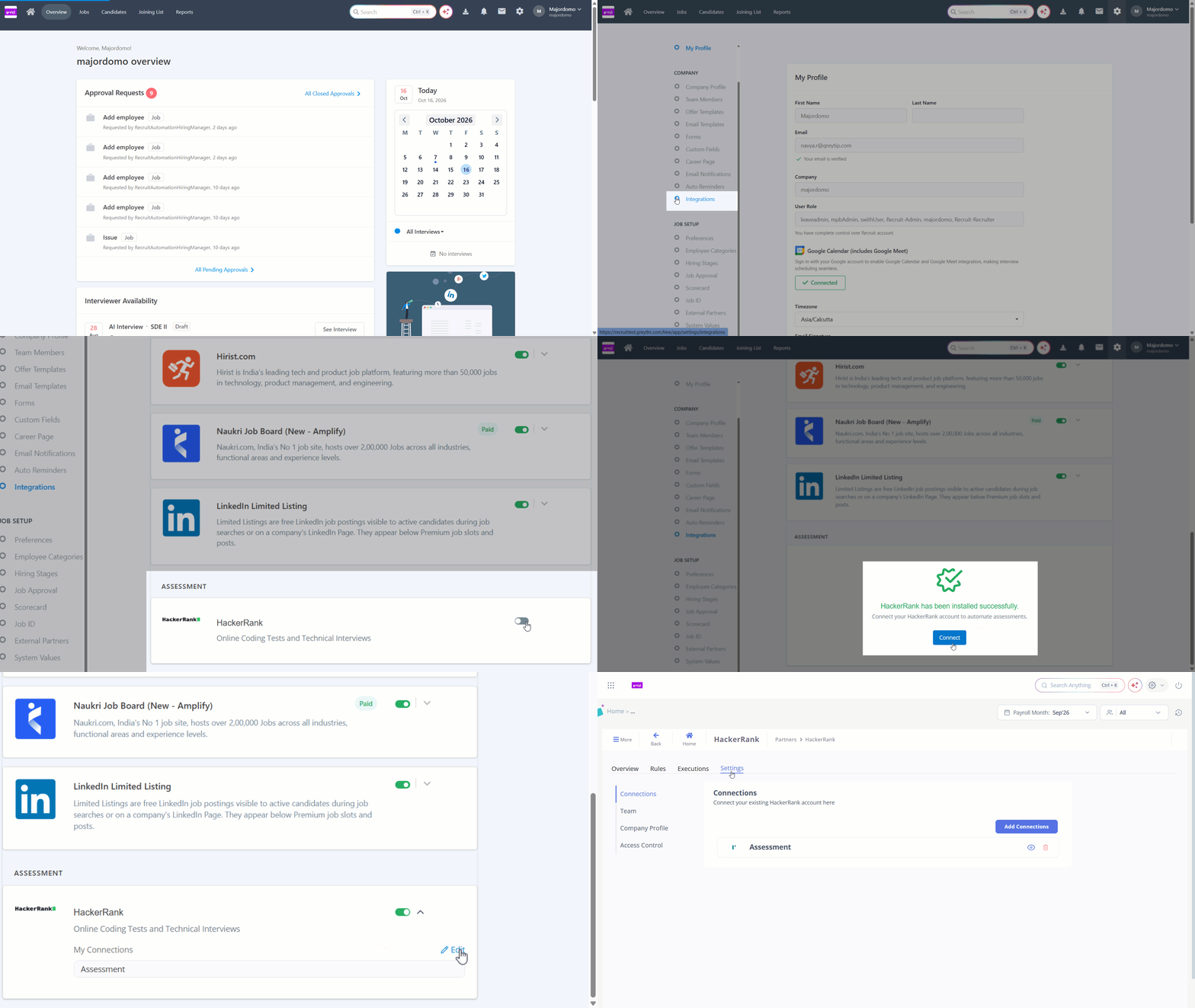
Scroll down to the ASSESSMENT section. In the Hackerrank block, turn on the toggle. The Hackerrank Installation window opens.
Select the I Agree to the Terms of Service for this application checkbox and click Install.
When the “Hackerrank has been installed successfully” message appears, click Connect.
Enter a Connection Name and your Hackerrank API Token, then save the connection.
Click Edit under My Connections in the Hackerrank block. The Hackerrank page opens.
Go to Settings > Connections to view your current connections.
To add another connection, click Add Connections. To remove a connection, click the Delete icon next to it.
greytHR validates the credentials with Hackerrank. A confirmation message appears when the integration is enabled.
Note: The integration cannot be enabled with invalid credentials.
Once the integration is enabled, the Assessment stage is added by default under Screening in the hiring stages.
Select Hackerrank as the assessment vendor for a job
Add or edit a job in greytHR Recruit.
In the hiring stages, go to Screening > Assessment.
Click the Settings (gear) icon beside the stage.
Select Hackerrank as the Assessment Vendor.
Click Save.


Note: Only one vendor can be selected for a job's assessment stage. If no vendor is selected, you cannot assign a test, and the message "Assessment vendor not configured for this job. Please update job settings." appears.
Assign an assessment to a candidate
Open the candidate's profile and go to the Prescreening tab.
In the Assessment block, click Assign Test.
Select the test from the list. The list shows the test name, type, and duration.
Select the Due Date.
Click Send Assessment.
The candidate receives an email with a unique link to the Hackerrank test. The candidate's status changes to Assessment, and the assignment is recorded in the activity log.
Note: You cannot assign a test if the candidate's email address is missing. If the test list does not load, the message "Unable to load test list." appears. [VERIFY]
View assessment results
Open the candidate's profile and go to the Prescreening tab.
In the Assessment block, click View Result once the status is Completed.
The result window shows the score, a summary, section-wise data (if provided by Hackerrank), and a link to the detailed report.
Note: The candidate's status does not change automatically after the test is completed. Move the candidate to the next status or stage manually.
Related articles: