Schedule Interviews Easily with Zoom in greytHR Recruit
Updated in December - 2025 | Subscribe to watch greytHR how-to video
Integrating Zoom with greytHR Recruit enhances and streamlines the interview scheduling process. As a recruiter, you can effortlessly set up interviews with auto-generated Zoom links, automate notifications for both candidates and interviewers and ensure timely updates to minimize no-shows.
You can also view interviewers' availability while scheduling, provided you connect with your Zoom account and your Microsoft or Google account is linked. This ensures a more efficient, organized, and convenient process for all stakeholders.
After your admin enables the integration, your next actions as a recruiter are to:
Connect with a Zoom account.
Sync the profile with the respective calendar.
Schedule interviews.
Connect with Zoom account and sync profile
After enabling Zoom as the video conferencing platform and selecting your preferred calendar, you need to connect your Zoom account and sync the selected calendar. This ensures real-time availability, automated scheduling, and seamless interview coordination.
To sync the profile, from the greytHR Admin portal, hover over the 9 dots and select Recruitment > Settings > User > My Profile.


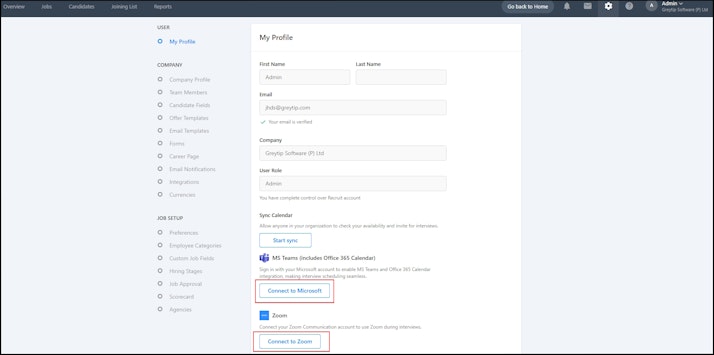
Click Connect to Zoom to connect your Zoom account.
Next, you need to sync your profile with the calendar enabled while integrating Zoom. Click Connect to Microsoft/Connect to Google to sync the profile.
Note:
If the profile is already synced, it reflects as Connected.
If your profile is not synced, you are prompted to sign in using your Microsoft/Google/Zoom credentials. Once you sign in successfully, your profile is synced.
If you have synced your profile and click Disconnect, your account is no longer synced. As a result, you cannot schedule interviews. You can sync it again during the interview scheduling using the Connect option or follow the same process mentioned above.
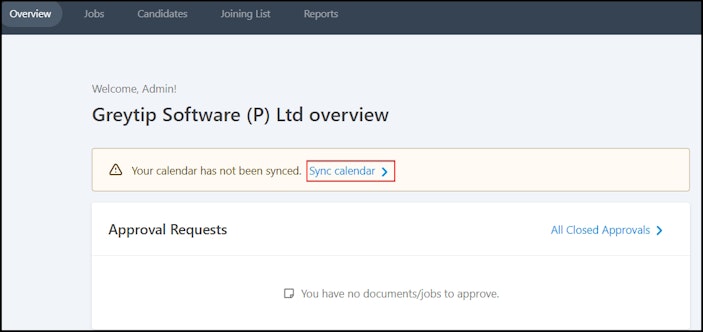
When you log in to greytHR Recruit for the first time, you can sync your profile from the Overview page by clicking Sync Calendar. This redirects you to the My Profile page, where you can select the calendar enabled to sync your profile.
Clicking this option prompts you to sign in with the required credentials. Once you have successfully signed in, your profile will sync automatically.


Schedule an interview with Zoom
After the profile is synced, you can check the interviewer's availability and schedule interviews in Recruit.
To schedule the interview, from the greytHR Admin portal, hover over the 9 dots and select Recruitment > Jobs.


Select the required job.
Under the Candidates tab, click on the candidate’s name.
From the CANDIDATE STATUS dropdown, select the status as Telephonic Interview/Face to Face Interview.
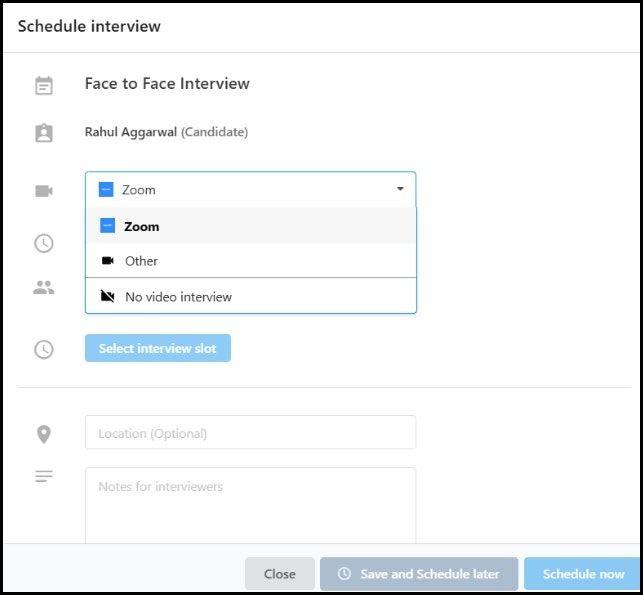
Click Schedule Interview.
Select Zoom as the interview platform.
Choose the interview duration from the dropdown or select a custom duration.
Add interviewers.
Click Select interview slot. The calendar opens, allowing you to check the interviewers’ availability. Select a slot and click Done.
The interview date and timezone appear. You can update them as required.
Fill in additional details such as Location, Notes for interviewers, or add an attachment if required.
Note: The Competencies list fetches the qualities to judge a candidate from the scorecard.Click Schedule now.
Note: You can also click Save and schedule later to schedule the interview later.Once you schedule the interview, you can choose to send an invite to the candidate.
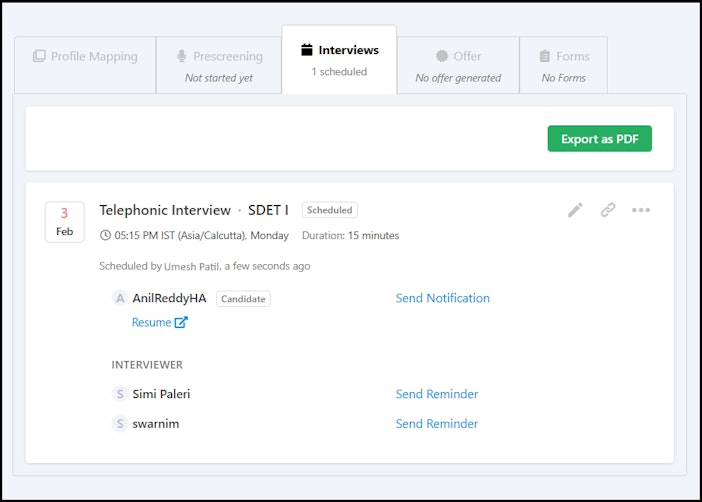
You can view the interview details under the Interviews tab.
Note:You can reschedule the interview by clicking on the Edit icon.
You can also Cancel interview by clicking the ellipsis icon (...) > Cancel Interview.
Info:
Once the interview is scheduled, both the interviewers and the candidate will receive an email.
You can also send reminder notifications to the candidate and the interviewers. To do so, from the greytHR Admin portal, hover over the 9 dots and select Recruitment > Jobs.
Select the required job.
Under the Candidates tab, click the candidate’s name.
Go to Interviews > Send Notification/Send Reminder.


Disable Zoom account
To disable your Zoom account, log in to your Zoom account and navigate to the Zoom App Marketplace.
Click Manage > Added Apps or search for greytHR Recruit app in the search box.
Select the greytHR Recruit app.
Click Remove.
Potential implications of removal
Once removed, greytHR Recruit will no longer have access to your Zoom data (e.g., meeting information, user details, or recordings).
Any features that integrate with Zoom (like automatic meeting sync or analytics) will stop working.
If your account was connected to multiple users or teams, they will also lose access to these app features.
User data handling
Upon removal, all OAuth tokens and permissions granted to the app are revoked immediately.
Your data stored on our servers will be:
Deleted within [X days], or
Anonymized for analytics purposes (if applicable).
Zoom does not retain or sell your personal data after disconnection.
You may contact greytHR support to request verification of deletion.
Other related links:
How to integrate Google Meet, Microsoft Teams and Zoom in greytHR Recruit
How to schedule an interview with Google Meet in greytHR Recruit
How to schedule an interview with Microsoft Teams in greytHR Recruit