Configure Email Sender Domain and SPF in greytHR Recruit
Updated in April-2025 | Subscribe to watch greytHR how-to video
Using a company domain for sending emails is essential to ensure professional communication, credibility, and improved email deliverability. Emails sent from generic or unverified domains are more likely to be marked as spam, reducing the chances of reaching recipients' inboxes.
Implementing a Sender Policy Framework (SPF) strengthens email authentication by verifying that the sender is authorized to send emails on behalf of the company domain. This helps prevent email spoofing and enhances security. It also improves email deliverability, ensuring that important communications do not end up in spam folders.
greytHR Recruit offers flexibility for admins to configure their email sender domain or use the greytHR domain to send emails, ensuring better email deliverability and reducing the risk of emails being flagged as spam.
How to configure/set up email sender domain in greytHR Recruit
To configure/set up the email notifications from the greytHR Admin portal, go to Recruit > Settings > Company > Email Notifications.
Under the Sender Domain section, select Use greytHR domain/Use custom domain.
How to use greytHR domain as the sender domain
If you select Use greytHR domain as the sender domain, all emails are sent through greytHR’s domain (@notification.greythrmail.com).
Select Use greytHR domain and enter the username in the text box.
Click Update.


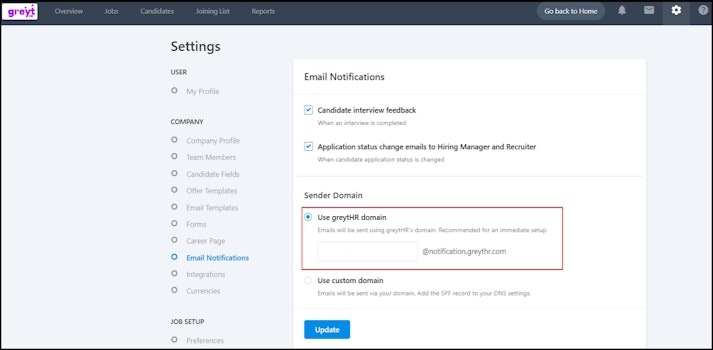
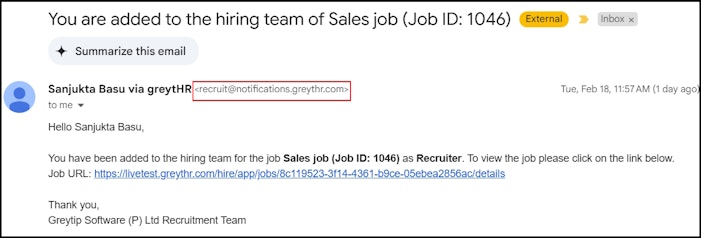
For example, if you enter recruit as the domain name, all emails will be sent from recruit@notification.greythrmail.com.


How to use a custom domain as the sender domain
If you select Use custom domain as the sender domain, such as @abcconsulting.com then all emails are sent through the specified domain.


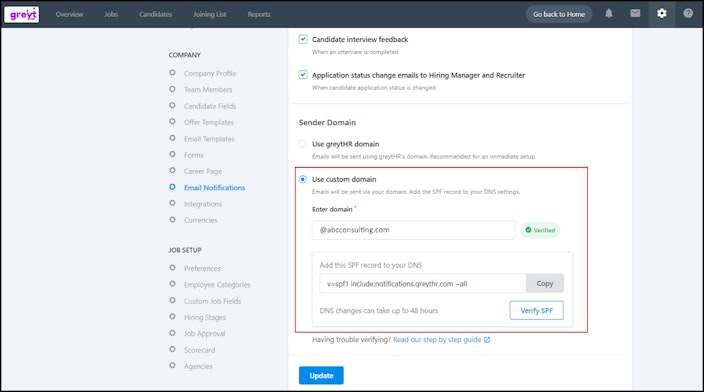
If you want to use a custom domain, specify the domain name in the Enter domain text box.
Copy the SPF record “v=spf1 include:notifications.greythrmail.com ~all” and send it to your IT admin to have it configured in your DNS.
After the configuration is done, click Verify SPF.
Once verified, you can start sending the emails using the specified domain.
Note:
If SPF verification is delayed or the SPF record is not yet configured in your DNS, and the status appears as Unverified or Pending, emails are sent through the greytHR domain. Once the SPF record is verified, emails are automatically sent from your custom domain. This ensures that the verification process does not affect email delivery or cause emails to land in spam.
If you encounter any issues while setting up the SPF record, refer to our SPF setup guide for assistance.
Other related links: