Effortlessly Manage Salary Payments with greytHR HSBC PayNow
Updated in August - 2026 | Subscribe to watch greytHR how-to video
greytHR PayNow with HSBC Corporate Internet Banking (CIB) is for our customers who use CIB for salary dispersion. Corporate banking provides financial advice to commercial clients and institutions and promotes financial services and products to help these clients run their operations. With the integration, you can directly deposit your employees’ salaries into their accounts using your HSBC corporate account. This integration is a simple and efficient way of paying your employees' salaries without hassle.
With the greytHR PayNow, you can also ensure the safety of your employees’ data like salary information. This saves time in downloading the information manually/uploading payment instruction files to different banks.
To start using the greytHR PayNow feature, navigate to Payroll > Payout > PayNow Bank Transfer.
With greytHR PayNow, you can:
Directly transfer salaries from greytHR.
Perform HR & salary processing from a single window.
Credit salaries to any bank account through RTGS, NEFT, and IMPS.
To transfer salaries using the greytHR PayNow feature, perform the following steps:
Register for the greytHR HSBC PayNow feature.
Initiate bank transfer.
Authorize payment from HSBC.
Getting started with PayNow Bank Transfer
If you haven't registered for PayNow yet, navigating to Payroll > Payout > PayNow Bank Transfer takes you to an introductory page with a brief overview of the feature. From here, you can:
Click Learn How It Works to view a short video and detailed help article on the PayNow process.
Click Register Now to begin registration.
Register for the greytHR HSBC PayNow feature
To register for the feature, perform the following actions:
From the greytHR Admin portal, navigate to Payroll > Payout > PayNow Bank Transfer.
On the Pay Now Bank Transfer landing page, click Register Now.
On the Register Now pop-up, from the Select Bank dropdown list, select your bank — HSBC or ICICI Bank.
Note: The information required for registration may vary slightly by bank.Click Confirm. The registration form appears.
Under the HSBC Registration section, in the Profile ID textbox, enter the profile ID sent by the HSBC team via email.
In the Client ID textbox, enter the profile ID, shared by your HSBC Relationship Manager .
In the Client Secret textbox, enter the client secret shared by your HSBC Relationship Manager.
In the Customer ID textbox, enter the customer ID.
In the Account Holder Name textbox, enter the account holder's name.
In the Account Number textbox, enter the valid account number.
Note: Confirm the account number again in the Confirm Account Number textbox.In the Mobile Number textbox, enter the required mobile number.
Note: The mobile number should belong to the person who will initiate transfers and receive OTPs, not necessarily the account holder.Select the I agree with the Terms and Conditions checkbox to proceed with verification.
Click Verify to register for the feature.
Info: By registering for PayNow, you agree to the PayNow Terms and Conditions . greytHR acts only as an intermediary facilitating the transfer between you and your bank; it is not party to the transaction itself.
Initiate bank transfer
After registering the HSBC PayNow feature, you can initiate direct deposit via greytHR platform to process salaries for your employees. To initiate direct deposit, perform the following steps:
Process salary
Create a bank transfer
Initiate bank transfer
Process salary
To process your employees’ payroll, perform the following actions:
From your greytHR Admin login, navigate to Payroll > Payroll Inputs > Salary. The Salary page opens.
From the Search by Emp No/ Name search box, search for the employee for whom you want to process salary.
From the Component Group, ensure the salary components are correct.
Click Process Payroll to process the salary.
Create a bank transfer
To create a bank transfer, perform the following actions:
From the greytHR Admin portal, navigate to Payroll > Payout > Pay Now Bank Transfer.
On the Pay Now Bank Transfer page, view the number of employees ready for transfer (this reflects employees whose payroll has been processed).
Click Create Transfer Batch to generate a batch.
Note: If your employee count exceeds your bank's single-batch limit (e.g., 500 for HSBC), greytHR automatically splits employees into multiple batches.
Once you select employees for the transfer, the batch summary displays:
Total Payable Amount — the total amount to be disbursed across selected employees.
Will Be Paid — number of employees whose payment will go through.
Will Be Skipped — number of employees excluded due to errors (for example, missing IFSC code or bank account number). You can view the specific error against each employee.
Managing batches
After a batch is created, it appears on the Pay Now Bank Transfer landing page with its Batch ID, employee count, total amount, creation date, and status. From the Actions column, you can:
Click Initiate Transfers to begin the payout process for that batch.
Click the three-dot menu to Delete Batch (if you need to restart the process) or Export as Excel (to download the full batch details).
Verify and complete the transfer
After creating a new bank transfer, the page redirects and displays a list of batches and their details. A set of transaction requests combined is called a Batch. You can click the View option under the View column and display the batch details such as payroll, transfer type, branch, bank, name, status, and total amount.
To initiate the transfer process for each batch, perform the following actions:
Click the Initiate Transfers button to initiate the transaction. A Verify the Transaction pop-up appears. Click Close if you'd like to return to the Pay Now Bank Transfer page without proceeding.
On the pop-up, in the Enter OTP textbox, enter the OTP received on your registered mobile number.
Select the I agree with the Terms and Conditions checkbox.
Click Verify and Initiate to initiate the transaction. A success message appears.
Note: If an employee’s salary is more than two lakhs, then the system automatically sets the transaction type as RTGS. The rest of the employees’ transaction type is set as NEFT.
Once initiated, the batch status changes to Initiated. Since bank approval can take a few hours, the status updates automatically, or you can click the Refresh button to fetch the latest status directly from the bank.
Batch status can show as:
Pending Initiation — batch created, transfer not yet started.
Initiated — transfer started, awaiting bank approval.
In Progress — bank is processing the transaction.
Success — payment completed.
Failed — payment did not go through; you'll need to create a new batch and reinitiate for the affected employees.
Transactions tab
The Transactions tab displays every individual transaction across all your batches, along with its current status. If a transaction's actual outcome doesn't match the status shown (for example, the employee confirms payment wasn't received despite a Success status), you can manually override it:
Select the transaction using the radio button.
Add a remark explaining the update.
Click Update and confirm.
Note: This override is a one-time action and cannot be reversed once confirmed.
Authorize payment in HSBCnet
You must authorize the NEFT payment that you’ve initiated from greytHR’s Bank Transfer page using File Level Authorisation (FLA).


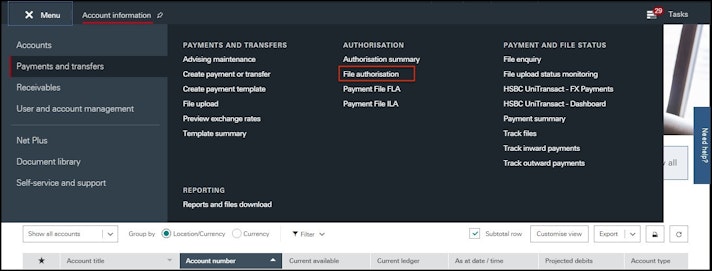
To authorize the payment from HSBC, perform the following actions:
Login to your HSBC account with valid credentials.
In the Username textbox, enter the relevant username.
Click Continue to proceed further. The Log on to HSBC pop-up appears.
Select Send a notification to my mobile/Generate a security code on my mobile option as per your requirements to complete the authentication process.
Click Continue to proceed further. A pop-up appears.
Enter the OTP sent to your mobile or the security code sent to your mobile. The HSBC Home page opens.
Click the ≡ Menu option. A dropdown list appears.
From Payments and transfers, under the AUTHORISATION option, click File authorisation. The following screen displays the files of the NEFT payments that you initiated from the greytHR Bank Transfer page.
Note:
The API transaction comes with the file level authentication which includes the File Level Summary and File Level Detail types.
File Level Summary: This type displays only the summary of the file such as total count and total amount.
File Level Detail: This type displays detailed information about the file such as beneficiary name, amount, and more.
Select the required file and click Review files. A form appears with the details of the selected file.
Click Authorise file to authorize the payment.
Note: You can also click Reject file to reject the payment.
After authorizing the file, the confirmation screen displays the payment status and the details. The payment can be sent for further authorizations based on the authorization structure that is configured at the HSBC platform for the account. After successful completion of the payment, the corresponding status displays in your greytHR Bank Transfer page as Paid.
Note: If the payment fails, you can always reinitiate the payment from the Bank Transfer page.
Other related links: