Process Full and Final Settlement for Contract Employees
Updated in February- 2026 | Subscribe to watch greytHR how-to video
Whenever the organization requires manpower, the organization prefers the employees who are already associated with them, such as contract employees or interns. If suitable, the contract employees can be converted into regular employees.
While converting the employee, there can be an effect on tax calculations. To avoid taxation errors, you must first settle the contract employee and then add him/her as a regular employee.
To convert the contract employee to a regular one, you must first process full and final settlement of a contract employee and after that add the settled employee as a new employee.
Process full and final settlement of a contract employee
To process the full and final settlement of a contract employee, from the greytHR Admin portal, hover over the 9 dots and go to Payroll > Payroll Inputs > Final Settlement. The Final Settlement page opens.


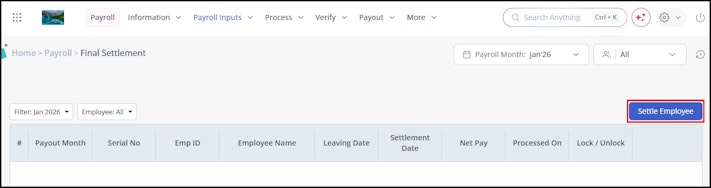
Click the Settle Employee button. The Settlement page opens.
Note: Alternatively, you can navigate to Actions > Payroll > Monthly Actions > Settle Resigned Employee. The Settlement page opens.Under Step 1: Employee, select the Search Employee option to search for a particular employee.
In the Search Employee search box, search for the contract employee.
Click Next. Step 2: Resignation Details section appears.
Under Step 2: Resignation Details, from the Resignation Submitted On dropdown calendar, select the date of the employee's resignation.
From the Leaving Date dropdown calendar, select the employee's last day.
From the Leaving Reason dropdown list, select the employee's reason for leaving the organization.
From the Settlement Date dropdown calendar, select the settlement date of the employee.
Click Next. Step 3: Notice Pay section appears.
Under Step 3: Notice Pay, select the Notice Required checkbox to activate the notice period for the employee.
In the Notice Period text box, enter the number of days to be served as the notice period.
Based on the Notice Period you have entered system calculates the Shortfall in Notice days automatically.
Click Next. Step 4: Work Days section appears.
Under Step 4: Work Days, read and understand the notifications displayed.
Under the Days Worked column, enter the number of days the employee has worked.
Click Next. Step 5: Leave Encashment section appears.
Under Step 5: Leave Encashment, enter the employee's leave details.
Click Next. Step 6: Remarks section appears.
Under Step 6: Remarks, read and understand the note. To make a different choice regarding the IT declaration, click click here.
In the Remarks text box, enter the remarks, if any.
Click Finish to complete the full and final settlement of the contract employee. A success message appears.
After the Full and Final settlement is done for the settled employe, you can add them as a regular/new employee.
To add the settled employee as a regular/new employee click here:
Related articles: