Declare and Manage Employee FBP in greytHR Easily
Updated in February - 2026 | Subscribe to watch greytHR how-to video
A flexible benefits plan (FBP) is a type of employee benefits program that allows employees to customize their benefits package based on their individual needs and preferences. Employers may declare FBP on behalf of their employees for tax purposes. In many jurisdictions, the value of an employee's FBP is subject to taxation and needs to be reported on their annual tax returns.
The FBP Declaration page in the greytHR Admin portal displays the FBP items declared by the employees. The page displays the Joining Date, Effective Date, Pay Date, Last Updated Date, and Plan Date. You can also declare FBP on behalf of the employees.
To view the FBP Declaration page, from the greytHR Admin portal, hover over the 9 dots and select Payroll > Published Info > FBP Declaration.
You can perform the following actions on the FBP Declaration page:
Create FBP on behalf of an employee.
Declare FBP for an employee.
Create FBP on behalf of an employee
You can create the plan on behalf of an employee only if you have released the plan to the employee.
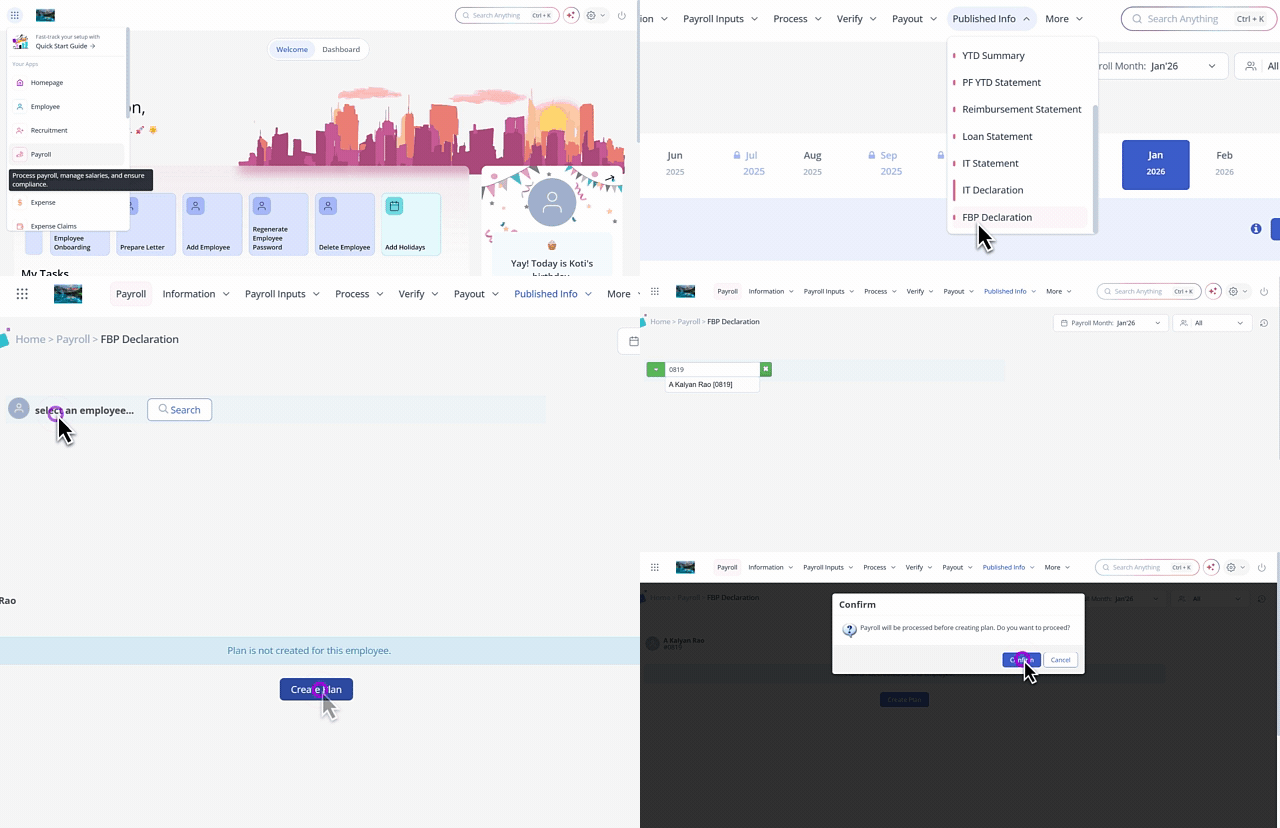
To create FBP on behalf of an employee, from the greytHR Admin portal, hover over the 9 dots and select Payroll > Published Info > FBP Declaration.
On the FBP Declaration page, from the Search Employee search box, search for the employee on behalf of whom you want to create the FBP.
Click Create Plan. Confirm pop-up appears.
Note: If the employee has already declared FBP, you can directly view the declaration details.Click Confirm to create FBP on behalf of an employee.
Declare FBP for an employee
To declare FBP for an employee, from the greytHR Admin portal, hover over the 9 dots and select Payroll > Published Info > FBP Declaration.
On the FBP Declaration page, from the select an employee search box, search for the employee for whom you want to declare FBP. The page displays the Allowances, Max Limit, and Amount columns.
From the Year dropdown list available in the top right corner, select the required year.
Under the Amount column, in the text boxes, enter the required amount of the components that the employee needs to declare.
Click Submit to declare FBP for the selected employee.
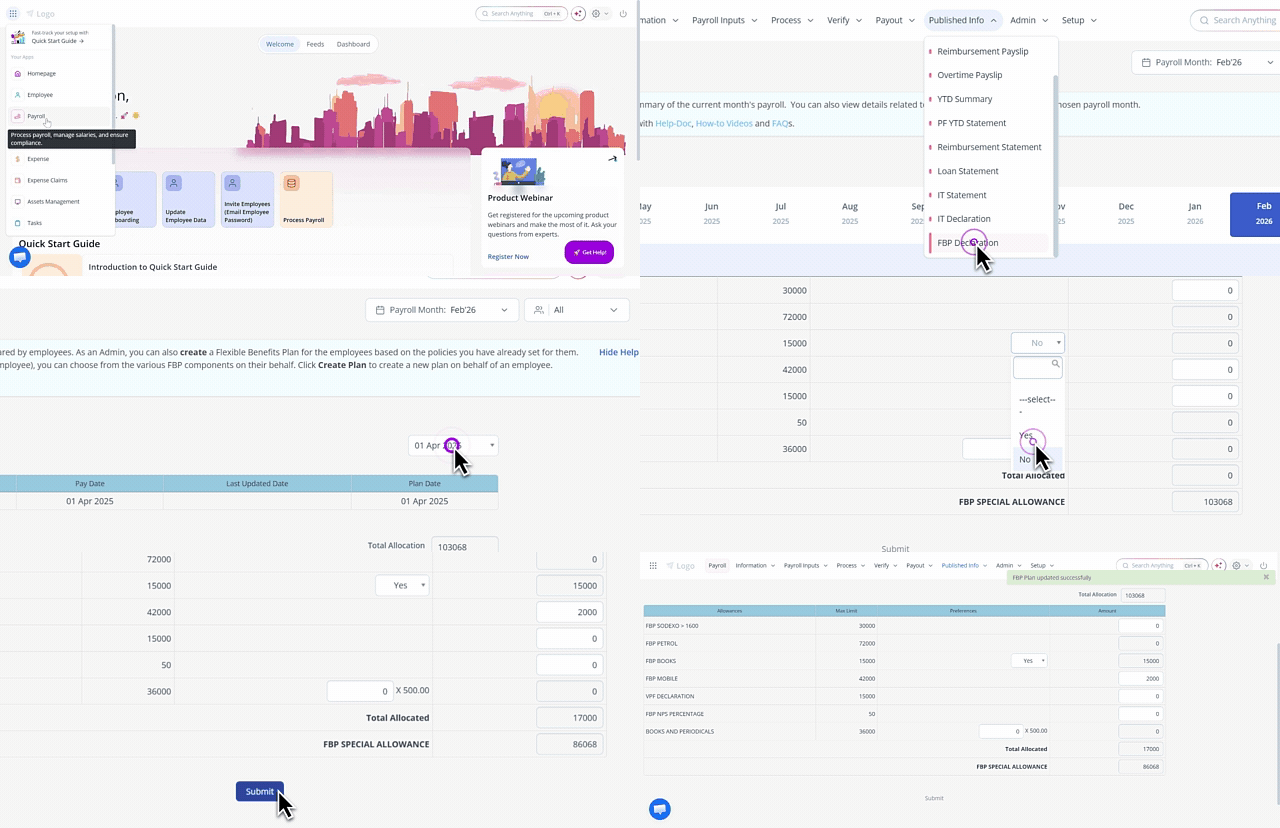
Note: Once you declare the FBP plan, you must lock and consider the plan from Payroll > Admin > FBP Planner. If you do not lock and consider the plan, the submitted plan automatically gets processed for payroll.
Other related links: