Efficiently Manage IT Declarations for Employees
Updated in April - 2026 | Subscribe to watch greytHR how-to video
Income tax declarations allow organizations to collect investment information from employees at the start of the financial year. Accurate income tax declarations are critical to:
Ensure proper tax deductions during payroll processing.
Comply with tax laws and avoid penalties.
Prevent employees from being over or under-taxed.
The greytHR IT Declaration process makes managing payroll effortless. It helps organizations streamline payroll management, stay compliant, and make tax deductions hassle-free. The greytHR Employee IT Declaration page takes the stress out of handling investment declarations, saving you time and reducing errors.
For a detailed walkthrough on the admin guide for greytHR IT declarations, refer to the video tutorials for admins.
Key actions on the Employee IT declaration page
Release IT declaration to employees.
Lock employees' IT declarations.
Consider employees' IT declarations.
Export the considered employees' list.
Send reminders to employees to declare income tax.
Release IT declaration to employees.
As an admin, you must release IT declarations from the greytHR Employee IT Declaration page at the beginning of the financial year to collect the employees’ investment declarations. To release IT declaration to employees, from the greytHR Admin portal, hover over the 9 dots and go to Payroll > Admin > Employee IT Declaration.


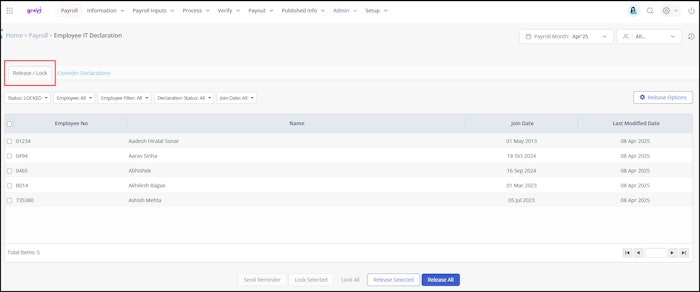
Access the Release / Lock tab to view the employee list.
From the Status dropdown, select Locked to view employees with locked IT declarations.
Use filters (Employee, Employee Filter, Declaration Status, and Join Date) to customize the list.
Note: Select Declaration Status as NOT YET DECLARED to view the new or existing employees who are yet to declare their IT declarations for the current financial year.Click Release Options to configure:
Allow employees to acknowledge their Business Income, if any: Select Yes or No.
Allow employees to select a regime till: Choose a deadline month.
Click Save.
Select employees using the checkboxes or click Release All for all eligible employees.
Click Release Selected or Release All.
Lock employees' IT declarations
Locking IT declarations ensures payroll accuracy.
To lock employees' IT Declaration, from the greytHR Admin portal, hover over the 9 dots and go to Payroll > Admin > Employee IT Declaration.
On the Employee IT Declaration page, open the Release / Lock tab to view the employee list.
From the Status dropdown, select Released to view employees with released IT declarations.
Select employees using checkboxes or click Lock All for all employees.
Click Lock Selected or Lock All.
Consider employees' IT declarations
You can approve IT declarations from the greytHR Employee IT Declaration page before processing payroll. This ensures valid and reviewed declarations are considered.
To consider employees'IT declarations, from the greytHR Admin portal, hover over the 9 dots and go to Payroll > Admin > Employee IT Declaration.
On the Employee IT Declaration page, open the Consider Declarations tab.
From the Status dropdown, select Pending for review to display pending declarations.
Customize the list using Payroll Date, Employee, and Employee Filter filters.
Select employees using checkboxes or click Consider All for all employees.
Click Consider or Consider All.
Export the considered employees' list
You can download a detailed report of employees with reviewed and considered IT declarations from the greytHR Employee IT Declaration page.
To export the considered employees' list, from the greytHR Admin portal, hover over the 9 dots and go to Payroll > Admin > Employee IT Declaration.
On the Employee IT Declaration page, open the Consider Declarations tab.
From the Status dropdown, select Considered to view approved declarations.
Select employees using checkboxes or click Download All.
Click Download Selected or Download All to export the list in Excel format.
Send reminders to employees to declare income tax
You can send reminders to employees who have not yet submitted their income tax declarations. This ensures timely submissions without the need for manual follow-ups.
From the greytHR Admin portal, hover over the 9 dots and go to Payroll > Admin > Employee IT Declaration.
On the Employee IT Declaration page, open the Release / Lock tab to view the employee list.
From the Status dropdown, select Released to view employees with released IT declarations.
Select employees using checkboxes and click Send Reminder.
A pop-up message appears. Click Confirm and a reminder email is sent to the employee(s).
Related articles: