Efficiently Lock Payroll and Release Payslips with greytHR
Updated in February - 2026 | Subscribe to watch greytHR how-to video
In some cases, an employer may want to lock the payroll for most employees but release payslips for only selected employees. This might be necessary if there are outstanding issues with the payroll data for some employees that need to be resolved before their payslips can be released.
The Payroll Release page in the greytHR Admin portal helps you lock/release the payroll for a few employees. The feature is useful when you have to release payroll in cycles or batches.
To view the Payroll Release page, from the greytHR Admin portal, hover over the 9 dots and select Payroll > Admin > Payroll Release.
You can perform the following actions on the Payroll Release page:
Lock/unlock payroll for selected employees.
Publish/unpublish payslips for selected employees.
Lock/unlock payroll for selected employees
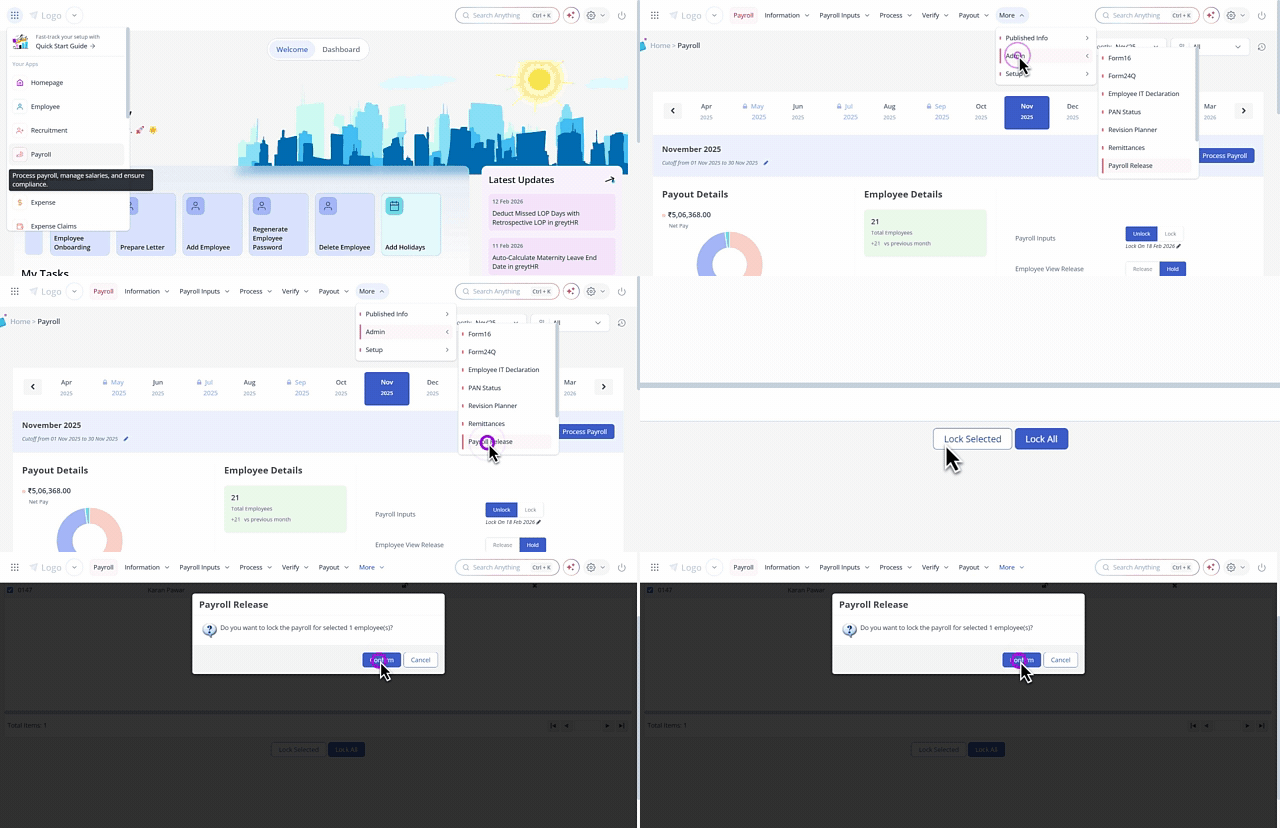
To lock/unlock payroll for selected employees, from the greytHR Admin portal, hover over the 9 dots and select Payroll > Admin > Payroll Release.
On the Payroll Release page, a list of employees appears.
From the Status filter, select Unlocked/Locked to view the employees for whom payroll is not locked/unlocked.
Select the employees using the checkbox next to the Employee No for whom you want to lock/unlock payroll.
Click Lock Selected/Unlock Selected. The Payroll Release pop-up appears.
Note: You can click Lock All/Unlock All to lock/unlock payroll for all the employees on the list.
Click Confirm to lock/unlock payroll for the selected employees. A success message appears.
Publish/unpublish payslips for selected employees
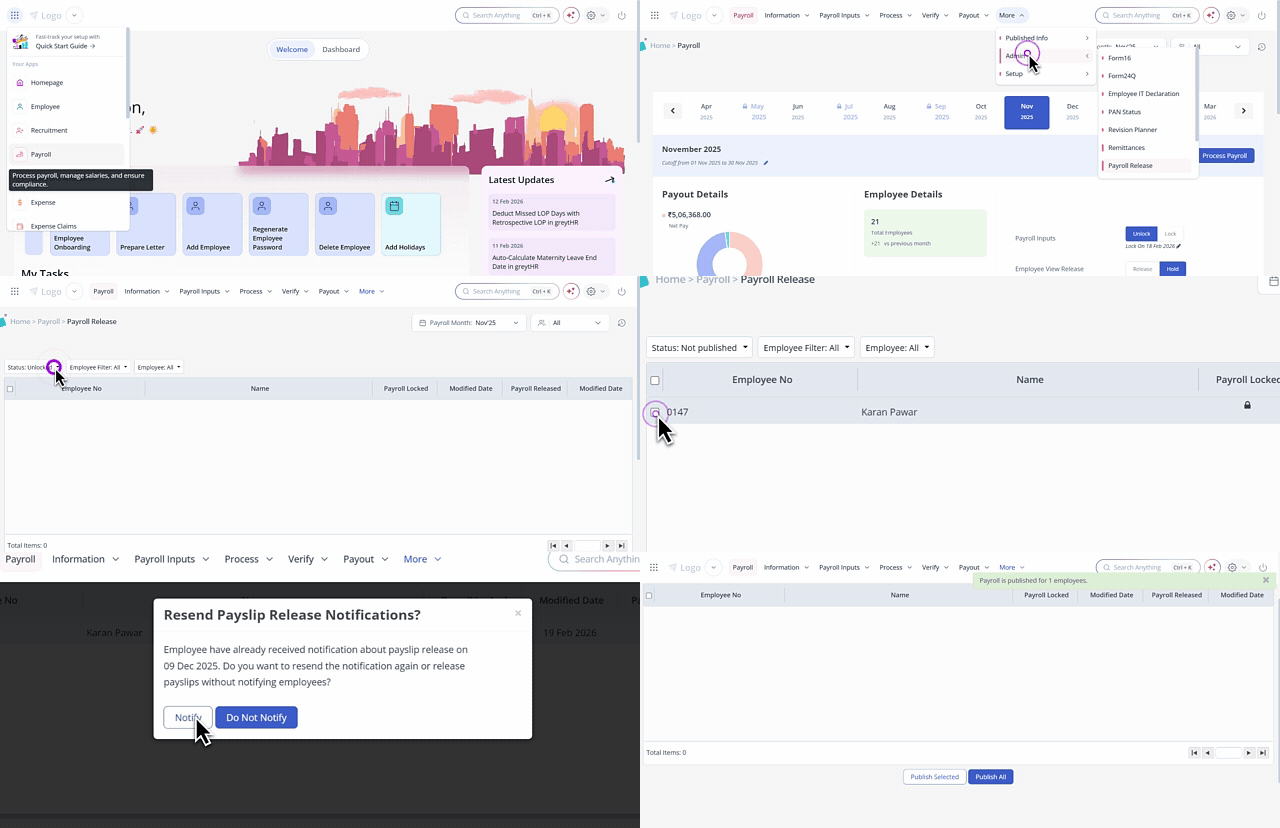
To publish/unpublish payslips for selected employees, from the greytHR Admin portal, hover over the 9 dots and select Payroll > Admin > Payroll Release.
On the Payroll Release page, a list of employees appears.
From the Status filter, select Published/Not published to view the employees for whom payslip is published/not published.
Select the employees using the checkbox next to the Employee No for whom you want to publish/unpublish the payslip.
Click Publish Selected/Unpublish Selected. The Payroll Release pop-up appears.
Note: You can click Publish All/UnPublish All to publish/unpublish the payslip for all the employees on the list.
Click Confirm to publish/unpublish the payslip for the selected employees. A success message appears.
Other related links: