Efficient Payslip Generation and Distribution with greytHR
Updated in March - 2026 | Subscribe to watch greytHR how-to video
Payslips are important for both employers and employees in their daily work lives. For employers, payslips provide a transparent record of salary payments, helping them track and manage payroll accurately. They also aid in compliance with labor laws and serve as a basis for tax calculations. For employees, payslips offer a clear breakdown of their earnings, deductions, and allowances, ensuring transparency in salary calculations. Payslips are crucial for financial planning, verifying payments, and addressing any discrepancies that may arise.
The Payslips page in the greytHR Admin portal allows you to generate payslips for your employees after completing the payroll processing. The page enables you to download the payslips and share them with employees. You can also generate multiple payslips for the employees. The page displays Payslip, Reimbursement Payslip, Overtime Payslip, Settlement Payslip, and Re-Settlement Payslip tabs.
To view the Payslips page, from the greytHR Admin portal, hover over the 9 dots and go to Payroll > Payout > Payslips.
You can perform the following actions on the Payslips page:
Download and send payslips to selected employees.
Generate multiple payslips for an employee.
Download reimbursement payslips.
Download overtime payslips.
Download settlement and re-settlement payslips.
Download and send payslips to selected employees
The Payslip tab allows you to generate the payslip for the employees. from the greytHR Admin portal, hover over the 9 dots and go to Payroll > Payout > Payslips.


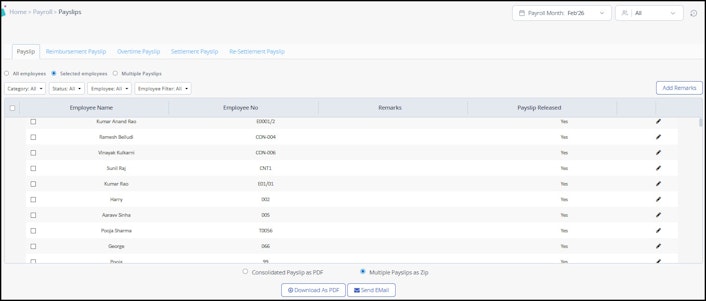
On the Payslips page, under the Payslip tab, select the Selected employees option. A list of employees appears in the table.
Using the Employee, Employee Filter, Declaration Status, and Join Date dropdown lists, customize the employee list.
From the employee list, select the employees using the checkbox adjacent to the Employee Name column.
Select Consolidated Payslip as PDF/Multiple Payslip as Zip as per your requirements.
Click Add Remarks to add remarks to the payslips.
Click Download As PDF to download the payslips to your local system.
Click Send Email. The Send Payslip pop-up appears displaying the number of employees selected to whom you want to send the payslips.
Click Confirm to send the payslips as email attachments to the selected employees.
Generate multiple payslips for an employee
You can generate multiple payslips for specific durations. These durations are as follows:
For the last 3/6 months. To generate multiple payslips for the last 3/6 months, from the greytHR Admin portal, hover over the 9 dots and go to Payroll > Payout > Payslips.
On the Payslips page, under the Payslip tab, select Multiple Payslips.
In the select an employee search box, enter the employee name or employee number for whom you want to generate the payslips.
Select Last 6 months/Last 3 months as per your requirements.
Click Download As PDF to download the payslips to your local system.
Click Send Email. The Send Payslip pop-up appears.
Click Confirm to send the payslips as email attachments to an employee.
For a specific date range. To generate multiple payslips for a particular date range, from the greytHR Admin portal, hover over the 9 dots and go to Payroll > Payout > Payslips.
On the Payslips page, under the Payslip tab, select Multiple Payslips.
In the select an employee search box, enter the employee name or employee number for whom you want to generate the payslips.
Under the Date Range option, from the From & To dropdown lists, select the required months.
Click Download As PDF to download the payslips to your local system.
Click Send Email The Send Payslip pop-up appears.
Click Confirm to send the payslips as email attachments to an employee.
Download reimbursement payslips
To download reimbursement payslips for employees, from the greytHR Admin portal, hover over the 9 dots and go to Payroll > Payout > Payslips.
On the Payslips page, click the Reimbursement Payslip tab.
Select All employees/Selected employees as per your requirements.
If you have selected the option Selected employees, using the Employee, Employee Filter, Declaration Status, and Join Date dropdown lists, customize the employee list.
Select any one of the following options as per your requirements:
Select Consolidated Reimbursement Payslip as PDF to download or send the employees' payslip as a single file.
Select Multiple Reimbursement Payslip as Zip to download or send the employees' payslips separately into a zip file.
Click Download As PDF to download the payslips to your local system.
Click Send Email. The Send Payslip pop-up appears .
Click Confirm to send the payslips as email attachments to the employees.
Download overtime payslips
To download overtime payslips for employees, from the greytHR Admin portal, hover over the 9 dots and go to Payroll > Payout > Payslips.
On the Payslips page, click the Overtime Payslip tab.
Select All employees/Selected employees as per your requirements.
If you have selected the option Selected employees, using the Employee, Employee Filter, Declaration Status, and Join Date dropdown lists, customize the employee list.
Select any one of the following options as per your requirements:
Select Consolidated Overtime Payslip as PDF to download or send the employees' payslip as a single file.
Select Multiple Overtime Payslip as Zip to download or send the employees' payslips separately into a zip file.
Click Download As PDF to download the payslips to your local system.
Click Send Email. The Send Payslip pop-up appears.
Click Confirm to send the payslips as email attachments to the employees.
Download settlement/re-settlement payslips
If an employee resigns from the organization, you must generate the settlement payslips with full and final settlement details such as deductions, arrears, pending salary, and earnings.
To download settlement/re-settlement payslips for employees, from the greytHR Admin portal, hover over the 9 dots and go to Payroll > Payout > Payslips.
On the Payslips page, click the Settlement Payslip/Re-Settlement Payslip tab.
Select All employees/Selected employees as per your requirements.
If you have selected the option Selected employees, using the Employee, Employee Filter, Declaration Status, and Join Date dropdown filter, customize the employee list.
Select any one of the following options as per your requirements:
Select Consolidated Settlement Payslip as PDF to download or send the employees' payslip as a single file.
Select Multiple Settlement Payslip as Zip to download or send the employees' payslips separately into a zip file.
Click Download As PDF to download the payslips to your local system.
Click Send Email. The Send Payslip pop-up appears.
Click Confirm to send the payslips as email attachments to the employees.
Related articles: