Release and Manage POI Declaration Forms in greytHR
Updated in January-2026 | Subscribe to watch greytHR how-to video
Proof of Investment (POI) is a process where the employees provide documents to validate their investment claims, enabling them to qualify for tax benefits as per their country's income tax laws during the tax filing process.
After customizing the POI Settings, the next step is to release and manage the POI declaration form to the employees. The greytHR Admin portal POI Overview page allows you to release and manage the POI declaration forms under the Yet to be released tab and Released tab in the following ways:
Release POI form in bulk.
Release POI for an individual employee.
Remind employees to declare POI.
Upskill your actions of releasing and managing the POI declaration forms by watching our video.
Release POI form in bulk
To release the POI form in bulk, from the greytHR Admin portal, hover over the 9 dots and select Payroll > Admin > POI Overview.
On the POI Overview page, under the Yet to be released tab, from the Filter employees as per regime list, select a regime as per your requirements.
Select the Bulk Select option.
Select the employees for whom you want to release the POI using the checkboxes adjacent to their names.
On the right side of the screen, under Employees Selected, select Release.
Click Submit to release POI for selected employees. The Release pop-up appears.
You can set the auto-lock due date here. To set the same, under Due Date, click the calendar icon. Select the auto-lock due date from the calendar.
Click Release to release the POI form in bulk.
Release POI for an individual employee
To release an individual employee's POI form, from the greytHR Admin portal, hover over the 9 dots and select Payroll > Admin > POI Overview.
On the POI Overview page, under the Yet to be released tab, from the Filter employees as per regime list, select a regime as per your requirements.
Select the Individual Details option.
From the Enter Emp. Name or ID search box, search for the employee for whom you want to release the POI. You can also select the employee by clicking the employee name displayed under the Employee Name list.
On the right side of the screen, under the View Form tab, click Release Form. The Release pop-up appears.
You can set the auto-lock due date here. To set the same, under Due Date, click the calendar icon. Select the auto-lock due date from the calendar.
Click Release to release the POI form for the selected employee.
Remind employees to declare POI
This option helps you to send a reminder email to the selected employee(s) for declaring IT.
To send a reminder to the employee(s) for declaration, from the greytHR Admin portal, hover over the 9 dots and select Payroll > Admin > POI Overview.


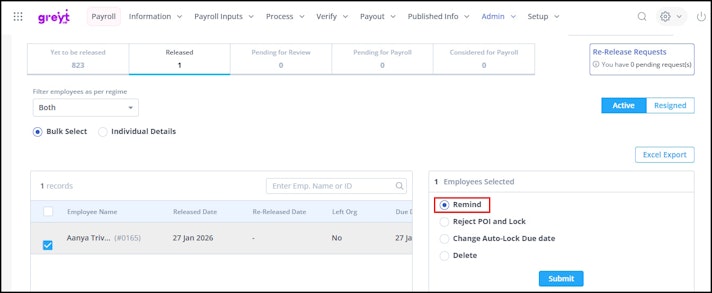
On the POI Overview page, under the Released tab, from the Filter employees as per regime list, select a regime as per your requirements.
Select the Active tab.
Select the Bulk Select option.
Select the employees using the checkboxes adjacent to their names. To select all employees with one click, select the checkbox adjacent to the Employee Name column header.
On the right side of the screen, under the Employees Selected list, select the Remind option.
Click Submit. The Remind pop-up appears.
In the Remarks textbox, enter the remarks for the employee(s).
Click Remind to send a reminder email to the employee(s). A success message appears.
Related Articles: