Manage POI Declarations for Payroll in greytHR System
Updated in March- 2026 | Subscribe to watch greytHR how-to video
After completing the process of POI declaration, you can now consider it for payroll processing. The POI Overview page in the greytHR Admin portal allows you to carry out activities such as re-release, push, review, and re-consider the POI forms to ensure accurate payroll processing.
The Pending for Payroll tab displays all the employees for whom POI forms are reviewed and pending for payroll. The Considered for Payroll tab displays the list of employees for whom POIs are completed and are pending for payroll. You can perform the following actions under the Pending for Payroll tab and Considered for Payroll tab:
Re-release POI forms.
Push POI forms for payroll.
Delete POI form.
Review POI forms again.
Re-release POI forms.
Re-consider POI forms.
Download proofs of an employee
Re-release POI forms
You can re-release the POI form for multiple employees at a time. Re-releasing the POI form will move the form back to the Released tab. However, re-releasing the POI form does not clear the current POI information.
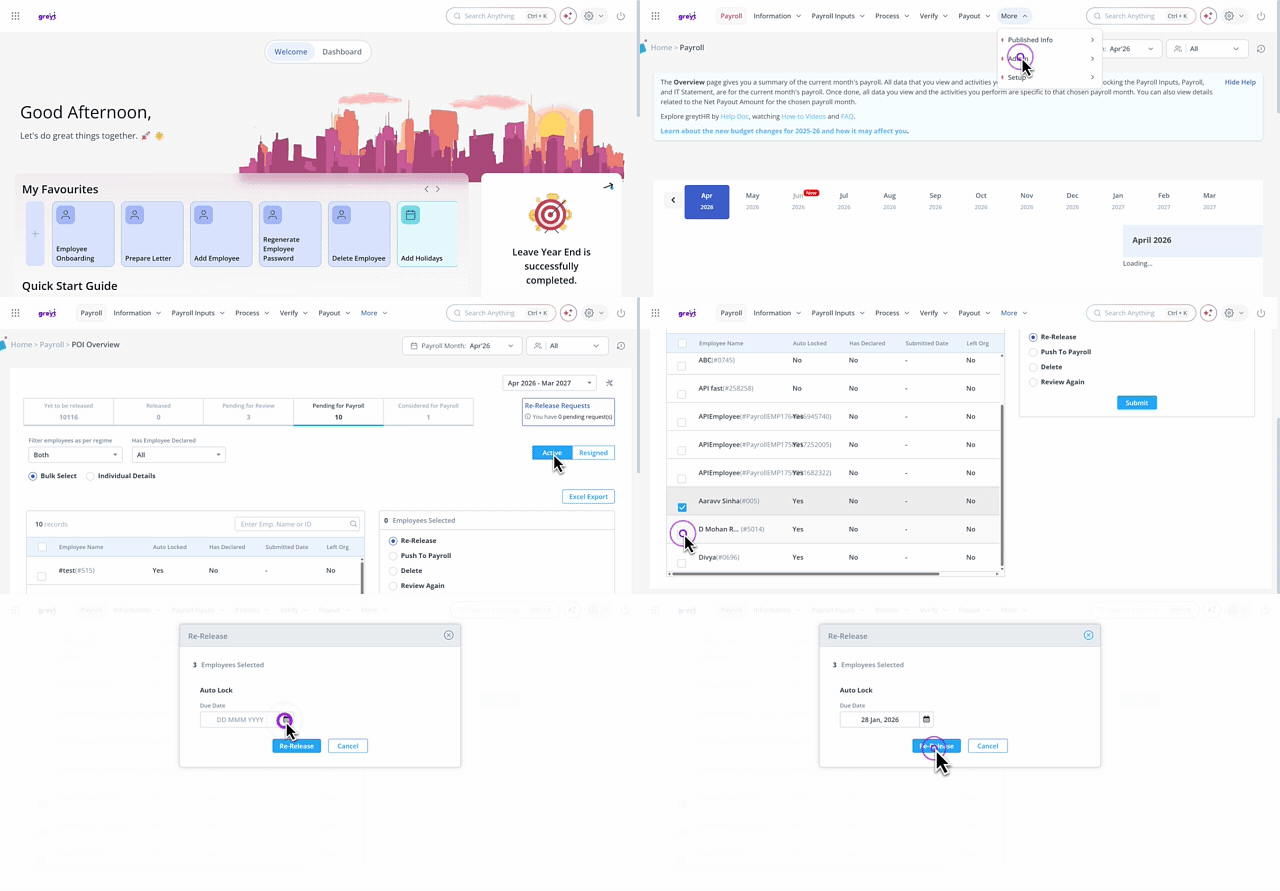
To re-release the POI, from the greytHR Admin portal, hover over the 9 dots and go to Payroll > Admin > POI Overview.
On the POI Overview page, under the Pending for Payroll tab, from the Filter employees as per regime list, select a regime as per your requirements.
Select the Active option.
From the Has Employee Declared dropdown list, select the appropriate option.
Select the Bulk Select option.
From the Enter Emp. Name or ID search box, search for the employee for whom you want to review the POI form. You can also select the employees using the checkboxes adjacent to their names.
Select the Re-Release option.
Click Submit. The Re-Release pop-up appears.
From the Due Date dropdown calendar, select the auto-lock due date from the calendar.
Click Re-Release to release the POI form again.
Push POI forms for payroll
After reviewing an employee's POI form, you can consider it for payroll. Considering POI forms helps in calculating income tax for the employee. To push a POI form to payroll, from the greytHR Admin portal, hover over the 9 dots and go to Payroll > Admin > POI Overview.


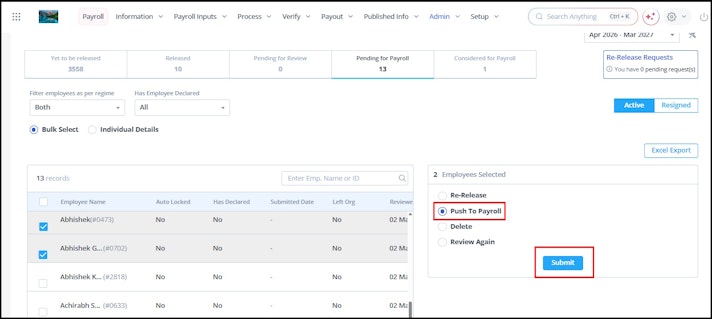
On the POI Overview page, under the Pending for Payroll tab, from the Filter employees as per regime list, select a regime as per your requirements.
Select the Active/Resigned option.
From the Has Employee Declared dropdown list, select the appropriate option.
Select the Bulk Select option.
From the Enter Emp. Name or ID search box, search for the employee whose POI form you want to push. You can also select the employees using the checkboxes adjacent to their names.
Select the Push to Payroll option.
Click Submit. Push to Payroll pop-up appears.
Select all the checkboxes that inform you about the after-effects of pushing a POI form and the month for which the payroll is considered.
Note: this is a mandatory step.Click Push to Payroll. The POI items move to the Considered for Payroll tab.
Delete POI forms
After reviewing an employee's POI form, you can also delete the form. Deleting the form moves it back to the Yet to be released tab, and all the changes made to the form in the POI process are deleted.
To delete a POI form, from the greytHR Admin portal, hover over the 9 dots and go to Payroll > Admin > POI Overview.

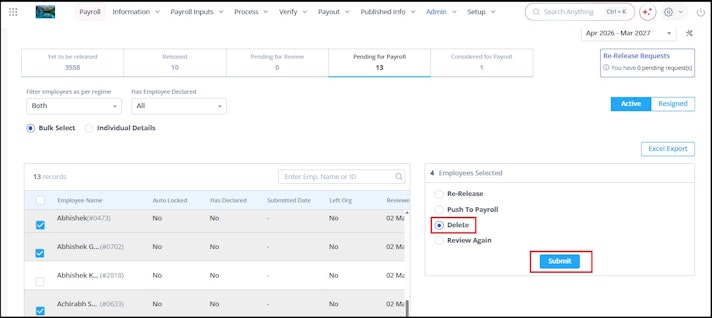
On the POI Overview page, under the Pending for Payroll tab, from the Filter employees as per regime list, select a regime as per your requirements.
Select the Active/Resigned option.
From the Has Employee Declared dropdown list, select the appropriate option.
Select the Bulk Select option.
From the Enter Emp. Name or ID search box, search for the employee for whom you want to delete the POI form. You can also select the employees using the checkboxes adjacent to their names.
Select Delete.
Click Submit. Delete pop-up appears.
Select all the checkboxes that inform you about the after-effects of deleting a POI form.
Click Delete. The POI items move to the Yet to be released tab.
Review POI forms again
You can review the POI form again even if the POI form is considered for payroll. If you select and proceed with the Review Again option, the POI form will move the form back to the Pending for Review tab.
To review the POI form again, from the greytHR Admin portal, hover over the 9 dots and go to Payroll > Admin > POI Overview.
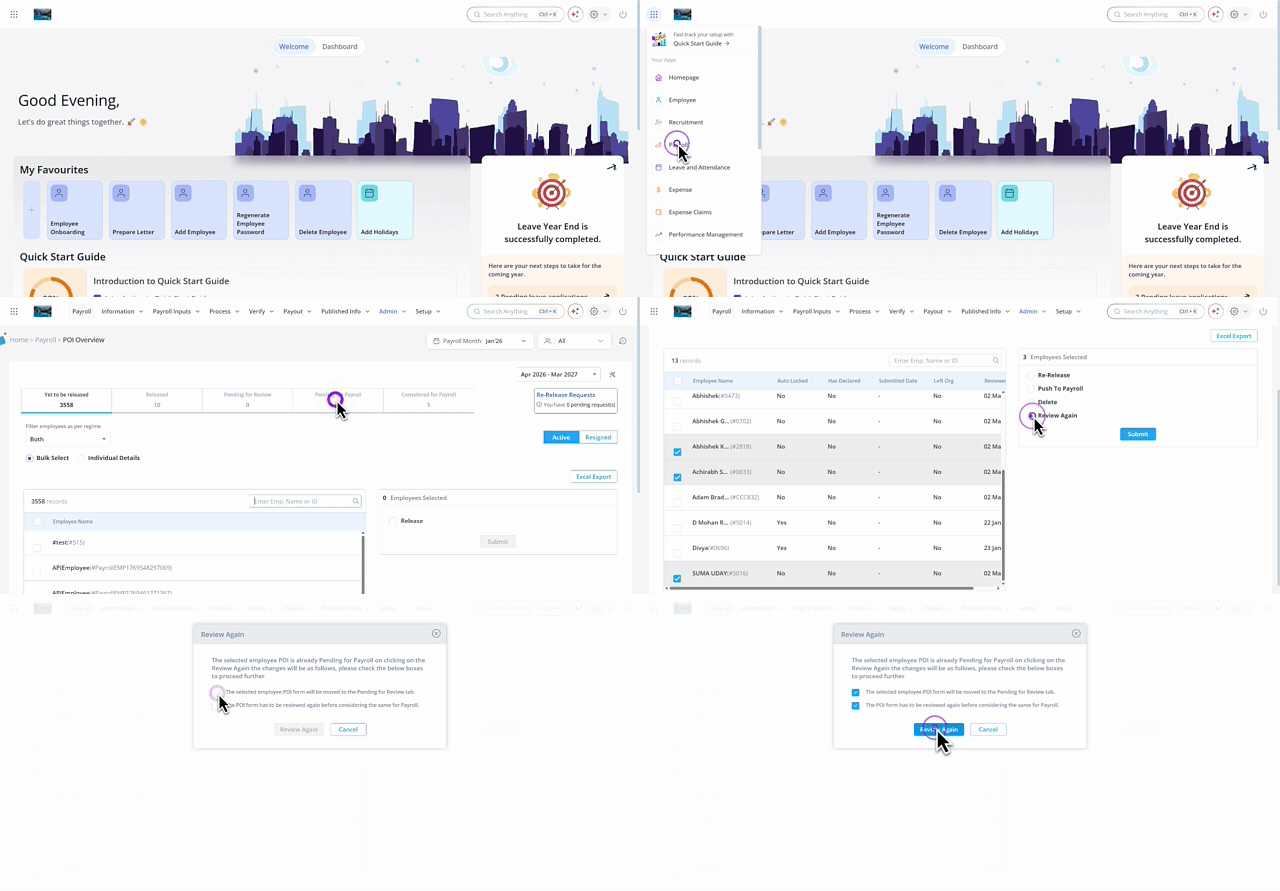
On the POI Overview page, under the Pending for Payroll tab, from the Filter employees as per regime list, select a regime as per your requirements.
Select the Active/Resigned option.
From the Has Employee Declared dropdown list, select the appropriate option.
Select the Bulk Select option.
From the Enter Emp. Name or ID search box, search for the employee for whom you want to review the POI form. You can also select the employees using the checkboxes adjacent to their names.
Select the Review Again option.
Click Submit. The Review Again pop-up appears.
Select all the checkboxes that inform you about the after-effects of reviewing a POI form again.
Click Review Again to review the POI form again. The POI form moves to the Pending for Review tab.
Re-release POI forms
You can re-release the POI form for multiple employees at a time. Re-releasing the POI form moves the form back to the Released tab. However, re-releasing the POI form does not clear the current POI information.
To re-release the POI form, perform the following actions:
From the greytHR Admin portal, navigate to Payroll > Admin > POI Overview.
On the POI Overview page, under the Considered for Payroll tab, from the Filter employees as per regime list, select a regime as per your requirements.
Select the Active option.
From the Has Employee Declared dropdown list, select the appropriate option.
Select the Bulk Select option.
From the Enter Emp. Name or ID search box, search for the employee for whom you want to re-release POI. You can also select the employees using the checkboxes adjacent to their names.
Select the Re-Release option.
Click Submit. A Re-Release pop-up appears.
From the Due Date dropdown calendar, select the auto-lock due date from the.
Click Re-Release to release the POI form again.
Re-consider POI forms
You can re-consider the POI form even if the POI form is considered for payroll. You must now assume the scenarios where a payroll admin has to re-consider the POI. Here is an ideal example: Consider a scenario where employee declarations are modified manually or cleared by payroll admin after being considered for payroll. Now, you need to revert to the previous declarations submitted by employees. In this scenario, you can quickly revert to the previous declarations submitted by employees with the help of the Re-Consider POI option.
To re-consider the POI forms, perform the following actions:
From the greytHR Admin portal, navigate to Payroll > Admin > POI Overview.
On the POI Overview page, under the Considered for Payroll tab, from the Filter employees as per regime list, select a regime as per your requirements.
Select the Active/Resigned option.
From the Has Employee Declared dropdown list, select the appropriate option.
Select the Bulk Select option.
From the Enter Emp. Name or ID search box, search for the employee for whom you want to re-consider the POI form. You can also select the employees using the checkboxes adjacent to their names.
Select the Re-Consider POI option.
Click Submit. A Re-Consider POI pop-up appears.
Select all the checkboxes that inform you about the after-effects of re-considering a POI form.
Note: This is a mandatory step.Click Re-Consider to consider the POI form again.
Download proofs of an employee
To download proofs submitted by an individual employee, from the greytHR Admin portal, hover over the 9 dots and go to Payroll > Admin > POI Overview.


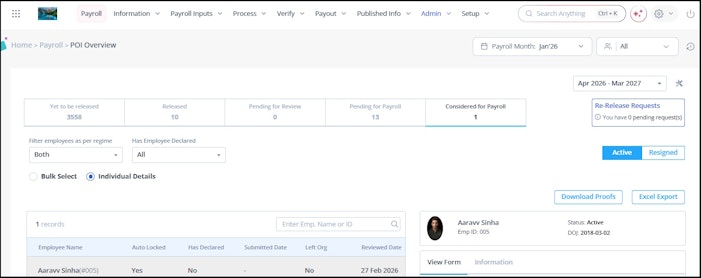
On the POI Overview page, under the Pending for Review/ Pending for Payroll/ Considered for Payroll tab, select the Individual Details option.
Select the employee whose proofs you want to download.
Click Download Proofs. The proofs download to your system as a zip folder.
Note: You can also click View Form > Download Proofs.
Excel export
You can download and export the POI Overview tab information in Excel format. To export POI forms, from the greytHR Admin portal, hover over the 9 dots and go to Payroll > Admin > POI Overview.


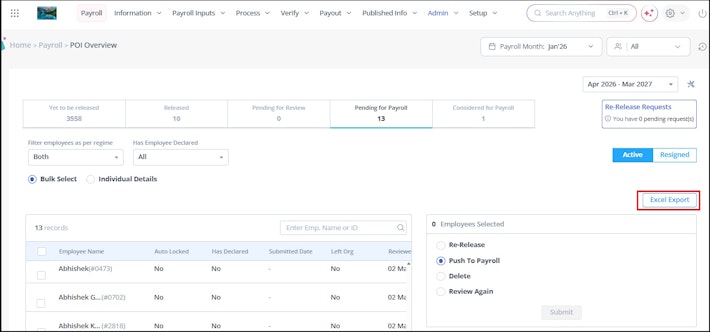
On the POI Overview page, click any tab for which you want to download the POI information.
Click Excel Export. The Excel file automatically downloads to your system.
To know how employees can submit proof of investment, click here.
Related articles: