Generate Employee Payroll Statements with greytHR
Updated in February - 2026 | Subscribe to watch greytHR how-to video
A payroll statement is a document that provides employees with a detailed breakdown of their earnings, deductions, and net pay for a specific pay period. It is a comprehensive report that summarizes the financial transactions that took place between the employer and employee during a pay period. The purpose of a payroll statement is to provide employees with a clear and comprehensive summary of their pay and deductions for a specific pay period.
The Payroll Statement page in the greytHR Admin portal allows you to view and create a new payroll statement. The statement includes various payroll components and categorized as Income Tax, payroll, and reimbursement. The page helps you to customize your statement as per your requirements.
View and generate payroll statement
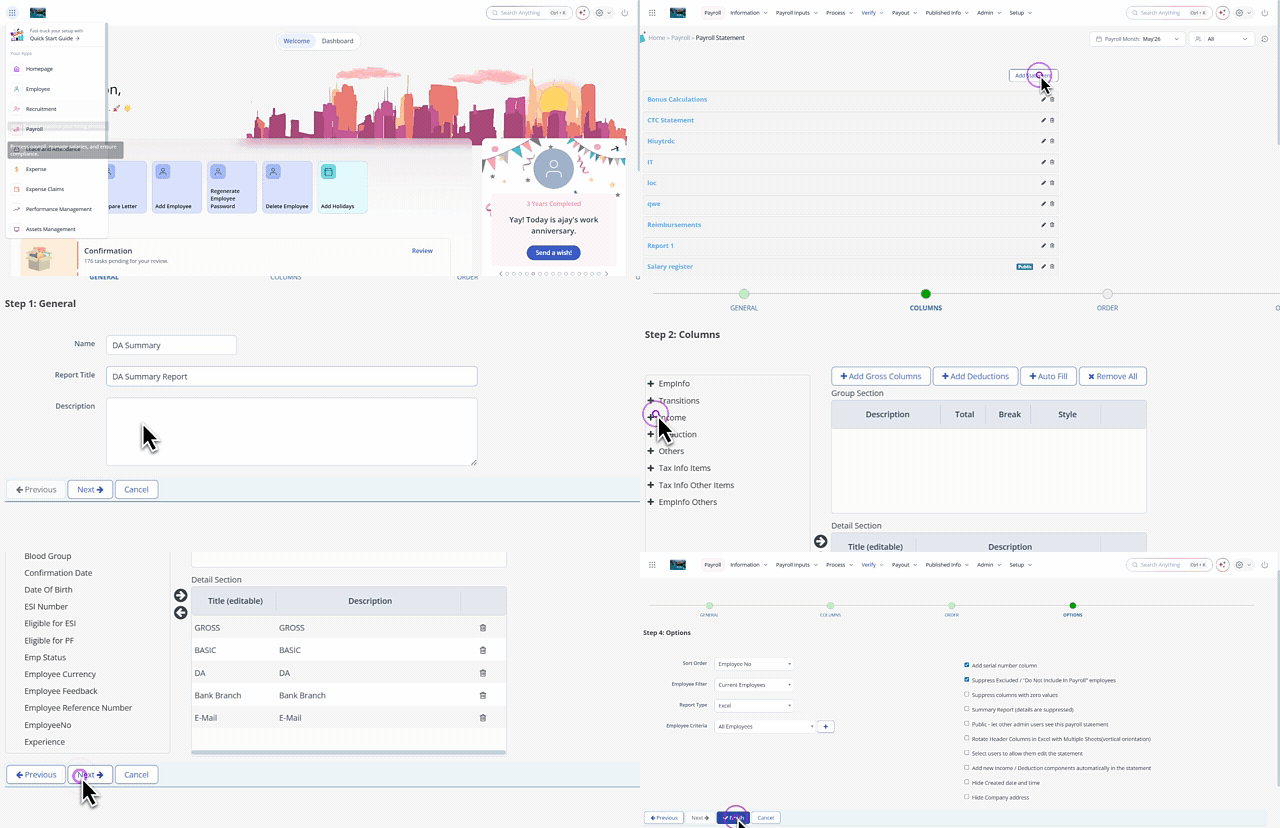
To view and generate a payroll statement, from the greytHR Admin portal, hover over the 9 dots and select Payroll > Verify > Payroll Statement.
On the Payroll Statement page, a list of all payroll statements appears.
Click Add Statement to create a new statement. Step 1: General section appears.
In the Name text box, enter the name of the statement.
In the Report Title text box, enter the title of the statement.
In the Description text box, enter the description of the statement.
Click Next. Step 2: Columns section appears.
Select the components from the left column and click the ⇾ arrow to drop into the Detail section.
Click Next. Step 3: Order section appears.
Arrange the selected components in the order you want.
Click Next. Step 4: Options section appears.
From the Sort Order dropdown list, select the order of the statement.
From the Employee Filter dropdown list, select the employee status.
From the Report Type dropdown list, select the type of the statement.
From the Employee Criteria dropdown list, select the criteria of the employee.
Click + icon to add new employee criteria.
Select the relevant check boxes as per your requirements.
Click Finish to generate the payroll statement.
Other related links: