Generate and Download Employee Cheque/Cash Statements Easily
Updated in February - 2026 | Subscribe to watch greytHR how-to video
A cheque/cash statement for employees is a document that provides a summary of the payments made to an employee by their employer. Generating cheque/cash statements can save time and reduce the risk of errors compared to manual methods. It also provides a record of all payments made to employees, which can be useful for accounting and tax purposes.
The Cheque / Cash Statement page in the greytHR Admin portal helps you to track cheque and cash-related payments to the employees. You can easily keep the record of these employees by downloading the statement in your system. The page allows you to download three types of statements. You can also view the employee details such as Employee No, Name, Net Pay, Salary Paid, and Paid On.
To view the Cheque / Cash Statement page, from the greytHR Admin portal, hover over the 9 dots and go to Payroll > Payout > Cheque/ Cash Statement.
View and download a cheque/cash statement
To view and download a cheque/cash statement, from the greytHR Admin portal, hover over the 9 dots and go to Payroll > Payout > Cheque/ Cash Statement.


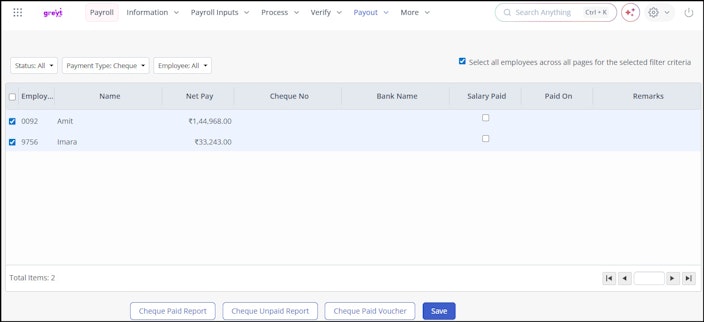
On the Cheque / Cash Statement page, a list of employees appears. The list contains the details of cheques and cash-related payments to the employees.
Using the Status, Payment Type, and Employee dropdown lists, select the required options to customize the employee list.
You can select the Select all employees across all pages for the selected filter criteria check box to set the filters for all the pages if required.
Select the employees from the list using the checkbox to generate a statement for multiple employees.
Click the Cash Paid Report/Cash Unpaid Report/Cash Paid Voucher to download the statement you require.
Note: You can add the remarks for each employee by right-clicking a cell under the Remarks column.Click Save to save the information.
Related articles: