Multi-Language Support in Employee Profiles in greytHR
Updated in July - 2026 | Subscribe to watch greytHR how-to video
With India's multilingual workforce, relying solely on English can make employee data entry difficult and increase HR dependency. To improve accessibility and data accuracy, greytHR now supports regional language input in the Employee Information Management (EIM) module, allowing employee information to be maintained in both English and supported Indian languages.
As an admin, you can configure greytHR to store employee profiles in English plus one regional language — Arabic, Hindi, Kannada, or Telugu — based on the group the employee belongs to. English remains the default and mandatory language for all profiles.
Stored data remains in the script it was entered in, regardless of any screen language changes — keeping records accurate and compliant with regional requirements.
Key Highlights
Enable multi-language support at the company level
Map each employee group to one regional language — Arabic, Hindi, Kannada, or Telugu
Add and store employee profile data in English plus the group's assigned regional language
Auto-filled translations of existing English data — review, edit if needed, and save
Type directly in regional scripts using the on-screen keyboard
Right-to-left layout for Arabic, applied automatically
Switch the screen language anytime without affecting stored data
Supported Languages
English (default)
Arabic
Hindi
Kannada
Telugu
Enable Multi-Language Support feature in greytHR
Step 1 - Enable the feature
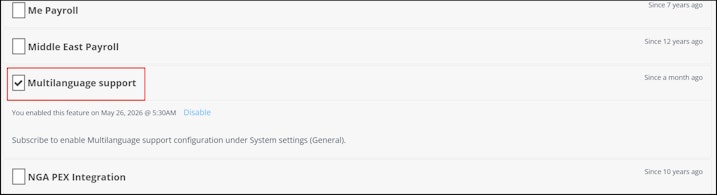
From the greytHR Admin login go to Settings > Account Settings > New Features.
From the list of features displayed, select Multi - Language.
Click the Enable this feature textbox,a pop-up appears
Click Confirm.


Step 2
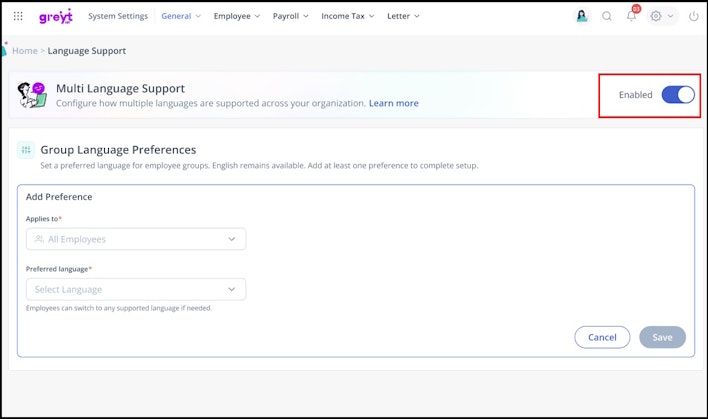
Once enabled, a new configuration section appears under General Settings.
From the greytHR Admin portal, go to Settings > System Settings > General > Multi Language support.
Turn on the Multi Language Support toggle to start mapping employee groups to languages.


Step 3 — Map employee groups to languages
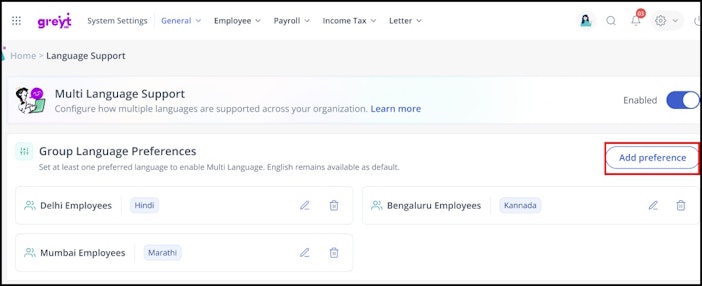
You can map languages to employee groups in two ways:
Option A — Single language for the entire organisation
In the configuration section, select the All Employees group.
Map it to one language (for example, Hindi).
Click Save.


Disable Multi Language Support feature
To turn off the feature entirely for your organization:
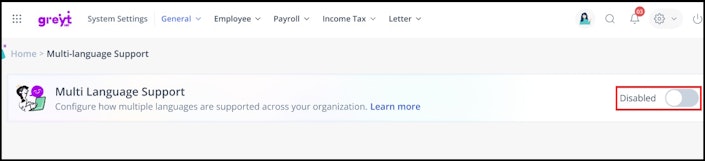
Go to Settings > System Settings > General > Language Support.
Turn off the Multi-Language Support toggle to disable the feature for your organization.
This disables the language selector and reverts all interfaces to English. Stored data remains intact in its original script and will be available again if multi-language is re-enabled later.


Language selector
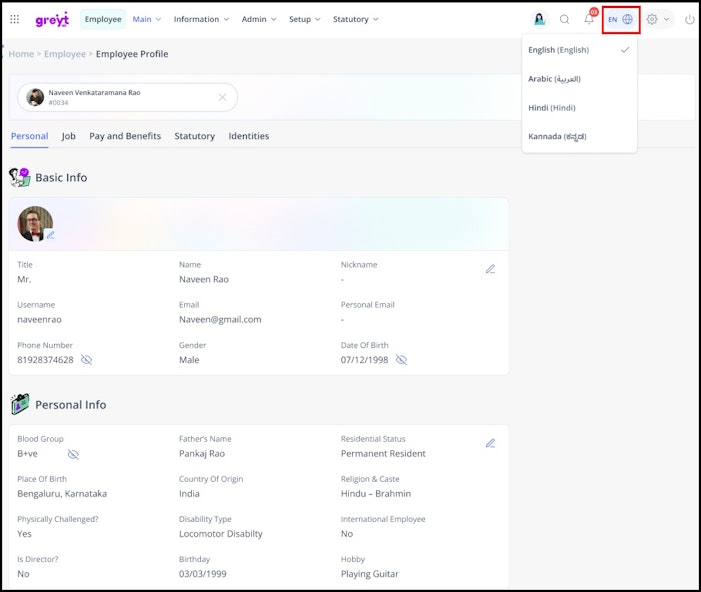
A language selector appears at the top of the employee profile page, showing only the languages your organisation has configured, along with English.
For example, if Arabic, Hindi and Kannada are enabled, the selector will show.
Note: Languages not enabled for your organisation will not appear in the selector, even if greytHR supports them.


Change active language
Click the language selector icon at the top of the page.
Select your preferred language.
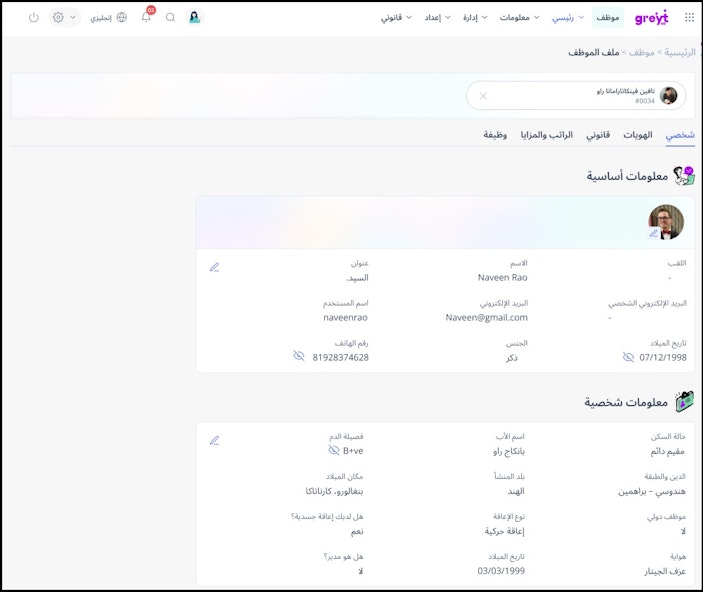
The page refreshes and the interface displays in your selected language. If you choose Arabic, the layout switches to right-to-left automatically.

Entering data in regional languages
When you add a new employee or click Edit on an existing profile, greytHR automatically translates and transliterates existing English data into the regional language assigned to the employee's group.
From the greytHR Admin portal, hover over the 9 dots and select Employee > Information > Employee Profile.
From the Employee Type dropdown list, select the required employee type.
In the Search Employee search box, search for the employee whose information you want to view. The employee's details appear.
Select the required tab. For example Personal and click Edit.
Review the auto-translated and auto-transliterated content in the assigned language.
Make manual corrections in either pane if the auto-generated text is not accurate.
Note: Both the English pane and the regional-language pane are editable. Your manual edits are saved exactly as enteredClick Save.
On-screen keyboard
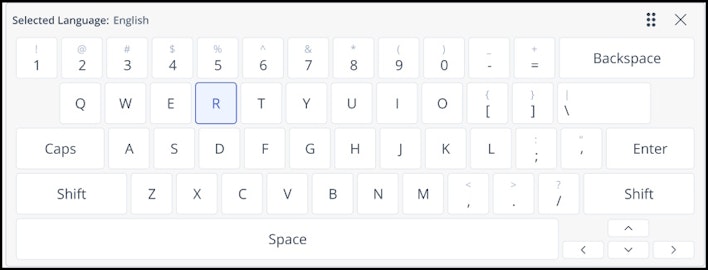
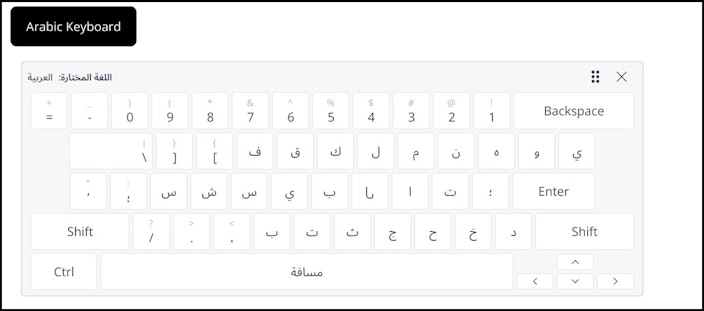
For regional scripts, a keyboard icon appears next to each supported input field. Click it to open the on-screen keyboard for the employee's assigned language (Arabic, Kannada, and so on) and type directly in that script.

Right-to-Left (RTL) support for Arabic
When Arabic is the active language, the entire greytHR interface flips to a right-to-left layout. Side panels move from the right to the left side of the screen, and the menu bar and navigation elements switch direction automatically.


Active language vs. stored language
The active language controls how the greytHR interface is displayed. The stored language is the language in which employee profile data is saved.
These two are independent. Changing the active language only changes labels, menus, and static text. It does not change how employee data is stored.
Example 1 — Active language matches the stored language
An employee belongs to the Arabic group, so their profile is stored in English and Arabic. The admin sets the active language to Arabic. Result: labels appear in Arabic and the employee's profile data appears in Arabic too.
Example 2 — Active language differs from the stored language
The same employee is stored in English and Arabic. The admin now sets the active language to Kannada. Result:
Labels and static text appear in Kannada.
Employee profile data continues to appear in English and Arabic only (since Kannada data does not exist for this employee).
Note: If a profile is not available in the selected active language, greytHR automatically falls back to English for displaying employee data.
Related Articles:
View and manage employee information