Efficiently Upload Employee Documents in Bulk with greytHR
Updated in February - 2026 | Subscribe to watch greytHR how-to video
Uploading employee documents in bulk refers to the process of adding or updating a large number of employee documents to a system all at once. This feature can be useful for organizations with a large number of employees, as it allows employers to quickly and easily upload important documents for multiple employees at once.
The Bulk Document Upload page in the greytHR Admin portal allows you to upload employees’ documents in bulk. The feature helps you to save time in uploading documents for each employee. You can simply zip all the documents under each category and upload them in bulk with a few simple steps. This feature helps reduce human errors and makes the process more efficient.
The page displays the information on the employee documents uploaded earlier, such as Document name, Category, Pending documents, Total Files, and Status of the documents.
You can perform the following actions on the Bulk Document Upload page:
Upload documents in bulk.
Provide sign-off for uploaded documents.
Publish/Unpublish employee documents.
Upload documents in bulk
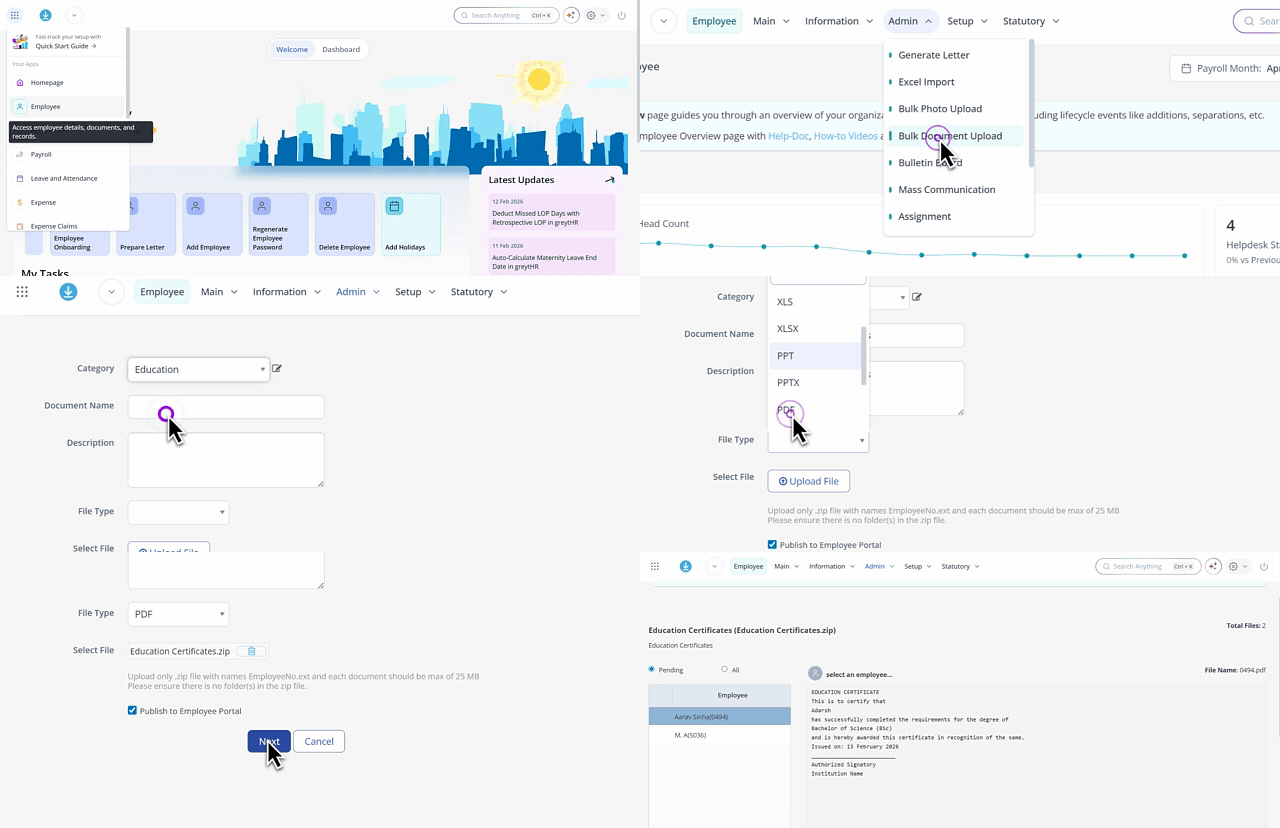
To upload employee documents in bulk, from the greytHR Admin portal, hover over the 9 dots and select Employee > Admin > Bulk Document Upload.
On the Bulk Document Upload page, click Upload Documents In Bulk (zipped). A form appears.
From the Category dropdown list, select the required category.
To add/edit a category, click the Edit icon next to the Category dropdown list.
You can upload documents for multiple employees as a zip file under each category separately.
In the Document Name text box, enter the name of the document.
In the Description text box, enter the description of the document.
From the File Type dropdown list, select the appropriate format of the file.
In Select File, click Upload File. The dialog box opens. Browse to the required file in your system and click Open.
Note: You can only upload ZIP files. You must name the documents in the ZIP file with their respective employee number.The Publish to Employee Portal checkbox is selected by default. Uncheck the Publish to Employee Portal checkbox to make the documents private.
Note: You can always reselect the Publish to Employee Portal checkbox if you want to share the documents in the employee portal.Click Next. The page displays a list of documents under the Employee column for each employee.
Provide sign-off for uploaded documents
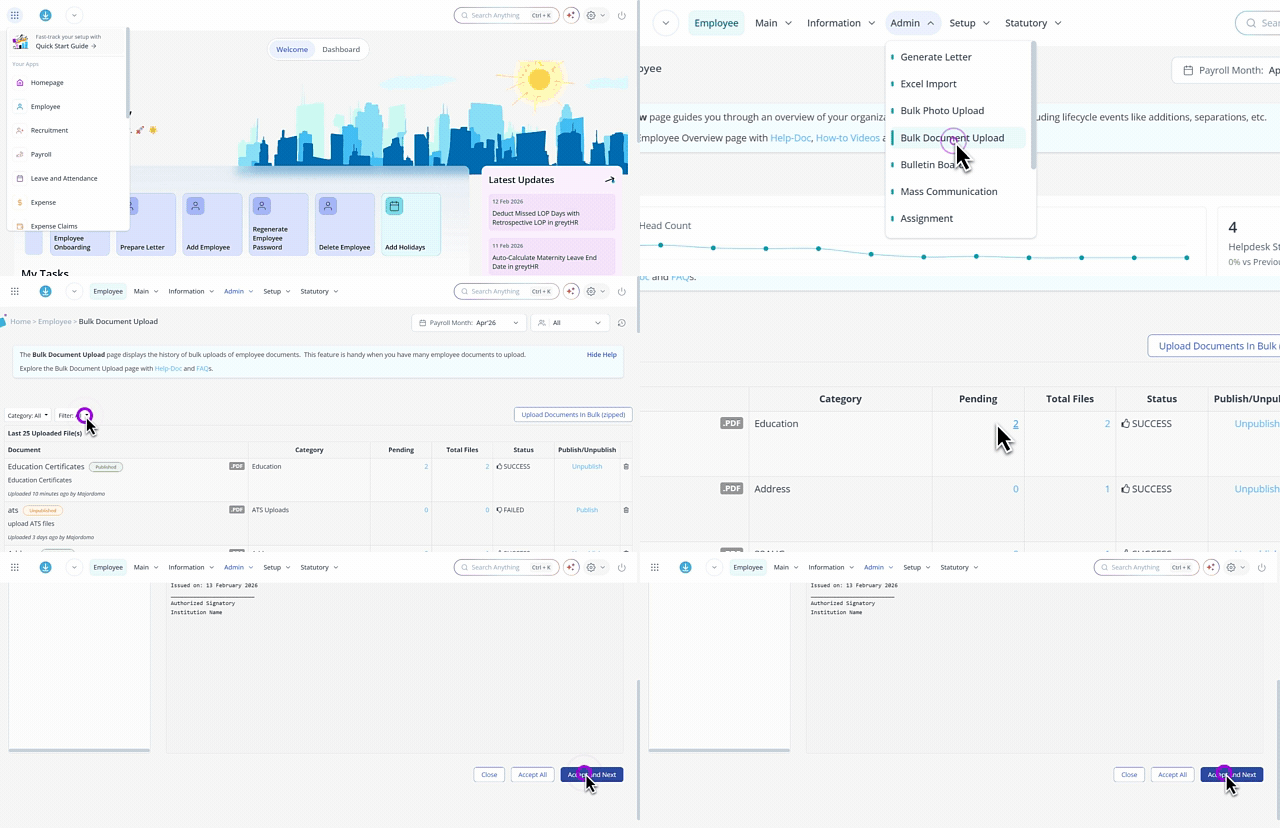
To provide sign-off for uploaded documents, from the greytHR Admin portal, hover over the 9 dots and select Employee > Admin > Bulk Document Upload.
On the Bulk Document Upload page, using the Category and All dropdown filters, customize the list of documents.
Select a required row. Under the Pending column, click on the number. A list of pending documents appears.
From the Employee column, select the required employee.
Click Accept and Next to provide a sign-off for the selected employee’s documents. A success message appears.
Note: Click Accept All to provide a sign-off for all the employees’ documents.
Publish/Unpublish employee documents
To publish/unpublish the uploaded employee documents, from the greytHR Admin portal, hover over the 9 dots and select Employee > Admin > Bulk Document Upload.
On the Bulk Document Upload page, using the Category and All dropdown filters, customize the list of documents.
Select a required row. Under the Publish/Unpublish column, click Publish/Unpublish as per your requirements. A pop-up appears.
Click Confirm to publish/unpublish the selected document.


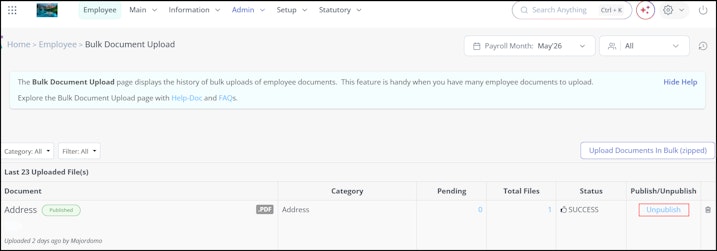
Note: To delete an uploaded document, click the Delete icon on the required row on the Bulk Document Upload page. Click Confirm to save the changes.
Other related links: