Manage Employee Salary Details with greytHR
Updated in February - 2026 | Subscribe to watch greytHR how-to video
Revising an employee's salary typically refers to the process of changing their compensation, either by increasing or decreasing it, based on various factors such as performance, market conditions, or changes in job responsibilities.
The Employee Salary page in the greytHR Admin portal helps you to revise the salary for an individual employee. You can revise an employee’s salary for various reasons, such as performance appraisal, salary correction, and promotion of an employee.
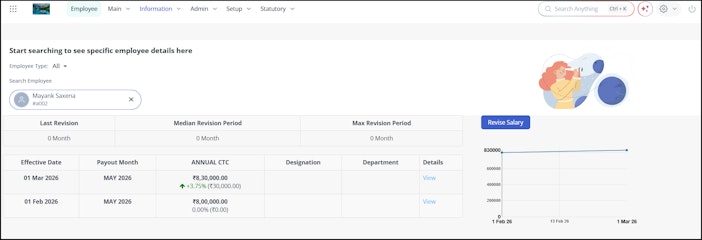
The page displays detailed information on the previous salary revisions such as Payout Month, ANNUAL CTC, Designation, and Department. You can even compare the salary details of an employee with their peers.
To view the Employee Salary page, from the greytHR Admin portal, hover over the 9 dots and select Employee > Information > Employee Salary.
You can perform the following actions on the Employee Salary page:
View employee’s previous salary revision details.
Revise employee’s salary.
Compare employees’ salaries.
Export employee’s salary comparison details.
View employee’s previous salary revision details
To view an employee’s previous salary revision details, from the greytHR Admin portal, hover over the 9 dots and select Employee > Information > Employee Salary.
On the Employee Salary page, from the Search Employee search box, enter the employee name or number whose details you want to view. A list of previous salary revision details for the selected employee appears.
Note: You can also view a graphical representation of the employee’s previous salary revision details.Under the Details column, click View. The Salary Revision Breakup Details pop-up opens. The pop-up displays detailed information about the revision, such as Effective Date, Payout Month, salary breakup, and Remarks.


Revise employee’s salary
To revise an employee’s salary, from the greytHR Admin portal, hover over the 9 dots and select Employee > Information > Employee Salary.
On the Employee Salary page, from the Search Employee search box, enter the employee name or number for whom you want to revise the salary.
Click Revise Salary. The page displays the month-wise salary revision details.
Click a particular month card to view the details. The details appear in the table.
Click Add New Revision to add a new revision.
In the FULL DA row, under the Revised Salary/Revised % column, enter the revised dearness allowance amount/percentage as per your requirements.
In the FULL STIPEND row, under the Revised Salary/Revised % column, enter the revised dearness allowance amount/percentage as per your requirements. Or you can directly update the Annual CTC values to revise the CTC. The other salary components auto-populate as per the revised CTC.
From the Effective From dropdown calendar, select the required date.
From the Payout Month dropdown list, select the required payout month.
In the Employee Remarks text box, enter the remarks, if any.
In the Notes text box, enter the notes, if any. These remarks will only be visible to an admin.
Click Save to revise the salary for the selected employee. A success message appears.
Note: You can also delete the revised salary details by clicking the Delete Revision button.
Compare employees’ salaries
To compare employees’ salaries, from the greytHR Admin portal, hover over the 9 dots and select Employee > Information > Employee Salary.
On the Employee Salary page, from the Search Employee search box, enter the employee name or number for whom you want to compare the salary.
Above the Peer Comparison table, click Define Peers. The Add Peers pop-up opens.
In the Search search box, enter the required peer name or number and click Search.
Click Add to add the selected peers. The page displays the comparison in the Peer Comparison table.
Note: You can delete a peer using the x icon available on the required row.



Export employee’s salary comparison details
To export the employee’s salary comparison details, from the greytHR Admin portal, hover over the 9 dots and select Employee > Information > Employee Salary.
On the Employee Salary page, from the Search Employee search box, enter the employee name or number for whom you want to export the details.
Click Export Excel. The report downloads in Excel format.
Other related links: