Efficiently Manage Employee Bonuses in greytHR
Updated in April - 2026 | Subscribe to watch greytHR how-to video
There are times when you like to appreciate your employees through monetary rewards such as bonuses. The bonus register keeps accurate and up-to-date records of bonuses awarded to employees. The register ensures that bonuses are distributed fairly and in compliance with company policies and agreements. You can track and analyze bonus trends, identify high-performing employees, and evaluate the effectiveness of the bonus program.
The Bonus Register page in the greytHR Admin portal allows you to add, track, view, and analyze the bonus details for the employees. There are various types of bonuses such as Annual Bonus, Performance Bonus, and Signing Bonus.
To view the Bonus Register page, from the greytHR Admin portal, hover over the 9 dots and select Employee > Information > Bonus Register.
You can perform the following actions on the Bonus Register page:
Add bonus details.
Edit bonus details.
Delete bonus details.
Watch the video to know more about the bonus register:
Add bonus details
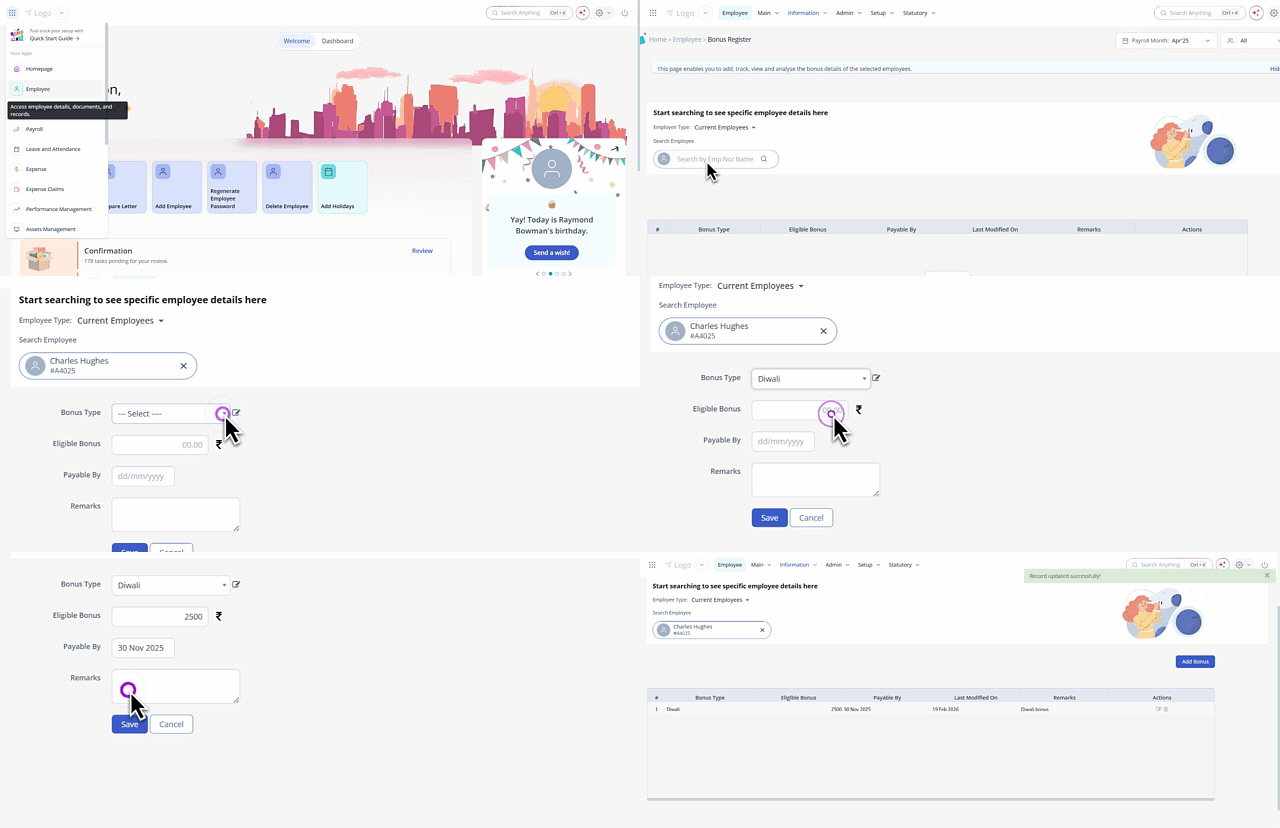
To add bonus details for an employee, from the greytHR Admin portal, hover over the 9 dots and select Employee > Information > Bonus Register.
On the Bonus Register page, from the Search Employee search box, enter the name or number of the employee for whom you want to add the bonus details.
Click the Add Bonus button to add the information.
From the Bonus Type dropdown list, select the type of bonus you want to add. For example - Annual Bonus, Performance Bonus, and Signing Bonus.
Note: Click the Edit icon adjacent to the Bonus Type text box, to add/delete a bonus type.
In the Eligible Bonus text box, enter the bonus amount.
From the Payable By dropdown calendar, select the relevant date on which you want to sanction the bonus amount.
In the Remarks text box, enter the remarks, if any.
Click Save to add bonus details for the selected employee.
Edit bonus details
To edit the bonus details of an employee, from the greytHR Admin portal, hover over the 9 dots and select Employee > Information > Bonus Register.
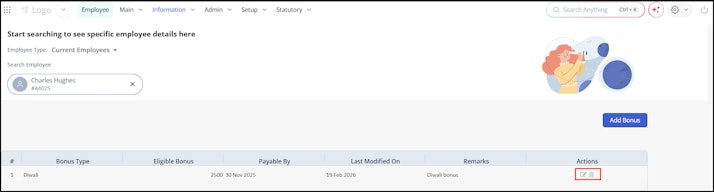
On the Bonus Register page, from the Search Employee search box, enter the name or number of the employee for whom you want to edit the bonus details. A list of bonuses for the selected employee appears.
Select the required bonus row.
Click the Edit icon to edit the relevant information.
Update the relevant changes.
Click Save to modify the bonus details. The bonus record is updated successfully.


Delete bonus details
To delete the bonus details of an employee, from the greytHR Admin portal, hover over the 9 dots and select Employee > Information > Bonus Register.
On the Bonus Register page, from the Search Employee search box, enter the name or number of the employee for whom you want to delete the bonus details. A list of bonuses for the selected employee appears.
Select the required bonus row.
Click the Delete icon to delete the bonus details. A Delete pop-up appears.
Click Confirm to delete the bonus details.
Other related links: