Add/Update employee details
Updated in Octoiber - 2026 | Subscribe to watch greytHR how-to video
Maintaining the employee profile in an organization is important to keep accurate and up-to-date records of employee information, job history, performance, and personal details. It helps in making informed decisions about employee development, promotions, and benefits, and ensures compliance with employment laws and regulations. Accurate employee profiles can also help to build trust and positive relationships with employees and foster a positive work culture.
The Employee Profile page in the greytHR Admin portal allows you to add/edit the profile details of an employee. The page helps you to keep the employee information up to date.
To view the Employee Profile page, hover the 9 dots and select Employee > Information > Employee Profile.
Watch the video to learn how to add/update employee details in greytHR.
You can view, add, and edit the following information on the Employee Profile page:
Employee Information
Personal Information
Joining Details
Employee Identity
Education
Address
Background Check
Remarks
You can perform the following actions on the Employee Profile:
View an employee's profile.
Add/edit an employee's profile.
View an employee's profile
To view an employee's profile, from the greytHR Admin portal, hover over the 9 dots and select Employee > Information > Employee Profile.
On the Employee Profile page, from the Employee Type dropdown list, select the required employee type.
In the Search Employee search box, search for the employee whose information you want to view. The employee's details appear.
Ensuring compliance with the upcoming DPDP Act, 2023
To protect employees’ personal information, organizations should start preparing for compliance with the Government of India’s Digital Personal Data Protection (DPDP) Act, 2023, which is yet to be enforced.
As a result, on the Employee Profile page, certain personal information of an employee is hidden by default. This includes:
Government IDs: PAN, Aadhaar, Passport Number, Driving License, etc.
Banking & Financial Details: Bank Account Number, IFSC
Contact Details: Personal Email ID, Personal Phone Number, Address
Employee Information: Date of Birth, Blood Group, Height, Weight, Marital Status, Emergency Contact
You can view this information by clicking the eye icon. If you don’t manually hide it, the system will automatically conceal the information again after fifteen seconds.


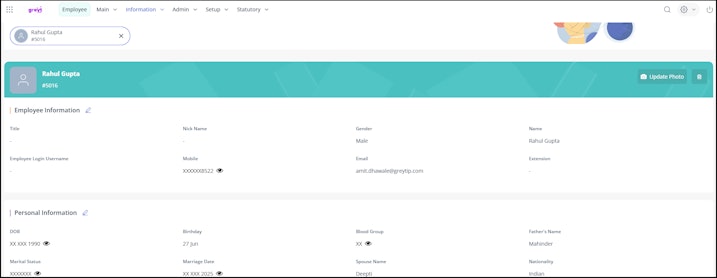
Note: This is covered in the DPDP Act 2022/23 of India. Under rule 6 of 6 Reasonable Security Safeguards, Data Fiduciary shall protect personal data in its possession or under its control by applying appropriate technical controls such as encryption, obfuscation, or masking, or the use of virtual tokens.
This ensures an additional layer of security to avoid data leakage via shoulder surfing. Ideally, to protect us from Identity theft, Financial fraud, and Privacy violations.
Add/edit an employee's profile
Employee information
Under the Employee Information section, you can view information such as Name, Gender, Mobile, and Email. To add/edit the employee information, perform the following actions:
From the greytHR Admin portal, hover over the 9 dots and select Employee > Information > Employee Profile.
On the Employee Profile page, click the Edit icon on the Employee Information card. A form appears.
Add/edit the relevant details.
Click Save to add/edit the employee information.
Personal information
Under the Personal Information section, you can view information such as DOB, Blood Group, Father's Name, Marital Status, and Nationality. To add/edit the personal information, perform the following actions:
From the greytHR Admin portal, hover over the 9 dots and select Employee > Information > Employee Profile.
On the Employee Profile page, click the Edit icon on the Personal Information card. A form appears.
Add/edit the relevant details.
Click Save to add/edit the personal information.
Joining details
Under the Joining Details section, you can view information such as First Hired Date, Joined on, Confirmation Date, Status, Probation Period, Referred by, and Notice Period. To add/edit the joining details, perform the following actions:
From the greytHR Admin portal, hover over the 9 dots and select Employee > Information > Employee Profile.
On the Employee Profile page, click the Edit icon on the Joining Details card. A form appears.
Add/edit the relevant details.
Click Save to add/edit the joining details.
Current position
Under the Current Position section, you can view information such as Designation, Grade, Department, Location, and Attendance Scheme.
Note: You cannot add/edit Current Position information; the information auto-populates. The data is automatically fetched from Position History. To edit an employee’s position history, navigate to Position History, and click Employee > Information > Position History.
As an admin you can hide the Current Position section in ESS through user role-based configuration. Other ESS functions, such as Resign and View Timeline, remain unaffected. This helps prevent sensitive or outdated job titles from being displayed to employees, while still retaining the data in audit logs and reports.
To hide display Current Position in ESS, From the greytHR Admin portal, navigate to the Settings icon > User Administration > User > User Roles.
Select the Employee user card and click Edit.
From the Category dropdown list, select EmpInfo Items. A list of features will appears.
Deselect the Read Access and Write Access checkboxes for Current Position.
Click Save to update the changes.
Employee Identity
You can view the details such as Aadhaar, Permanent Account Number, Permanent Retirement Account Number, Bank Account Number, and Election Card under the Employee Identity section.
To add the employee identity information, perform the following actions:
From the greytHR Admin portal, hover over the 9 dots and select Employee > Information > Employee Profile.
On the Employee Profile page, click Add button on the Employee Identity card. The Document Type dropdown list appears.
Select the Document Type and enter all other fields as applicable.
Click Save to add the employee identity information.
To edit an existing identity, perform the following actions:
On the Employee Profile page, click the Edit icon next to the Employee Identity menu heading. A form appears.
Update the relevant details.
Click Save to modify the employee identity information.
Note: You can also delete an identity record by clicking the Delete button.
Education
You can view information such as Qualification, Institute, Grade, Qualification Area, and Remarks under the Education section. To add Education information, perform the following actions:
From the greytHR Admin portal, hover over the 9 dots and select Employee > Information > Employee Profile.
On the Employee Profile page, click the Add button on the Education card.
An education details form appears. Select the Qualification from the dropdown list and enter all other fields as applicable.
Click Save to add the education details.
To edit the existing information, perform the following actions:
From the greytHR Admin portal, navigate to Employee > Information > Employee Profile.
On the Employee Profile page, click the Edit icon next to the Education menu heading. A form appears.
Update the relevant details.
Click Save to modify the education details.
Note: You can also delete an identity record by clicking the Delete button.
Address
You can view the details such as Present, Permanent, and Contact under the Address section. To add/edit the address information, perform the following actions:
From the greytHR Admin portal, hover over the 9 dots and select Employee > Information > Employee Profile.
On the Employee Profile page, click the Edit icon on the Address card. A form appears.
Add/edit the relevant details.
Click Save to add/edit the address details.
Background check
You can view the details such as Verification Status, Verification Completed on, and Agency Name under the Background check section.
To add/edit the background check information, perform the following actions:
From the greytHR Admin portal, hover over the 9 dots and select Employee > Information > Employee Profile.
On the Employee Profile page, click the Edit icon on the Background Check card. A form appears.
Add/edit the relevant details.
Click Save to add/edit the background check information.
Remarks
You can add the remarks under the Remarks section if required. To add the remarks, perform the following actions:
From the greytHR Admin portal, hover over the 9 dots and select Employee > Information > Employee Profile.
On the Employee Profile page, click the Edit icon on the Remarks card. A Remarks description box appears.
Enter a valid remark in the description box if required.
Click Save to add the remarks.
Other related links: