Effortlessly Send Bulk Emails & SMS with greytHR
Updated in April - 2026 | Subscribe to watch greytHR how-to video
Sometimes, you need to send messages to all employees when important things happen in the company. This could be when there are big changes in policies or operations that affect everyone. It could also be for sudden events like meetings or emergencies.
Regular communication is also important. It helps create a good company atmosphere and makes things clear. It keeps employees interested and tells them about the company's goals and what's happening.
The Mass Communication page in the greytHR Admin portal allows you to send communication in bulk to your employees via email or SMS. This feature is useful when you must send official information to multiple employees. The page displays a list of all emails and SMS communications you have sent in the past.
Watch the video to know more about the mass communication feature in greytHR:
You can perform the following actions on the Mass Communication page:
Send mass email communication.
Send mass SMS communication.
Send mass email communication
Before sending a mass email communication, ensure that employees' email addresses are updated in the greytHR database.
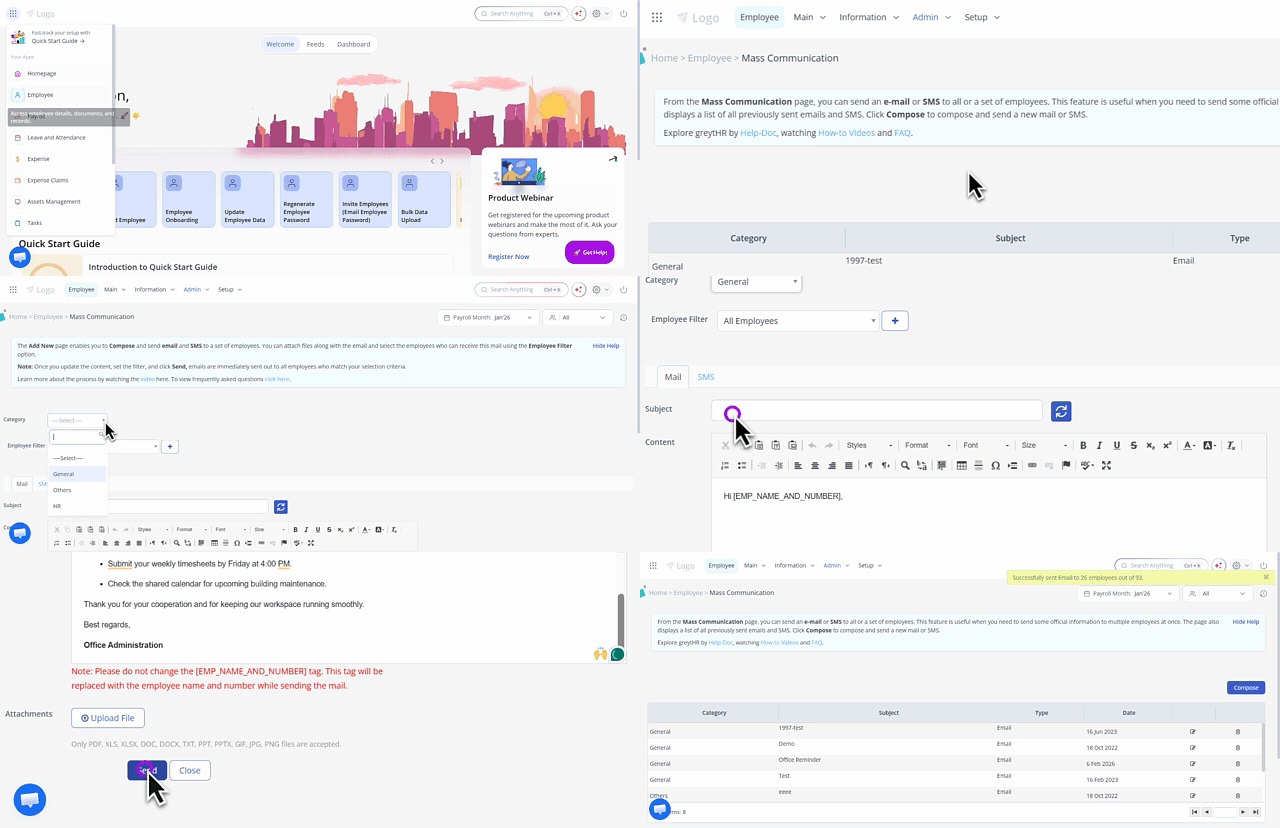
To send the communication, from the greytHR Admin portal, hover over the 9 dots and select Employee > Admin > Mass Communication. The page opens.
On the Mass Communication page, click the Compose button. A form appears.
From the Category dropdown list, select an appropriate category.
From the Employee Filter dropdown list, select the employee group to which you want to send the email.
Note: If you cannot find the required category, click the + icon to add the category as per your requirements.Under the Mail tab, in the Subject text box, enter the required subject.
In the Content description box, enter the required content for the email.
In the Attachments, click the Upload File button. The dialog box opens. Browse to the required file and click Open.
Note: The supported file formats are PDF, XLS, XLSX, DOC, DOCX, TXT, PPT, PPTX, GIF, JPG, and PNG.Click the Send button. A confirmation pop-up appears.
Click the Confirm button to send the email to all the intended employees. A success message appears.
Send mass SMS communication
Before sending a mass SMS communication, ensure that employees' mobile numbers are updated in the greytHR database.
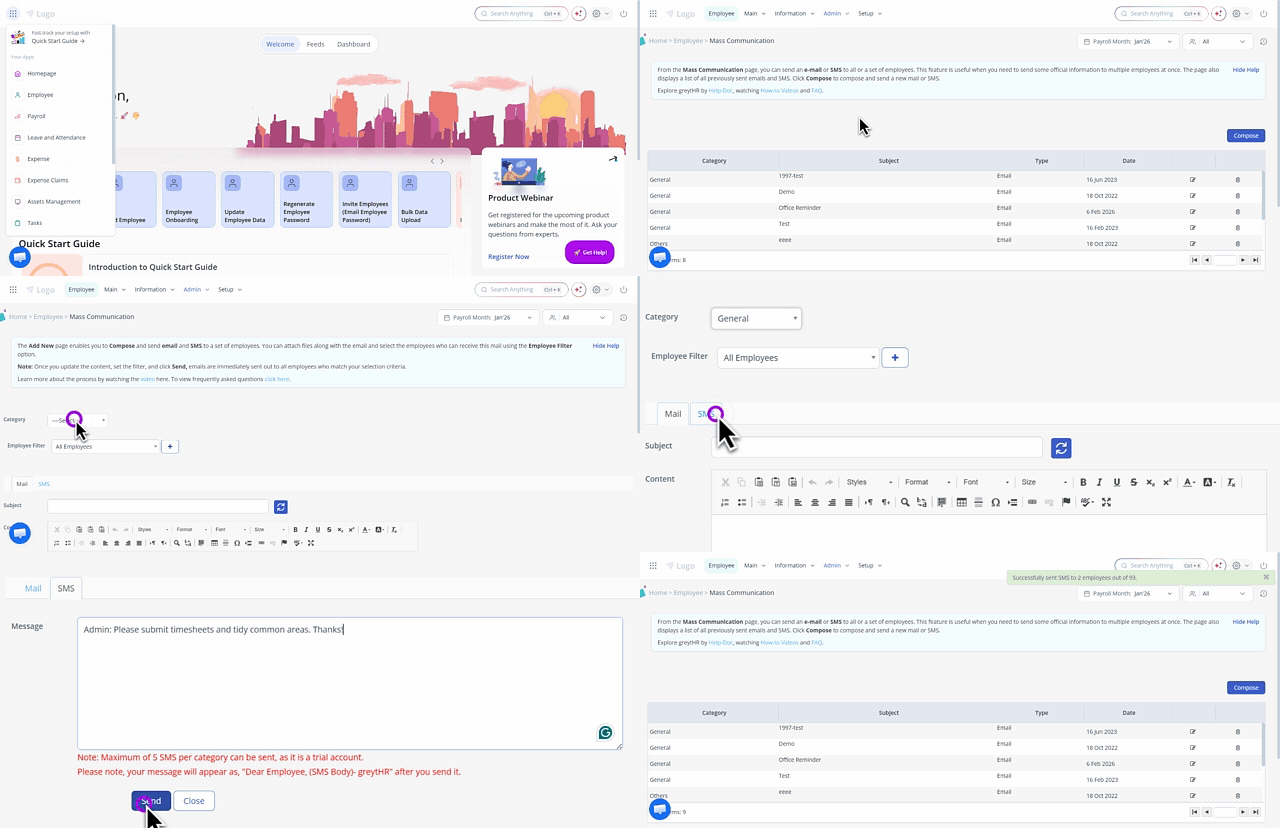
To send the communication, from the greytHR Admin portal, hover over the 9 dots and select Employee > Admin > Mass Communication. The page opens.
On the Mass Communication page, click the Compose button. A form appears.
From the Category dropdown list, select an appropriate category.
From the Employee Filter dropdown list, select the employee group to which you want to send the email.
Note: If you cannot find the required category, click + icon to add the category as per your requirements.Under the SMS tab, in the Message description box, enter the required SMS.
Note: Each SMS supports a maximum of 90 characters.Click the Send button. A confirmation pop-up appears.
Click the Confirm button to send mass communication using SMS. A success message appears.
Other related links: