Customize Alumni Portal access on the Separation/Off-boarding Page
Updated in July -2025 | Subscribe to watch greytHR how-to video
greytHR’s Alumni Portal is tailor-made for you and your former employees, with the goal of fostering a sense of community among them. This helps to nurture a bond between greytHR and its former users.
As an admin, you can customize the alumni portal preferences while updating the exit/resignation details of an employee on the Separation and Off-boarding pages.
You can apply the alumni portal customizations to already resigned employees as well as the employees nearing their resignation. A communication will be sent to your employee on their last working day informing them about their extended ESS portal access.
You can customize the Alumni Portal settings from:
Separation page
Off-boarding page
Separation page
To view the Separation page, from the greytHR Admin portal, hover over the 9 dots and select Employee > Information > Separation.


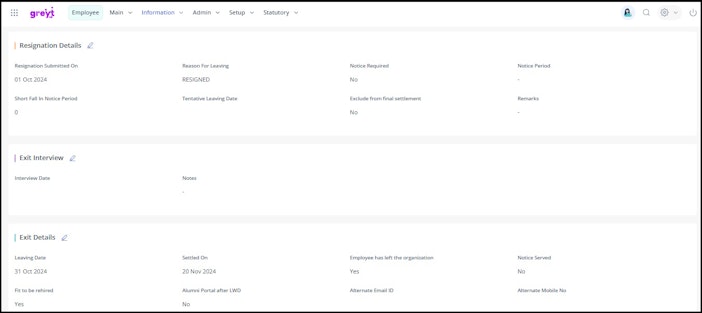
Customize alumni portal access details
You can add the separation details of an employee, or provide access to the alumni portal to an already separated employee, from the Separation page.
On the Separation page, from the Employee Type dropdown list, select Current Employees if you want to customize the alumni portal access for an active employee.
Note: You can also select Resigned Employees if you want to customize the alumni portal access for an already resigned employee.From the Search Employee search box, enter the employee number or name for whom you want to add the information.
Under the Resignation Status section, from the Separation Mode dropdown list, select RESIGNED. A list of sections appears.
On the Exit Details section, click the Edit icon.
Select the Alumni Portal after LWD checkbox to enable the access of Alumni Portal services to the selected employee.
From the Access Duration spin box, select the required months if you want to change the default value for the selected employee.
In the Alternate Email ID textbox, enter an alternative email address for the selected employee.
In the Alternate Mobile Number textbox, enter an alternative mobile number.
Click Save to update the customized alumni portal details of the selected employee.
Note: To delete or remove the updated separation details, click the Edit icon on the Resignation Details section. You can remove the inaccurate details and click Save.
Off-boarding page
The Off-boarding page in the greytHR Admin portal functions as a central hub for managing your employees' departure procedures. The page also provides you with an option to edit the alumni portal details of resigning employees.
To view the Off-boarding page, hover over the 9 dots and select Employee > Admin > Off-boarding.


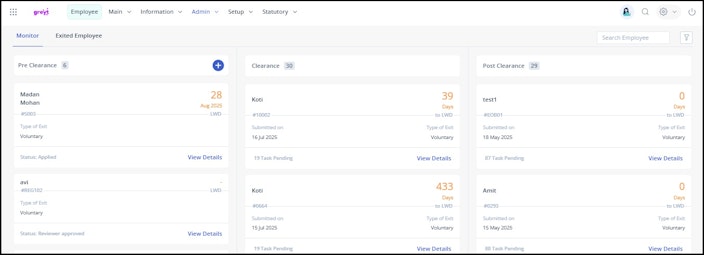
Customize alumni portal access details
Once you have completed all the tasks for an employee under the Clearance column, you can initiate the post-clearance for the same. Initiating post-clearance moves the card from the Clearance column to the Post Clearance column and triggers the final exit checklist.
On the Off-boarding page, click the Monitor tab. The Post Clearance column displays all the approved resignation applications for which the exit checklist initiates.
Select the employee's card for whom you want to initiate post clearance and click View Details. The card opens.
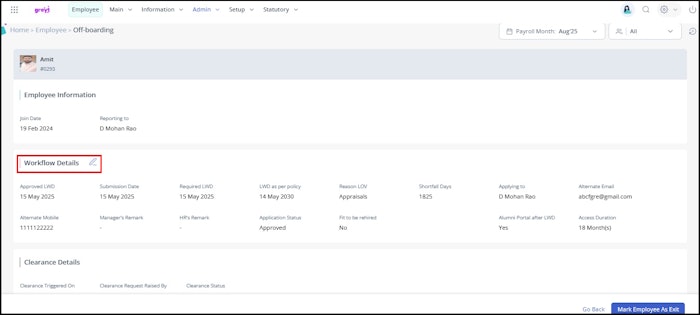
Click View all info. A form opens and displays all the exit details.
Under the Workflow Details section, you can view the status of the Alumni Portal after LWD and Access Duration. You can click the Edit icon if you want to change the default value for the selected employee.
Click Save to update the details.


Was this article helpful?
More resources:
▶ Video - Watch our how-to videos to learn more about greytHR.
📢 Product Update - Read about the product updates.