Apply Attendance Permissions in Bulk with greytHR Excel Importer
Updated in October -2025 | Subscribe to watch greytHR how-to video
As an admin, you might often spend significant time applying attendance permissions individually for multiple employees, especially for non-desk employees who do not have ESS portal access. This leads to manual effort, delays, and errors in attendance and payroll processing.
To simplify this process, greytHR introduces the Regularization and Permission Importer that allows you to upload permissions for multiple employees at once using an Excel file. This makes attendance regularization faster, error-free, and compliant.
Benefits of Regularization and Permission Importer
Apply permissions in bulk for multiple employees and dates.
Bypass workflow policies while ensuring consistency in permission types.
Support both hour-wise and session-wise permission entries.
Handle auto-shift scenarios with the Shift Code column.
Apply Bulk Permissions using Excel Importer
Bulk permission upload involves the following steps:
Step 1: Enable the feature
To enable this option, from your greytHR Admin portal, go to the Settings icon > System Settings > Account Settings > New Feature.
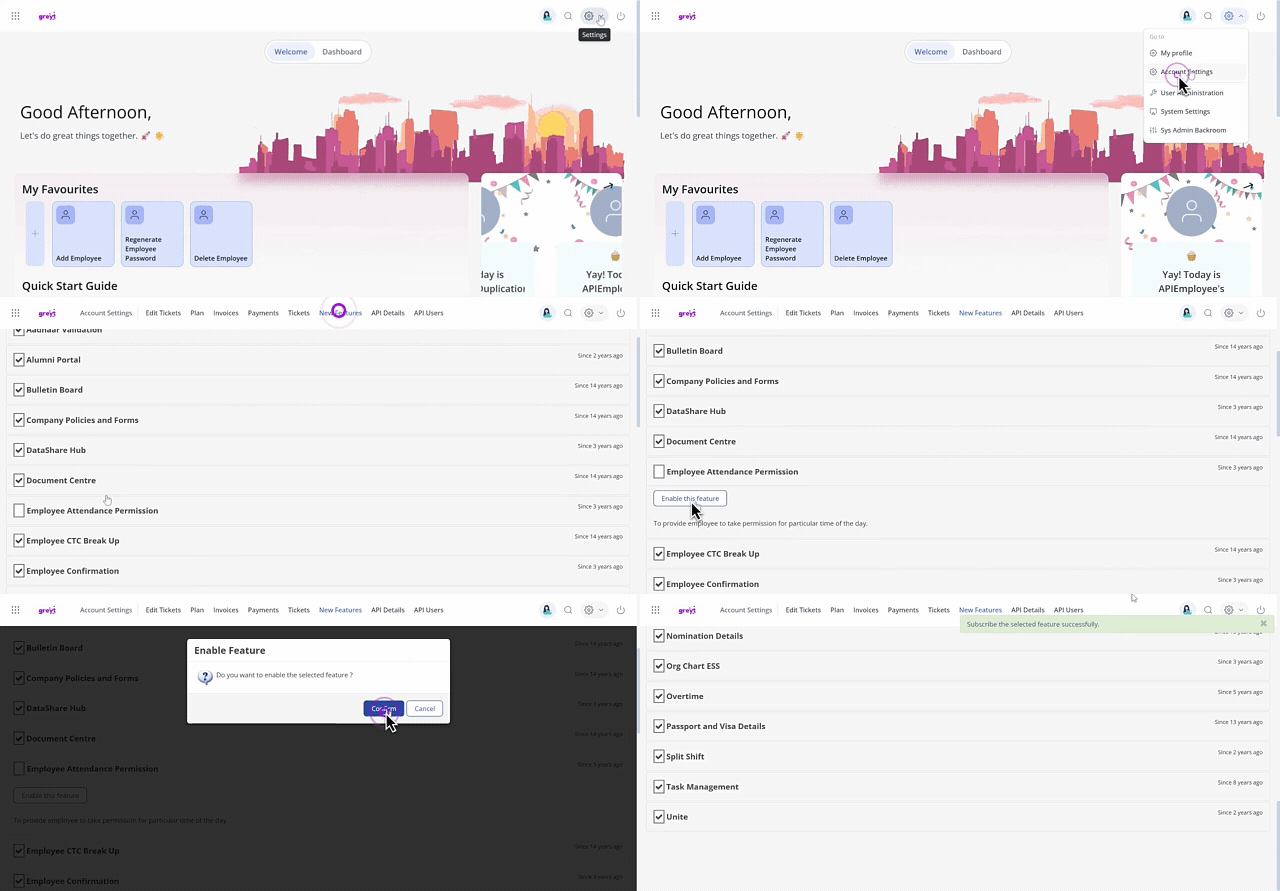
On the New Features page, from the list of features, search for Employee Attendance Permission.
Click the card. The card expands.
Click the Enable this feature button. The Enable Feature pop-up appears.
Click Confirm to enable the Employee Attendance Permission.
Note: Only when you enable the Employee Attendance Permission feature, you will be able to see a new importer type Regularization and Permission Importer under Excel Importer.
Step 2: Configure access rights
To configure access rights for the Regularization and Permission Importer feature from the greytHR Admin portal, go to the Settings icon > User Administration > User > User Roles.
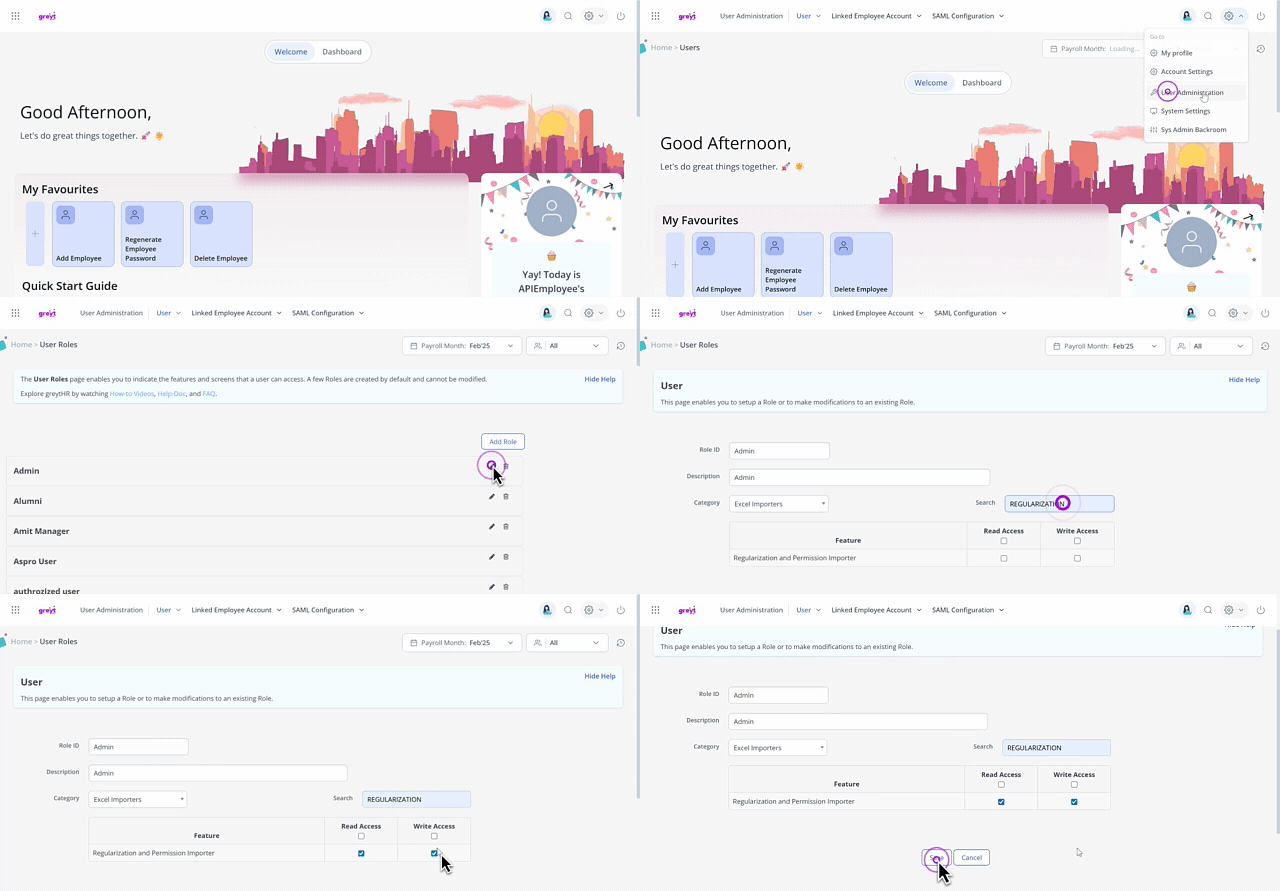
Select the Admin user role card and click the Edit icon.
From the Category dropdown list, select Excel Importers.
In the Search search box, enter Regularization and Permission Importer. The table displays the feature.
Enable the Read Access and Write Access checkboxes for the feature and click Save.
Note: Without enabling this setting, the import option will not be visible in the Excel Importer.
Step 3: Import data using import excel
To import bulk data, from the greytHR Admin portal, hover over the 9 dots and go to Employee > Admin > Excel Import.
On the Excel Import page, click Import From Excel. A form appears.
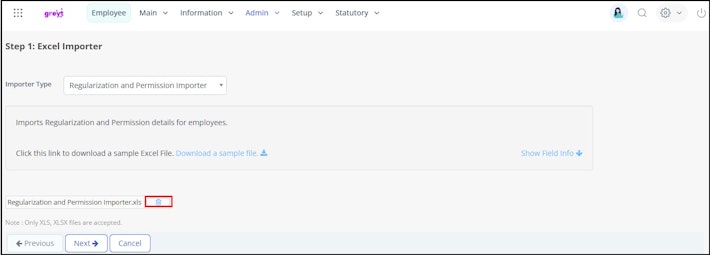
Under Step 1: Excel Importer, from the Importer Type dropdown list, select Regularization and Permission Importer.
Click Download a sample file. An Excel file downloads into your system.
Open the saved Excel file, fill in the details you want to upload, and delete the blank columns. Save and Close the Excel Importer file.
Click Upload File and select the file from your computer to upload.
Click Next. Step 2: Excel Importer Mapping section appears.
Under Step 2: Excel Importer Mapping, map the fields from Excel to the application terms, if required. To map a field, select the corresponding field under the Mapped To column.
Note: This step is mandatory if you have changed the format of the Excel file.Click Next. Step 3: Excel Importer Validate section appears.
Click Next to import the required data in bulk.
Click Ok to complete the process.
Note: You can also delete an imported Excel using the Delete icon available next to the uploaded file on the Excel Import page.


What happens after bulk import
The successfully uploaded permissions are applied immediately to employee records.
Attendance data is updated with the new permissions, and these reflect in the Attendance Info page.
Since these are admin-driven bulk actions, approvals or reviewer steps are skipped.
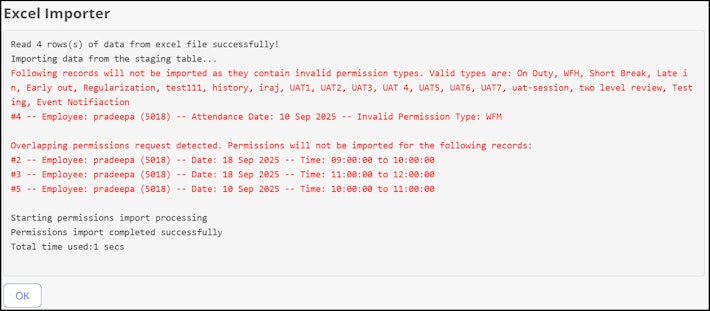
The system generates a summary of successful and failed entries. Errors must be corrected and re-uploaded.
All bulk imports are logged in the system for tracking and audit purposes. Admins can view Import logs for each Excel import from Employee > Admin > Excel Import.
Auto-shift logic continues to apply, ensuring permissions are aligned with configured shift rules.
Duplicate and Overlap Checks:
The system validates for duplicate/overlapping entries within the Excel sheet for date, time, employee name, and number.
It also checks overlaps if both hour-wise and session-wise entries are provided.
Overlap checks extend to existing applications that are already applied or approved.
Overlap is also validated against any prior permission entries imported via Excel Import but not yet processed in attendance.
Validation Messages: Appropriate error messages are displayed for each duplicate or overlap scenario, making it easy to identify and correct issues before re-import.


Workflow Handling: Bulk imports are treated as post-transactions. Workflow policy rules are bypassed except for the rule that the permission type in workflow must match the permission type used in the Excel import.
Related Articles:
Shift Roster upload for managers
Import bulk data using excel import