Discover Employee Attendance Methods with greytHR ESS
Updated in March - 2026 | Subscribe to watch greytHR how-to video
One of the very first features in the new greytHR ESS application is attendance marking. The ESS application allows you to configure employee sign-in using various methods. The innovative methods allow you to verify employee sign-in efficiently.
Different types of sign-in and attendance verification methods
The different types of sign-in and attendance verification methods available in the greytHR Employee Self-Service Portal (Attendance Marking) are as follows:
Manual Mobile Sign In: This method allows employees to mark their attendance using the application with a single click by capturing selfies using the default camera button. The selfie is then sent to their manager for verification.
Manual Mobile Sign-In with Selfie Recognition: This method encourages employees to mark their attendance by capturing selfies. To capture selfies, employees must place their faces inside the camera frame available in the greytHR mobile application. The application automatically captures the selfie. The selfie is then automatically verified with the employee's photo stored in the database, with liveness detection ensuring the presence of a real person during capture.
Geofence: This method captures employee attendance when the employee signs in from locations predefined by the organization (Longitude and Latitude). These locations can be configured in the greytHR web application.
Geofence with Manual Selfie Capture: This method captures attendance when the employee signs in using selfie capture from the predefined locations. Employees must take the selfie manually using the default camera button. The selfie is then sent to the manager for verification.
Geofence with Face Recognition: This method captures attendance when the employee signs in using selfie capture from the predefined locations. To capture selfies, employees must place their faces inside the camera frame available in the mobile application. The application automatically captures the selfie. The selfie is then automatically verified with the employee's photo stored in the database.
Geotrack (Geomark): This method captures the attendance and location of the employee when the employee signs in (Longitude, Latitude, and Address details). This option is beneficial when employees do not have a fixed working location.
Geotrack with Manual Selfie Capture: This method captures the attendance and location of the employee when the employee signs in using selfie capture. Employees must take the selfie manually using the default camera button. The selfie is then sent to the manager for verification.
Geotrack with Face Recognition: This method captures the attendance and location of the employee when the employee signs in using selfie capture. To capture selfies, employees must place their faces inside the camera frame available in the greytHR mobile application. The application automatically captures the selfie. The selfie is then automatically verified with the employee's photo stored in the database.
Geofence Auto Sign-in:
This method automatically captures employees’ attendance based on their location. The greytHR mobile application tracks the employee’s device location in real time. When the employee enters the area configured as the office premises, the system automatically signs them in.
Note: When configuring the geofence, the minimum radius must be set to 50 meters for the auto sign-in feature to work effectively.
Enable swipe capturing methods
To enable the swipe capturing methods, raise a request with the greytHR support team to enable the New Features for attendance capturing methods and face recognition verification.
Note: To enable the selfie capture method for tracking attendance, the Attendance Verification by face recognition option must be enabled from the New Features page.
Admin configuration for attendance capturing methods
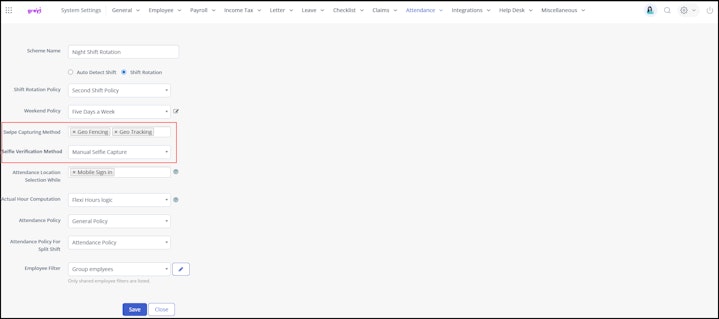
After the support team enables the new features, you need to configure the Swipe Verification method in the attendance scheme:
Go to Settings > System Settings > Attendance > Attendance Scheme.
On the Attendance Scheme page, click the Edit icon for any scheme. A page opens.
From the Swipe Capturing Method dropdown list, select the required option.
Note:You can select Swipe verification options such as Geofencing, Geomarking, Geo Tracking, Web Sign In, and Manual Mobile Selfie Sign In methods.
You cannot enable both Geo Tracking and Manual Mobile Sign-In at the same time. You must choose either of them as the swipe capturing method.
If you want to enable the face recognition method, then from the Selfie Verification drop-down, select Manual Selfie Capture or Face Recognition - Selfie Capture.
Click Save to activate the new method.


Factors affecting GPS accuracy
GPS location capture via Google Maps or other Google services may not work or may be inaccurate under various circumstances:
Weak or Blocked GPS Signal
Indoor Environments: Inside buildings—especially those with thick walls or underground structures—GPS signals can be significantly weakened or completely blocked.
Urban Canyons: Tall buildings in dense urban areas can obstruct the line of sight to GPS satellites, leading to poor signal reception and reduced accuracy.
Obstructions: Mountains, dense foliage, or even certain metallic window films in vehicles can interfere with GPS signals.
Device Settings and Permissions
Location Services Disabled: If location services are turned off on the device, or if Google Maps (or related apps) lack permission to access location data, GPS capture will not function.
Low Battery Mode: Some devices automatically disable or reduce GPS accuracy when the battery is low to conserve power.
Incorrect Location Mode: If the device’s location mode is set to Battery saving or Device only instead of High accuracy, location determination may be less precise.
Software and App Issues
Outdated App Version: An outdated Google Maps app may contain bugs or compatibility issues that affect location tracking.
Corrupted Cache/Data: Accumulated or corrupted cache and data files can lead to erratic GPS behavior.
Software Glitches: Temporary glitches within the device or app may disrupt GPS functionality.
Environmental Factors
Electromagnetic Interference: Strong electromagnetic fields near the device can interfere with GPS signals.
Poor Network Connection: While GPS primarily relies on satellite signals, Assisted GPS (A-GPS) uses Wi-Fi and cellular networks to improve accuracy and speed. A weak or absent network connection can therefore impact performance.
Hardware Malfunctions
Faulty GPS Receiver: A malfunctioning GPS unit within the device may prevent accurate location capture.
Geo-Fencing Accuracy Improvement – Troubleshooting Guide
Employees may face issues while marking attendance through geo-fencing even when they are within the office premises. This commonly happens when the office is located in areas such as a cellar or basement, where GPS signals are weak.
In such cases, if only one geo-coordinate with a 200-meter radius is configured, the system may not consistently detect the employee’s location. As a result, employees may experience:
Failed attendance attempts
Frequent “Out of location” errors
Multiple retries before attendance is marked
Cause
This issue usually occurs due to the following reasons:
Weak GPS signal inside cellar or basement locations
Single geo-coordinate configuration, which is not sufficient in low-signal environments
GPS signal fluctuations, affecting accurate location detection
Resolution
To improve geo-fencing accuracy, configure multiple geo-coordinates around the office location.
Add 6–8 geo-coordinates around the office perimeter
Set these multiple coordinates within the same 200-meter radius
Ensure the coordinates cover different points of the office boundary
This configuration creates overlapping geo-zones, allowing the system to detect employee locations even when GPS signals fluctuate.
Related articles: