Manage Permission Hours Override in greytHR for HR Admins
Updated in November - 2025 | Subscribe to watch greytHR how-to video
Employees may sometimes submit incorrect permission hours, such as wrong time formats, fewer hours than actual, or incorrect session/hour details. Without an override option, reviewers would need to reject and ask employees to re-raise the request, causing delays and errors in attendance records.
To address this, greytHR introduces the Permission Hours Override feature. It allows reviewers (managers/approvers) and admins to correct permission hours directly while reviewing requests, ensuring accurate attendance records and faster processing.
Enable access for permission hours override
To enable access for permission hours override, from the greytHR Admin portal, go to Settings > User Administration > Users > User Roles.
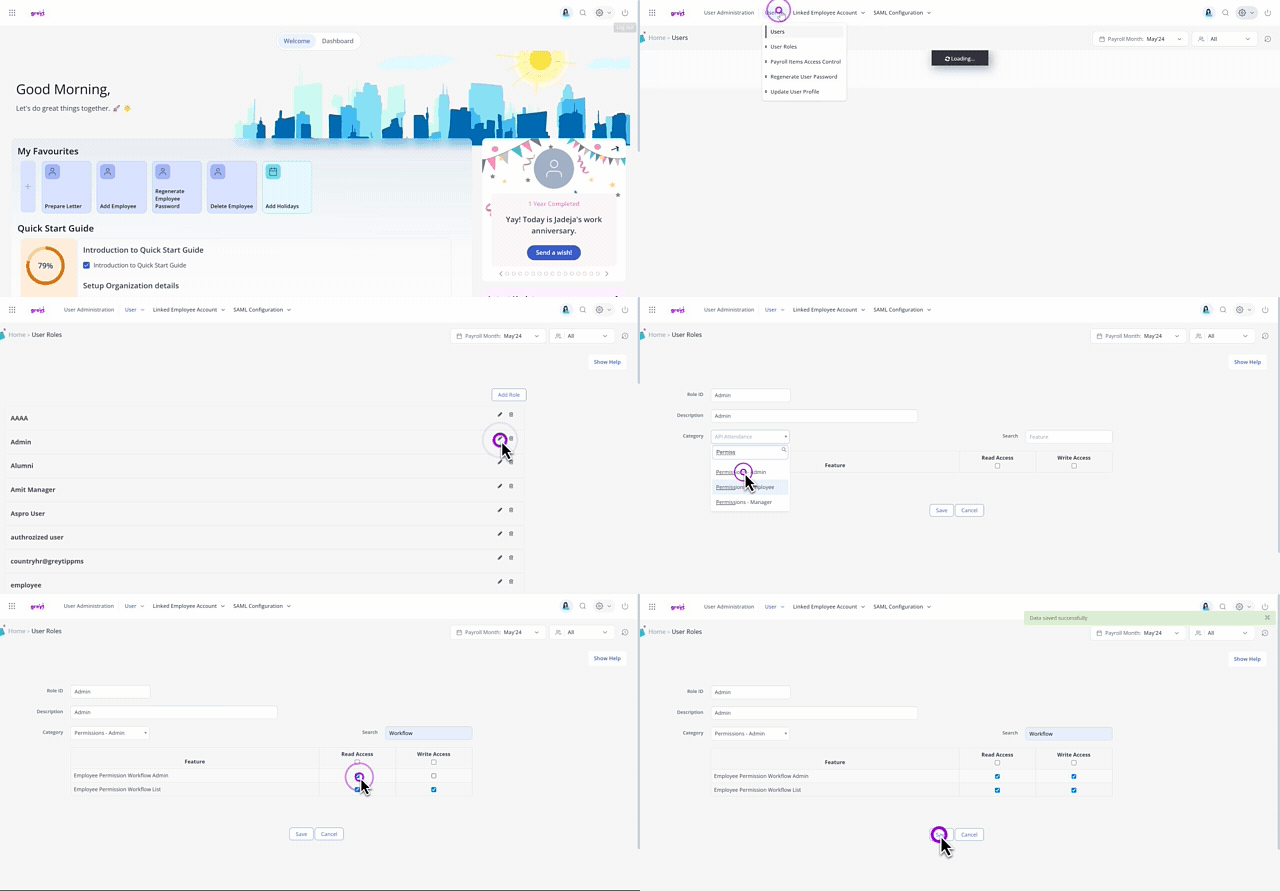
Select the Admin user card and click the Edit icon.
From the Category dropdown list, select Permission.
From the table displayed, select the Employee Permission Workflow Admin feature.
Select the Read Access and Write Access checkboxes next to the feature.
Click Save to update the changes.
Set up override permission hours workflow policy
To set up override permission hours workflow policy from the greytHR Admin portal, hover over the 9 dots and select Workflow > Setup > Workflow Levels.
General Settings
On the Workflow Levels page, click Add Workflow Levels.
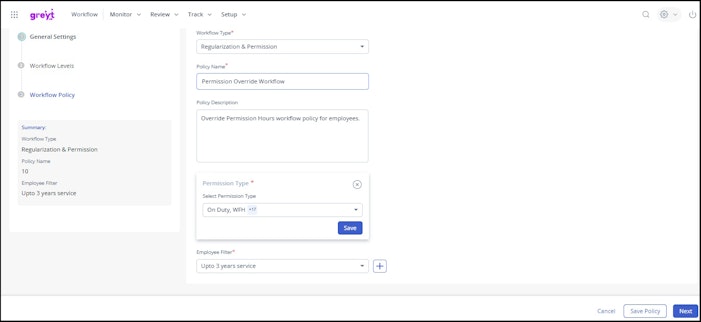
Select the Workflow Type as Regularization & Permission.
Enter the Policy Name and Policy Description.
From the Permission Type dropdown, select the required permission type.
Click Save to save the permission type.
From the Select Employee Filter dropdown, select the required employee filter.
Click Save Policy > Next to move to the Workflow Levels settings.


Workflow Levels
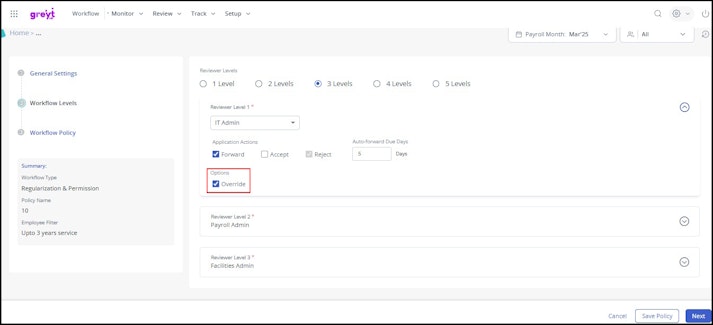
Under the Workflow Levels settings, select the required number of reviewer levels (1 Level/2 Levels/3 Levels/4 Levels/5 Levels).
From the Reviewer Level 1 dropdown, select a job role as the first reviewer. Repeat for additional levels as needed.
Select Application Actions for each reviewer:
Forward: Available only if more than one reviewer; forwards the application to the next-level reviewer.
Accept: Approves the application.
Reject: Rejects the application.
Enable the Override option. The override option is controlled through the permission policy, allowing admins to decide whether reviewers can modify permission hours.
You can enable it to allow reviewers to edit permission hours directly.
Once the application is approved or accepted, the override action cannot take place. The ability to override is restricted to the active review stage only.
In the Auto Forward Due Days spinbox, set the number of days after which, if a reviewer does not take action, the request is automatically forwarded to the next reviewer. This is set to Nil by default.


Workflow Policy
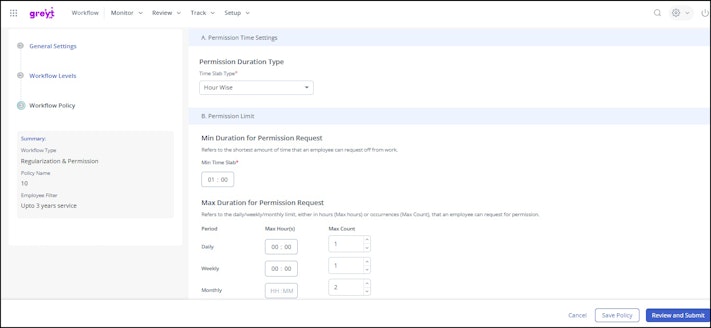
Under the Workflow Policy settings, under the Permission Duration Type, select the required time slab Hour Wise or Session Wise from the Time Slab Type dropdown list.
Under the Permission Limit, enter the required time in the Min Time Slab text box.
Note: The minimum time slab must be greater than one minute. Employees can only apply for permission for up to one minute.Under the Max Duration for Permission Request, enter the Daily, Weekly, and Monthly maximum hours and count in the Max Hour(s) and Max Count text box. This is applicable to hour-wise option. If you select session-wise option, you need to only add the counts at Daily, Weekly, and Monthly basis.Note: Reviewers cannot override beyond the configured policy limits or restrictions.
In the Apply Settings section, under Date Criteria, select the Employee can apply for past date(s), or Employee can apply for future date(s) options, and the total days an employee can apply for a past or future date as per your requirements.
Under Restriction Criteria, select the following options if required:
Allow employees to apply for Permission only if the total work hours is selected hours- Select the number of working hours an employee must fulfill to apply for permission.
Restrict employees from applying for permission if total work hours is greater than zero hours- Enable this option if an employee fails to fulfill the minimum hours.
Note: You can select Option (i) or Option (ii) and not both options simultaneously.Restrict employees based on their attendance status- You can restrict the employees from applying for permission based on attendance status.
Restrict permission applications for the entire day:If both the session statuses match the configured status: If an employee is absent for the first session, this option restricts them from applying for permission for the first session but permits them to apply for the second session, and vice versa.
If any one of the session statuses match the configured status: If an employee is absent for either the first or second session, this option restricts them from applying for permission for the entire day.
Attendance Status / No Swipe: You can restrict employees from applying for permissions when they are on leave, holiday, off day, or other attendance status or day/type.
Under Approval Criteria, select the following options if required:
Auto approve automatically after selected no. of days: This option allows the permission request to be automatically approved after the set days.
Enable self approval when an employee applies for permission: This option allows employees to self-approve their permission requests, which will appear in the Pending tab for them to either approve or reject.
Auto approval for top level managers - This option allows the top-level managers, who do not have Reporting Managers to auto-approve their permission requests.
Enable auto approval for employees under Workflow Auto Approve role: Mapping the Workflow Auto Approval user role to an employee and enabling this option will automatically approve that employee's permission requests.
Under Reason Criteria, select Mandatory to include a reason while applying for Permission option to make the reason mandatory while applying for permission.
Under File Attachment select the Include an attachment while applying for permission checkbox.
Click Save Policy to save the workflow policy settings.
Click Review and Submit to set up the policy. Once done it is activated automatically.

Use cases
Single date, same permission type
Employees can apply for multiple entries of the same permission type, either hour-wise or session-wise. Reviewers can override start and end times or switch sessions as needed. The system checks for overlapping entries within the same date.
Example: Entry 1 is 9:00–10:00, and overridden Entry 2 becomes 9:30–10:30 → the system shows:
Invalid permission hours entered, same InTime and OutTime overlap.
Single date, multiple permission types
Employees may apply for different permission types on the same date, such as Work From Home and On Duty. Each type appears as a separate application, and reviewer overrides are checked for overlaps across these types.
Example: On Duty changed to 10:30–11:30 conflicts with WFH 10:00–11:00 → the system blocks the override.
Multiple dates, same permission type
If a permission request covers multiple days but has the same permission type, all entries are grouped into a single application for the date on which same permission types are applied. The system checks for overlapping entries within the same date and time while overriding permission hours.
Multiple dates, multiple permission types
If you apply for permissions on multiple dates and use different permission types on those dates, each entry is treated separately. All such applications are submitted as individual cards, even if they fall on the same or different dates. Overrides and validations are applied per date, with overlap checks restricted to the same date.
Additional Information
Review Experience & UI Behavior
Reviewers can edit the start/end time or session directly within the View Details page.
The employee’s original values appear in orange below the edited fields for easy comparison.
Any changes made by a reviewer are reflected for the employee once the reviewer overrides the hours and approves the application. Similarly, when a reviewer overrides and forwards the application, the changes are visible to the next-level reviewer.
Timeline & Status Tracking
The Timeline displays all key actions such as Submitted, Forwarded, Accepted, Rejected, and Pending.
Reviewer remarks are displayed alongside each action, ensuring complete transparency.
The Application Status includes both:
Overall Status – Pending, Approved, or Rejected.
Applied Hours Status – Overridden, Forwarded, or Approved.
Reports & Audit Trail
All overridden hours are recorded with reviewer remarks and timestamps for audit purposes.
The Attendance Info section displays Applied, Approved, and Considered hours separately.
Only the final reviewer’s overridden values are saved and reflected in the system.
Withdrawals
Employees can withdraw their permission requests only before any reviewer has taken action.
Related Articles:
Define Regularization & Permission Policy