Supplementary payroll in greytHR
Updated in June - 2026 | Subscribe to watch greytHR how-to video
Payroll inputs often arrive after the input lock, such as late LOP, retro leave approvals, reimbursements and salary revisions. Until now, payroll admins had to make employees wait for the next cycle or reopen a locked payroll, which risks changing values that were already paid.
Supplementary payroll gives you, as an admin, a separate, controlled run to pay late approvals, corrections, arrears and advances within the same payroll month, without reopening a locked Regular payroll. greytHR calculates only the difference, so no amount is paid twice. Statutory reports, TDS and registers continue to show complete monthly values, and every action is recorded in the Audit Log.
How Supplementary payroll works?
Regular and Supplementary payrolls together form the Consolidated payroll for the month. greytHR splits the Consolidated payroll between the runs as follows:
Regular = Consolidated − all locked Supplementary runs for the month
Supplementary = Consolidated − Regular − all other locked Supplementary runs for the month
greytHR decides the run type based on whether Regular payroll for the month is locked:
Pre-Regular Supplementary payroll: created while Regular payroll is not locked. Use it to pay advances, such as a festival bonus, before month-end.
Post-Regular Supplementary payroll: created after Regular payroll is locked. Use it for corrections and late inputs after the regular payout.
Enable Supplementary payroll
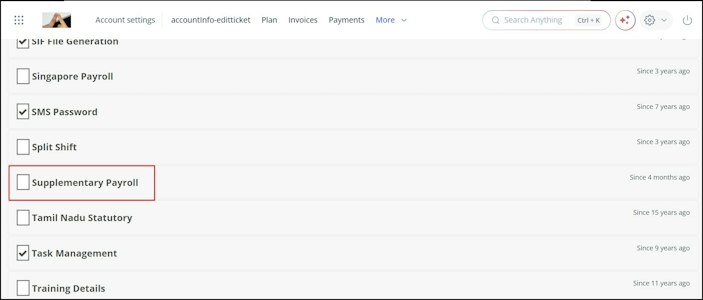
From the greytHR admin portal go to Settings icon > Account Settings > New Features.
From the list of features displayed, select Supplementary Payroll feature.
Click the Enable this feature checkbox, and Confirm.
Note: To enable the feature, you need to contact the greytHR Support Team.


Create a Supplementary payroll
From the greytHR Admin portal, hover over the 9 dots and go to Payroll > Process > Supplementary Payroll.
Click Create Supplementary Payroll.
In the side drawer, check the run type shown: Pre-Regular or Post-Regular.
Review the run name, which is pre-filled as Supplementary Payroll
Edit it if needed. The name is mandatory. Add a description if required.
Click Save and Next.

greytHR creates the run based on the lock status of Regular payroll:
Pre-Regular: greytHR processes payroll for all employees to set a baseline. If creation fails, nothing is created.
Post-Regular: greytHR creates the run immediately from the locked values.
Note: For a Post-Regular run, creation is blocked if Regular payroll has unprocessed inputs. You must unlock and process Regular payroll, or remove the unprocessed inputs. You can download an Excel list of the affected employees and inputs.
Note: The Create Supplementary Payroll button appears only for the latest payroll month. You can have only one open Supplementary run at a time.
When you create the first Supplementary run of a month, greytHR automatically adds a Regular Payrun card for that month. You don’t need to take any action on it. There is only one Regular Payrun per month, and you cannot create it manually.
To return to the list, click the back arrow. The run appears at the top with its status, the number of employees with inputs and the number of inputs.
Add inputs to a Supplementary payroll
Add inputs on the existing payroll pages, importers and workflows. There is no separate Supplementary importer, and you cannot add inputs from the Supplementary Payroll page.
Example: add a bonus
From the greytHR Admin portal, hover over the 9 dots and go to Payroll > Payroll Inputs > Salary.
Select the employee and search for the component.
Click the edit icon and click Add a row.
Enter the amount and click Save.
The row shows Supplementary as the payroll name.
You can add most payroll inputs, such as salary entries and overrides, LOP, loans, reimbursements, arrears, IT and FBP declarations, POI, and release of stop salary processing. Use the same pages, importers and workflows you use for Regular payroll.
Note: Salary Revision and Category changes are not available in every run type. Salary Revision is not supported in a Pre-Regular run, and Category changes are not supported in a Post-Regular run.
To change or remove an input, go to the page where you added it. The Review page updates automatically.
Review and process inputs
Open the Supplementary run. If any input is unprocessed, you land on Review. If everything is processed, you land on Verify.
On Review, expand an employee row to see their inputs under Salary Inputs, Workflows and Other Inputs, LOP Inputs and Overridden Inputs. Each row shows a Processed or Unprocessed status.
Click Process. Wait until processing completes. greytHR calculates the differential values and takes you to Verify.
Note: If processing fails, an error is shown and nothing partial is saved. You can retry.
Until you lock the run, you can add inputs for more employees and click Process again. You can also go back from Verify to Review at any time.
Verify and lock the Supplementary payroll
On Verify, review the earnings, deductions and net pay for each employee who had inputs.
If any employees have negative or zero net pay, they are listed separately. Click View employees, then Acknowledge to confirm all of them. You can download the list in Excel.
If the page shows X employees failed to process, click View Errors to see the reasons, fix the inputs and process again.
If a banner says results are outdated, go back to Review and click Process again. This happens when any user adds an input after the last process.
To export all employees, negative pay employees and unprocessed employees, click Export to Excel.
To send or download a payslip, use the email or download icon next to the employee.
Click Lock and confirm.
Note: Locking is irreversible. You cannot add inputs for more employees in a locked run. To make corrections, create a new Supplementary run.
After locking:
Input page banners are removed.
Restrictions on Regular payroll are lifted.
You can create a new Supplementary run.
For a Pre-Regular run, you can now process Regular payroll. Regular payroll pays only the balance.
Payslips, reports and audit log
Supplementary payslips: show Supplementary (differential) values only, on one standard template. You can download and email them individually or in bulk, before or after locking.
Regular payslips: the Regular Payrun card shows Regular values, with payslips on the existing Regular template.
Locked run details: a read-only view of the run summary, employee list with component-level breakdown, and Excel export.
Reports: once a Supplementary run is locked, existing reports (Payroll Register, reconciliation, TDS and Form 16, EPF, ESI, PT reports and challans, MIS, YTD) show Consolidated values automatically.
Audit Log: Create, Process, Acknowledge, Lock and Delete actions are recorded in the existing Audit Log with the payrun name.
To view the Supplementary register:
Go to Reports > Report Gallery.
Select Supplementary Salary Register (or Regular Salary Register).
Select the run and click Generate.
Note: If the report doesn’t open, allow pop-ups in your browser. The report lists all components for each employee. Components with no changes show 0.
Delete a Supplementary payroll
Remove all inputs of the run from the pages where you added them.
On the Supplementary Payroll page, click the three-dot menu on the run and click Delete.
Click Delete payroll to confirm.
Note: You cannot delete a run until all its inputs are removed. You also cannot delete locked runs, or Post-Regular runs that contain inputs that cannot be deleted.
Frequently Asked Questions
What is Supplementary payroll in greytHR?
Supplementary payroll is an off-cycle payroll run within the same payroll month. Use it to pay late inputs, corrections, arrears and advances without reopening a locked Regular payroll.
When should I use Supplementary payroll in greytHR?
Use it when payroll inputs arrive after the input lock, such as spot awards, late LOP, retro leave approvals, reimbursements, arrears or a salary revision. You can also use it to pay an advance, such as a festival bonus, before month-end.
What is the difference between Pre-Regular and Post-Regular Supplementary payroll?
A Pre-Regular run is created while Regular payroll is not locked and is used for advance payouts. A Post-Regular run is created after Regular payroll is locked and is used for corrections and late inputs. greytHR decides the type automatically.
How do I enable Supplementary payroll in greytHR?
From the greytHR Admin portal go to Settings icon > Account Settings > New Features and enable Supplementary Payroll.
Why can’t I see the Create Supplementary Payroll button in greytHR?
The button appears only for the latest payroll month. Switch to the latest month from the payroll month selector at the top.
Can I run more than one Supplementary payroll in a month?
Yes, but only one run can be open at a time. Lock the open run before creating the next one. Each new run pays only the remaining difference.
How does greytHR make sure an amount is not paid twice in Supplementary payroll?
greytHR calculates the Supplementary payroll as the Consolidated payroll minus the Regular payroll and any other locked Supplementary runs. Regular payroll then pays only the balance.
Where do I add inputs for a Supplementary payroll?
Add inputs on the existing payroll pages, importers and workflows. There is no separate importer.
What does the Supplementary payroll banner on payroll input pages mean?
The banner shows that any inputs you add on that page will count toward the open Supplementary payroll. It appears on all valid input pages and is removed when you lock the run.
Why can’t I process Regular payroll while a Supplementary payroll is open?
While a Supplementary run is open, greytHR blocks Regular payroll processing, Regular payroll lock and unlock, and new payroll month creation. The Process Payroll button is disabled on the Salary page. Lock or delete the Supplementary run to continue.
Why can’t I create a Post-Regular Supplementary payroll?
Regular payroll has unprocessed inputs. Unlock and process Regular payroll, or remove those inputs. You can download the list of affected employees and inputs in Excel from the message.
Why is the Lock button disabled on the Verify page?
Lock is disabled when employees with inputs are not processed, or when new inputs were added after the last process. Go back to Review and click Process again.
What happens to employees with negative or zero net pay in a Supplementary payroll?
greytHR lists them separately on Verify. Click Acknowledge to confirm them before you lock the run.
Can I unlock a locked Supplementary payroll?
No. Locking is irreversible. To make corrections, create a new Supplementary run.
Can I delete a Supplementary payroll?
Yes, once all its inputs are removed from their original pages. Locked runs, and Post-Regular runs with inputs that cannot be deleted, cannot be deleted. [CONFIRM: processed runs, as above.]
Do employees receive a separate payslip for a Supplementary payroll?
Yes. Supplementary payslips show only the Supplementary values. You can download or email them individually or in bulk from the run. They are not available on ESS currently.
How do I download the Supplementary Salary Register in greytHR?
From the greytHR Admin portal hover over the 9 dots and go to Reports > Report Gallery and select Supplementary Salary Register. Choose the run and click Generate.
What happens to inputs added after a Post-Regular Supplementary payroll is locked?
They are not counted until Regular payroll is unlocked and reprocessed. greytHR informs you when you add the input.
Can I use Supplementary payroll if I add payroll inputs through API?
Supplementary payroll is currently not supported for accounts that add payroll inputs through API.
Are Supplementary payroll actions recorded in the Audit Log?
Yes. Create, Process, Acknowledge, Lock and Delete actions are recorded in the Audit Log with the payrun name.