Import historical performance review data in greytHR PMS
Updated in October - 2026 | Subscribe to watch greytHR how-to video
Moving to greytHR Performance Management from another system often leaves earlier review ratings and documents behind. Managers then lack this history during new appraisals, and employees have to ask HR for their past reviews.
greytHR lets import past review ratings and upload the final review documents from the previous system. The imported records appear in the existing Performance Review and Document Centre screens, so managers get context for new cycles and employees can view their own review history.
Note: This feature covers review ratings and review documents only.360° Feedback and Calibration data cannot be imported.
Enable Bulk Reviews Data Migration Import
From the greytHR Admin portal, go to the Settings icon > System Settings > Miscellaneous > Advanced Options.
From the Section dropdown list, select PMS. A table appears and displays the options.
Select the Bulk Reviews Data Migration Import checkbox.
Click Save.


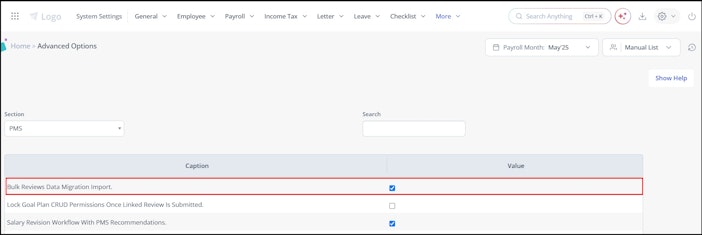
Note: This feature is not enabled by default. To enable it, raise a support ticket with greytHR Support.
Assign permissions
From the greytHR Admin portal, go to the Settings icon > System Settings > Roles & Permissions.
Select the required role.
Under Category select Performance Review. A table appears.
Select the following permissions:
Allows the user to view the Bulk Upload tab in Reviews and access the import log
Allows the user to bulk upload review documents via the Bulk Document Upload feature
Allows the user to view the Performance Review Documents section on an employees Job profile in EIM
Click Save.


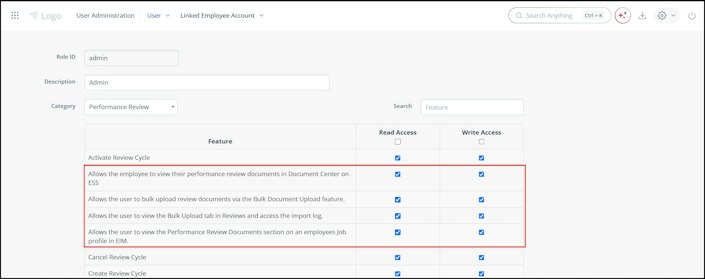
Note: Admin permissions are not assigned by default. If a permission is not assigned, the related tab, section or option is hidden. The permission that lets employees view their review documents in Document Centre is assigned to the Employee role by default.
Import past review ratings
You do not need to create the review cycle or performance period in greytHR before importing. Use numeric ratings only. Convert star or letter ratings to numbers.
From the greytHR Admin portal, hover over the 9 dots and select Performance Management > Reviews.
Click the Bulk Upload tab.
Click Import. The Excel Importer opens in a new tab.
From the importer type dropdown list, select Past Review Ratings.
Click the sample file link to download the file, enter the data and upload the file.
Click Next and complete the Map Fields, Master Validation and Summary steps.
Click Import.
Enter the following details in the file. You can include multiple employees and review cycles in one file.
Employee ID: Required. Enter the employee number as in greytHR.
Review Name: Required. Enter the review cycle name, for example, Annual Appraisal 2023-24.
Performance Period: Required. For example, DD-MMM-YYYY - DD-MMM-YYYY .
Review Duration: Optional. Use the format DD-MMM-YYYY - DD-MMM-YYYY.
Final Rating: Required. Enter a number with up to two decimal places, for example, 4.2.
Scale: Required. Enter a whole number, for example, 5, 7 or 10.
Note: You can also enter numeric rating scales that are not supported in greytHR PMS.
Note: A row fails if the Employee ID does not exist or if the Final Rating is not a valid number. Failed rows do not stop the valid rows from being imported.
Check the import status
The Bulk Upload tab lists each import with its File, Status and Imported On. If the status is Error, click View under Import Log to see the details and download the log.
Upload review documents
After the ratings are imported, upload the review documents.
From the greytHR Admin portal, hover over the 9 dots and select Employee > Admin > Bulk Document Upload.
Click Upload Documents In Bulk (zipped).
From the Category dropdown list, select Performance Review.
In the Document Name and Description text boxes, enter the details.
In Select File, click Upload File and select the ZIP file.
Click Next.
Approve the documents individually or click Accept all.
Prepare the ZIP file as follows:
Name the ZIP file exactly as the Review Name in the ratings file.
Name each PDF with the employee number.
Place all PDFs at the root of the ZIP file, without folders.
Upload a ZIP file even for a single employee.
Note: greytHR links each document to the imported rating using these names. A document without a matching rating is not displayed. A rating without a document is displayed, but View Document and Download are unavailable.
View imported reviews
Employees
Go to My Reviews. The imported records appear with the rating as rating/scale (for example, 4.2/5), the Published status and an IMPORTED chip.
Click View Document to open the document or Download to save it. If no document was uploaded, Document Unavailable is displayed.
Employees can also open the Performance Review tile in Document Centre and click View All. The documents are grouped by review cycle.
Managers
Go to Team Reviews and select the employee. The imported records are displayed in a read-only view.
Admins
Employee Information Manager: Open the employee’s profile, go to the Job tab and find Performance Review Documents, below Contract Details. Imported records have an Imported chip. Click View All to see more than three records.
Employee Documents: From the greytHR Admin portal, hover over the 9 dots and select Employee > Information > Employee Documents, then click the Performance Review tab.
Note: The Performance Review Documents section is available only for organisations that use the new Employee Information Manager.
Related articles:
Set Up Employee Review Cycles in greytHR
Efficiently Manage Review Cycles with greytHR
<InfoCard heading="How-to videos" description="Get started with quick video walkthroughs." ctaName="Watch Now" ctaLink="https://www.youtube.com/playlist?list=PLW4GmthLLrUhZkQmsxJa16v3cj3pEmEUU" iconName="MonitorPlay" />