Effectively Manage Shift Overstay with greytHR
Updated in May - 2026 | Subscribe to watch greytHR how-to video
In industries such as manufacturing and healthcare, employees often work beyond traditional shift hours. To support these real-world scenarios, like flexi shifts or 24 hour operations, greytHR introduces the Overstay feature in Shifts. This enhancement enables you as an admin to define extended work hours beyond the shift durations and manage employee swipes accordingly.
With this setup, organizations can capture all worked hours accurately, even when employees log in late, take long breaks, or extend their shifts, ensuring proper payroll and attendance management.
Key benefits
Handles Flexi Shifts and 24-Hour Shifts: Accurately tracks attendance for employees on flexible schedules or working overnight and across calendar days, preventing false flags and errors.
Accurate Attendance Records: Captures all working hours, including up to 12 additional hours beyond the scheduled shift, without manual adjustments.
Gap Handling: Allows up to 12 hours between swipe-out and the next swipe-in without splitting the shift.
Override Support: Enables attendance overrides within the extended time window for easy corrections. (up to 23:59 hrs)
Improved Payroll Accuracy: Ensures all extended hours are reflected accurately in payroll, reducing disputes and errors.
Enable Overstay for shifts
The Overstay feature in shifts allows you, as an admin, to configure extended work hours and acceptable gaps between swipe-out and the next swipe-in, ensuring proper tracking without manual corrections.
For the Allow Overstay option to reflect in the Shift page, you must first enable it.
From the greytHR Admin portal go to Settings > System Settings > Attendance > Attendance Options.
Select the checkbox: Consider Overstay while configuring shift and save.
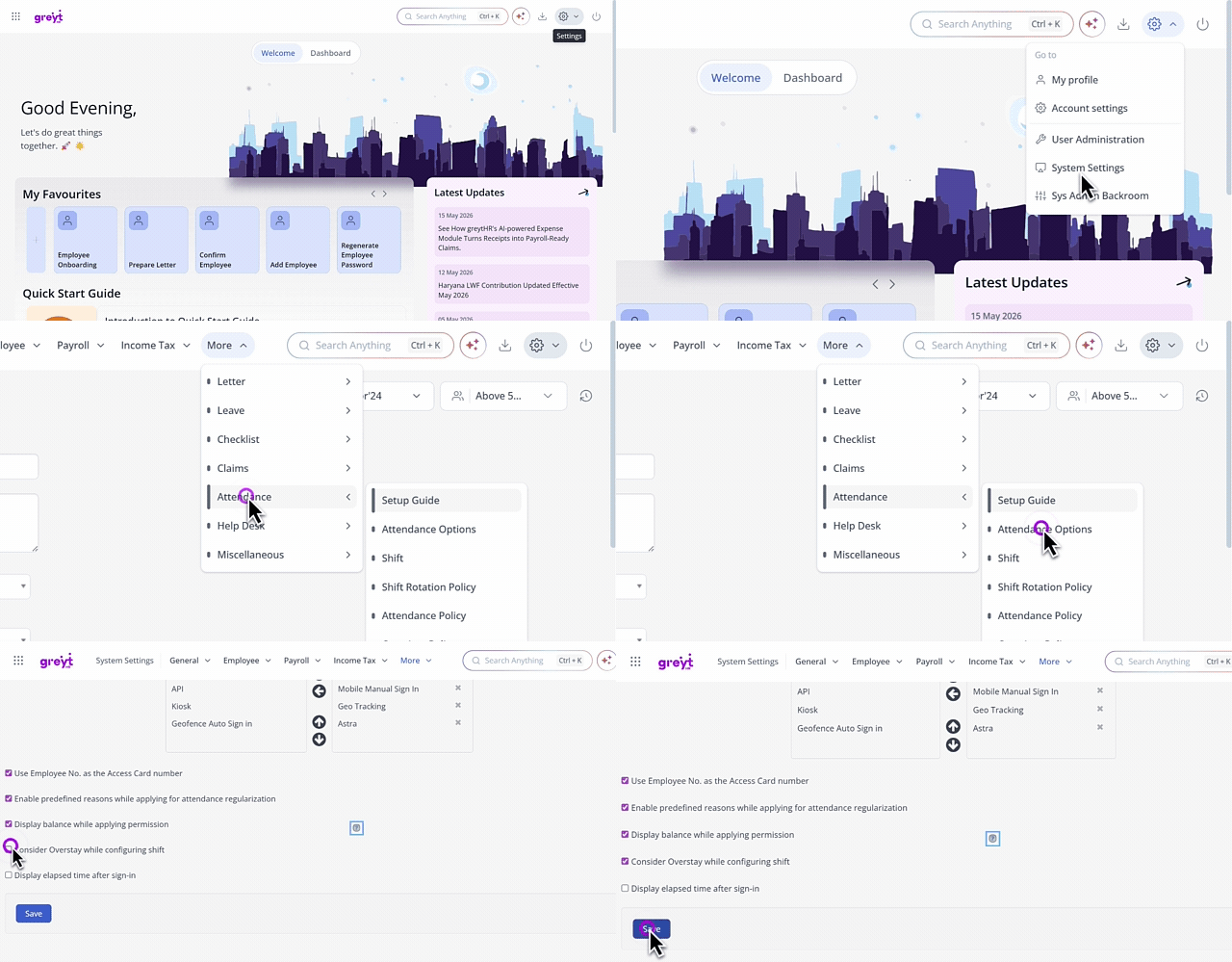
Once the feature is enabled under System Settings select Attendance > Shift.
Select a Shift or create a new one by clicking + Add Shift.
Enable the checkbox: Allow Overstay, and enter values for:
Extension Hours for a Day (e.g., 12)
Max Gap Between Out and in Swipes (e.g., 4) and save the shift.
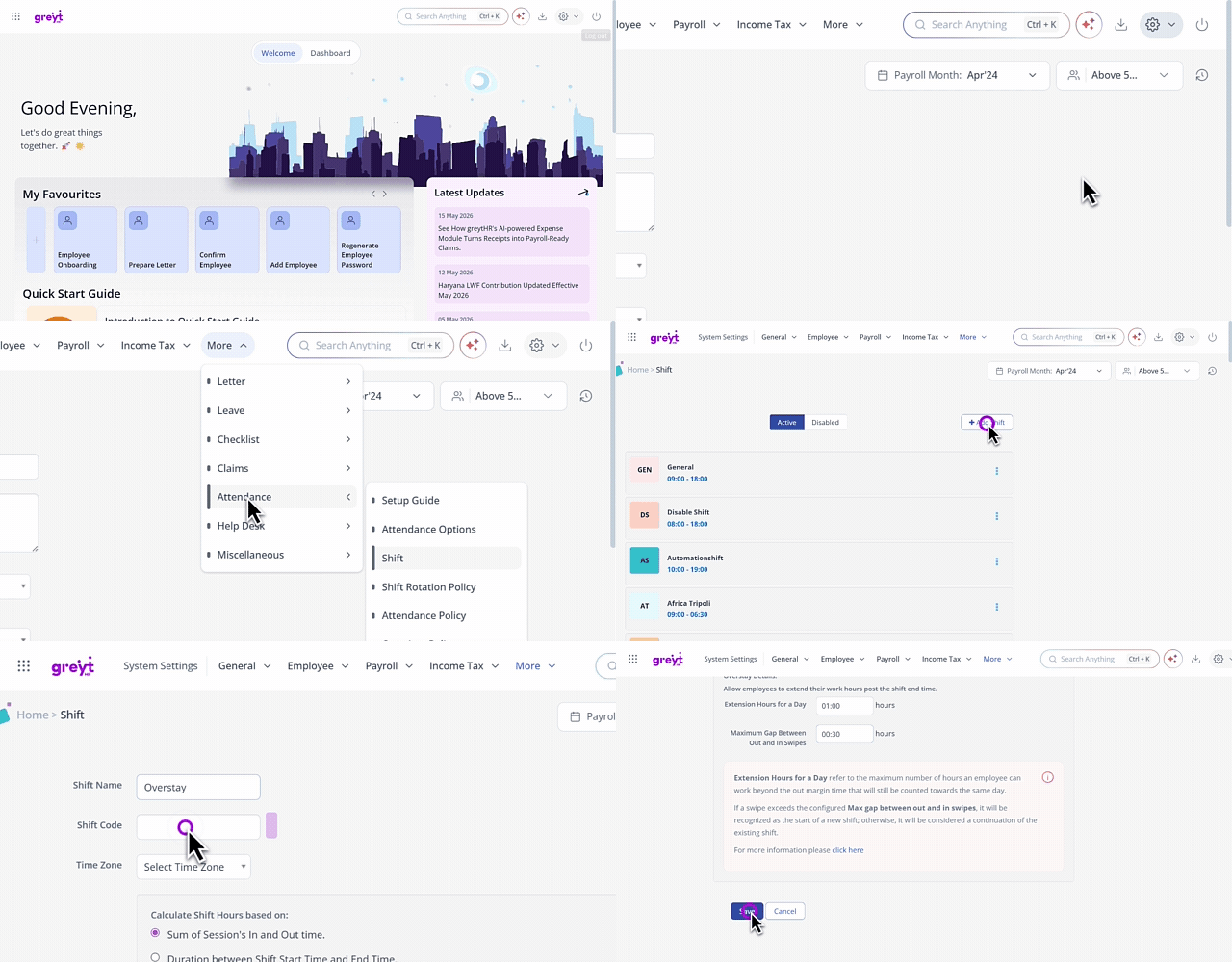
Note: You can configure up to 12 hours of overstay and set the maximum allowed gap between swipe-out and the next swipe-in. Any swipe activity within the 36-hour window (24-hour shift + 12-hour overstay) is treated as part of the same shift.
Overstay logic
The overstay logic determines how swipe events beyond the scheduled shift end time are processed:
Swipe Within Regular End Time
If the swipe falls within the regular end time, no gap validation is performed.
The swipe is considered part of the current day’s shift.
Swipe Outside Regular End Time but Within Extended End Time
In-Swipe:
The system checks the gap between the last out-swipe and the in-swipe.
If within the configured gap, the swipe is attributed to the previous day’s shift.
Out-Swipe:
No gap validation is required.
Considered part of the current day’s shift.
Swipe After Extended End Time
Automatically considered the start of the next day’s shift.
Overstay: Use cases
Shift Configuration Reference
| Start Time | End Time | Extended End Time |
|---|---|---|
| Shift start time - In Margin | Shift end time + Out Margin | Shift end time + Out Margin + additional/ extension hours for a day |
| 8:00am - 2:00hrs | 18:00pm + 11:59hrs | 18:00pm + 11:59hrs + 12:00 hrs |
| 06.00 AM (day 1) | 05:59 AM (day 2) = 23:59hrs | 05:59 PM (day 2) |
Use case 1: Continuous swipes within extended end time
Scenario: Employee swipes regularly without exceeding the gap.
| Swipe Type | Time | Day | System Behavior |
|---|---|---|---|
| IN | 2:00 PM | Day 1 | First swipe for Day 1 |
| OUT | 10:00 PM | Day 1 | Second swipe for Day 1 |
| IN | 10:30 PM | Day 1 | Third swipe for Day 1 |
| OUT | 8:00 AM | Day 2 | Fourth swipe for Day 1 (within Extended End Time) |
All swipes treated as the same shift.
Use case 2: Gap exceeds configured limit (swipe within extended end time)
Scenario: Employee takes a long break.
| Swipe Type | Time | Day | System Behavior |
|---|---|---|---|
| IN | 2:00 PM | Day 1 | First swipe for Day 1 |
| OUT | 10:00 PM | Day 1 | Second swipe for Day 1 |
| IN | 8:00 AM | Day 2 | New shift starts (gap = 10 hours) |
| OUT | 2:00 PM | Day 2 | Second swipe for Day 2 |
Outcome:
Even though the 8:00 AM IN swipe is within the Extended End Time, the gap exceeded 4 hours, so it starts a new shift.
Use case 3: Missing swipe (Auto out)
Scenario: Employee forgets to swipe out.
| Swipe Type | Time | Day | System Behavior |
|---|---|---|---|
| IN | 2:00 PM | Day 1 | First swipe for Day 1 |
| OUT (Auto) | 2:00 PM | Day 1 | Auto out created |
| IN | 10:30 PM | Day 1 | Third swipe for Day 1 |
| OUT | 8:00 AM | Day 2 | Fourth swipe for Day 1 |
Auto-out is recorded; all swipes within the same shift.
Use case 4: Missing swipe + extended break
Scenario: Employee forgets to swipe out and returns after a long gap.
| Swipe Type | Time | Day | System Behavior |
|---|---|---|---|
| IN | 2:00 PM | Day 1 | First swipe for Day 1 |
| OUT (Auto) | 2:00 PM | Day 1 | Auto out created |
| IN | 8:00 AM | Day 2 | New shift starts (gap = 18 hours) |
| OUT | 2:00 PM | Day 2 | Second swipe for Day 2 |
New shift created due to exceeding the gap, despite the swipe being within the Extended End Time.
Use case 5: Overnight work + extended break
Scenario: Employee works overnight, then returns after a long gap.
| Swipe Type | Time | Day | System Behavior |
|---|---|---|---|
| IN | 10:00 PM | Day 1 | First swipe for Day 1 |
| OUT | 6:00 AM | Day 2 | Second swipe for Day 1 |
| IN | 2:00 PM | Day 2 | New shift starts (gap = 8 hours) |
| OUT | 10:00 PM | Day 2 | Second swipe for Day 2 |
New shift starts due to gap exceeding the configured limit.
Use case 6: Attendance override for missing swipe
Scenario: Employee misses swipe out; admin intervenes.
| Swipe Type | Time | Day | System Behavior |
|---|---|---|---|
| IN | 10:00 PM | Day 1 | First swipe for Day 1 |
| OUT (missing) | (to be added) | Day 2 | System allows attendance override within the Extended End Time |
Admin can override the swipe time.
Use case 7: Attendance regularisation
Scenario: Employee misses a swipe and requests a correction.
| Swipe Type | Time | Day | System Behavior |
|---|---|---|---|
| IN | 10:00 PM | Day 1 | First swipe for Day 1 |
| OUT (missing) | (to be added) | Day 2 | Employee can regularise within the Extended End Time |
Regularisation is allowed up to 23:59 hrs.
Additional notes
The extended configuration supports up to 36 hours total (24-hour shift boundation + 12-hour extension).
Only two new rules are added under the shift configuration. No major impact on Shift Roster or other modules.
Works seamlessly with Attendance Overrides and Regularizations for upto 23:59 hours
Doesn’t work with split shifts
Related Articles:
Create regular shifts and split shifts