Manage Leave Encashment in greytHR for HR Flexibility
Updated in May - 2025 | Subscribe to watch greytHR how-to video
Many organisations aim to provide flexibility for employees to encash unused leave, but also want to control how much of it can be encashed annually.
To support such policies, greytHR now allows configuration of leave encashment limits either as a fixed number of days or a percentage of available leave balance, with optional rounding logic.
Encashment of unused leave
Encashment of unused leave in greytHR allows employees to convert a portion of their unused leave balance into monetary compensation, instead of taking those days off. This provides employees with added financial flexibility while ensuring that their earned leaves are not wasted.
Enable the unused leave encashment configuration
Leave encashment helps employees monetize their unused leave, providing them with added financial benefits.
To enable unused leave encashment for employees in greytHR, from your Admin portal, go to Settings > System Settings > Leave > Leave Rules.
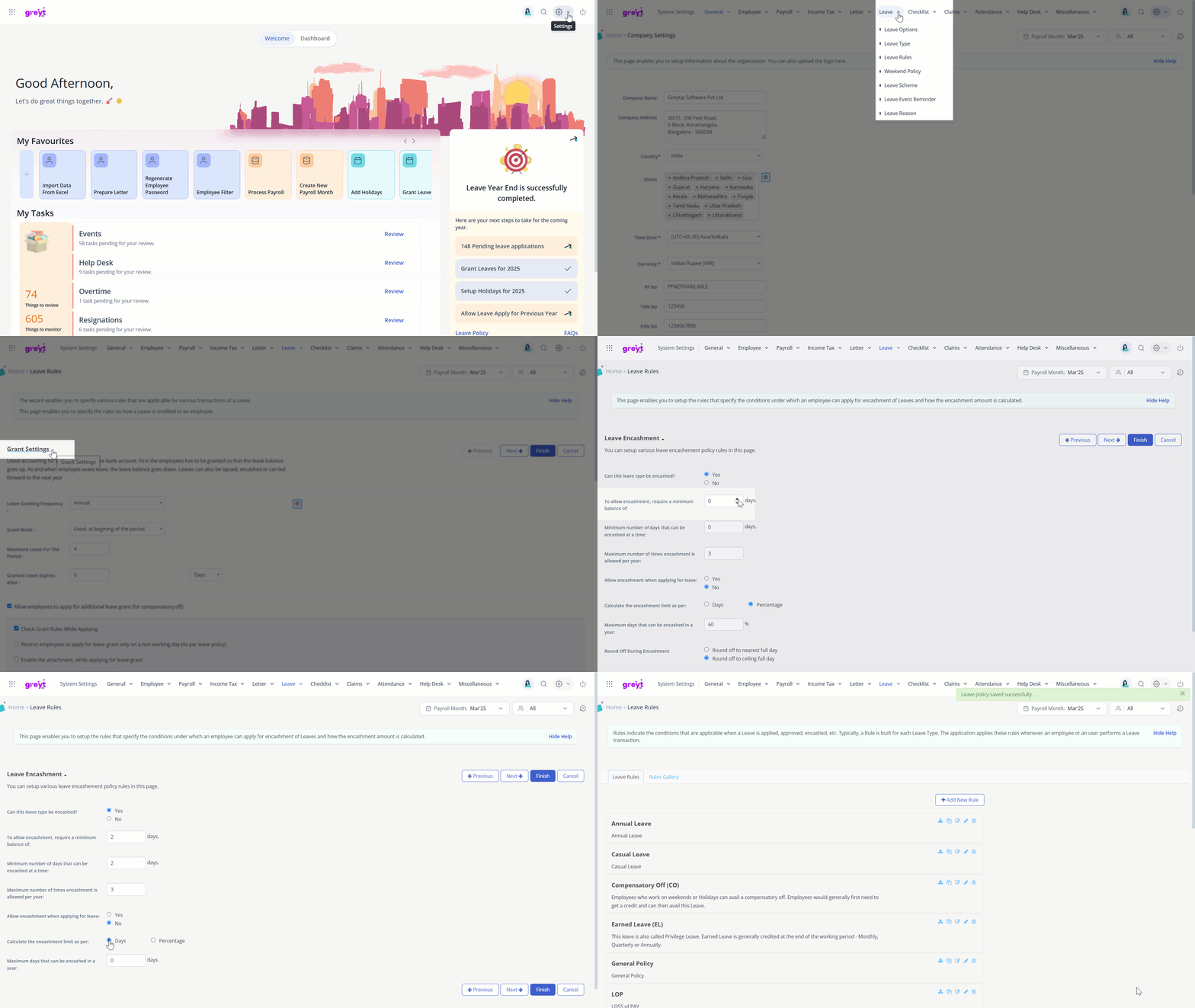
Select a leave type and click the Edit icon. From the drop-down, select the Leave encashment option.
Choose Yes for Can this leave type be encashed?
Fill in the other details as needed.
In the Calculate the encashment limit as per option, select Days or Percentage to calculate the maximum number of days that can be encashed.
Note: You can select either of the two options while configuring the encashment rule.
Choose the preferred option based on your organisation's leave encashment policy.
Configure leave encashment in days
To configure the leave encashment in days for employees, select Days from the Calculate the encashment limit as per option, and fill in the details such as the Maximum days that can be encashed in a year.
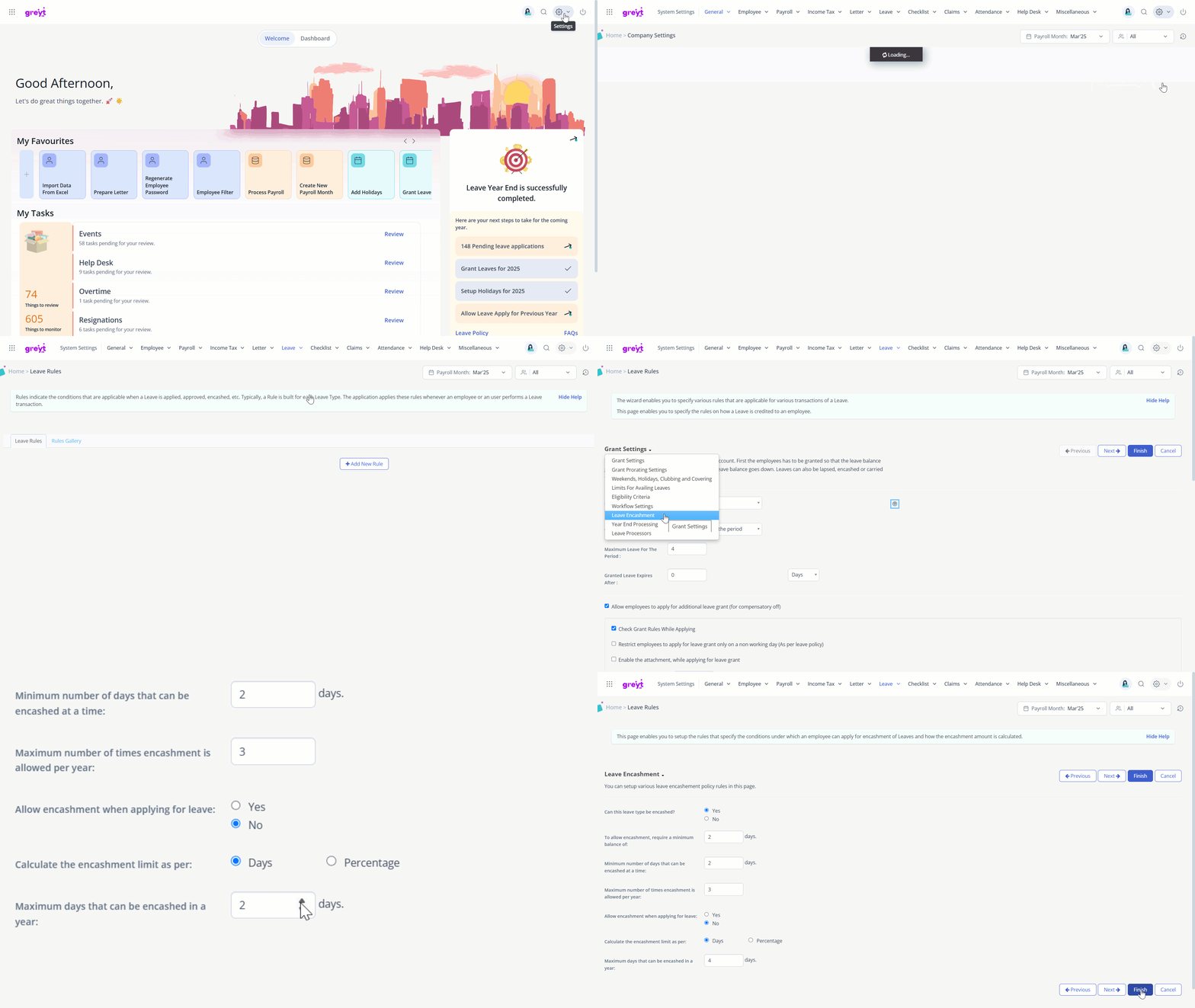
Note: You can also define the number of times an employee can apply for a leave encashment request in a year.
Configure leave encashment in percentage
greytHR introduces a new percentage-based rule, allowing you to define the percentage or share of the total leave balance that employees can encash.
To configure the leave encashment in percentage for employees, select Percentage from the Calculate the encashment limit as per option, and fill in the required details.
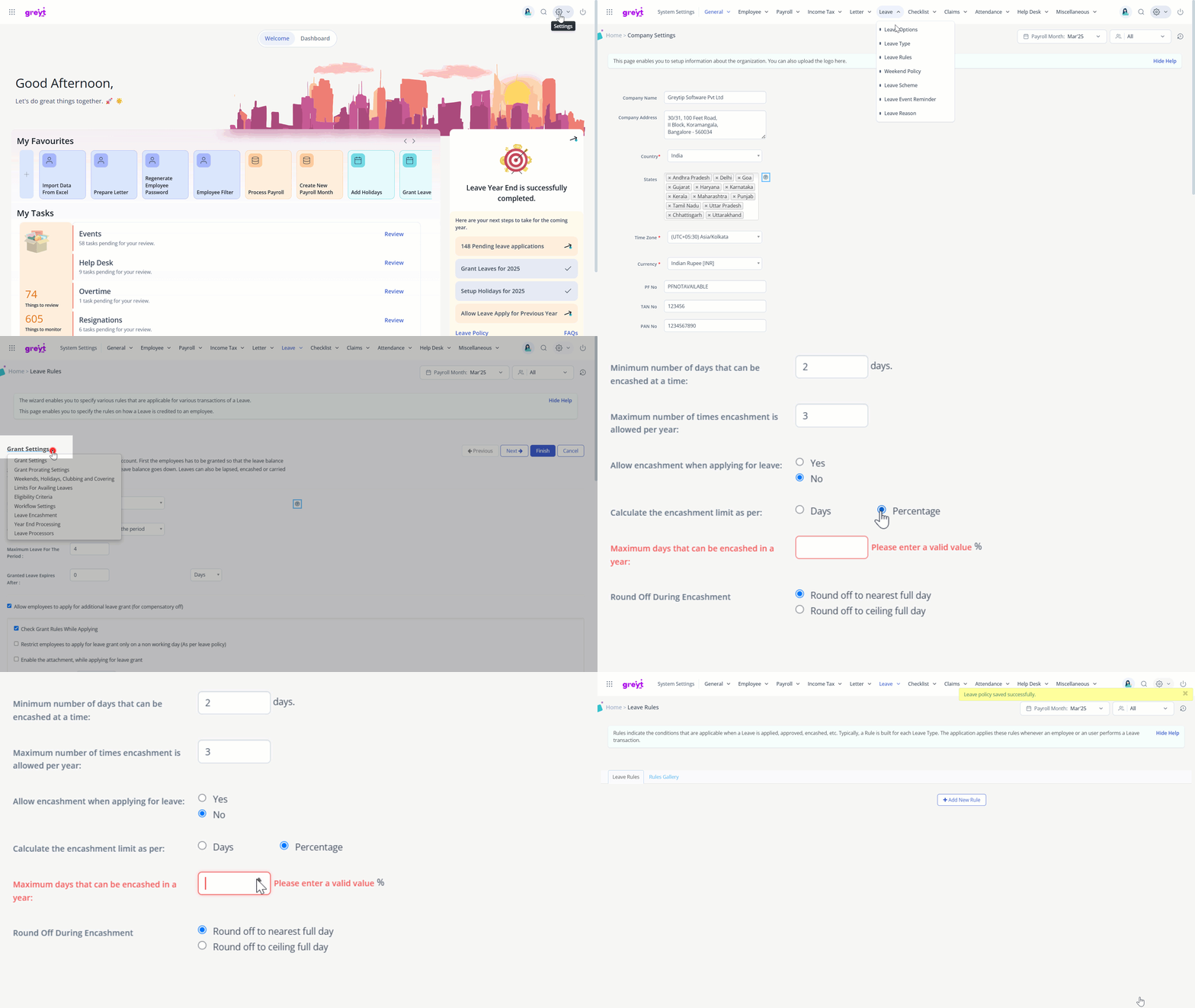
Note: When leave encashment is configured as a percentage less than 100%, greytHR prompts you to select a round-off method to handle fractional leave days. This avoids decimal or fractional leave days during encashment.
For example, suppose an employee has 7 days of leave balance.
If your organisation allows 60% encashment of your available balance, the employee can encash 4.2 days of leave.
Since 4.2 is not a whole number, the system will apply the selected round-off rule:
If you select Round off to nearest full day, it will round to 4 days.
Any value from 4.1 to 4.4 will become 4.
Any value from 4.5 to 4.9 will become 5.
If you select Round off to ceiling full day, it will round up to 4 days.
Any value from 4.1 to 4.9 will become 4.
Note: On the employee's ESS portal, if the leave encashment request exceeds the encashable balance, the system will throw an error.
Calculate the maximum number of leave days an employee can encash
The system dynamically calculates the maximum number of encashable leave days at the time of the employee’s request. This calculation is based on:
Employee’s total eligible leave balance for that year
The configured encashment percentage on the available leave balance
The selected round-off method.
Suppose an employee has 12 days of eligible leave balance for the year.
The company has configured 70% encashment.
The admin has selected round off to the nearest full day.
70% of 12 days = 8.4 days.
Since 8.4 is not a whole number, the system applies the round-off rule.
It rounds to 8 days based on the nearest full day.
So, the employee can encash 8 days of leave.
Download the leave policy
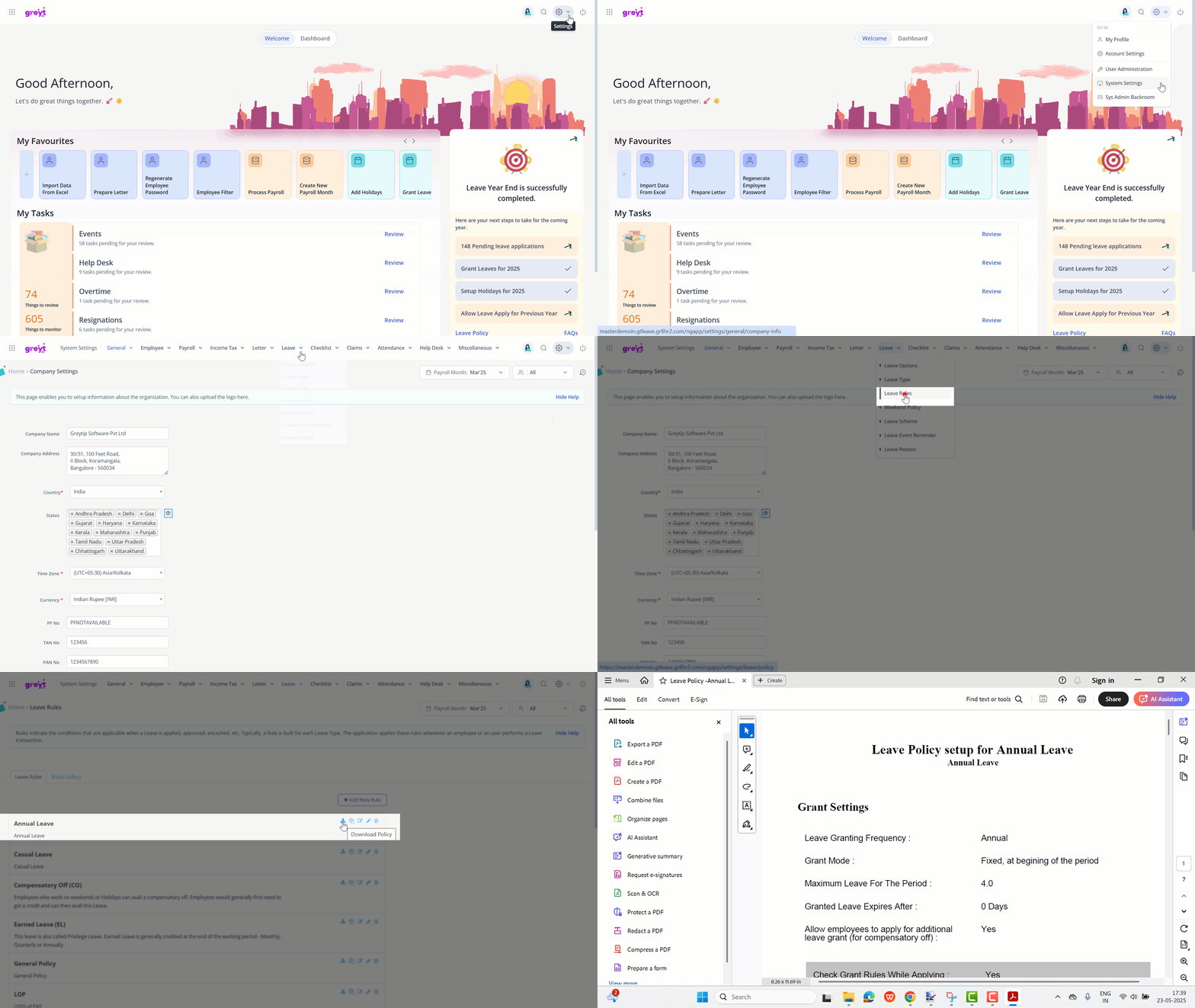
To download the leave policy, from your Admin portal, go to Settings > System Settings > Leave > Leave Rules.
Select a leave type and click the Download icon. The leave policy will be downloaded in a PDF file.
Related Articles: