Set Up greytHR Alumni Portal for Resigned Employees
Updated in February-2026 | Subscribe to watch greytHR how-to video
The Alumni portal in greytHR helps organizations stay connected with their former employees. allows ex-employees to securely log in and access important post-employment documents anytime. Employees can download essential records such as payslips, Form 16, service letters, experience letters, and relieving letters without needing to contact HR.
With the greytHR Alumni portal, you can enhance the alumni experience, strengthen your organisation's brand, and maintain lasting connections with former employees for future rehiring or referral opportunities.
To start using this feature, begin by enabling the Alumni Portal on the New Features page.
Getting started with Alumni portal
To enable the Alumni portal feature, from your greytHR Admin portal, go to Settings > Account Settings > New Features.
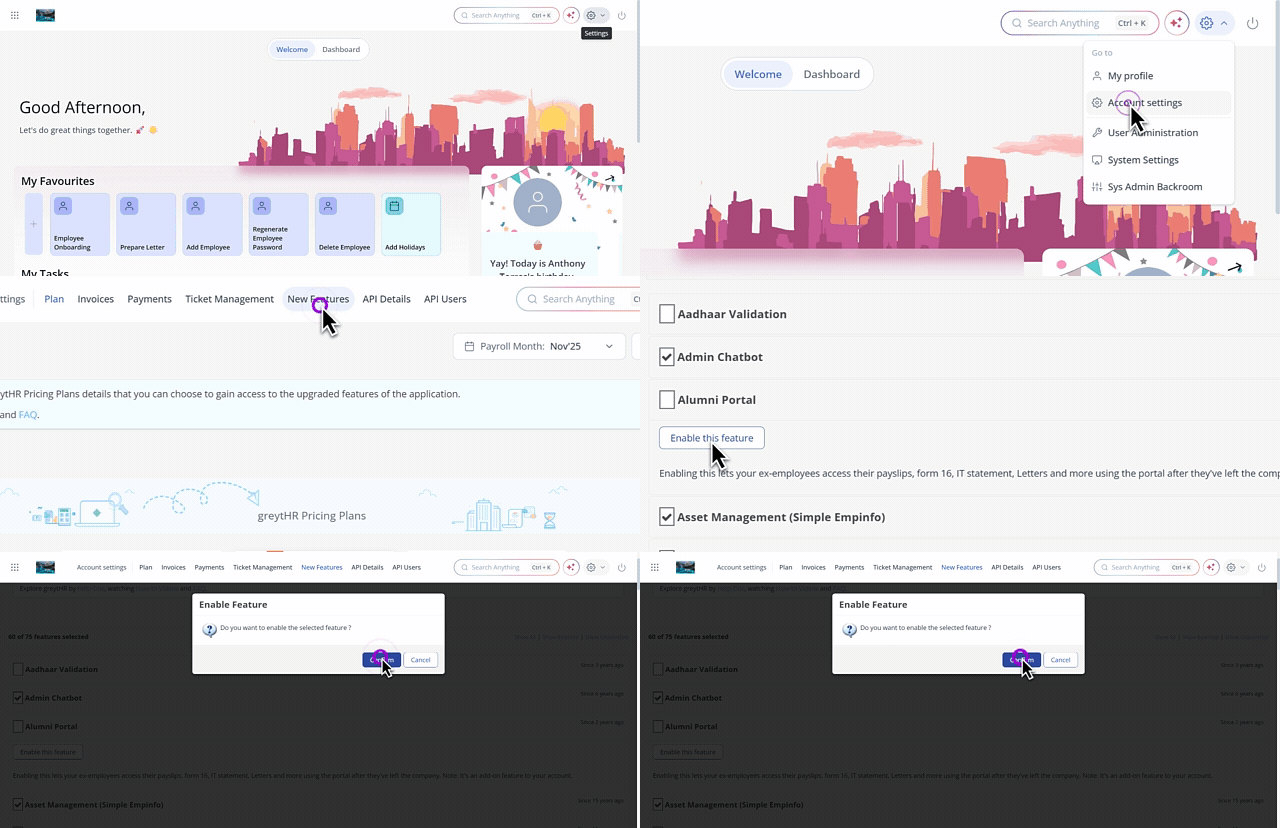
On the New Features page, from the list of features, search for Alumni Portal.
Click the card. The card expands.
Click the Enable this feature button. The Enable Feature pop-up appears.
Click Confirm to enable the Alumni Portal feature in greytHR. You can now configure Alumni Portal-related information as per your company policies.
Note: Only when you enable the Alumni portal feature you will be able to view and customize the portal options on the pages such as the Employee Options, Separation, and Off-boarding.
Please refer to our Pricing page to better understand the pricing details of the Alumni portal.
In the greytHR Admin portal, after enabling the feature, the next step is to configure alumni options from the Employee Options page. This includes adding mandatory fields such as the Alternate Email ID and Alternate Mobile Number for individual employees.
Configure access duration of Alumni portal
To configure the access duration, from your greytHR Admin portal, go to Settings > System Settings > Employee > Employee Options.
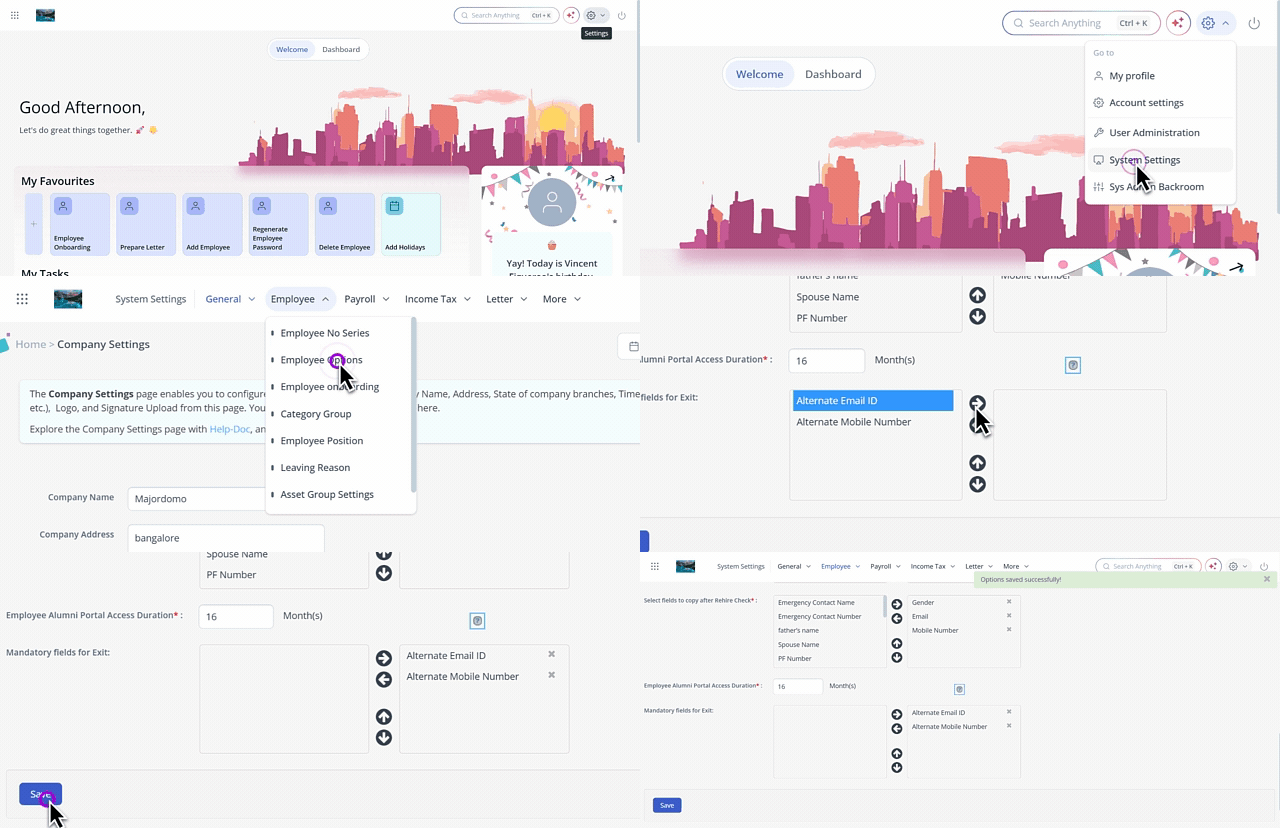
On the Employee Options page, from the Employee Alumni Portal Access Duration spin box, select the required number of months to customize the default access duration for all employees.
Note: By default, 18 months is set as the access duration.From the Mandatory fields for Exit field, select the options that you want to customize for individual employees as per your requirements. The selected options appear on the Separation and Off-boarding pages.
Click the ➡ arrow to move it to the next column.
Click Save to update the configuration.
After enabling the feature and configuring the access duration, the next step is to customize the access on the Separation and Off-boarding pages for individual employees.
Note: Alumni portal users will have limited access to basic information and document downloads. You can customize ESS portal features for alumni users by enabling the Alumni user role from the User Roles page.
Customize Alumni portal access details
The next step is to customize the access on the Separation and Off-boarding page for individual employees.
As an admin, you can customize the alumni portal preferences while updating the exit/resignation details of an employee on the Separation and Off-boarding pages.
You can apply the alumni portal customizations to already resigned employees as well as employees nearing their resignation. A communication will be sent to your employee on their alternate email ID once you have marked them as exit, informing them about their extended ESS portal access.
You can customize the Alumni portal settings from:
Separation page
Off-boarding page
Manage Alumni portal access from Separation page
To provide access to the Alumni portal to an already separated employee from the Separation page, hover over the 9 dots and select Employee > Information > Separation.
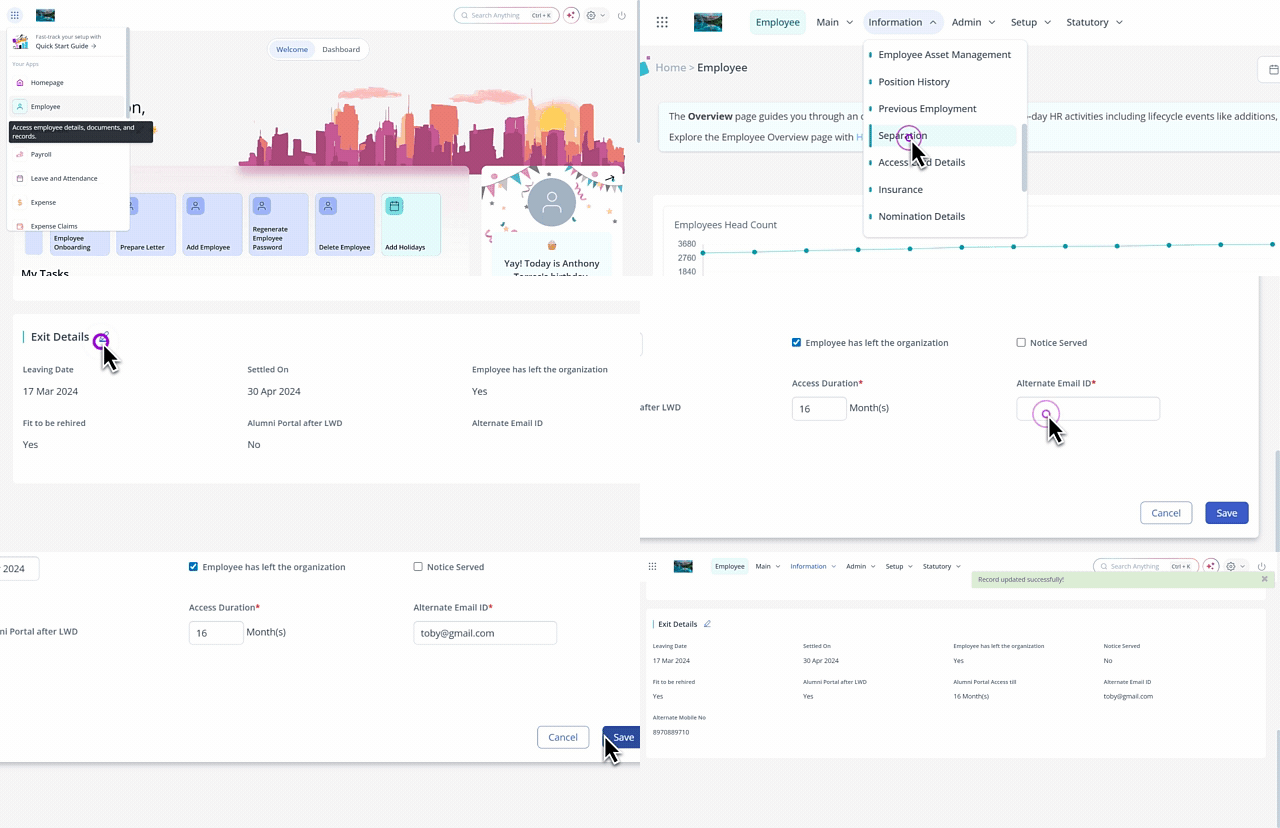
On the Separation page, from the Employee Type dropdown list, select Current Employees if you want to customize the alumni portal access for an active employee.
Note: You can also select Resigned Employees if you want to customize the alumni portal access for an already resigned employee.From the Search Employee search box, enter the employee number or name for whom you want to add the information.
Under the Resignation Status section, from the Separation Mode dropdown list, select RESIGNED. A list of sections appears.
On the Exit Details section, click the Edit icon and select the Alumni Portal after LWD checkbox to enable access to Alumni portal services for the selected employee.
From the Access Duration spin box, select the required months if you want to change the default value for the selected employee.
In the Alternate Email ID textbox, enter an alternative email address for the selected employee.
In the Alternate Mobile Number textbox, enter an alternative mobile number.
Click Save to update the customized alumni portal details of the selected employee.
Note: To delete or remove the updated separation details, click the Edit icon on the Resignation Details section. You can remove the inaccurate details and click Save.
Manage Alumni portal access from Off-boarding page
The Off-boarding page in the greytHR Admin portal functions as a central hub for managing your employees' departure procedures. The page also provides you with an option to edit the alumni portal details of resigning employees.
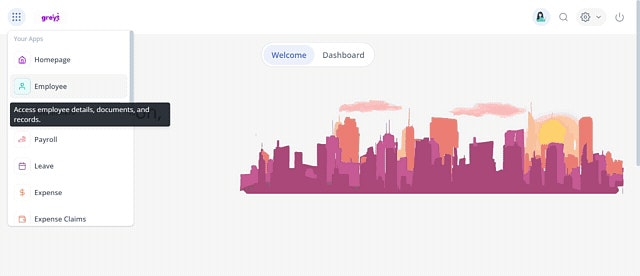
To view the Off-boarding page, hover over the 9 dots and select Employee > Admin > Off-boarding.


Once you have completed all the tasks for an employee under the Clearance column, you can initiate the post-clearance for the same. Initiating post-clearance moves the card from the Clearance column to the Post Clearance column and triggers the final exit checklist.
On the Off-boarding page, click the Monitor tab. The Post Clearance column displays all the approved resignation applications for which the exit checklist is initiated.
Select the employee's card for whom you want to initiate post clearance and click View Details. The card opens.
Click View all info. A form opens and displays all the exit details.
Under the Workflow Details section, you can view the status of the Alumni Portal after LWD and Access Duration. You can click the Edit icon if you want to change the default value for the selected employee.
Click Save to update the details.
Related Articles: