Optimize Performance Management with greytHR's PMS Library
Updated in June- 2026 | Subscribe to watch greytHR how-to video
Every time a new performance cycle begins, admins and managers have to manually set up goals, reviews, and feedback questions from scratch. It’s a repetitive task that takes up a lot of time and often leads to inconsistencies in how employees are evaluated.
greytHR now brings you the PMS Library—a central repository in the Performance Management System. As an admin, you can quickly choose pre-configured goals, review category questionnaires, and 360° feedback templates while setting up a new cycle. No more repetitive work—just faster setup and consistent employee evaluations.
Enable PMS Library in greytHR
To enable the PMS Library, from your greytHR Admin portal, go to Settings > User Administration > User > User Roles.
Select the admin user card and click the Edit icon.
From the Category dropdown, choose PMS Library. A list of feature codes will appear.
Select both Read Access and Write Access, then save the changes.
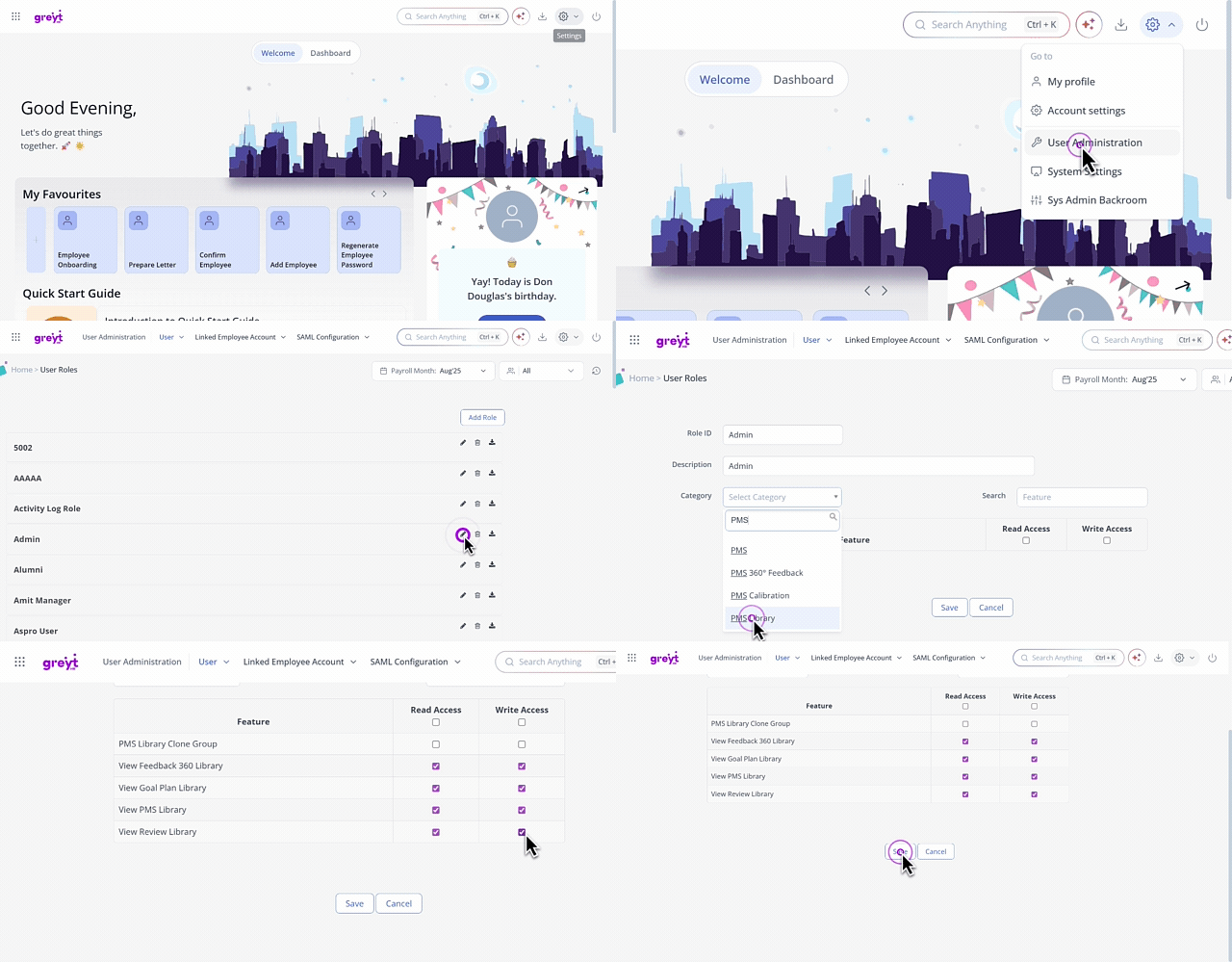
Based on your organisation’s requirements, you can enable access for:
View Goal Plan Library
View Review Library
View Feedback 360 Library
Unit of Measure Library
Similarly, for employees and managers, you can select the respective card and enable the PMS Library feature.
Note: Employees and managers can have access to the View Goal Plan Library only.
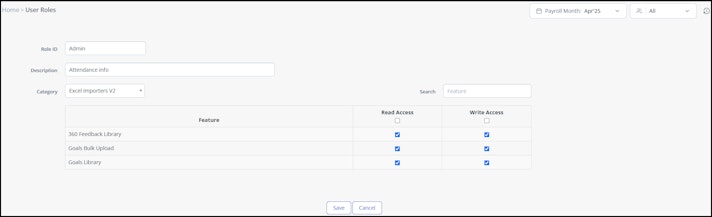
Additionally, to upload goal groups and 360 feedback questionnaires in bulk, from the Category dropdown, choose Excel Importers V2. Select both Read Access and Write Access for the 360 Feedback Library and the Goals Library.


Based on the feature code enabled for your account, you can use the PMS Library for:
Goals Library – Create and manage reusable goal groups for different teams and cycles.
Reviews Library– Set up consistent review category questionnaires for each performance cycle.
360° Feedback Library – Use ready-made feedback question sets for smoother 360° evaluations.
Goals Library
The Goals Library in greytHR is a centralized space to create, manage, and reuse goal groups across teams and performance cycles. You can define goals and milestones, assign them to employee groups, eliminating the need to create goals manually.
Create a goal group in greytHR
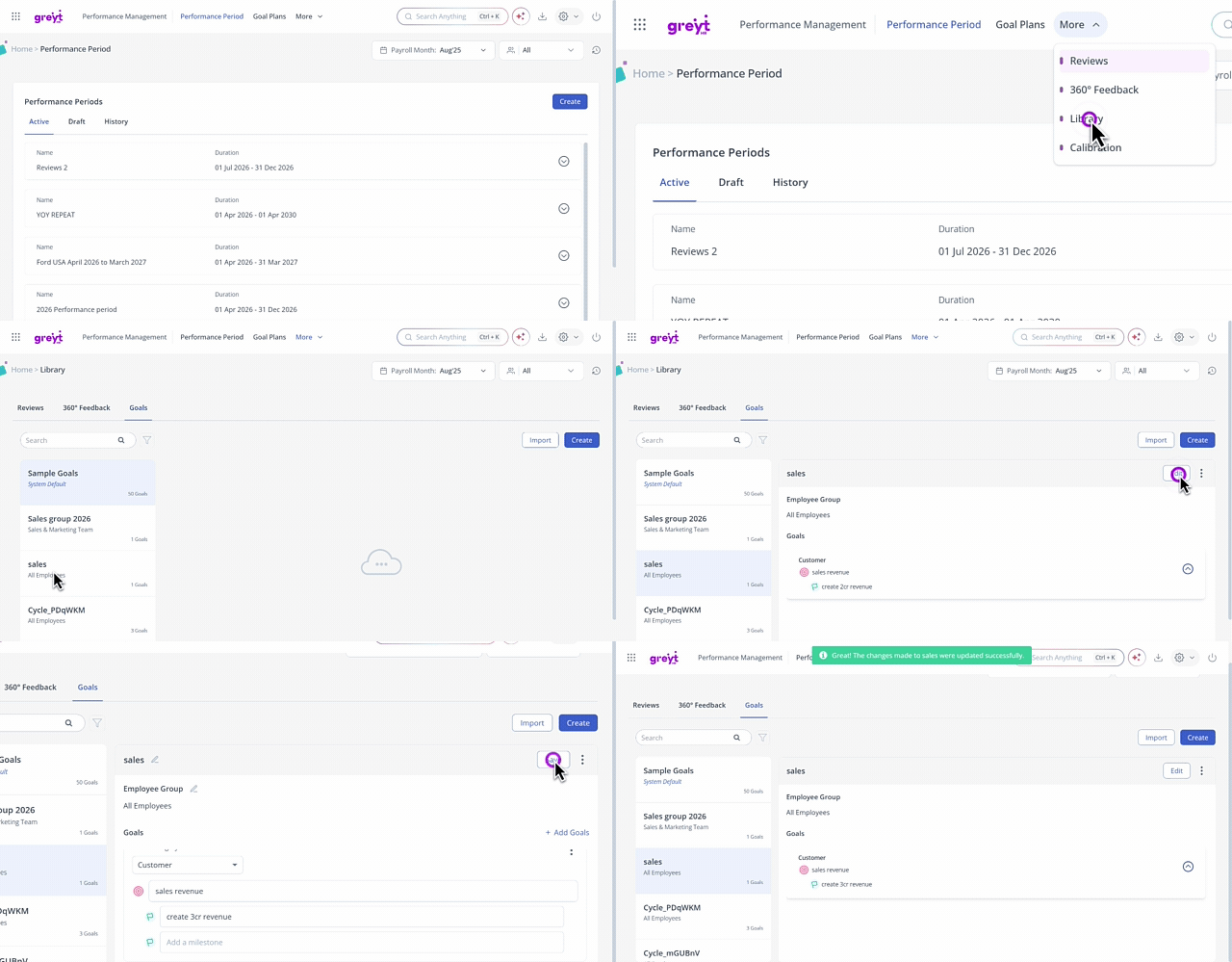
To create the goal group, from the greytHR Admin portal, hover over the 9 dots and go to Performance Management > Library.
Under the Goals tab, click Create. The Create Goal Group form appears.
Give a name for the goal group, select the employee group and click Create.
Under Select Category select the required category from the dropdown list.
Add the Goals and Milestones.
Note: You can add more goals by clicking + Add Goal.
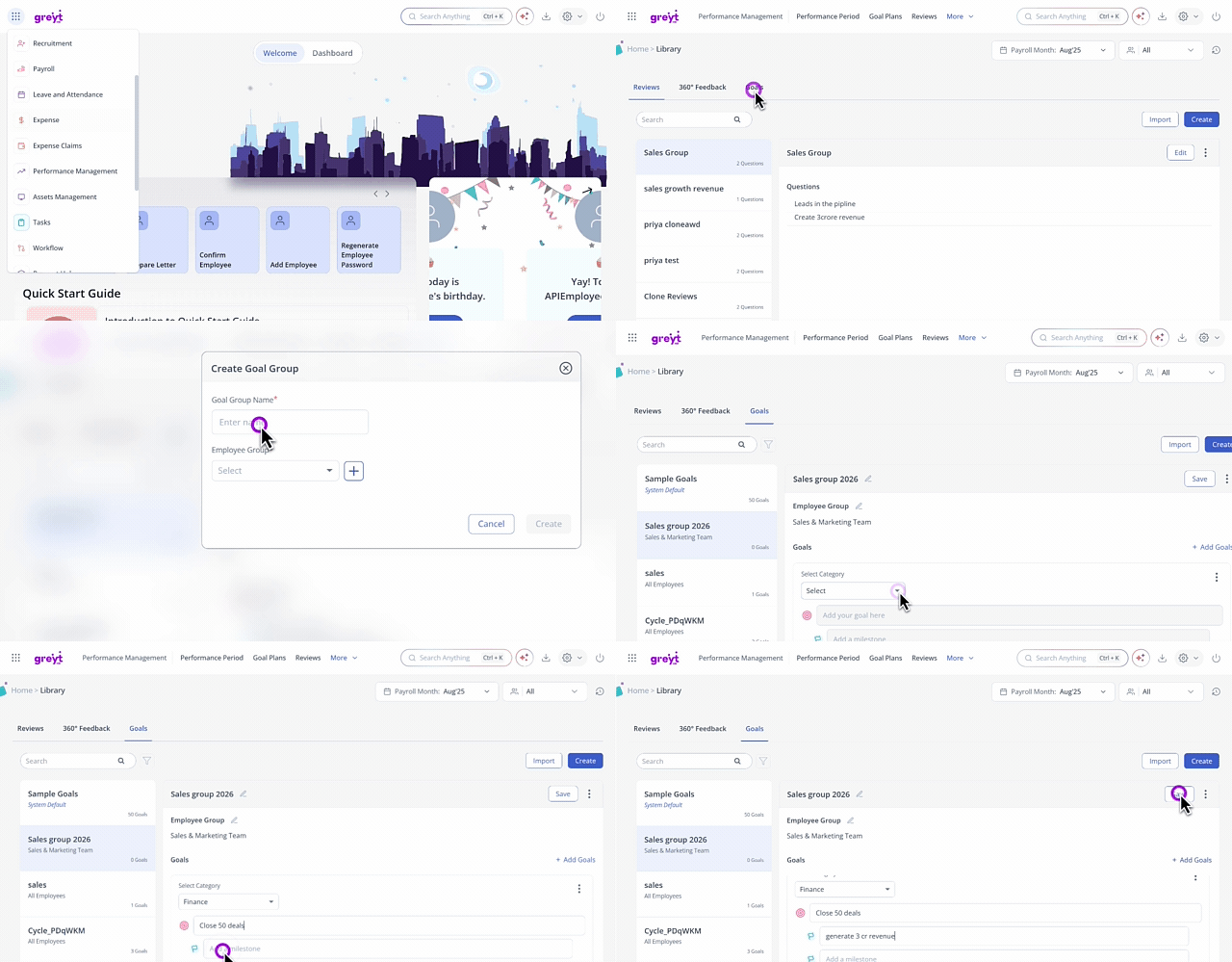
Note: Each goal group must include at least one goal.
Info: You can also add multiple goal groups in bulk using the Import option. Select Goals Library, Download the sample file, fill in the required data, and upload it to complete the process.


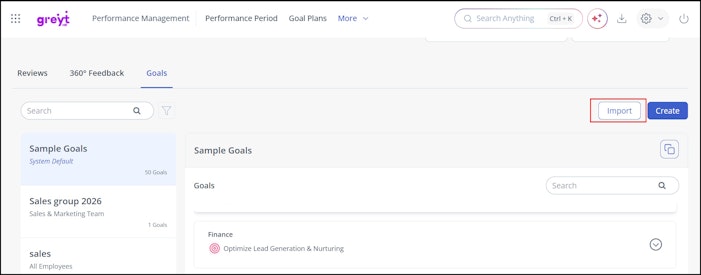
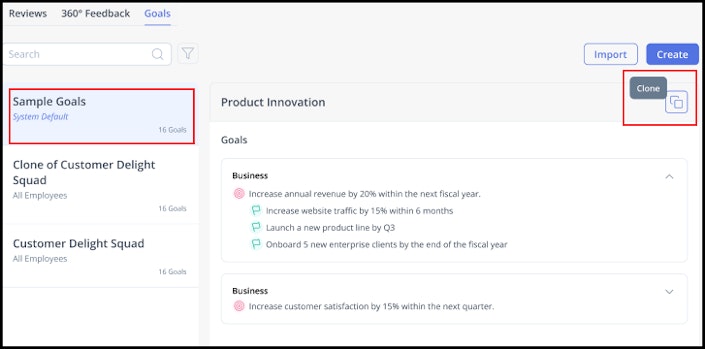
Additionally, greytHR offers a sample goal group to help you get started quickly. You can clone it, select the relevant goals using checkboxes, assign them to an employee group, and give the group a name, making the setup simple and efficient.


Assign goals to employees from the Goals Library in greytHR
To assign goals to the employees from the goal group, start by selecting a goal plan and choosing the employees. Click Add Goal, then use the + Add option to pick a goal group. You can also expand the group to select individual goals if needed.
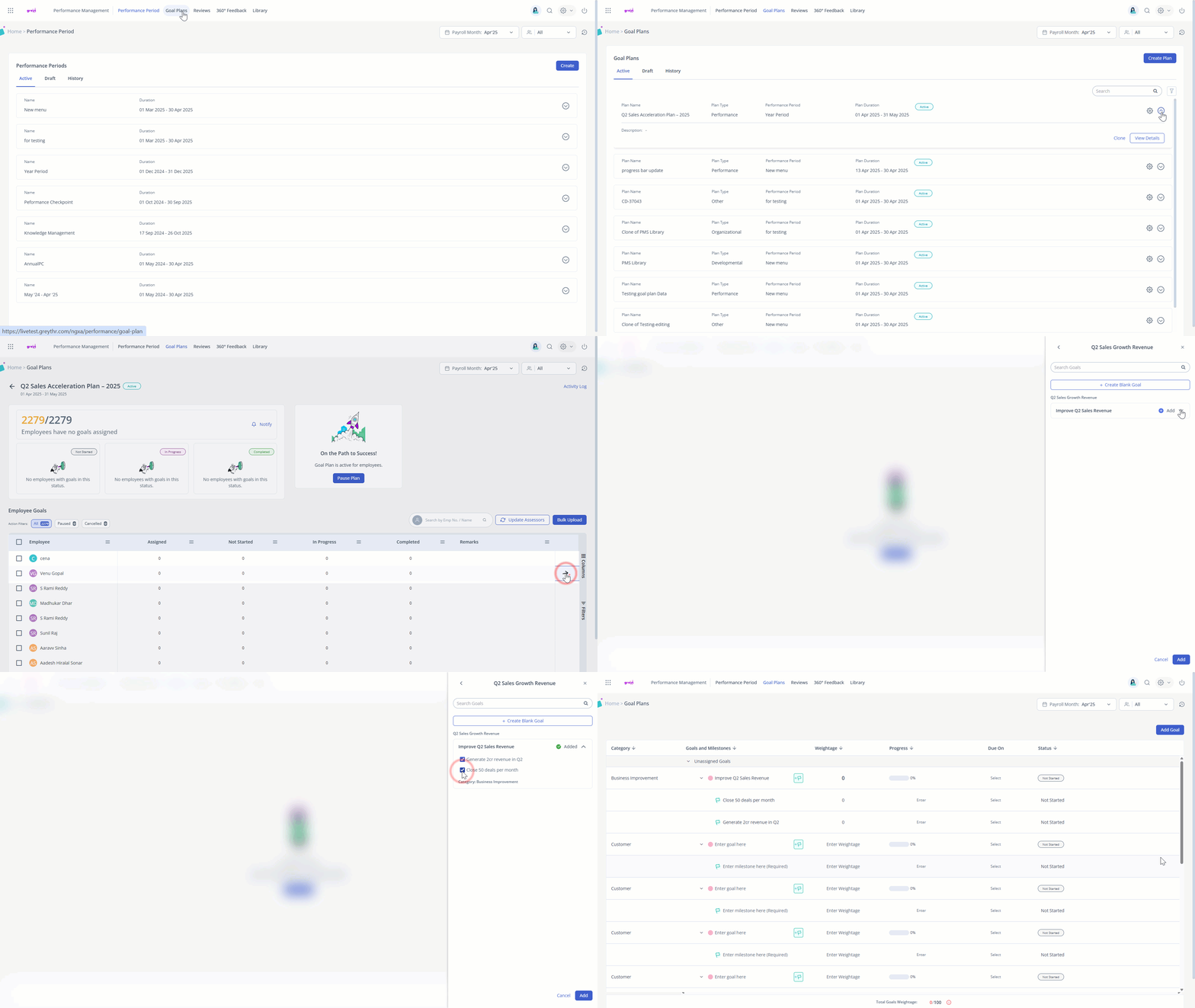
Note: While creating goals, you can use goal groups from the Goals Library instead of manually entering goals.
As an admin, you have the option to edit, delete, or clone a goal group created in Goals Library.
Edit a goal group in greytHR
To edit a goal group, click on the Edit option, and the entire goal group becomes editable, and you can make the necessary changes.
You can also edit an individual goal as per your requirement.
Clone a goal group in greytHR
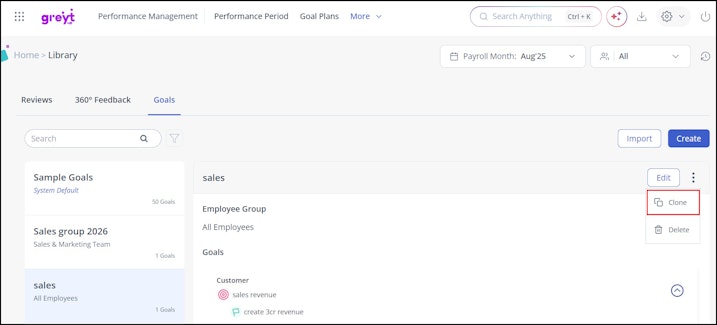
To clone a goal group, click on the three vertical dots (⋮) and select Clone. The entire goal group will be cloned and will appear as a separate goal group.
You can also clone an individual goal as per your requirement. Click Edit and then select the three vertical dots (⋮) next to a goal > Clone.
Note


: You can choose to delete a goal group from the three vertical dots (⋮). To delete a particular goal, click Edit > three vertical dots (⋮) > Delete.
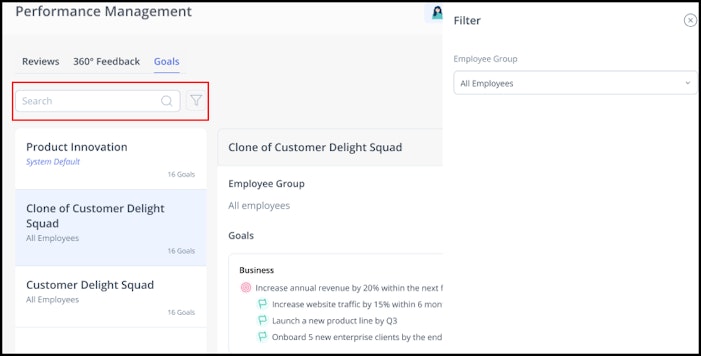
You can use the Search box to find specific goal groups, and use the Filter option to locate goal groups based on employee categories.


360° feedback Library
The 360° Feedback Library simplifies the 360° feedback setup with ready-to-use question sets. Instead of creating questions from scratch each time, admins can choose from pre-configured templates, ensuring consistency and saving time across feedback cycles.
Create 360° feedback question categories in greytHR
To create 360° feedback question categories in the 360° Feedback Library, click Create under the 360° Feedback tab. Enter a Question Group Name, select the Rating Scale Type, and start adding the required questions.
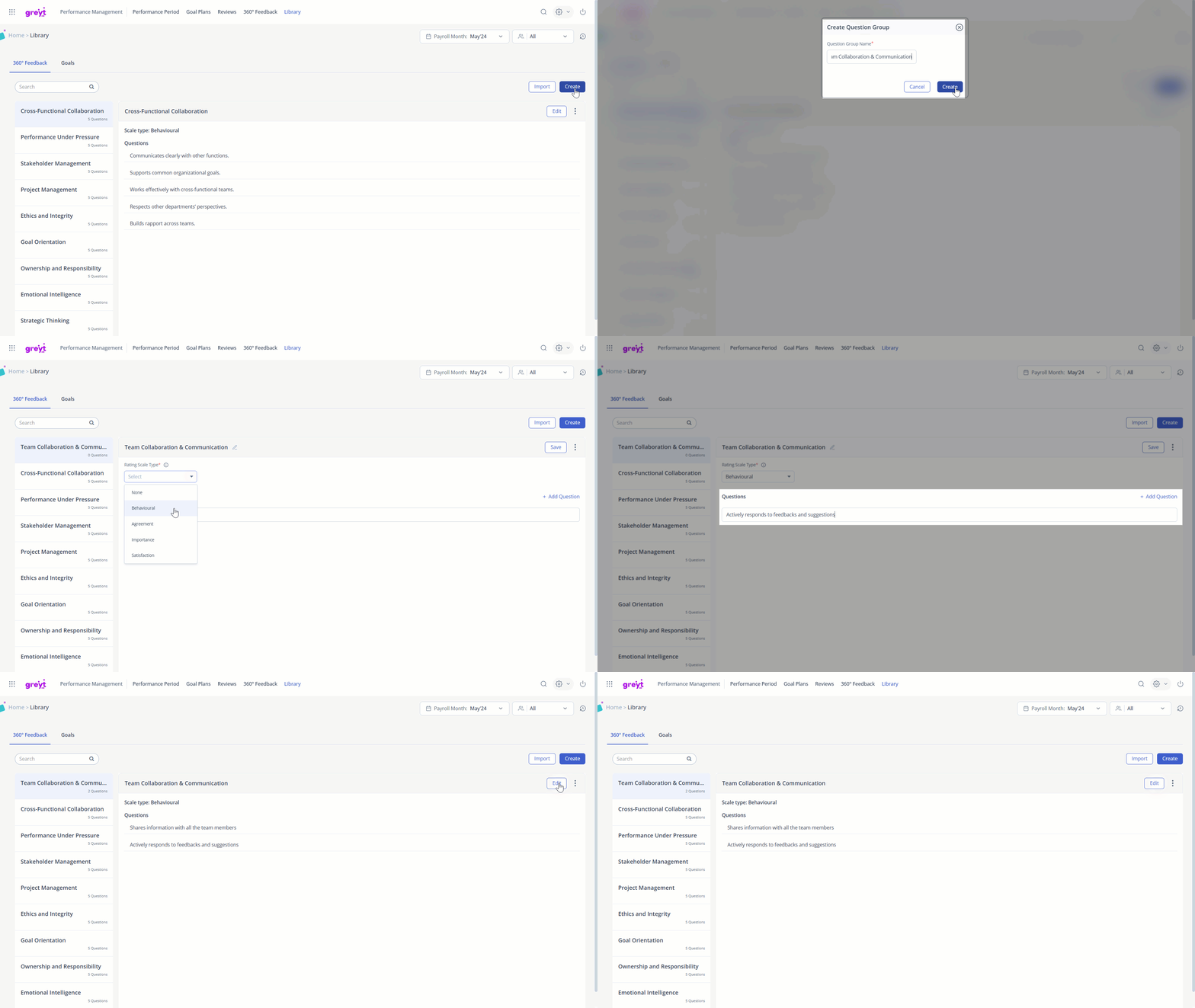
Note: Each feedback question category must include at least one question.
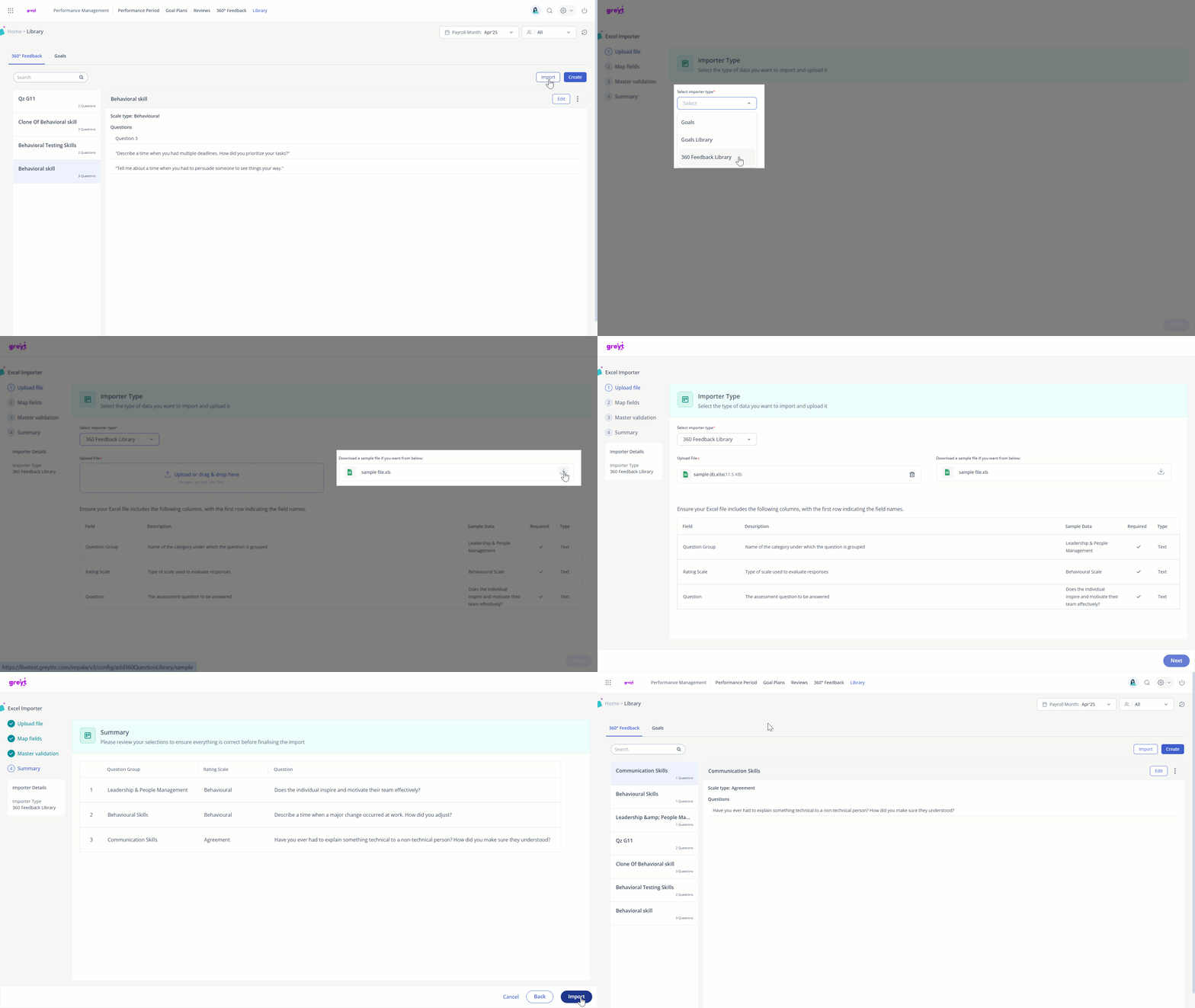
If you want to add multiple question categories in bulk, use the Import option. Select 360 Feedback Library, Download the sample file, fill in the required data, and upload it.
Using 360° feedback Library in greytHR
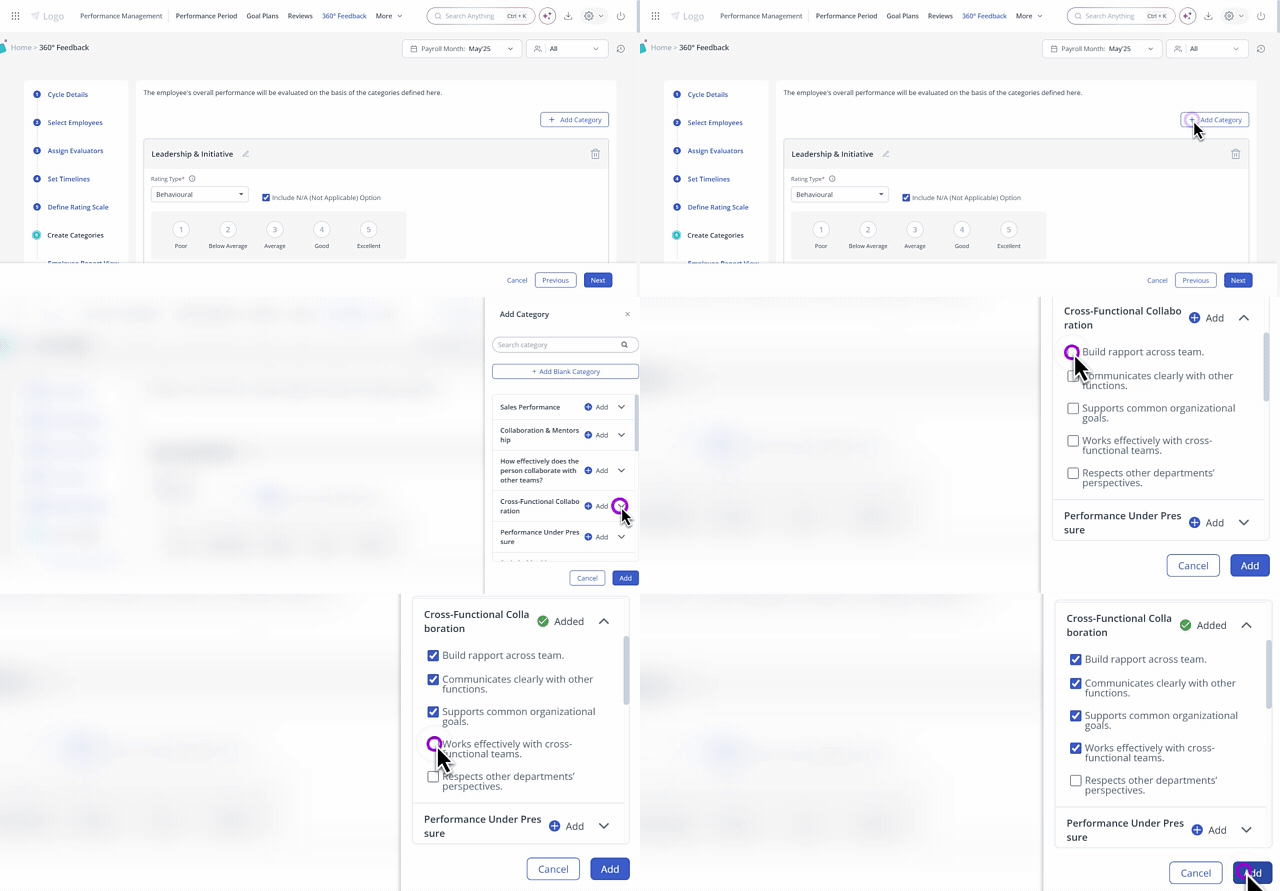
While creating the 360° feedback cycle, under the Create Categories section, click + Add Category to view the question categories created in the 360° Feedback Library.
Expand the category and select all or the required questions and click + Add.
After creating the question categories, you have the option to edit, delete, or clone a question category created in 360° Feedback Library.
Edit 360° feedback question categories in greytHR
To edit a 360° feedback question category, click on the Edit option to make the necessary changes.
If you want to edit a particular question, just tap on the question and edit the same.
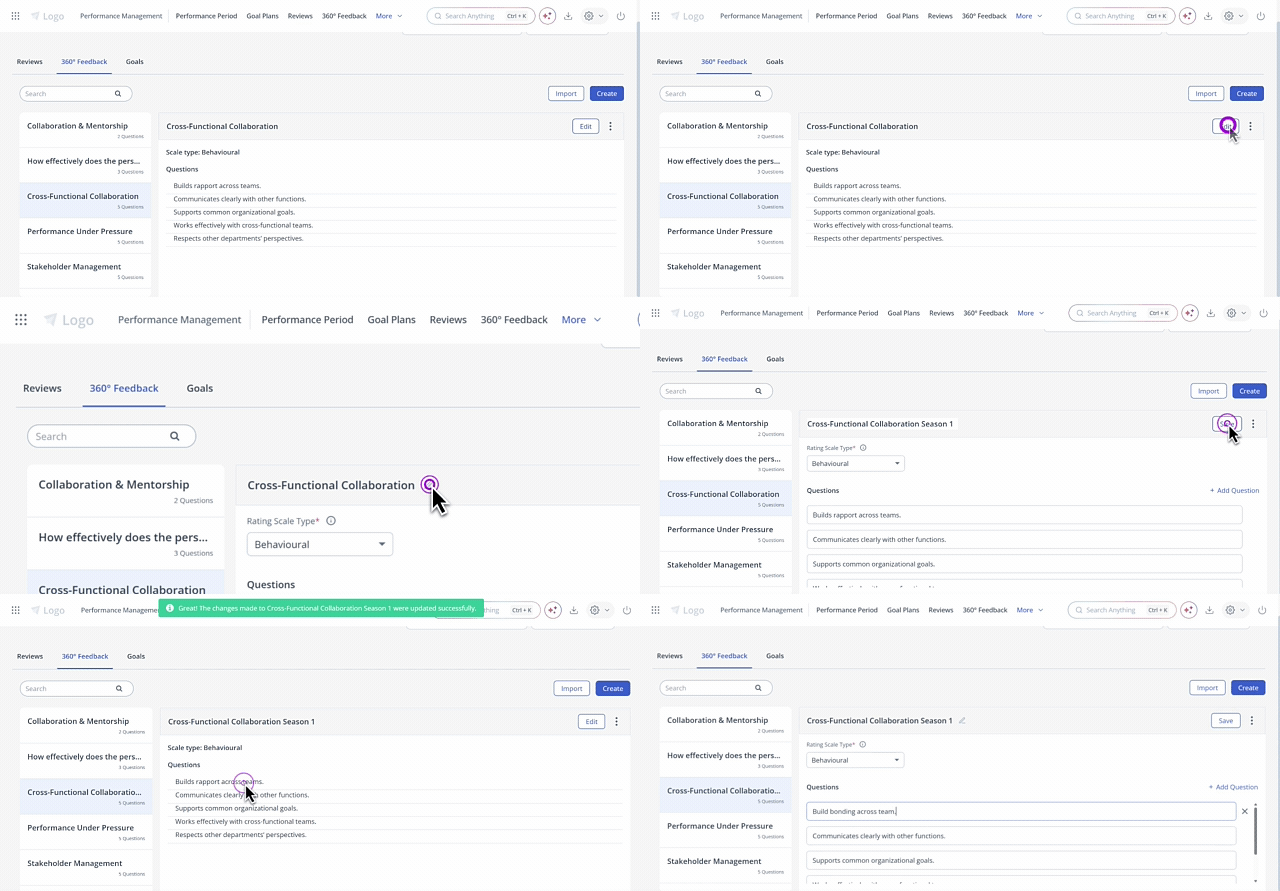
Clone 360° feedback question categories in greytHR
To clone a 360° feedback question category, click on the three vertical dots (⋮), select Clone, and enter a new name. The entire question category will be cloned and shown as a separate entry.
Note: You can’t add the same question more than once.

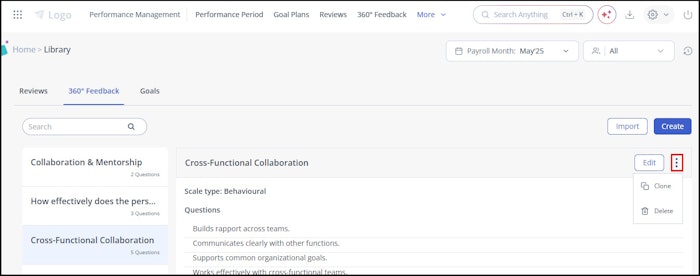
You can choose to delete a question category from the three vertical dots (⋮). To delete a particular question, click Edit > (x) option next to the question.
Reviews Library
The Reviews Library under PMS Library also helps streamline the setup of review cycles with pre-configured review question groups. Instead of manually entering questions for each cycle, admins can quickly select ready-made templates.
Create question groups for review cycles in greytHR
To create question groups for review cycles in the PMS Library, click + Create Question Group under the Reviews tab. Enter a Question Group Name and start adding the required questions.
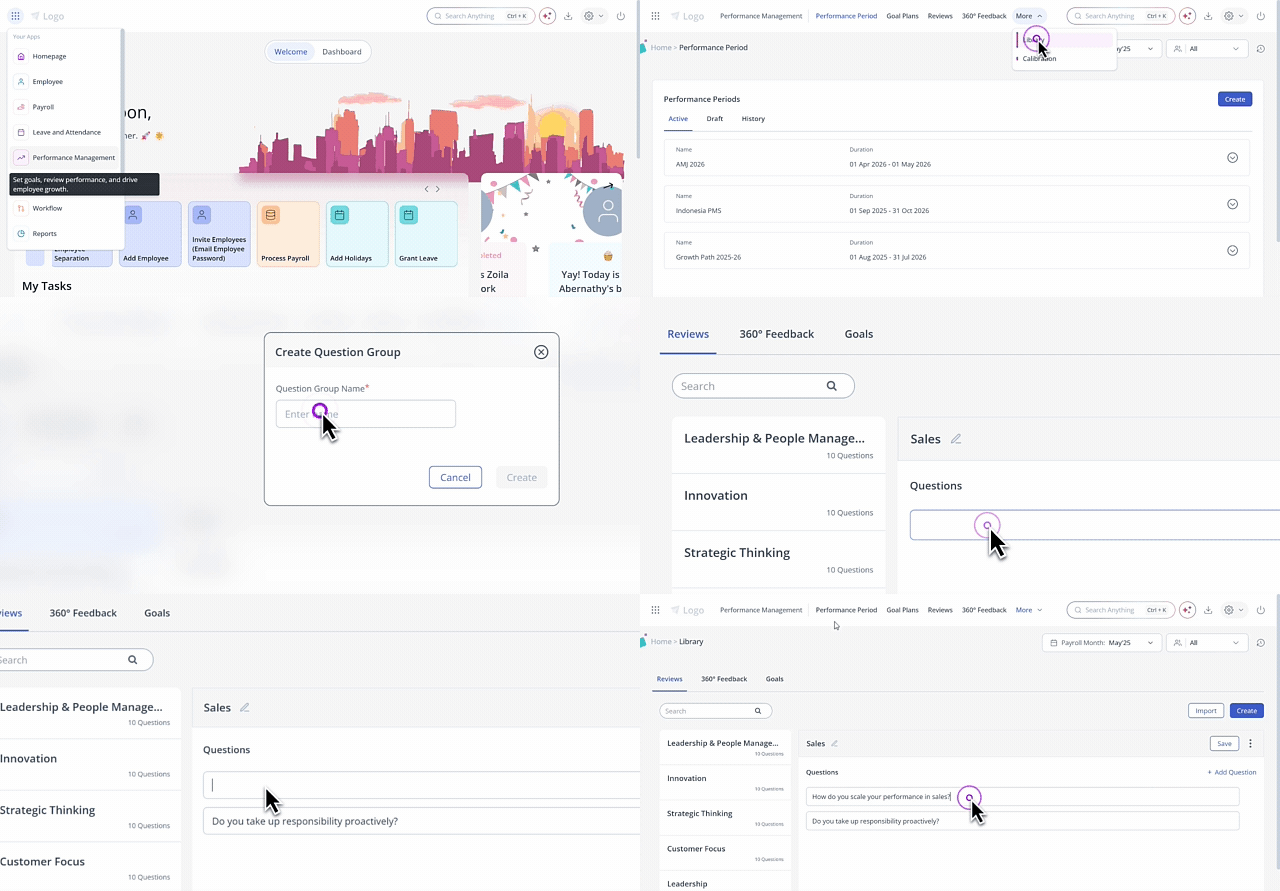
Note: Each review question group must include at least one question.
To add multiple question groups, click the Create option. You can also add multiple question groups in bulk using the Import option.
Using Reviews Library in greytHR
While setting up the review cycle, under the Create Performance Categories section, click + Create Category to view the question categories created in the Reviews Library.
Expand the category and select all or the required questions and click + Add.
After creating the question categories, you have the option to edit, delete, or clone a question category created in the Reviews Library.
Edit a review question category in greytHR
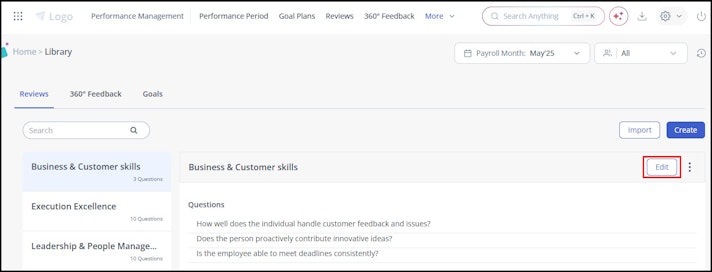
To edit a review's question category, click on the Edit option to make the necessary changes.
If you want to edit a particular question, just tap on the question and edit the same.


Clone a review question category in greytHR
To clone a review question category, click on the three vertical dots (⋮), select Clone, and enter a new name. The entire question category will be cloned and shown as a separate entry.
Note: You can’t add the same question more than once.


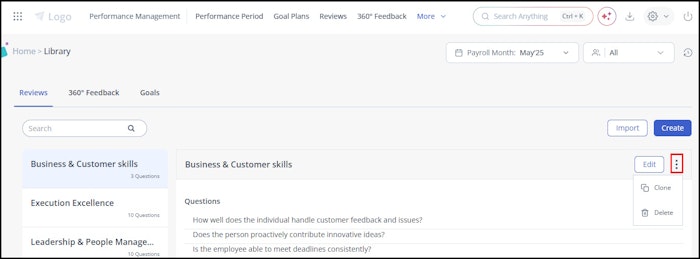
You can choose to delete a goal group or individual goal from the three vertical dots (⋮). To delete a particular question, click Edit > (x) option next to the question.
Unit of Measure Library
The Unit of Measure Library lets you set up a standard list of units — like %, $, or Lakhs — for use while tracking progress on goals and milestones. Instead of employees and managers entering progress values in free text, they choose from this predefined list, keeping performance data consistent across the organisation.
Create a unit of measure in greytHR
To add a unit of measure, from the greytHR Admin portal, hover on the 9 dots and go to Performance Management > Library.
Go to the Unit of Measure tab and click + Add UoM.
A new row appears at the bottom of the table with two fields: Unit of Measure (the short form or symbol, such as %, $, or L) and Description (the full meaning, such as Percentage, Dollars, or Lakhs).
Enter both values. Your entry is saved automatically.
Note: You can add more units by clicking + Add UoM again — each click adds another empty row.
Note: The Unit of Measure field must be unique. Matching is exact, including spacing and letter case. The Description field doesn't need to be unique.
Edit a unit of measure in greytHR
To edit a unit of measure, double-click the row you want to update and change the Unit of Measure or Description field. Changes are saved automatically.
Hide or unhide a unit of measure in greytHR
Hiding a unit of measure stops it from being selected for new entries, while keeping it intact wherever it's already in use.
Hover over the row to reveal the eye icon, and click it to toggle between:
Open eye – the unit is active and can be selected
Crossed-out eye – the unit is hidden and can't be selected for new entries
Note: Hidden units continue to show wherever they're already in use, such as on existing goals or milestones. Hiding a unit doesn't affect historical data.
Delete a unit of measure in greytHR
To delete a unit of measure, hover over the row and click the delete icon, then confirm in the pop-up.
If the unit isn't used anywhere in the system, it's removed permanently and a confirmation message appears.
If the unit is currently in use, greytHR won't delete it — a message lets you know it can't be removed while it's in use. Hide it instead.
Search for a unit of measure in greytHR
Use the Search box at the top right of the Unit of Measure tab to filter the list. You can search by either the Unit of Measure symbol or its Description, and results update as you type.
What’s more?
greytHR PMS Library also allows:
Managers to assign and customize pre-configured goals from the Goals Library, ensuring alignment with team and company objectives.
Employees to select their goals from the Goals Library, staying clear on expectations, and aligning with the overall business goals.
Other related links: