Efficiently Manage 360° Feedback Cycles with greytHR
Updated in June - 2026 | Subscribe to watch greytHR how-to video
greytHR’s 360° Feedback provides a complete view of employee performance by gathering diverse perspectives, reducing bias, and identifying skill gaps.
Managing the 360° Feedback cycle in greytHR is a seamless process. As an admin, you can easily handle all the tasks. After creating and activating the 360° Feedback cycle, from the Control Panel section, you can efficiently manage the key tasks such as:
Pause/Resume/Cancel feedback cycle.
Delete feedback cycle.
Delete an employee from a 360° Feedback cycle.
Notify employees/managers/admins for nominations and evaluations.
Notify/Pause employees’ feedback cycles.
Update Managers.
Publish Reports.
Generate custom 360° Feedback reports using Query Builder.
Pause/resume/cancel 360° Feedback cycle
To pause/resume/cancel a feedback cycle from the greytHR Admin portal, go to Performance Management > 360° Feedback.


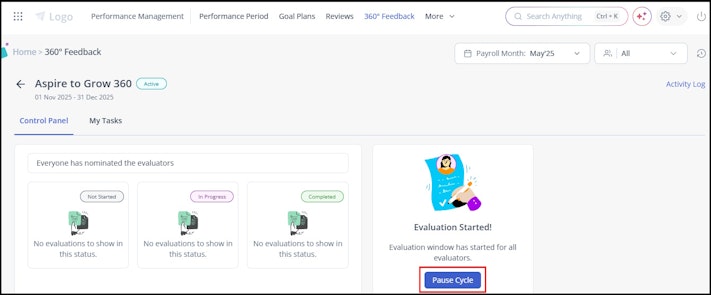
Under the Active tab, select the required feedback cycle and click View Details > Pause Cycle. It is important to add remarks while pausing the cycle. After the feedback cycle is paused, you can resume/cancel the cycle.
Note: Once the cycle is paused, the ongoing nomination or the evaluation is also paused.
Delete a feedback cycle
If you want to delete a canceled feedback cycle, you can do so from the 360° Feedback section.


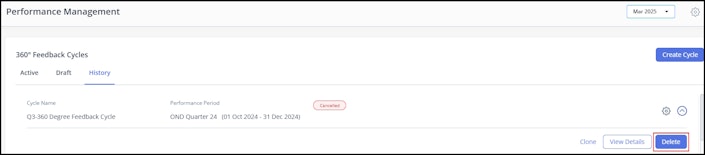
Under the History tab, select the canceled feedback cycle which you want to delete and expand it.
Click Delete and Confirm it.
You can also delete a feedback cycle by selecting the canceled cycle > View Details > Delete Cycle.
Note: To delete an active feedback cycle, you must first pause and cancel it.
Delete an employee from a 360° Feedback cycle
You can delete an employee from a 360° Feedback cycle if their participation has been cancelled. This helps keep the cycle clean and ensures only relevant employees are listed.
To delete an employee from a feedback cycle, from the greytHR Admin portal, hover over the 9 dots and go to Performance Management > 360° Feedback.
Select the required feedback cycle card and click View Details > Control Panel.
Scroll down to the employee list.
Select one or more employees whose status is Canceled.
Click Delete. A pop-up appears.
Click Confirm to delete the employees.
Note:
You can configure another 360° Feedback cycle for the same employee during the same performance period.
The deleted employee is removed from the cycle and from ESS (for the employee, manager, and evaluators). They will no longer appear as a participant
The employee will continue to be an evaluator for another employee if they have been nominated.
Their 360° Feedback document will be removed from all ESS views.
Notify employees/managers/admins for nominations and evaluations
You can send email reminders to employees, managers, or admins when it’s their turn to complete the nomination and evaluation process.
To do so, from the greytHR Admin portal, go to Performance Management > 360° Feedback.
Select the required feedback cycle card and click View Details > Control Panel.
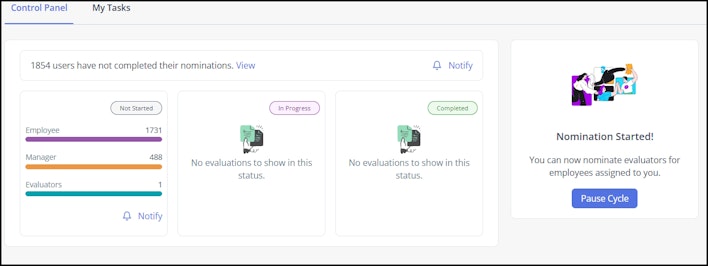
Under the Control Panel section, the top card shows the nomination status, allowing you to view nominator details and send reminders. Below, you can view three additional cards representing the status of evaluations:
Not Started: Shows evaluations that have not been initiated yet.
In Progress: Reflects evaluations currently in progress.
Completed: Displays evaluations that have been fully completed.
Based on the status, you can send email reminders. You can notify employees in Not Started and In Progress statuses.
To send a notification, from the greytHR Admin portal, go to Performance Management > 360° Feedback. Select the required feedback cycle card and click View Details. Click Notify to notify the employees/managers/admins through email.

Info:
The Employee and Manager bars are visible only if the admin selects them as evaluators during the feedback cycle configuration.
The Evaluator bar displays the evaluation status once the nominators start the evaluation process.
Notify/pause employee(s) for 360° Feedback cycles
You can notify to complete actions or pause the feedback cycle of a single or many employees. But this can be done just for active feedback cycles.
To notify/pause employees’ feedback cycle, from the greytHR Admin portal, go to Performance Management > 360° Feedback.


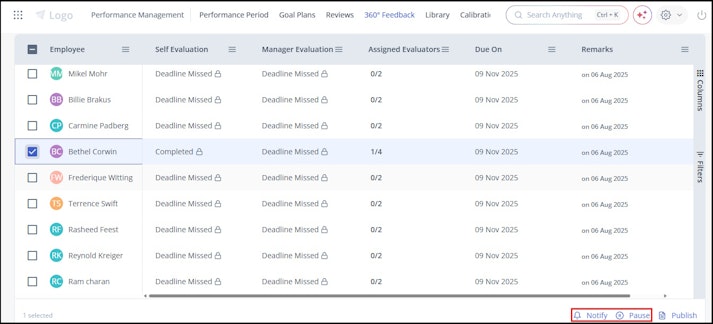
Select the required feedback cycle card and click View Details.
Scroll down, select the employees, and click the Notify/Pause button available at the bottom of the page.
Update managers for the 360° Feedback cycle
If an employee’s manager changes during the feedback cycle, as an admin, you can update the changes in the ongoing cycle. With this, the new manager can perform the actions assigned to the role.
Points to remember:
If the previous manager has completed the nomination/evaluation process during the nomination/evaluation period period, no action is required. If the nomination/evaluation process is still in progress or not started, the new manager must complete it.
Publish 360° Feedback reports
After the evaluation is completed by all the nominators, the next step is to publish the report. You can do this at both the cycle level and the employee level.
To publish the report, from the greytHR Admin portal, go to Performance Management > 360° Feedback.
Publish report at cycle level
Select the required feedback cycle card and click View Details > Control Panel > Publish Report.
Click Confirm and the report is published.
Publish report at the employee level
Select the required feedback cycle card and click View Details > Control Panel.
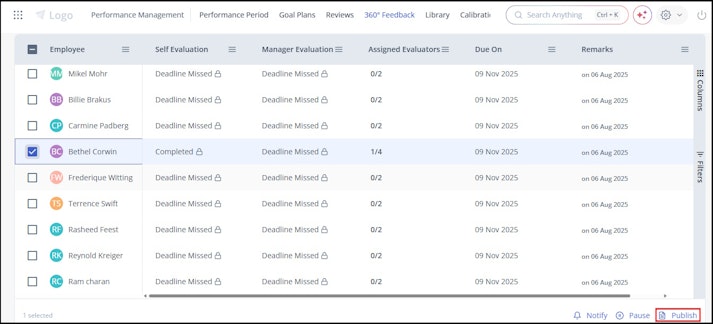
Under the Evaluation Status section, select the required employee and click Publish > Confirm and the report is published.

Note:
Once the evaluation window closes, the evaluation card is removed from the ESS portal.
As an admin, you can publish the report at the employee level even if one of the evaluators has completed the evaluation.
It is not mandatory for all evaluators to complete the process.
Generate custom 360° Feedback reports using Query Builder
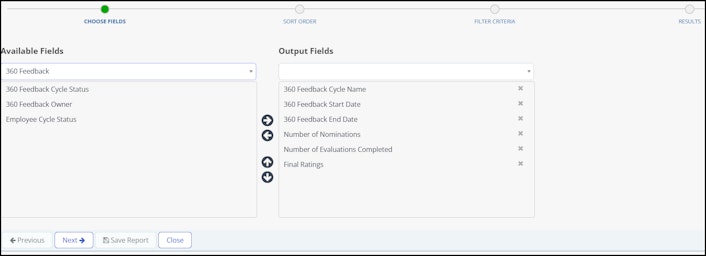
From the Query Builder page, you can generate custom reports using the required fields such as cycle status, start and end dates, final ratings, and more—offering detailed, filterable data to drive more effective performance reviews.
Select fields from the dropdown, apply filters using the Quick or Custom tab, add report details, and finally, export and save the report.
Note: The final ratings would appear only if the cycle is published for the employees.


Related article: