Efficiently Manage Employee Workflow Applications with greytHR
Updated in June - 2026 | Subscribe to watch greytHR how-to video
Workflows in greytHR help manage employee requests through defined approval processes, ensuring consistency, accountability, and timely actions across HR operations. These workflows cover multiple processes and guide requests from submission to completion.
The Workflow module in greytHR allows admins to review, monitor, and track employee workflow applications from a single place. Based on the selected workflow module (such as Leave, Claims, Resignation, etc.), admins can view application requests, take action where required, and track their status.
To view or access the workflow pages, from the greytHR Admin portal, hover over the 9 dots, and, go to Workflow > Modules. Based on the selected module, the following tabs may be available:
Review
Monitor
Track
Review employee workflow applications
The Review tab allows HR admins and reviewers to view and act on workflow application requests assigned to the logged-in admin that are pending approval. This tab is visible when the admin is configured as a reviewer in the Workflow Levels setup.
You can view key application details such as submission timeline, application type, reviewer name, and current status. If a designated reviewer is unavailable, the admin can take action on their behalf.
Depending on the module, you can review applications for:
Attendance Regularization
Permission
Overtime
Leave Encashment
Reimbursement Claim
Claims
Letter Requests
Leave
Leave Comp Off
Leave Cancel
Help Desk
Restricted Holiday Leave
Resignation
Confirmation
DeviceDetect
Events
Request Hub
Employee Creation
Note: The review process of employee onboarding continues to follow the existing flow and is not affected by this page or its features.
Review workflow applications
To review employee applications:
From the greytHR Admin portal, hover over the 9 dots and go to Workflow > Modules.
Select the required workflow module.
Open the Review tab.
By default, the Pending sub-tab displays applications awaiting action. Switch to Completed to view closed requests.
Use the Search field to find requests by employee name or employee number.
Apply one or more filters (such as Location, Department, Designation, Business Unit, or other configured organizational fields) to quickly narrow down the list of workflow requests.
Click View Details against a request to view complete employee and application details.
Click the Export Excel icon to download the application list.
Bulk approve, reject, and forward Leave and Attendance requests
Admins can approve, reject, or forward multiple requests in bulk from the Review page with all validations and audit logging maintained at the individual request level.
The Review page lists all pending requests across the following request types:
Attendance
Attendance Regularization
Permission
Overtime (OT)
Leave
Leave Requests
Leave Encashment
Leave Comp-off
Leave Cancellation
Restricted Holiday Leave
Filter and select requests
From the greytHR Admin portal, hover over the 9 dots and go to Workflow > Modules.
Select the required workflow module (Attendance or Leave).
Use the Submitted On and Category filters to narrow down requests.
Select individual requests using the row-level checkbox, or use the header checkbox to select all requests on the current page.
Note: When multiple requests are selected, only actions applicable to all selected requests are shown. Actions not applicable to some requests are hidden or disabled.
Bulk approve: Select requests and click Approve Selected. Eligible requests arevalidated individually using standard approval rules. Approved requests move to approved status and are removed from the pending list in real time.
Bulk reject: Select requests and click Reject Selected. If a rejection reason is mandatory in the standard flow, the same applies here.
Bulk forward: Select requests and click Forward. This option appears only when forwarding is permitted for at least one of the selected requests. The system automatically routes eligible request to the next reviewer as defined in the workflow hierarchy — no manual selection required.
Note: If some requests fail validation, those remain unchanged while valid / eligible requests are processed. The system displays a summary of total selected, successfully processed, and failed requests with reasons.
Monitor employee workflow requests
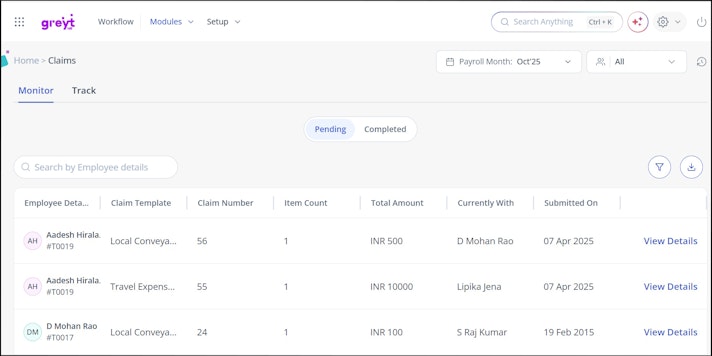
The Monitor tab helps admins oversee all expense requests submitted by employees and track their progress, including applications that are pending action with reviewers. This view is useful for managing workloads, identifying delays, and intervening when a reviewer is unavailable.
Each application card shows the number of days involved and the reviewer with whom the request is pending. Admins can also download workflow reports for reference.
You can monitor requests for:
Attendance Regularization
Permission
Overtime
Leave Encashment
Reimbursement Claim
Claims
Letter Requests
Leave
Leave Comp Off
Leave Cancel
Help Desk
Restricted Holiday Leave
Resignation
Confirmation
Loan
Employee Creation
Monitor Workflow Requests
To monitor workflow requests:
From the greytHR Admin portal, go to Workflow > Modules.
Select the required workflow module.
Open the Monitor tab.
Use the Pending sub-tab to view requests awaiting action and Completed to view closed requests.
Use the Search field to locate requests by employee name or employee number.
Review the Status and Currently With columns to identify pending ownership.
Click View Details to view employee details, request information, and workflow history.
Click the Export Excel icon to download the required workflow page.


Track employees’ workflow applications
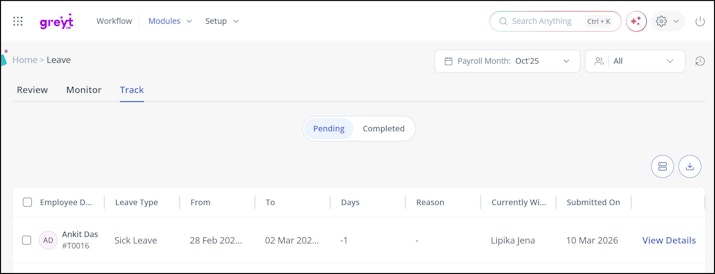
The Track tab allows admins to track the status of workflow applications submitted by logged in admin. This view provides visibility into both active and completed requests when the admin is part of the workflow as a reviewer.
You can view detailed application information such as leave type, dates, reason, remarks, and workflow history. Admins can also accept or revoke applications where applicable.
You can track applications for:
Attendance Regularization
Permission
Overtime
Leave Encashment
Reimbursement Claim
Claims
Letter Requests
Leave
Leave Comp Off
Leave Cancel
Help Desk
Restricted Holiday Leave
Confirmation
Employee Creation
Track Workflow Applications
To track employee workflow applications:
From the greytHR Admin portal, go to Workflow > Modules.
Select the required workflow module.
Open the Track tab.
Use the Pending sub-tab to view active requests and Completed to view closed requests.
Use the Search field to find requests by employee name or employee number.
Click View Details to expand and view information such as category, submitted date, reason, remarks, and workflow history.
Click the Export Excel icon to download the required application list.


Note: The availability of Review, Monitor, and Track tabs depends on the selected workflow module.
Related articles:
Review employee’s onboarding details